Still have questions?
Come chat with us and we will get back to you as soon as possible!

Shockbyte
Support Team

How To Become Admin On Your DayZ Server
Adding yourself as an Admin on your DayZ server is a great way to have better control over your server. It gives you access to all console commands and allows you to ban or kick players should you need to.
#Adding Yourself as an Admin
You can become an admin by using the admin password found in your server config file.
-
Access your control panel and Stop the server.
-
Navigate to the Files tab.
-
Locate and open the serverDZ.cfg file.
-
Locate
passwordAdmin = " ";and add your desired password between the quote marks.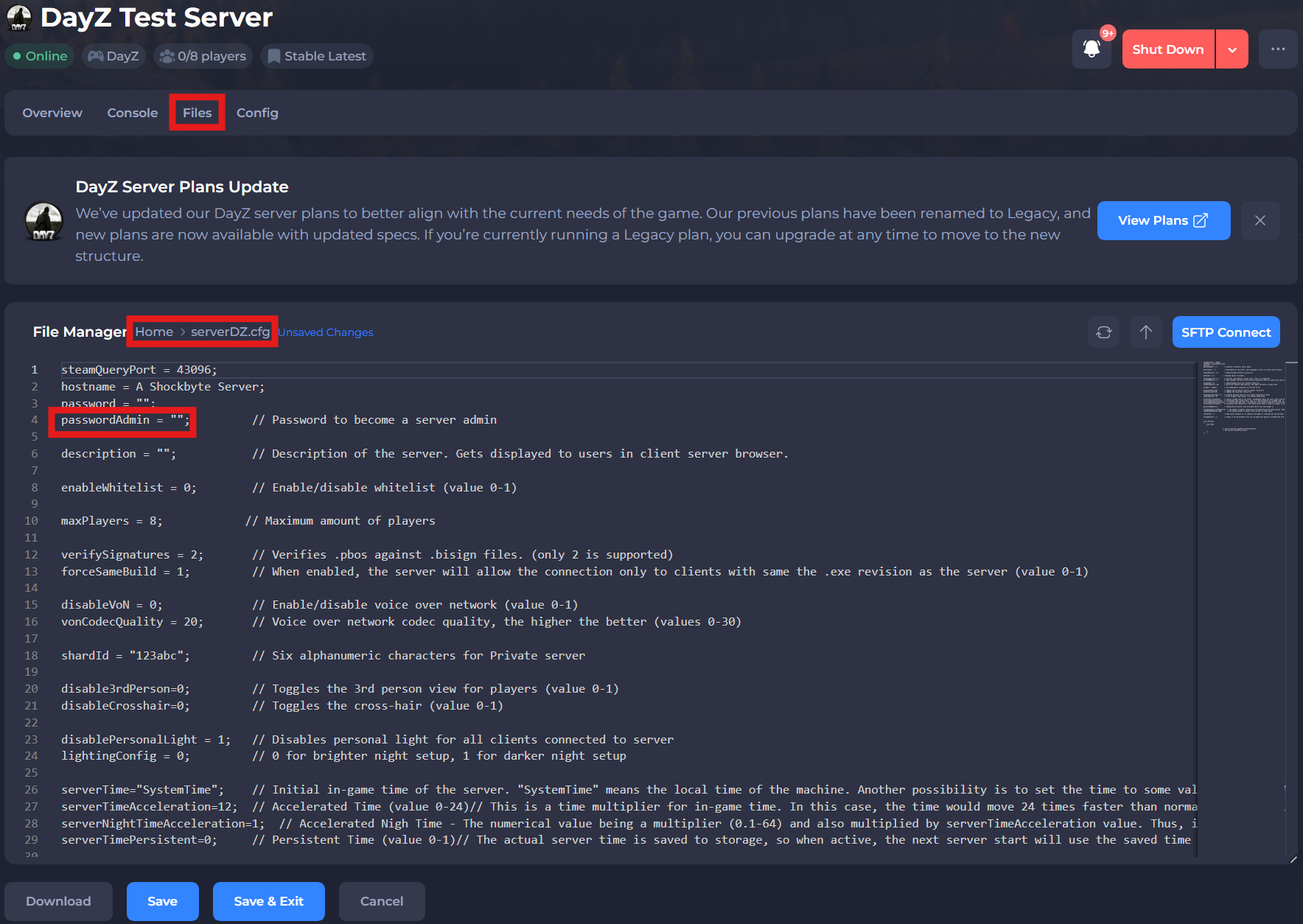
-
Click Save and Restart your server.
-
Join your server and open the in-game chat by pressing enter and type
#login password.
#Server Admin Commands
| Command | Description |
|---|---|
#login password | Log in as the Admin of the server. |
#logout | Admin log out. |
#mission filename Difficulty | Select the mission with known name and set the difficulty – the difficulty parameter is optional and, if not set, the current difficulty is kept. |
#missions | Select a mission. |
##restart | Restart a mission. |
#reassign | Start all over and reassign roles. |
#shutdown | Shuts down the server. |
#restartserver | Restarts the server. |
#shutdownserveraftermission | Once the mission ends, the server is shut down. |
#restartserveraftermission | Once the mission ends, the server is restarted. |
#init | Reload server config file loaded by -config options. |
#exec ban Name | Allows you to ban a player. |
#exec ban ID | Allows you to ban a player. |
#exec ban #Player | Allows you to ban a player. |
#kick Name | Allows you to kick a player from the server. |
#kick ID | Allows you to kick a player from the server. |
#kick #Player | Allows you to kick a player from the server. |
#monitor (interval in seconds) | Shows you server performance information. If the interval is 0, the monitoring stops. |
#monitords (interval in seconds) | Shows the performance information on the server console. If the interval is 0 the monitoring stops. |
#debug off | Disables debugging. |
#debug (interval in seconds) | The default interval is 10 if no other interval is selected. |
#debug (command) (param) | Available commands: JIPQueue, userQueue, checkFile, totalSent, userSent, userInfo. You can disable each command by adding off after each command, e.g., #totalSent off. Output may go to log or screen. Requires debugger on client capable of catching OutputDebugString. |
#debug (command) | Same as above, but just the command (without param). |
#logout | Admin log out. (Listed again due to repetition in original content.) |
console, von (within #debug) | console – sends what is in the server console to the sender. von – outputs to logFile defined in server.cfg, e.g., server_console.log. You will see confirmation in chat channels. |
If you need additional help, our support team is always happy to assist: https://shockbyte.com/contact