Still have questions?
Come chat with us and we will get back to you as soon as possible!

Nuno Paiva
Game Integration Specialist @ Shockbyte
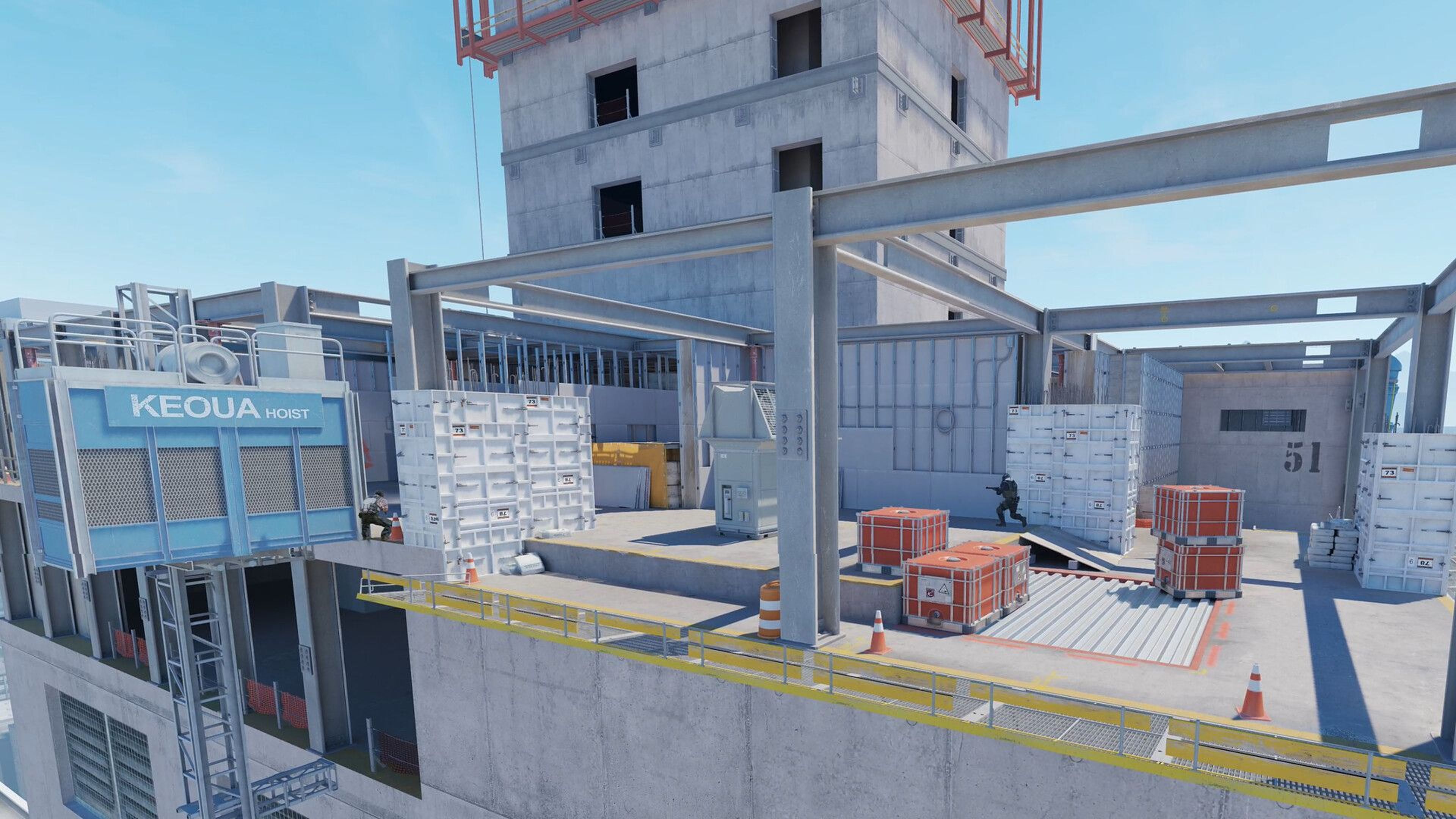
How to Change Map on your Counter Strike 2 Community Server
Counter Strike 2 community servers allow you to set a default map that loads when players join the server. You can use any of the built-in CS2 maps and configure them through your control panel.
Note
If you're looking to use a Steam Workshop map or a Workshop collection, check out our guide on How to Use Steam Workshop Maps and Collections on Your Counter Strike 2 Server
#Common Default Maps
Below are some commonly used maps in CS2 community servers:
| Map Name | File Name |
|---|---|
| Mirage | de_mirage |
| Inferno | de_inferno |
| Dust II | de_dust2 |
| Anubis | de_anubis |
| Ancient | de_ancient |
| Nuke | de_nuke |
| Overpass | de_overpass |
| Vertigo | de_vertigo |
| Office | cs_office |
| Italy | cs_italy |
You can find all available default maps by navigating to the Files tab in your control panel and opening: /game/csgo/maps
#Setting the Default Map
To change your server’s default starting map:
- Navigate to your control panel and Stop your server.
- Go to the
Configtab. - Find the Map field and enter the map name (e.g.,
de_mirage). - Save the changes and Start your server again.
#Changing Map via Console
You can also switch maps anytime while your server is running by using the console command:
map mapname
For example, to load Dust II, enter:
map de_dust2
If you require any further assistance, don't hesitate to get in touch with our support at: https://shockbyte.com/billing/submitticket.php