Still have questions?
Come chat with us and we will get back to you as soon as possible!

Shockbyte
Support Team

How to Join your RuneScape: Dragonwilds Server
This guide explains how to join your RuneScape: Dragonwilds server. Whether you're connecting for the first time or rejoining after setup, the steps below will walk you through the process to ensure a smooth connection.
By following this guide, you’ll be able to locate the server, connect successfully, and start playing without any issues.
#Joining your Server Via the Public Server List
Important
Setting the Owner ID is required for your server to show in the server list. Please follow our guide that explains How to Set your Owner ID on your RuneScape: Dragonwilds Server.
#Setting the World Name
To join your RuneScape: Dragonwilds server using the server list, you will need to set the name of your world. You can do this by editing your RuneScape: Dragonwilds Settings in the Settings area of the panel.
- Access your Control Panel and Stop your server.
- Navigate to the Settings tab and select the
RuneScape: Dragonwilds Settingsfile. - Locate the
World Nameoption and set your desired World Name.
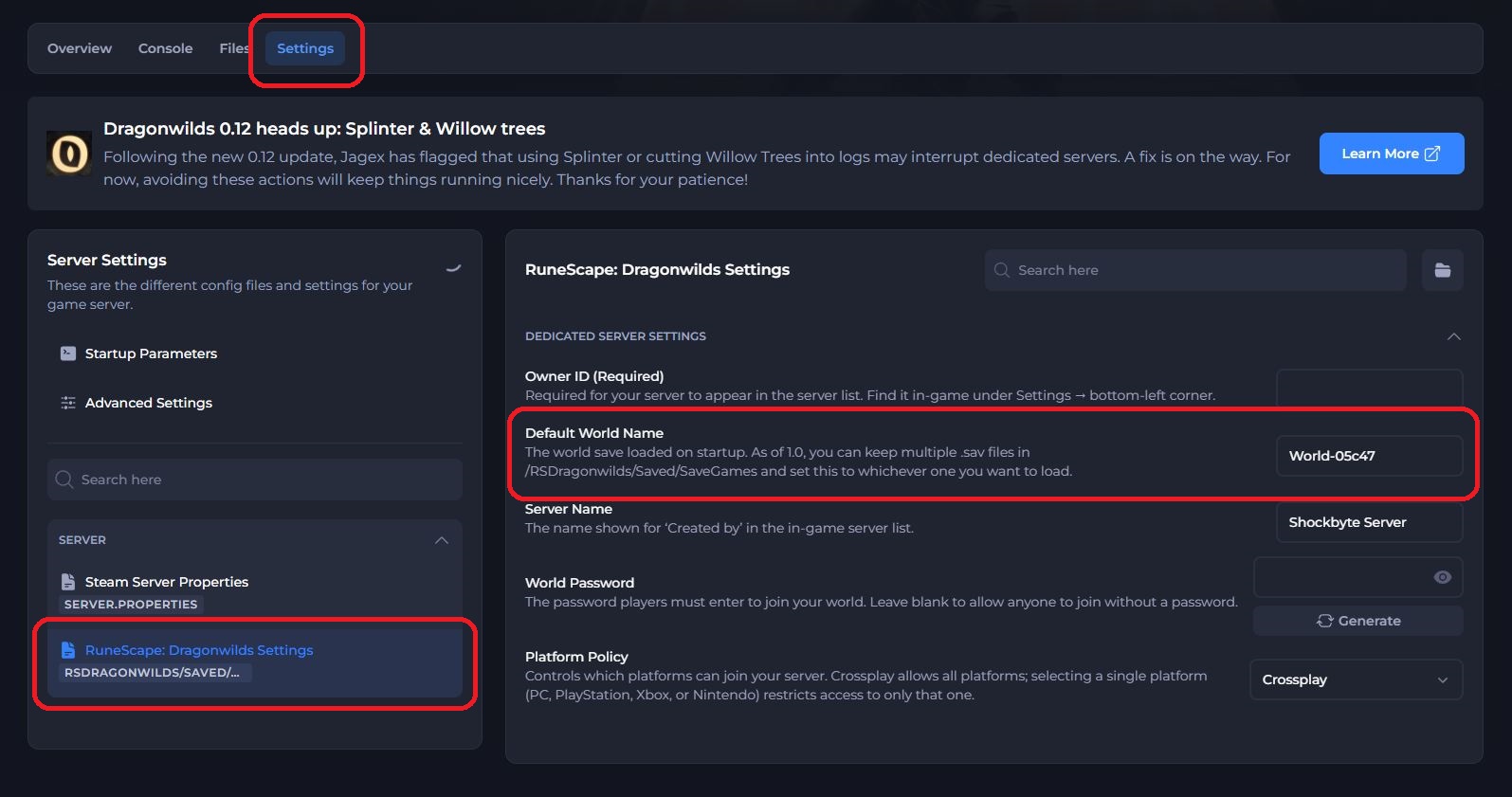
- (Optional) Set a password for your server to allow only people with the password to join your server. Leave this empty to allow public access.
- Save and restart the server to ensure the new changes apply.
#Joining your Server
Now that we have set the Server Name, we can join the server using the in-game public server list.
-
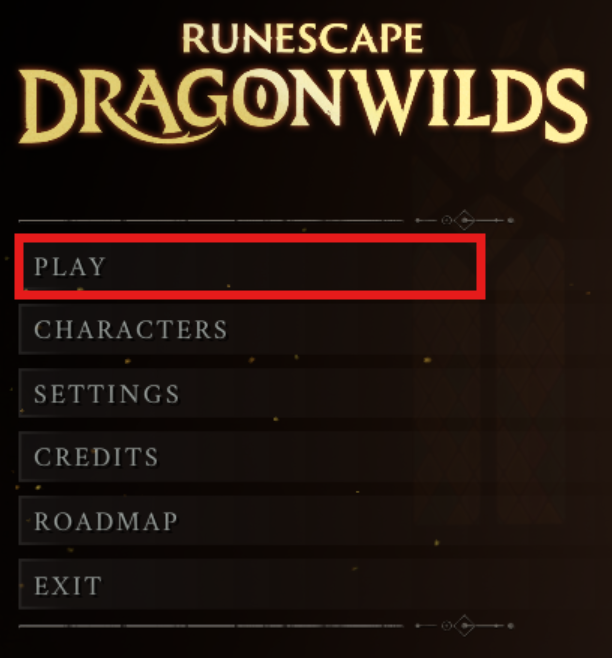
Open RuneScape: Dragonwilds and select the Play button.
-
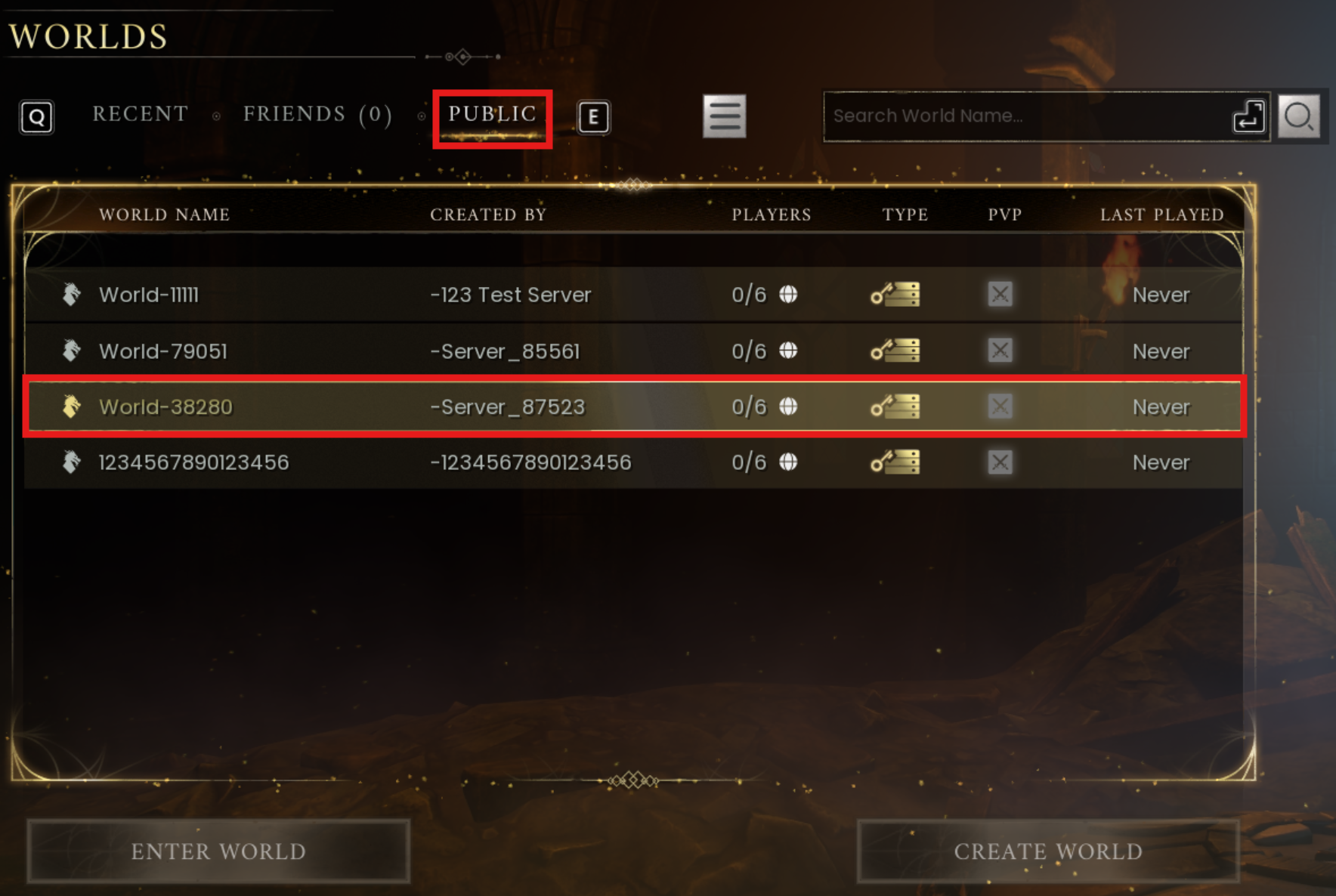
Select Online and navigate to the Public tab.
-
Search for your server using the World Name you set earlier in this guide.
-
Select the Enter World button and enter the password if you have previously set one.
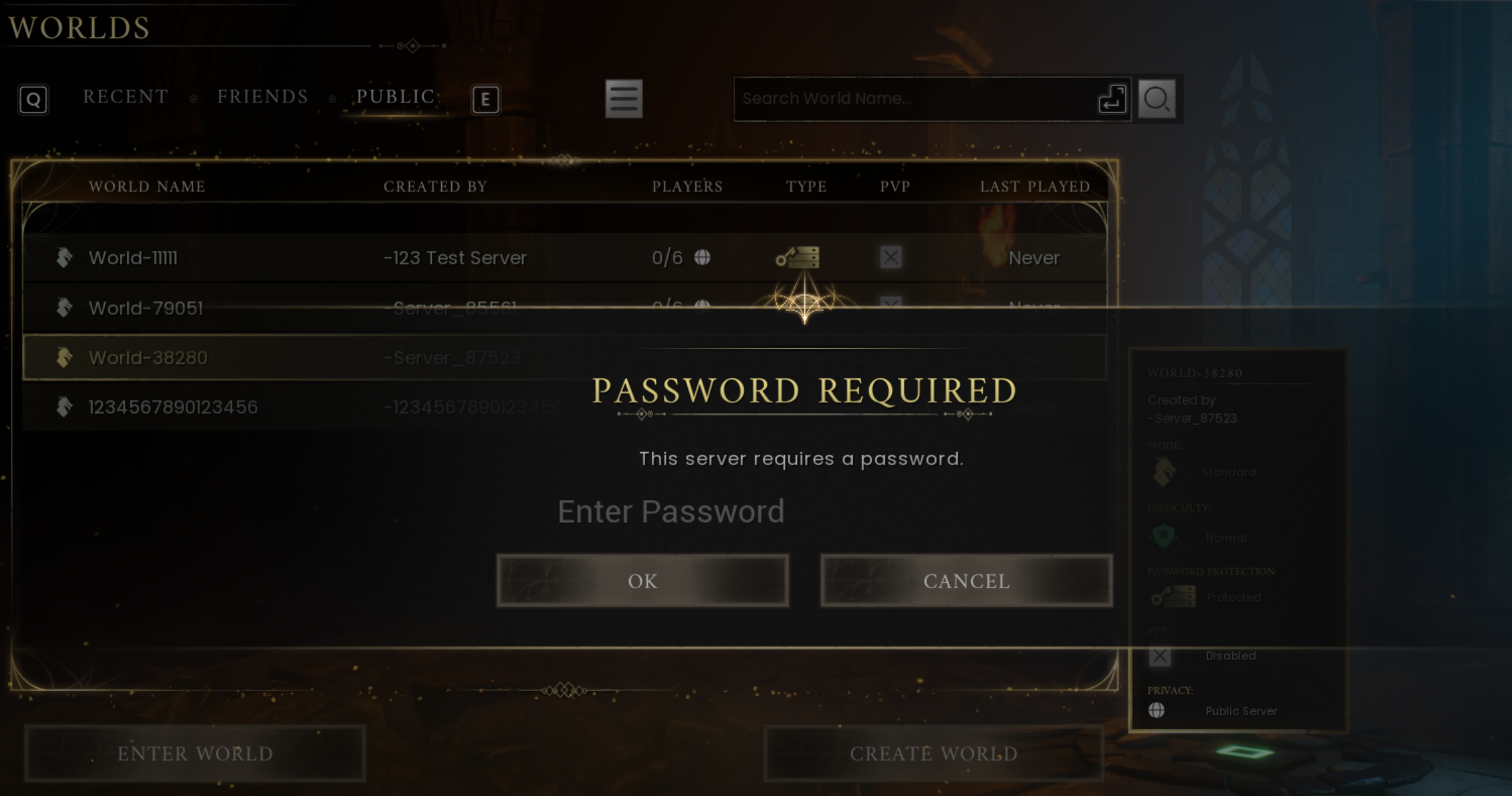
You have officially joined your server!
#Direct Connect
Alternatively, you can join your server via Direct Connect using your server IP.
-
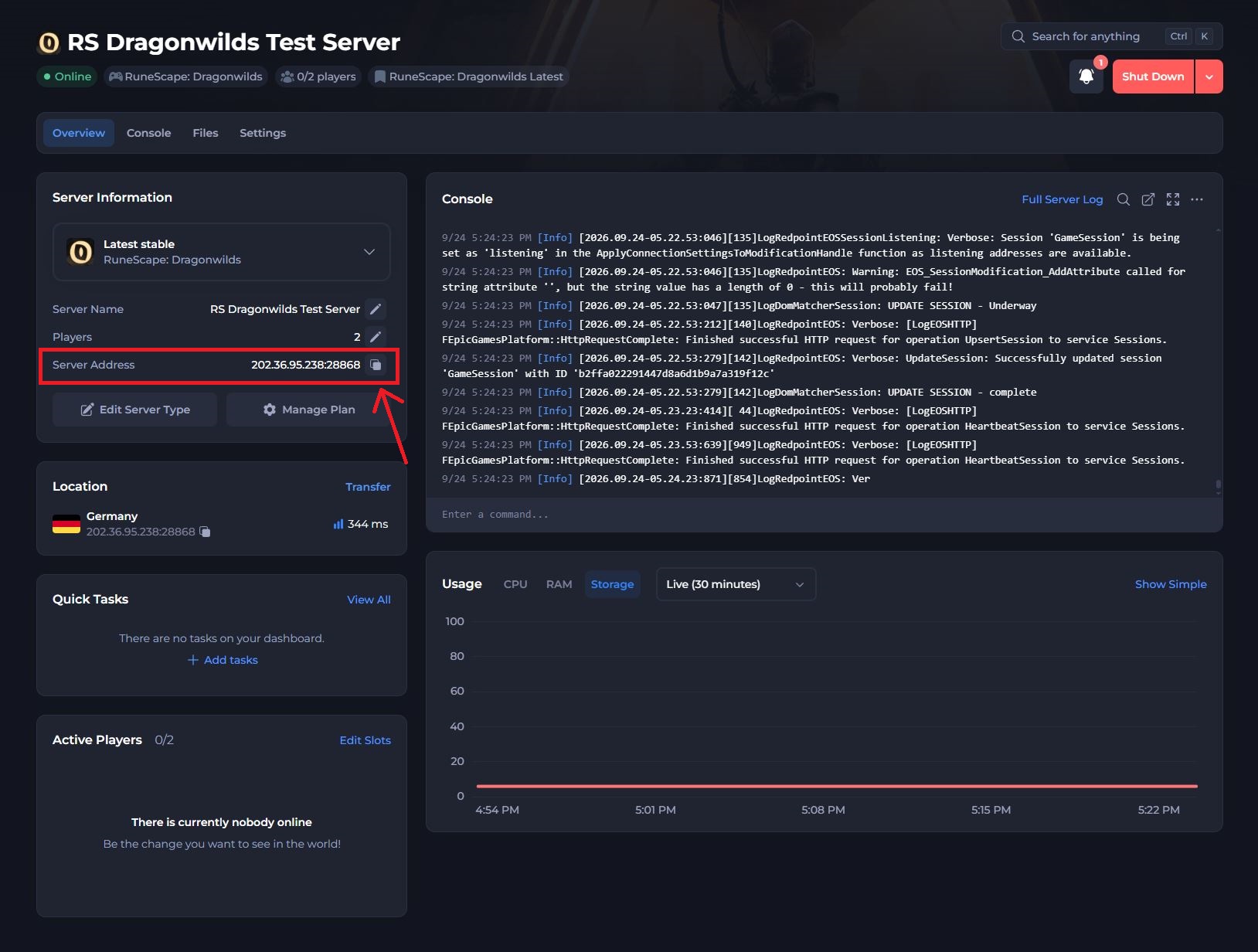
Access your Control Panel and locate your servers IP address.
-
Click the Copy button next to your server's IP.
-
Open RuneScape: Dragonwilds and select the Play button.
-
Select Online and navigate to the Directc tab.
-
Paste your server IP
[Ctrl + V]into the text box and click Join Server.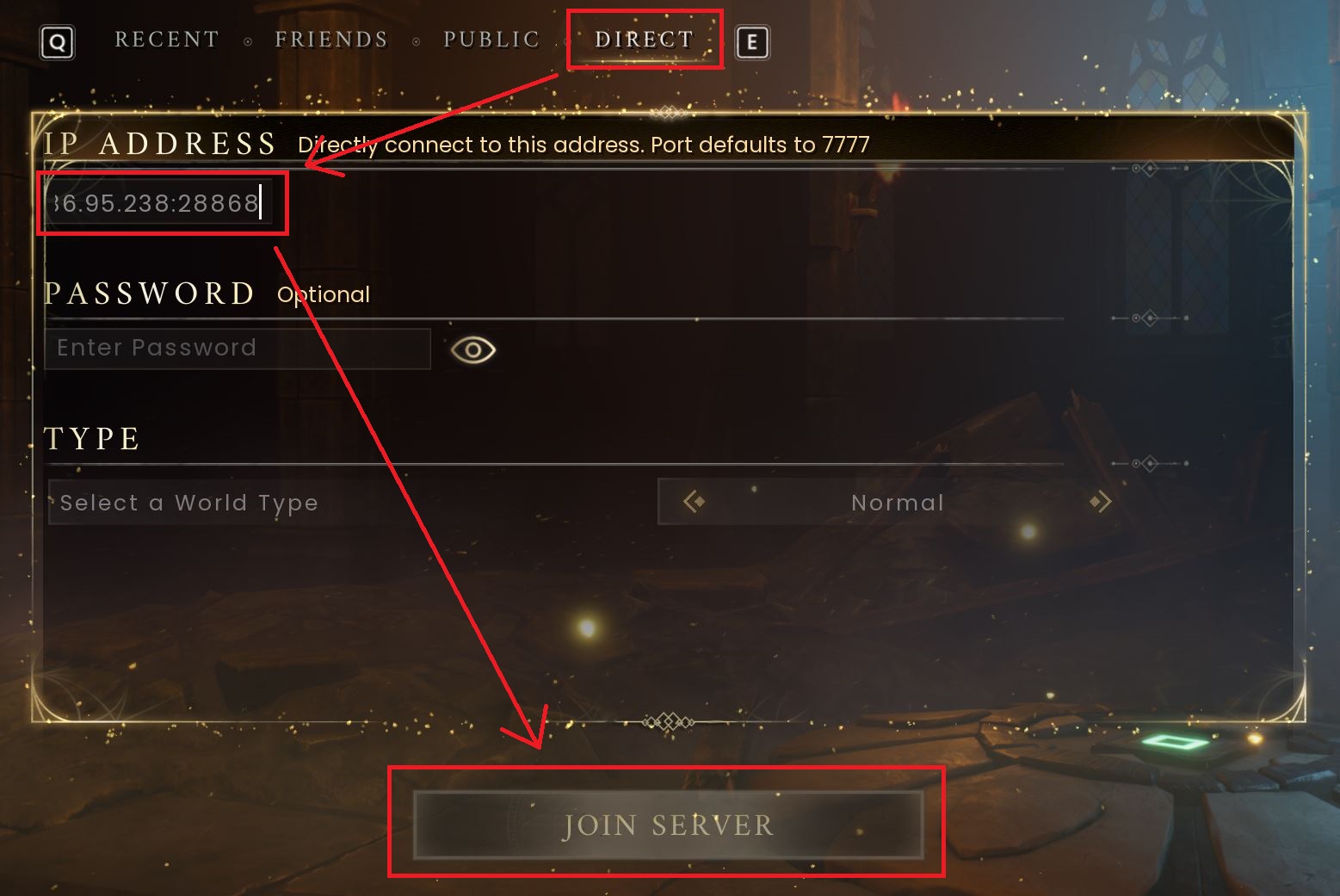
You have not connected to your server using Direct Connect!
Note
If you encounter a black screen upon connection or your server is not appearing in the server list, ensure you have set a vaild Owner ID and double-check your world save using our RS Dragonwilds Server not showing in Public Server List / Black Screen Issue guide.
If you require any further assistance, please contact our support at: https://shockbyte.com/billing/submitticket.php