Still have questions?
Come chat with us and we will get back to you as soon as possible!

Shockbyte
Support Team

How to Setup a Discord Bot for your FiveM Server
The txAdmin panel offers a wide range of management features for your FiveM server, including built-in Discord bot integration. This guide explains how to set up the Discord bot and use it effectively.
#Setting Up the Discord Application
Setting up the txAdmin Discord bot requires creating a Discord application first. This application represents your bot and defines how it appears in Discord.
- Head to the Discord Developer Portal, select New Application, and give your application a name.

- Once you have created the app, take note of the
Application ID.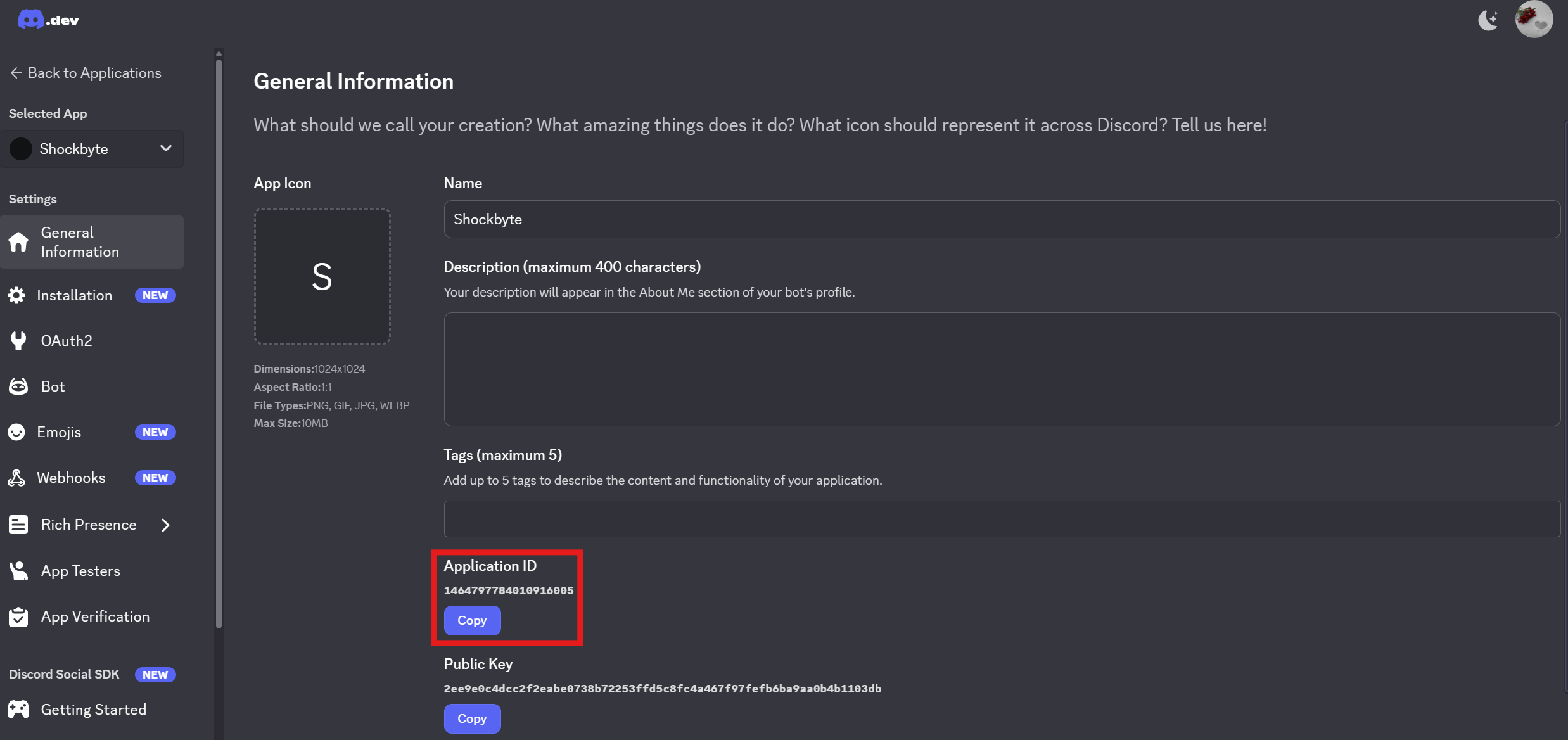
#Configuring the Bot
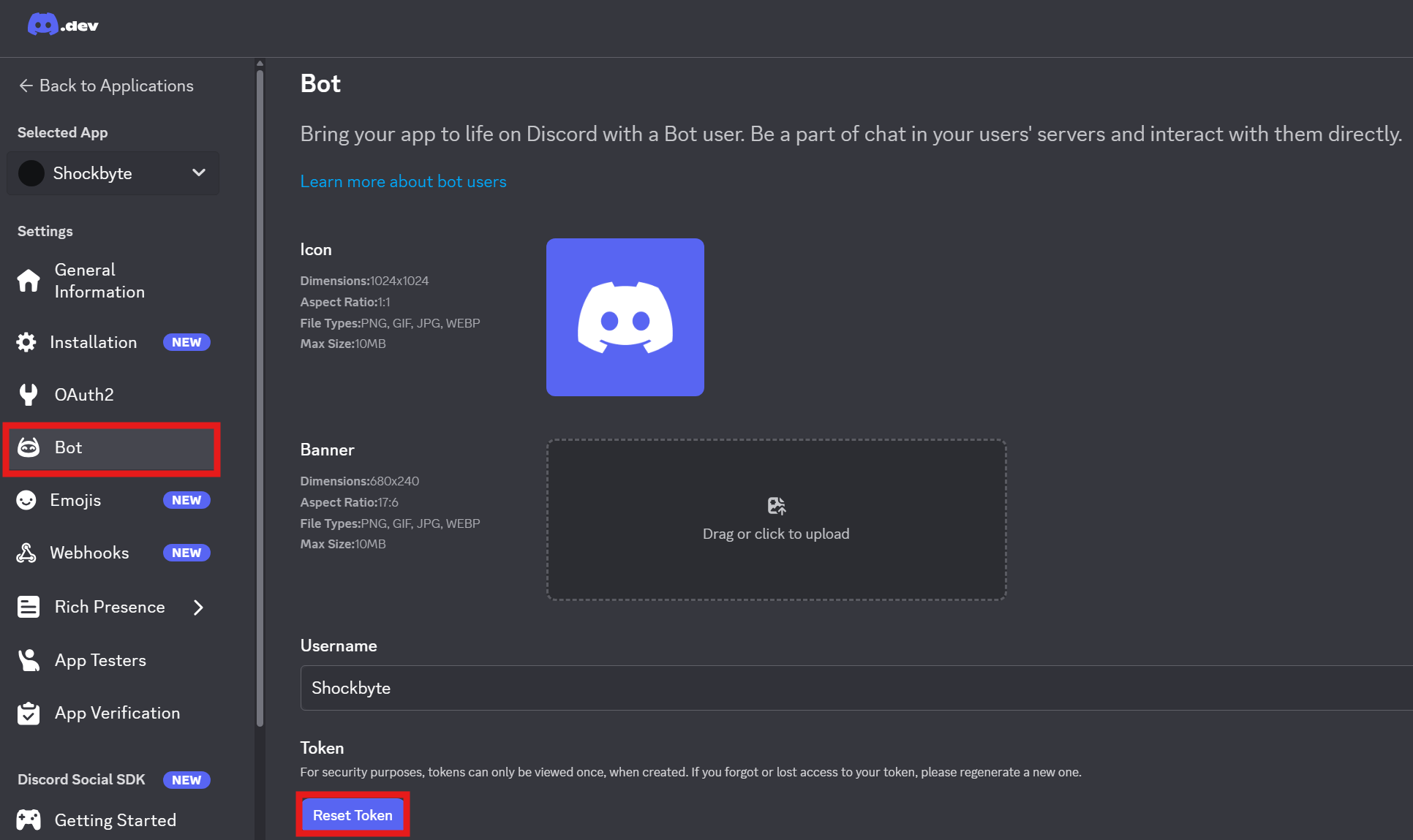
After creating the application, a bot is created automatically. To retrieve the bot token, click Reset Token. Be sure to copy and store the token safely, as it will be needed to complete the txAdmin setup.
-
Navigate to the Bot tab in your application.
-
Select the
Reset Tokenbutton.
Important
Your bot token is a private key and should never be shared, as it can be used to gain unauthorized access.
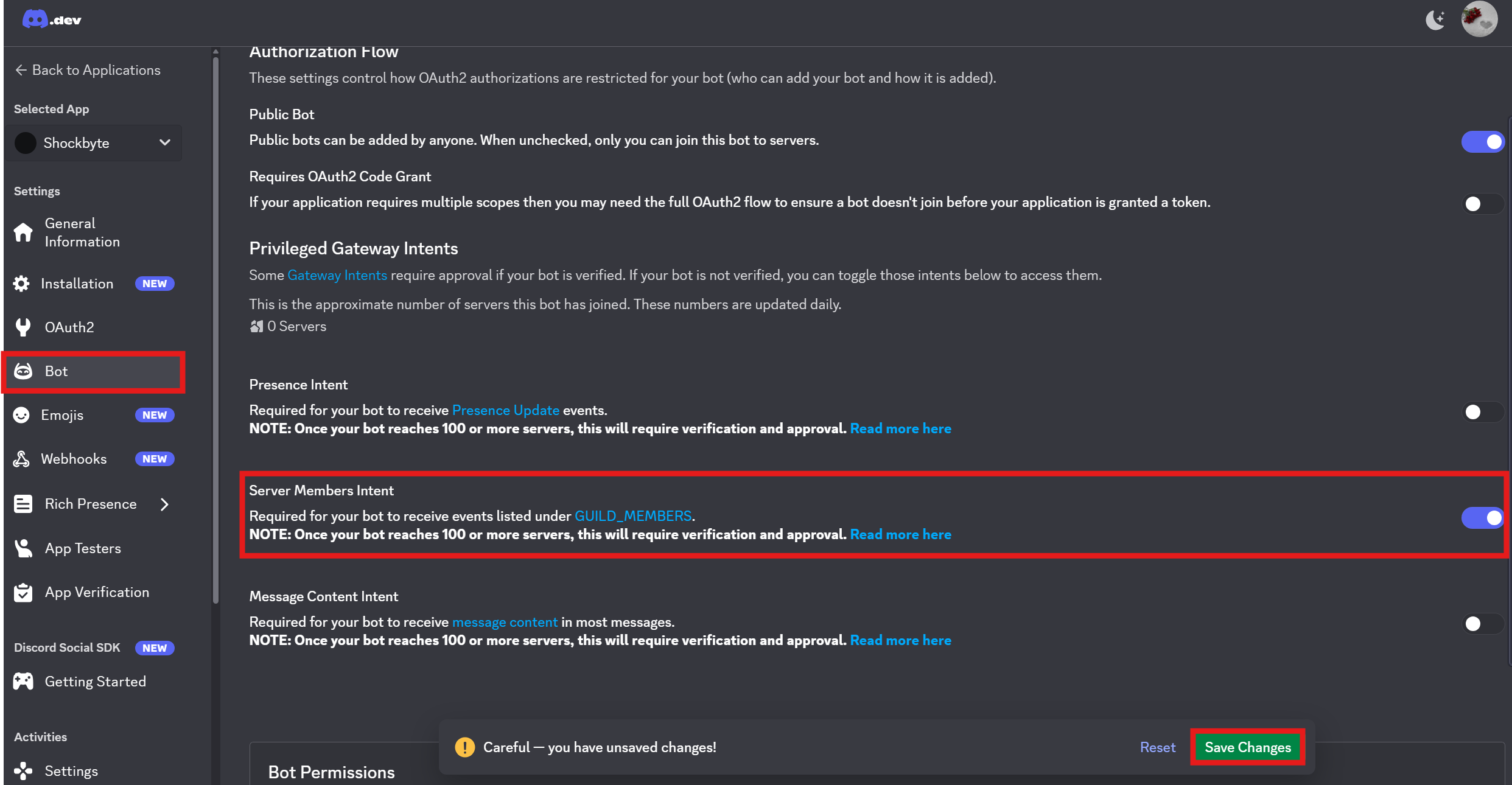
We will also want to enable the "Server Members Intent" option, which can be found by scrolling down a bit more on the same page. Once you have enabled this, ensure you select the "Save Changes" button
#Enabling Developer Mode & Retrieving your Server's ID
We will also need to Enable Developer Mode in our Discord client:
-
Navigate to your User Settings and select Advanced.
-
Enable
Developer Mode.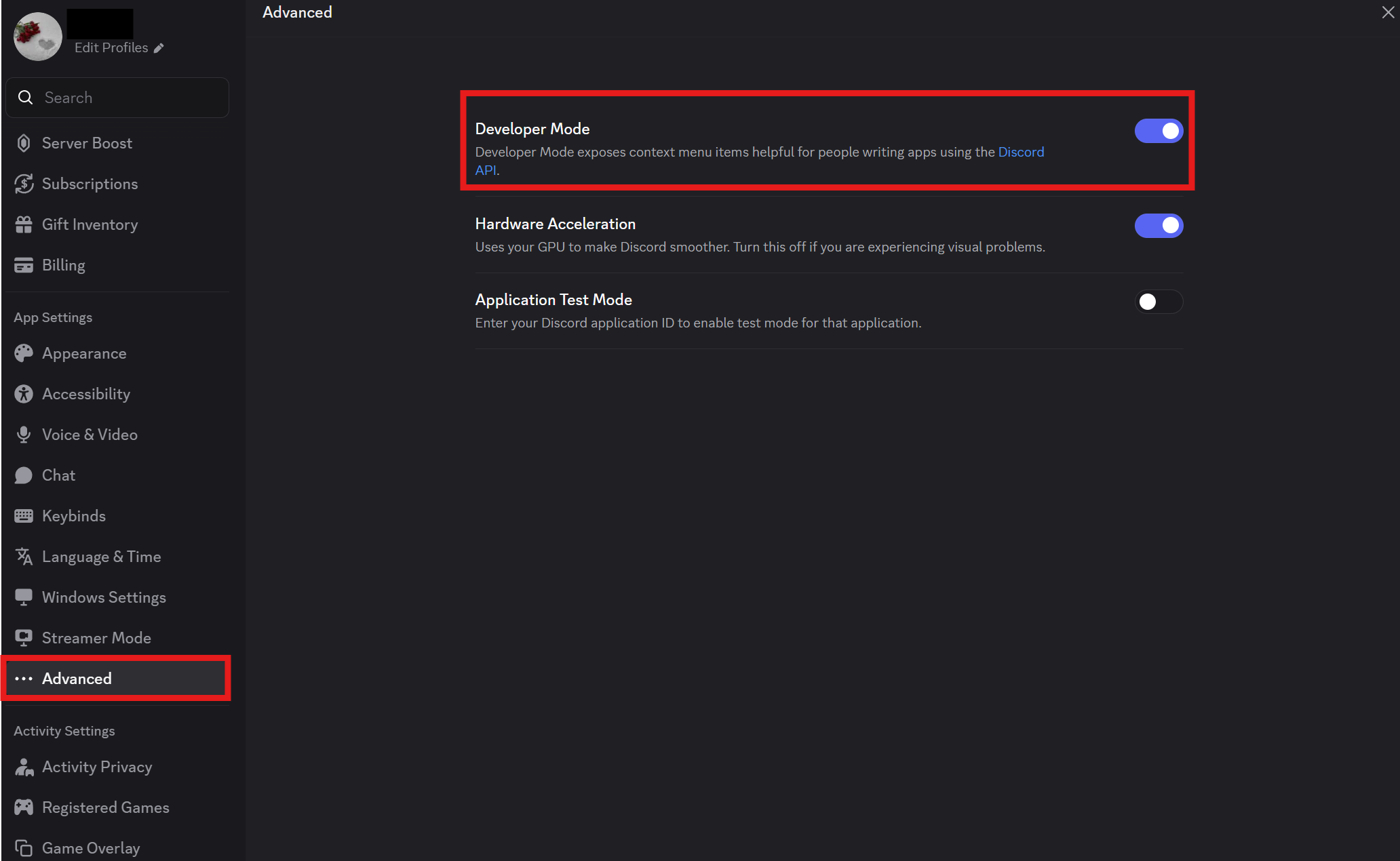
-
Right-click on your server's icon and select
Copy ID. Note this ID for later.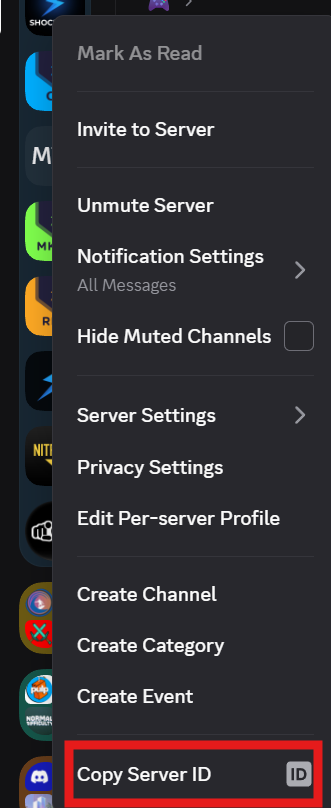
#Inviting the Discord Bot to your Discord Server
Now that we have setup the Bot's configuration, we will need to invite the bot to the server you wish for it to run in.
-
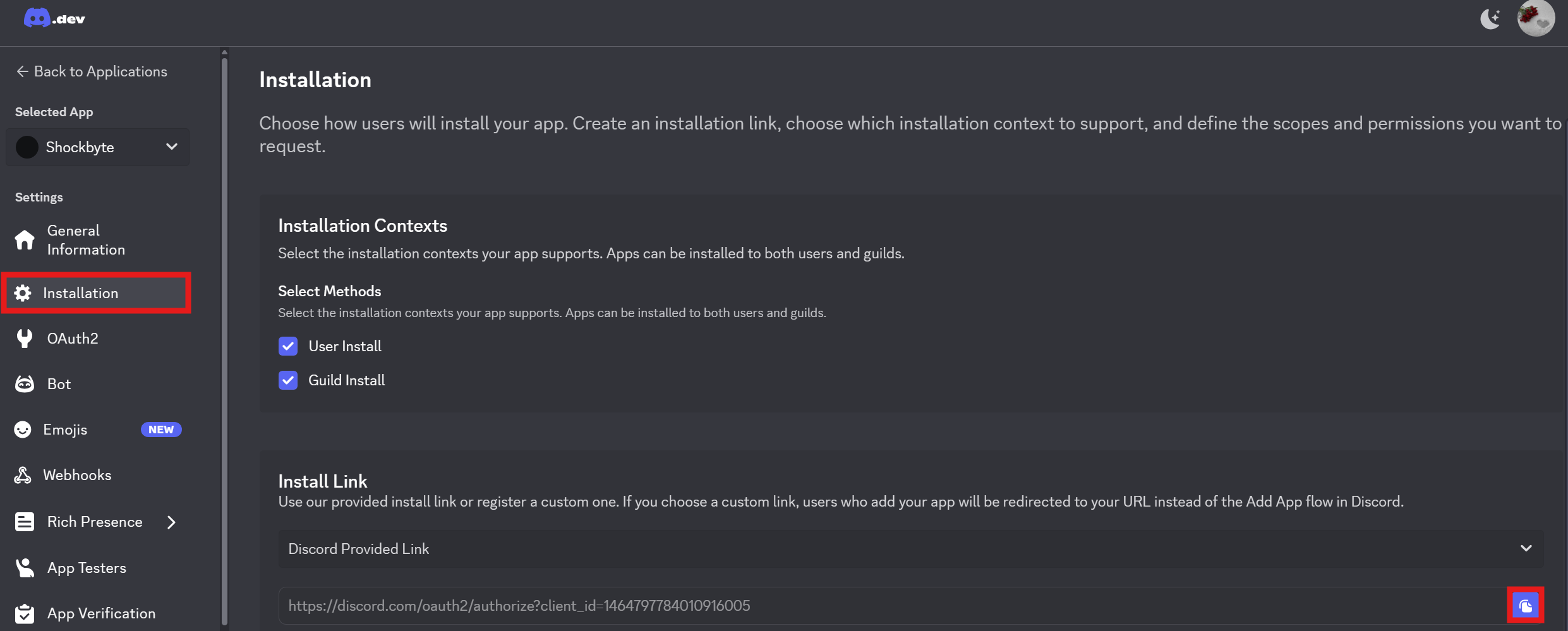
Navigate to the Installation tab and locate the Install Link area.
-
Copy the link and paste this into your browser's URL
-
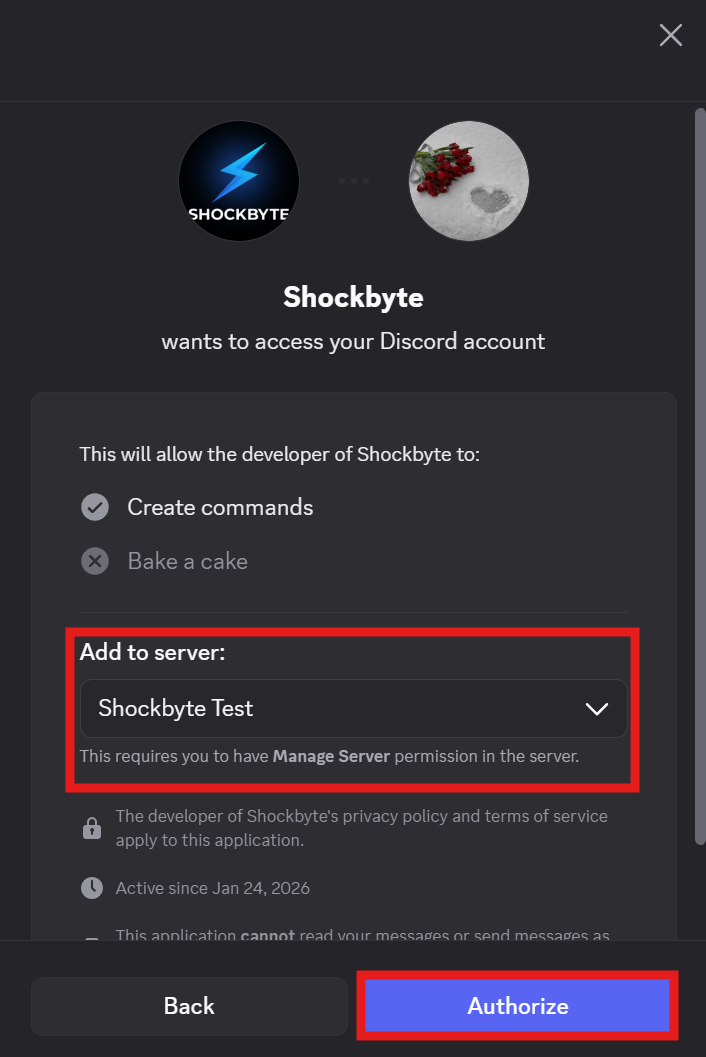
Authorize the bot to allow it access into your desired server.
#Configuring the Bot in txAdmin
Once you have gotten all of the necessary IDs, tokens and setup your Discord Bot fully, you can configure the bot in txAdmin.
-
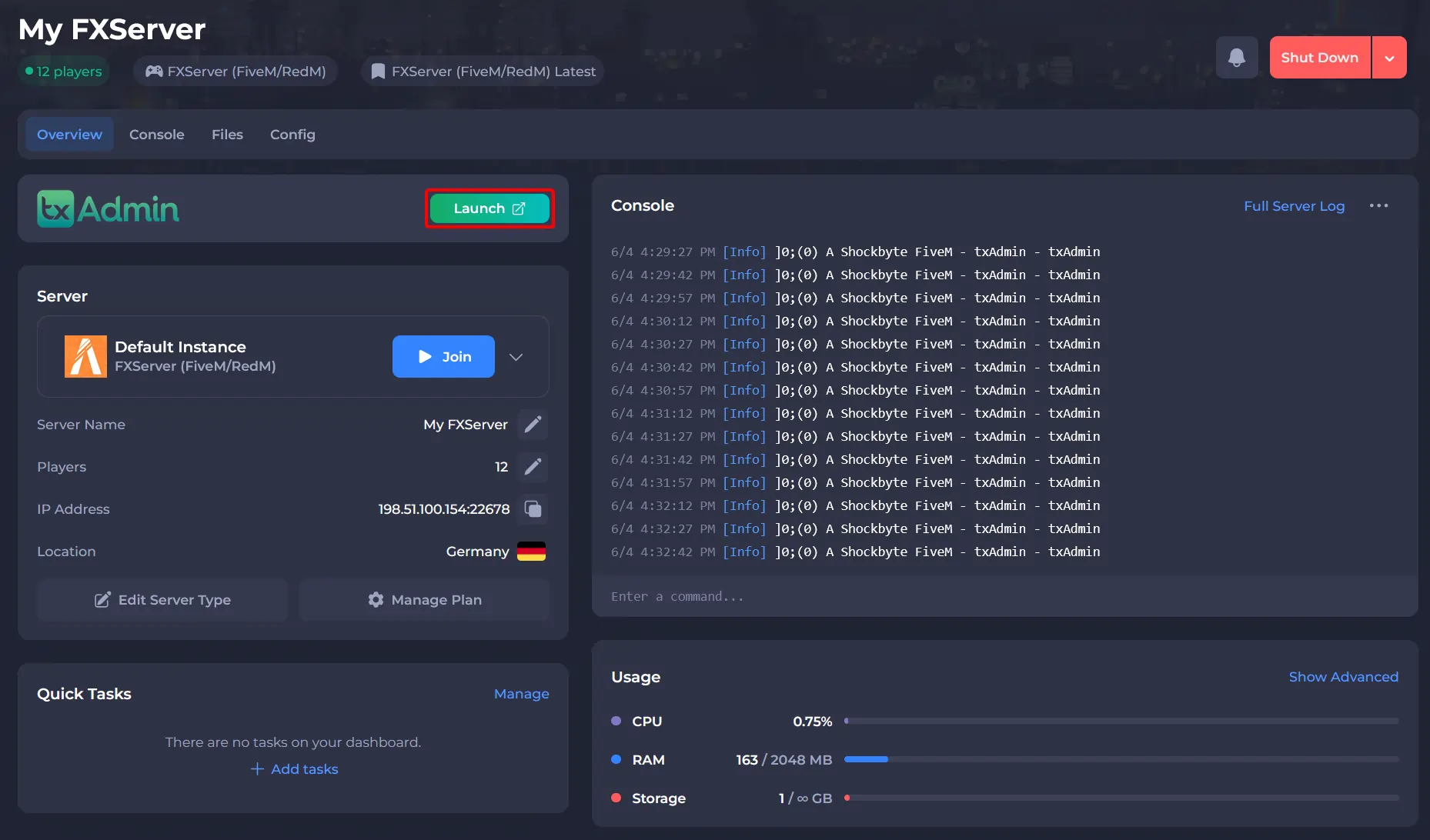
Go to your Shockbyte Control Panel.
-
Launch txAdmin.
-
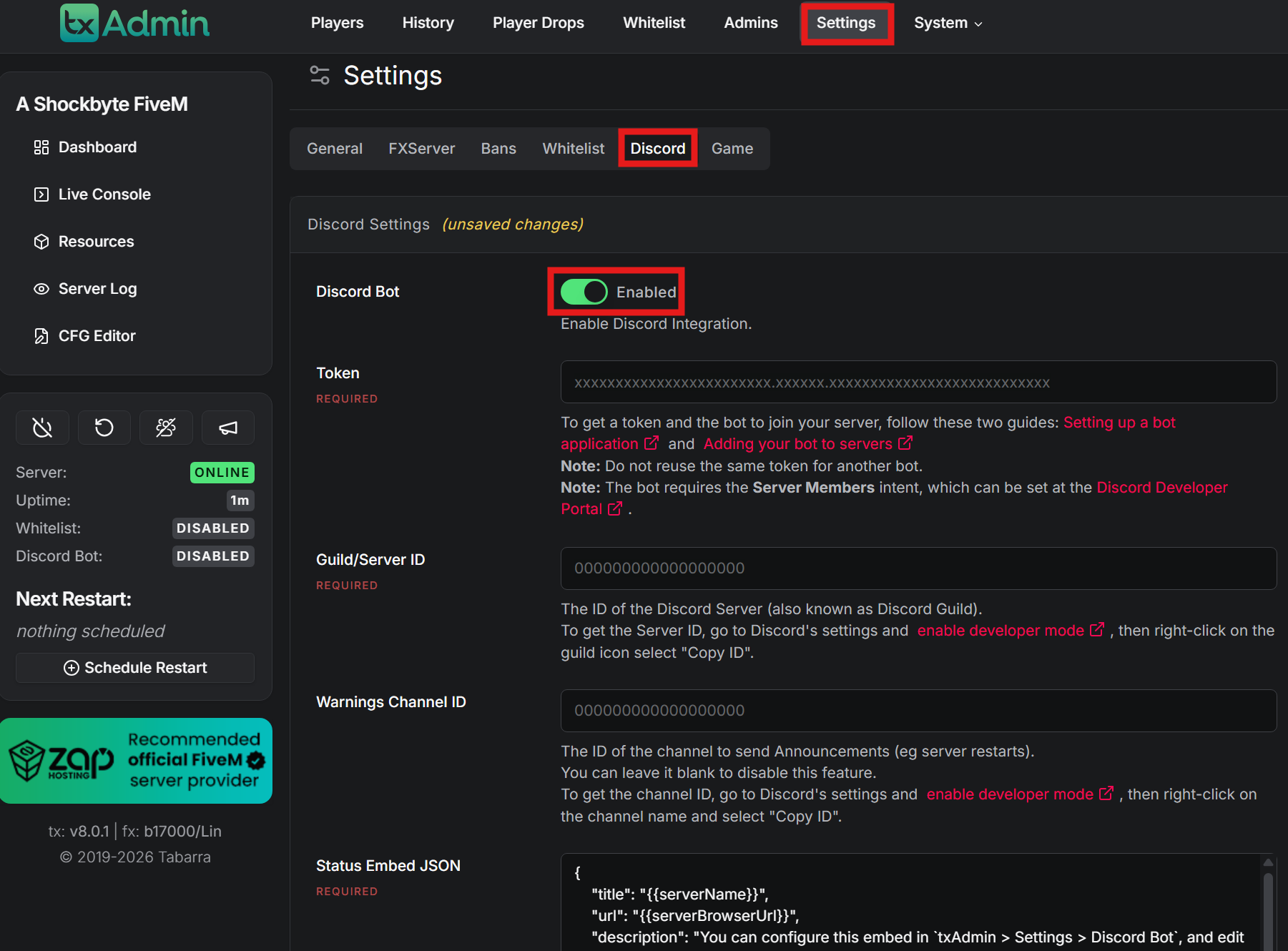
Navigate to the Settings tab and locate the Discord area. Enable the Discord Bot by clicking the button beside it.
-
Enter in all of the information that was gathered from the previous steps in this guide including:
Server TokenandGuild/Server ID. -
Once all of the desired changes have been made, scroll down to the bottom of the page and select
Save Discord Settings.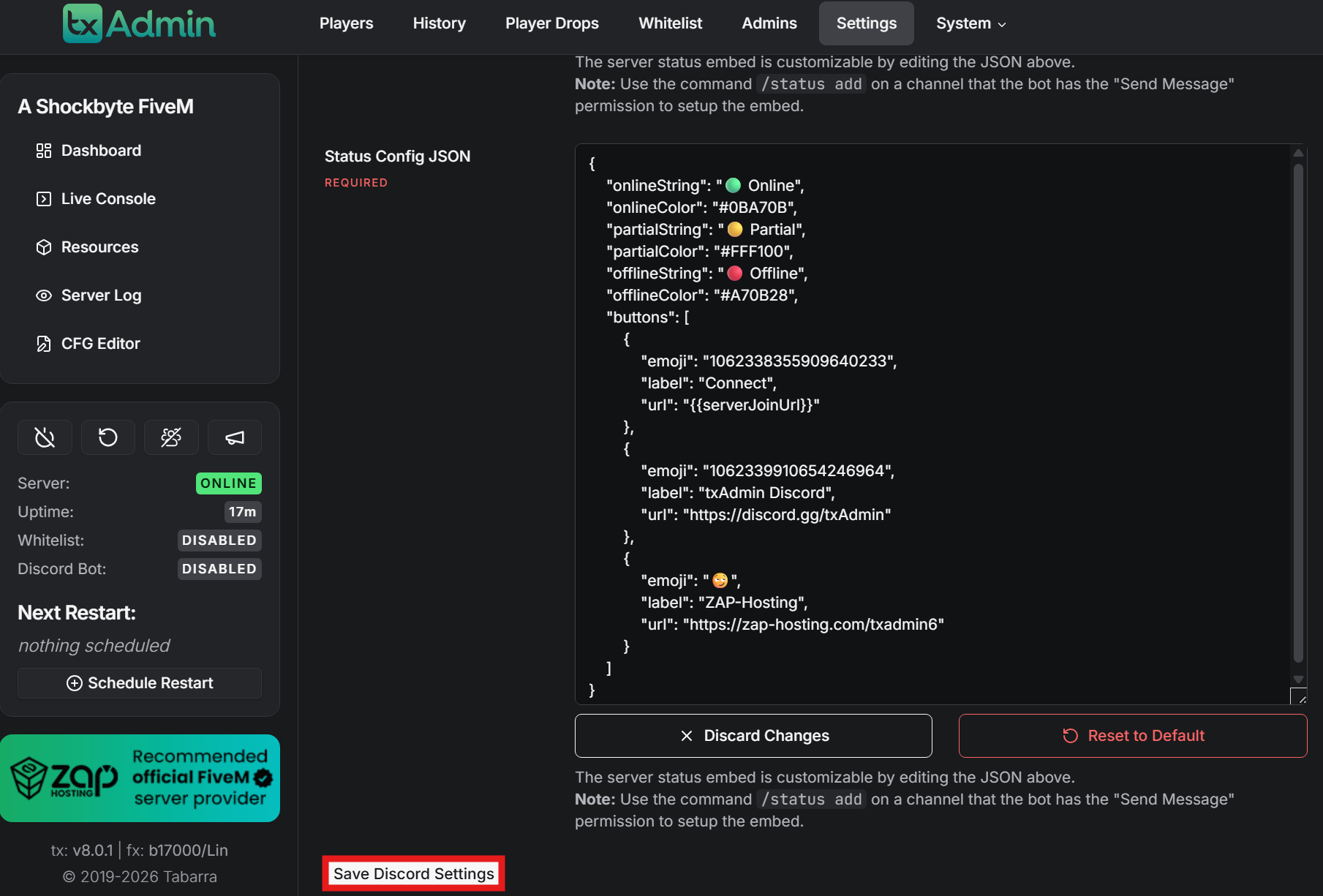
To learn more about FiveM server hosting, you can browse our library of Knowledgebase articles here.