Minecraft
How to Teleport in Minecraft: Every TP Command You Need
 Simon
SimonTo teleport in Minecraft, enable cheats or make sure you have operator permissions, open chat, and use /tp or /teleport. Enter a player's name to jump to them, or add X Y Z coordinates to move to a specific location. Java and Bedrock use similar syntax, with a few edition-specific options.
Minecraft worlds are huge, which is great until you realize the base you want to visit is several thousand blocks away.
Fortunately, you don't have to spend the next 20 minutes sprinting, boating, or flying there. Once you know how to teleport in Minecraft, you can jump straight to another player, exact coordinates, a village, or almost anywhere else in your world.
The basic Minecraft teleport command is /teleport, although most players use its much shorter alias: /tp.
Here's how it works.
#What Is the Teleport Command in Minecraft?
If you're wondering 'what is the command to teleport in Minecraft', the answer is:
/tp
You can also use:
/teleport
Both commands let you instantly move players and other entities from one location to another.
The simplest examples are:
/tp 100 70 -250
Teleports you to X=100, Y=70, Z=-250.
/tp Steve
Teleports you to the player named Steve.
/tp Alex Steve
Teleports Alex to Steve.
The exact options available become more advanced from there, but those three examples cover most everyday situations.
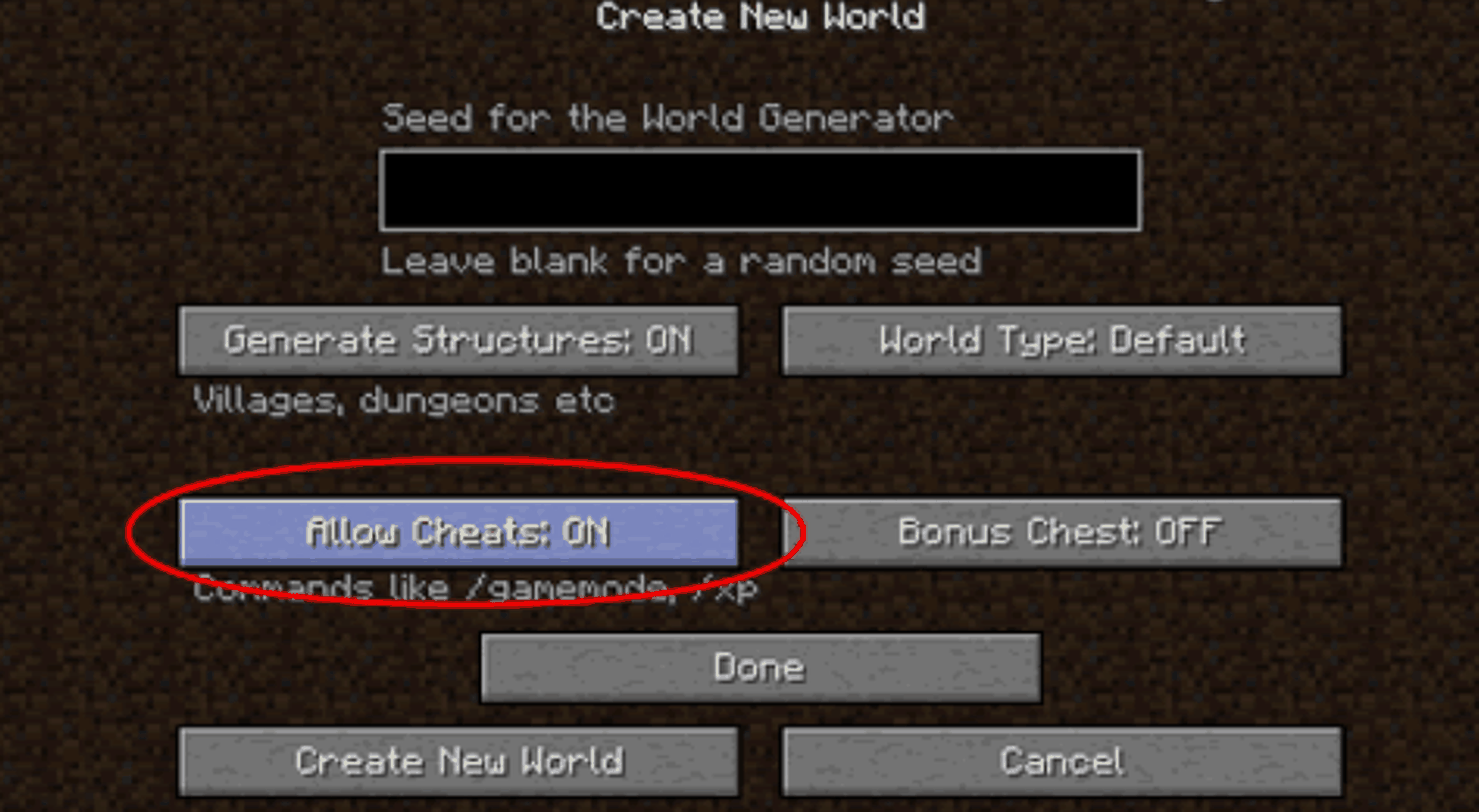
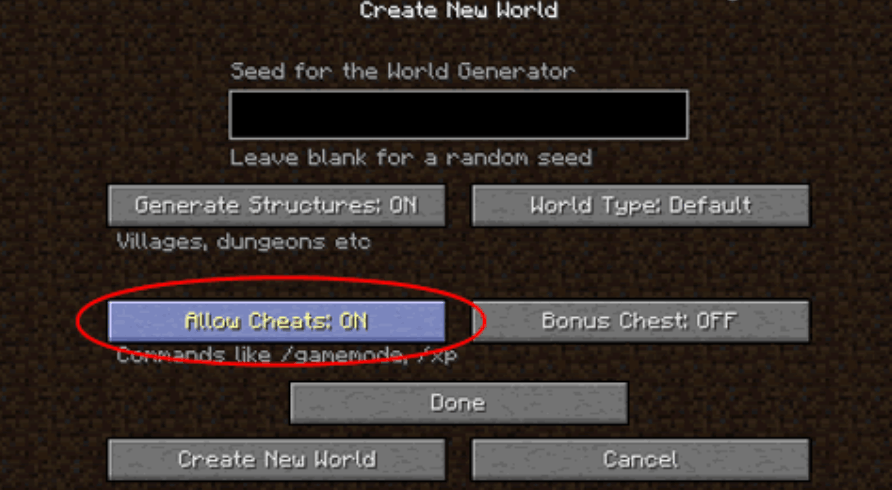
Before you start, remember that teleporting is a command-based feature. You'll need:
- Cheats or commands enabled in single player.
- Operator or appropriate command permissions on a multiplayer server.
- The correct player name, target selector, or coordinates.
On Bedrock Edition, enabling cheats also prevents achievements from being earned in that world.
#How to Use the Teleport Command in Minecraft
Using the command to teleport in Minecraft takes only a few steps.
- Make sure commands are available. Enable cheats in your world or confirm that you have sufficient permissions on the server.
- Open Minecraft's chat window. On Java, you can press
Tor/. Console and mobile players can open the chat interface using their platform's normal controls. - Enter
/tpfollowed by your destination. - Press Enter to run the command.
For example:
/tp @s 250 80 -100
That sends the player executing the command to X=250, Y=80, Z=-100.
The @s part means "self," so it targets whoever is running the command.
#Teleport Command in Minecraft Java Edition
The teleport command Minecraft Java players use most often follows these formats:
/tp <destination>
/tp <target> <destination>
/tp <x> <y> <z>
/tp <target> <x> <y> <z>
For example:
/tp @s 120 70 -350
Or:
/tp Steve Alex
Java also supports more advanced options for controlling the direction an entity faces after teleporting.
For example:
/tp @s 100 70 200 facing 150 70 200
You'll arrive at the first coordinates while looking toward the second set.
#Teleport Command in Minecraft Bedrock Edition
The basic Minecraft Bedrock teleport command is very similar:
/tp @s 120 70 250
You can also teleport players directly to one another:
/tp Alex Steve
One useful option available with the teleport command Minecraft Bedrock players use is checkForBlocks.
For example:
/tp @s 100 70 -250 true
When true is added, the teleport fails if the destination would place the target inside an obstructing block. It's useful when you're experimenting with unfamiliar coordinates, although it won't protect you from every possible danger, such as arriving in mid-air.
#How to Teleport to Coordinates in Minecraft
Learning how to teleport to coordinates in Minecraft is probably the most useful application of /tp.
Minecraft locations are represented by three values:
- X: east and west.
- Y: height.
- Z: north and south.
To teleport to X=500, Y=75, Z=-300, use:
/tp @s 500 75 -300
On Java Edition, press F3 to view your current position. On Bedrock Edition, you can enable Show Coordinates in your world settings.
#Using Relative Coordinates
You don't always need exact coordinates. Minecraft also allows relative positions using the tilde (~) symbol.
For example:
/tp @s ~10 ~ ~-20
This means:
- Move 10 blocks along the X axis.
- Keep your current Y level.
- Move -20 blocks along the Z axis.
You can also quickly send yourself upward:
/tp @s ~ ~50 ~
Congratulations: you're now 50 blocks higher than you were a second ago. Maybe don't try that one without an Elytra. If you want to know how to get Elytra in Minecraft, we have a guide ready for you!
Local coordinates using the caret (^) notation can also position an entity relative to its facing direction, making them especially useful for advanced commands and map-making.
#How to Teleport to Someone in Minecraft
Multiplayer is where teleporting gets especially handy.
If you want to know how to teleport to someone in Minecraft, use:
/tp @s PlayerName
For example:
/tp @s Steve
You'll instantly appear at Steve's current location.
If you're running the command directly as yourself, this shorter version also works in common situations:
/tp Steve
#How to Teleport Someone to You in Minecraft
Need to rescue the friend who somehow got lost despite leaving the base three minutes ago?
To learn how to teleport someone to you in Minecraft, use:
/tp PlayerName @s
For example:
/tp Alex @s
That teleports Alex directly to your position.
You can also specify two player names:
/tp Alex Steve
The first player is the one being moved. The second player is the destination.
That's an important order to remember. Otherwise, your attempt to rescue a friend can result in you teleporting exactly where you didn't want to go.
On larger multiplayer worlds, teleporting is particularly useful for admins managing players, events, builds, or minigames. Pairing those tools with stable Minecraft server hosting with Shockbyte gives your group a dedicated world where admins can control permissions and keep everyone connected.
#How to Teleport to a Village in Minecraft
There isn't a single /tp village command. Instead, you'll locate a village first and then teleport to its coordinates.
Here's how to teleport to a village in Minecraft:
- Use
/locateto find the nearest village. - Note the coordinates Minecraft gives you.
- Use
/tpto teleport there.
In modern Java Edition, you can locate village structures using commands such as:
/locate structure #minecraft:village
You can also search for a particular village type, such as:
/locate structure minecraft:village_plains
On Bedrock Edition, use:
/locate structure village
Minecraft will return the location of a nearby village. You can then use those coordinates with /tp.
For example:
/tp @s 840 80 -1260
If you don't know the exact terrain height, be careful with the Y coordinate. Teleporting too low can put you underground, while choosing an excessively high Y level can leave you falling toward the village instead of gracefully arriving in it.
#Useful Minecraft Teleport Commands
Once you've mastered the basics, target selectors make teleport commands in Minecraft much more flexible.
Common selectors include:
@swhoever is executing the command.@p- the nearest player.@a- all players.@r- a random player.@e- entities matching your selector.
That gives you commands such as:
/tp @a @s
Teleports every player to you.
/tp @p @s
Teleports the nearest player to you.
/tp @e[type=cow] 100 70 100
Teleports matching cows to those coordinates.
Be careful with broad selectors such as @e. Your world contains a lot more entities than you might think, and teleporting all of them at once is an excellent way to turn a useful admin command into a very strange afternoon.
#Teleporting Between Dimensions
Advanced commands can also teleport players between Minecraft dimensions.
Java example:
/execute in minecraft:the_nether run tp @s 100 70 100
This executes your teleport inside the Nether rather than your current dimension.
For the End:
/execute in minecraft:the_end run tp @s 100 70 100
Bedrock supports similar dimension-based execution, although dimension identifiers and command syntax can differ slightly from Java.
Always choose destination coordinates carefully when switching dimensions. A perfectly safe Overworld coordinate doesn't guarantee a perfectly safe landing in the Nether.
#How to Use Command Blocks for Teleporting
Command blocks let you turn teleport commands into reusable buttons, pressure plates, entrances, and fast-travel systems.
First, give yourself a command block:
/give @p command_block
Then:
- Place the command block.
- Open its interface.
- Enter your teleport command.
- Connect the block to a button, pressure plate, lever, or other redstone trigger.
For example, put this inside the command block:
tp @p 500 70 -200
Notice that commands entered directly into a command block don't need the / at the beginning.
You can use these setups to build:
- Fast-travel hubs.
- Teleport pads between bases.
- Adventure-map checkpoints.
- Minigame entrances.
- Secret rooms.
- Server spawn transport systems.
For players wondering 'how to use teleport command in Minecraft' beyond basic chat commands, command blocks are where /tp starts getting seriously creative.
#Why Isn't My Minecraft Teleport Command Working?
If your teleport Minecraft command isn't doing anything, there's usually a straightforward explanation.
#You Don't Have Permission
Commands require the necessary permission level. In multiplayer, you may need operator access or permissions granted by the server administrator.
#Cheats Aren't Enabled
Single player worlds generally need commands or cheats enabled before /tp can be used.
#The Player Name Is Wrong
Check spelling carefully. Teleporting to a named player also requires that Minecraft can resolve that player as a valid target.
#Your Syntax Is Incorrect
Coordinates need spaces between each value:
/tp @s 100 70 -200
Not:
/tp @s 100,70,-200
Minecraft's command suggestions are useful here. If the command turns red while you're typing, check the point where Minecraft stops recognising it.
#You're Teleporting Somewhere Dangerous
A valid command doesn't necessarily mean a safe destination. Incorrect coordinates can place you underground, high in the sky, or somewhere considerably more lava-flavoured than expected.
Double-check your X, Y, and Z values before pressing Enter.
#Minecraft Teleport Command FAQ
#What is the teleport command in Minecraft?
The primary Minecraft teleport command is /teleport, with /tp serving as its shorter alias. Use /tp <x> <y> <z> to teleport yourself to coordinates, or /tp <target> <destination> to move a player or entity to another target.
#Can you teleport without cheats?
Vanilla /tp requires command permission. In single player, that generally means enabling commands or cheats. On multiplayer servers, an administrator can grant the necessary permissions without giving every player unrestricted access to all commands.
#How do you teleport to exact coordinates?
Use:
/tp @s X Y Z
For example:
/tp @s 300 72 -450
That teleports you directly to X=300, Y=72, Z=-450.
#How do you teleport another player?
Use the player's name as your first target:
/tp Alex 100 70 200
That teleports Alex to the specified coordinates.
To teleport Alex to Steve instead:
/tp Alex Steve
#Are /tp and /teleport different?
For normal modern Minecraft use, /tp functions as the shorthand alias for /teleport. Most players use /tp simply because it's quicker to type.
#Teleport Anywhere in Seconds
Once you know how to teleport in Minecraft, crossing a huge world becomes much easier. Whether you're hopping straight to a friend, returning to a build, finding a village, managing players on a server, or setting up command-block teleporters, /tp is one of Minecraft's most practical commands.
Start with the basics:
/tp @s X Y Z
From there, experiment with player names, relative coordinates, target selectors, command blocks, and dimension commands. Just double-check where you're going before you hit Enter. Instant travel is great; instant travel directly into a mountain is less impressive.
We think you will also enjoy the following blogs:

Table Of Contents
What Is the Teleport Command in Minecraft?How to Use the Teleport Command in MinecraftHow to Teleport to Coordinates in MinecraftHow to Teleport to Someone in MinecraftHow to Teleport to a Village in MinecraftUseful Minecraft Teleport CommandsHow to Use Command Blocks for TeleportingWhy Isn't My Minecraft Teleport Command Working?Minecraft Teleport Command FAQTeleport Anywhere in SecondsJoin Our Newsletter
Get updated on the latest news!
Join Our Discord
Be part of our community!