Still have questions?
Come chat with us and we will get back to you as soon as possible!

Ruben B
Partnership Manager

How to Adjust Your Project Zomboid Server Settings
To configure your Project Zomboid server, you can modify options in your Project Zomboid Server Settings file or your active world's .ini file.
The Project Zomboid Server Settings file contains general config options like server name, password, etc. In addition, there will be a .ini file for every world generated on your server.
Your active world's .ini file will contain more specific configuration options for your server's gameplay.
Note
Before making any changes to your server configurations, ensure that you Stop your server, and then Start it again once the change has been made.
#Accessing your Configuration Files
Your primary server setting files can easily be accessed using the Config section of your server's control panel.
- Access your control panel.
- Navigate to Config.
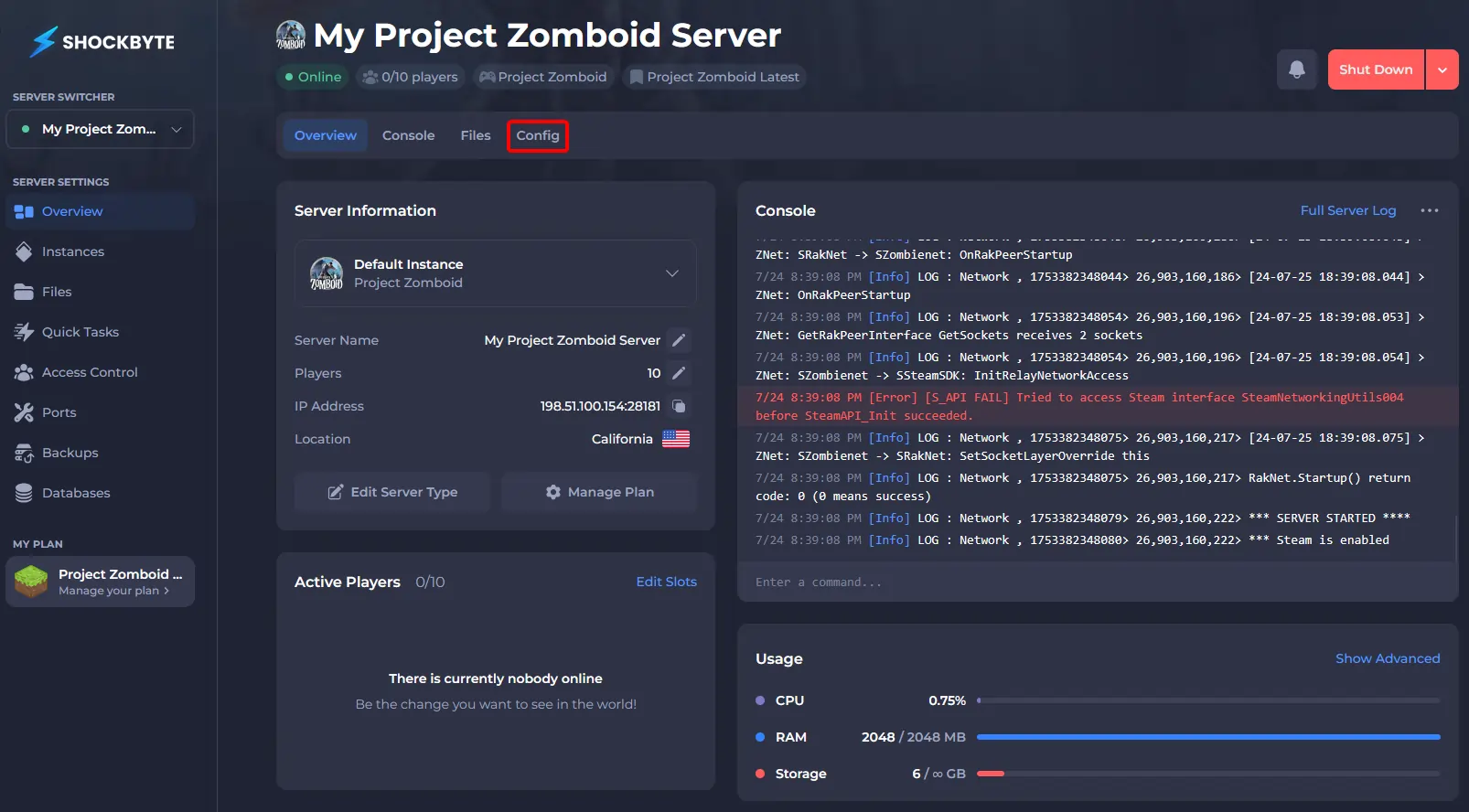
- Here you can either open your Project Zomboid Mod Settings or your Project Zomboid Server Settings.
#Configuring your Server Settings
Once you have access to your server settings, you can make any required changes. The table below lists all the available common server settings in your Project Zomboid Server Settings.
| Option | Description |
|---|---|
| World Name | Configure the name of your active world/save. Will create a new world when changed. |
| Admin Password | Sets a password allowing players to become an admin. |
| Automatic Steam Updates | Determine whether to automatically update the game files via Steam on server startup. It is recommended to keep this setting enabled. |
| Steam Beta | Enter any desired Steam beta codes here. Leave this empty if you are not intending to play using a PZ public Steam beta build. |
| Steam Beta Password | Enter any desired Steam beta codes here. Leave this empty if you are not intending to play using a PZ public Steam beta build. |
If you require any further assistance, please contact our support at: https://shockbyte.com/billing/submitticket.php