How to Change the Steam Branch or Game Version on Your Euro Truck Simulator 2 Server (ETS2 & ATS)
Still have questions?
Come chat with us and we will get back to you as soon as possible!

Ruben B
Partnership Manager

How to Change the Steam Branch or Game Version on Your Euro Truck Simulator 2 Server (ETS2 & ATS)
You can run your Euro Truck Simulator 2 or American Truck Simulator server on a different game version by changing its Steam branch. Players use this when they want to stay on an older version for mod compatibility, or when SCS Software releases a client update before the matching server update is ready.
You set the branch from the Settings tab on the Shockbyte Panel. Your server downloads the selected version the next time it starts.
#Changing the Steam Branch
-
Navigate to the Shockbyte Control Panel and open your Truck Simulator server.
-
Click Stop to shut down your server and wait until its status shows Offline.
-
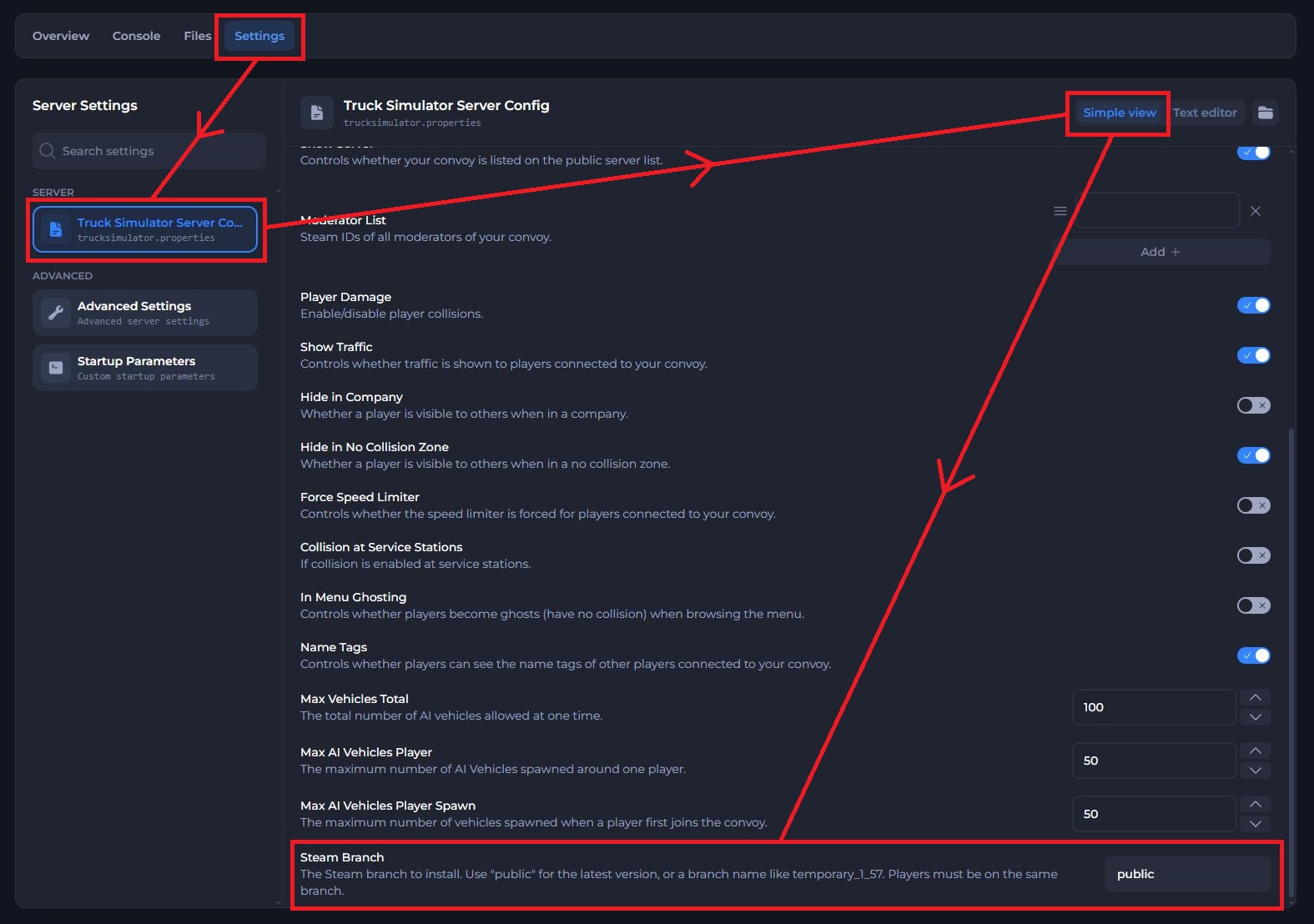
Open the Settings tab.
-
Under Server, select Truck Simulator Server Config.
-
Make sure Simple view is selected in the top right.
-
Scroll to the bottom of the page and find the Steam Branch field.
-
Replace the current value with the branch name you want to use. For example, enter
temporary_1_57to run version 1.57.
-
Save your changes.
-
Click Start Server. Your server downloads the selected branch, then boots online with that version.
Important
Enter the branch name exactly as Steam lists it, with no spaces. A misspelled branch name can stop your server from installing the game files.
#Example Branch Values
| Steam Branch | Game version | When to use it |
|---|---|---|
| public | Latest release | Runs the current public version of the game. |
| temporary_1_57 | 1.57 | Keeps your server on version 1.57 after a newer update releases. |
SCS Software adds and removes branches over time. To see the branches currently available, right-click the game in your Steam Library, select Properties, and open Game Versions & Betas.
#Matching Your Game Version
Every player who joins your server needs to run the same game version as your server. If the versions don't match, players can't connect.
To change your game version in Steam:
- Open Steam and click Library.
- Right-click Euro Truck Simulator 2 or American Truck Simulator and select Properties.
- Open Game Versions & Betas and select the same branch you set on your server.
- Wait for Steam to finish downloading the update, then launch the game.
Note
Mods built for a newer game version may not load on an older branch. Check that each mod supports the version you choose before you switch.
#Returning to the Latest Version
- Navigate to the Shockbyte Control Panel and open your Truck Simulator server.
- Click Stop to shut down your server.
- Open the Settings tab and select Truck Simulator Server Config.
- Set the Steam Branch field back to
public. - Save your changes.
- Click Start Server. Your server downloads the latest public version and boots online.
Remember to switch your Steam game client back to the default branch as well, so your game version matches your server again.
#Troubleshooting
- I can't connect after changing the branch. Check that your game client uses the same branch as your server in Steam under Properties > Game Versions & Betas.
- My server didn't change version. Make sure you stopped the server before you changed the branch, then check the branch name for typos and restart your server.
- My server won't start after I changed the branch. Confirm the branch still exists in Steam, or set the field back to
publicand start your server again. - My mods stopped working. Some mods only support specific game versions. Update the mods or choose a branch that matches the version they support.
If you still need help, contact our support team and we'll take a look for you.