Still have questions?
Come chat with us and we will get back to you as soon as possible!

Shockbyte
Support Team
Getting Started with your Schedule 1 Server
Welcome to your Schedule 1 server hosted on Shockbyte! Schedule 1 is a drug empire building game where you start as a small-time dealer and work your way up, growing your operation, managing staff, and expanding your criminal enterprise with friends on your own dedicated server.
This guide will walk you through getting your server up and running, from setting up your game to joining in-game and inviting others.
#Which version do you have?
Schedule 1 servers come in two versions, and your game setup depends on which one your server is running:
- IL2CPP (recommended) - runs on the standard Steam version of the game. Most players should use this. No Steam branch switching needed.
- Mono - runs on the game's
alternatebranch. Best if you want heavier modding. Requires switching Steam branches.
Everyone joining must be on the same version as the server. Check your server type before setting up, then follow the matching Step 1 below.
#Setting up to play
Schedule 1 needs a few one-time setup steps before you can connect. Every player who wants to join will need to complete these first.
Step 1: Set your game version
If your server is IL2CPP (recommended): No action needed, keep the standard version of the game installed. Skip straight to Step 2.
If your server is Mono:
- Open your Steam Library, right-click Schedule 1 and select Properties.
- Go to the Game Versions & Betas tab.
- Under Selected Game Version, select alternate from the dropdown.
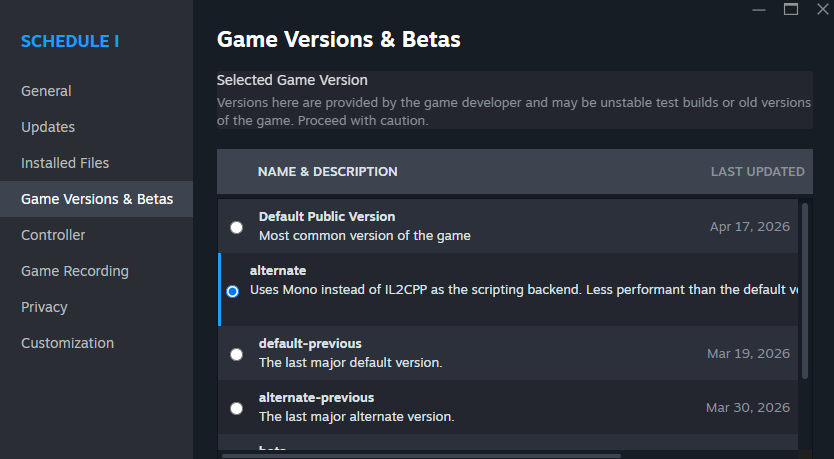
- Close the window and let Steam finish updating before moving on.
Step 2: Install MelonLoader
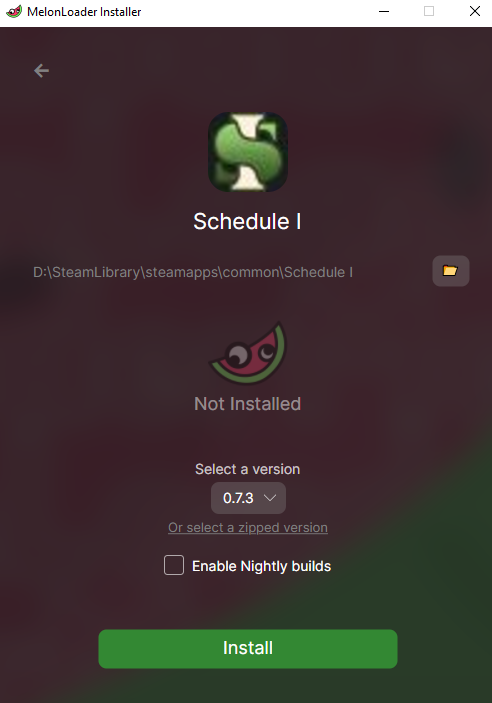
MelonLoader is the mod loader the client mod runs on. Both versions need it.
- Download the installer from the MelonLoader download page.
- Open the MelonLoader.Installer file.
- Select Schedule 1 from the list.
- Click Install and wait for it to finish.
Step 3: Add the client mod
This is what lets your game connect to dedicated servers. Download the one that matches your server version:
- IL2CPP (recommended): Il2cpp_Client.zip
- Mono: Mono-Client.zip
- Right-click the file and choose Extract All, then Extract.
- Open your game folder: in Steam, right-click Schedule 1, hover over Manage, and click Browse Local Files.
- Drag the Mods folder from the extracted files into your Schedule 1 game folder.
- If asked to replace or merge, choose Yes / Replace.
That's it, your game is ready! Next, see How to Join your Schedule 1 Server to connect.
#Getting Started
The following articles cover the most common questions you may have when first starting with your new Schedule 1 server.
- How to Join your Schedule 1 Server
- How to Change the Name and Description of your Schedule 1 Server
- How to Make your Schedule 1 Server Private
- How to Configure your Schedule 1 Server Settings
If you require any further assistance, please contact our support at: https://shockbyte.com/billing/submitticket.php