Table Of Contents
Delete a Player From Your 7 Days to Die ServerStill have questions?
Come chat with us and we will get back to you as soon as possible!

Jay Miller
Game Engineer
How to Delete a Player From Your 7 Days to Die Server
There are various reasons to delete player data from your server. If a player is having difficulty joining your server, there is a possibility their player data may be corrupted which, to resolve, means the player data will need to be deleted. If you want to reset a character, you will need to delete the associated player data.
#Delete a Player From Your 7 Days to Die Server
Before you can delete a player from your 7 Days to Die server, you must know their EOS ID - the code your server uses to identify players. If you do not have this, or do not know how to locate it, we have a guide that can help. Once you have the player's EOS ID, you can identify and delete their data from your server:
-
Log in to your server's control panel and Stop your server.
-
Navigate to the Files tab.

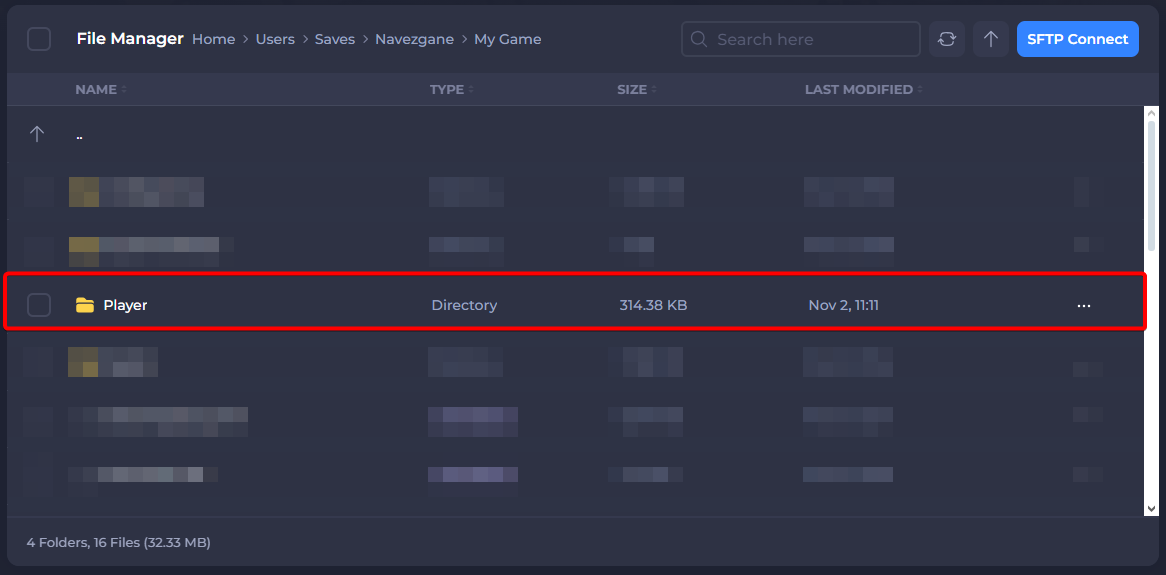
- Open the Saves folder and click on the folder with your world’s name. Once this is done, open the Player folder.
Important
If you are using a pre-generated map, your world will be in the folder with the corresponding map name. By default, your world’s file location is `/Users/Saves/Navezgane/My Game.`
-
Select and delete all files beginning with the player’s EOS ID.
-
Restart your server
Once this data is deleted, the player will have a fresh start upon logging in to your 7 Days to Die server!