Still have questions?
Come chat with us and we will get back to you as soon as possible!

Zach Lowery
Game Experience Engineer

How to Find and Read a Minecraft Server Crash Report
If you’re ever running a server and it crashes, server crash reports are your best tool in finding what caused the crash, and can help you and anyone else trying to fix your server. When a server crashes, it will usually generate a crash report, which will contain all the information needed to find the cause of the crash, as well as the steps required to fix it.
If your server crashed and made a crash report, you’ll see a message in the console, where the name of the file will be the date and time the server crash occurred.
#How to Find a Crash Report
Crash reports can be found within your server files, which are accessible on your Shockbyte Panel.
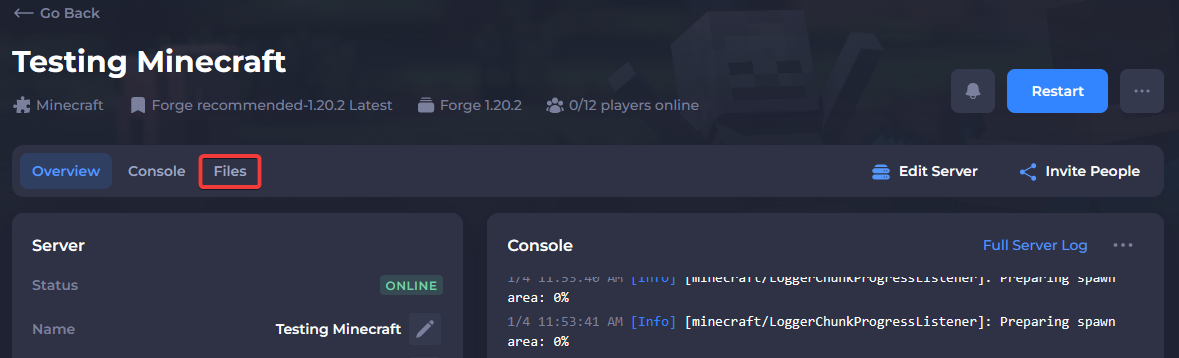
- Access your server's Control Panel and navigate to the Files tab.
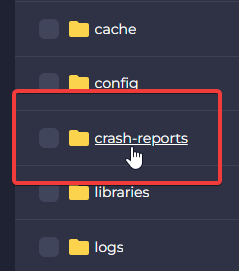
- Click on the folder in your server files called
/crash-reports.
Note: If this folder does not exist, it means the server has not generated it yet. The folder will only be created when the server stores a crash report inside of it.
Alternatively, you can check the console log for more information or contact support for further assistance.
- Click on the newest crash report to open it; the date and time are in the name of the crash report.
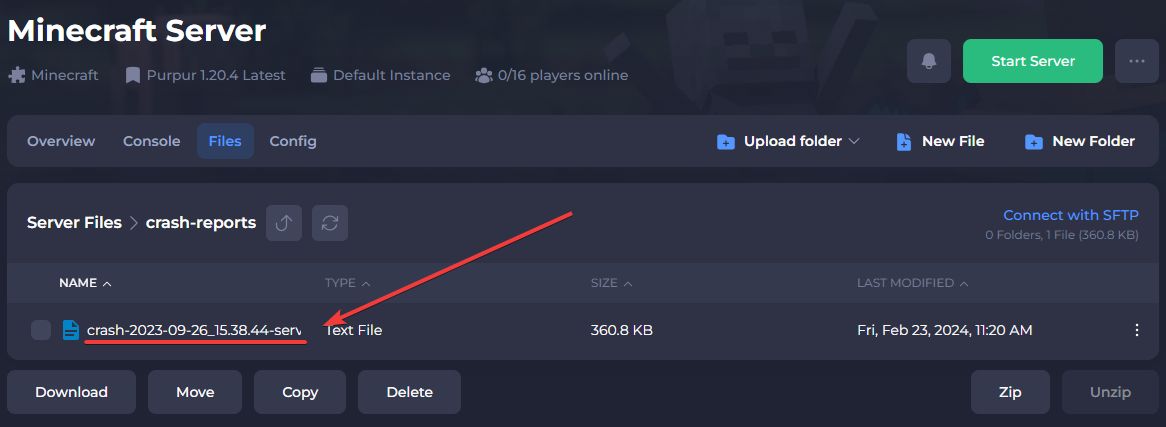
The crash report will now open, where you will see the error that made your server crash.
#How to Read a Crash Report
The quickest way to find the cause of a crash report is to look at the “Description:” part of the report. This will often describe what caused the crash. If you are having issues understanding what the description means, then you can always copy and paste it into Google, as this will often bring up pages where other people are having the same issue as you. Despite this, there are some common errors that you could have on your crash report:
-
Ticking Entity - This most likely means that there is a corrupt entity in your world. This type of world corruption is most likely to be fixable without losing the whole world (but is much easier to fix by generating a new world).
-
Ticking World - This most likely means that the entire world itself is corrupt; this is usually caused by changing your version of Minecraft (creating a new world should fix this).
There are plenty of other crash reasons, and even more if you are running a modded server, so if you’re still having issues with your server, feel free to submit a ticket so that our Technical Team can take a look at your crash report for you. When making a ticket, we suggest uploading the crash report to a website such as pastebin, making it easier for us to read.