Still have questions?
Come chat with us and we will get back to you as soon as possible!

Shockbyte
Support Team

How to Reset Player Data on Your Palworld Server
You might need to reset a player’s data for different reasons, like restarting progress or resolving otherwise unfixable bugs in-game. When a player's data is reset, their character and all of their progress will be completely wiped.
Important
As this process involves deleting files, make sure to create a backup of your server before proceeding with the steps in this guide.
#Obtaining the Player ID
First, you will need to obtain the Player's ID to identify the correct player data file. This can be obtained via the server console or using the /showplayers command in-game.
Method 1: Server console (Recommended)
-
Open your Server Control Panel and open the Console.
-
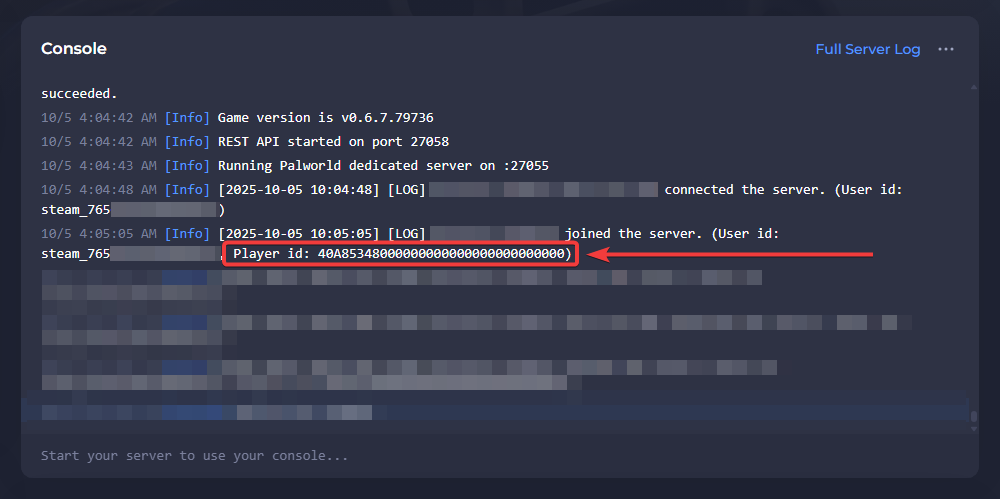
Locate any recent connection or disconnection messages from the player.
If there are no recent messages from the player, connecting to the server will generate them.
- Copy their Player ID from the console.
In the following example, the Player ID digits would be copied: 40A85348000000000000000000000000
Method 2: Using the /showplayers command in-game.
The player must be actively connected to the server for this method to work.
-
Connect to your server as an Administrator.
-
Open the chat and enter the
/showplayerscommand. -
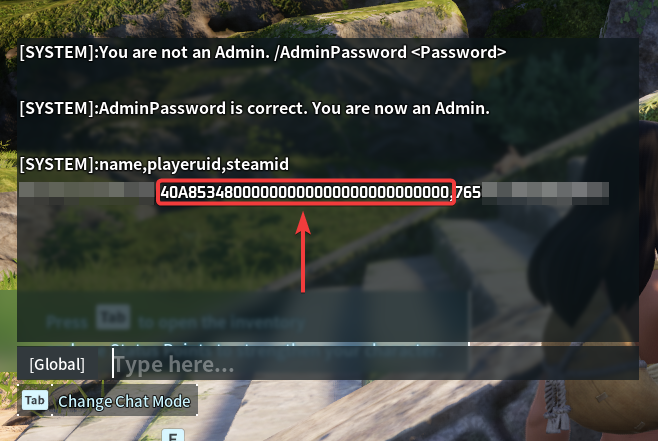
Online players will be listed by
name,playeridandsteamid. Locate the correct player based on their Name or Steam ID. -
Copy the correct Player ID.
In the following example, the Player ID digits would be copied: 40A85348000000000000000000000000
#Deleting the Player Data File
- Open your Server Control Panel and Stop the server.
The server must remain offline throughout this process for the file to be deleted correctly.
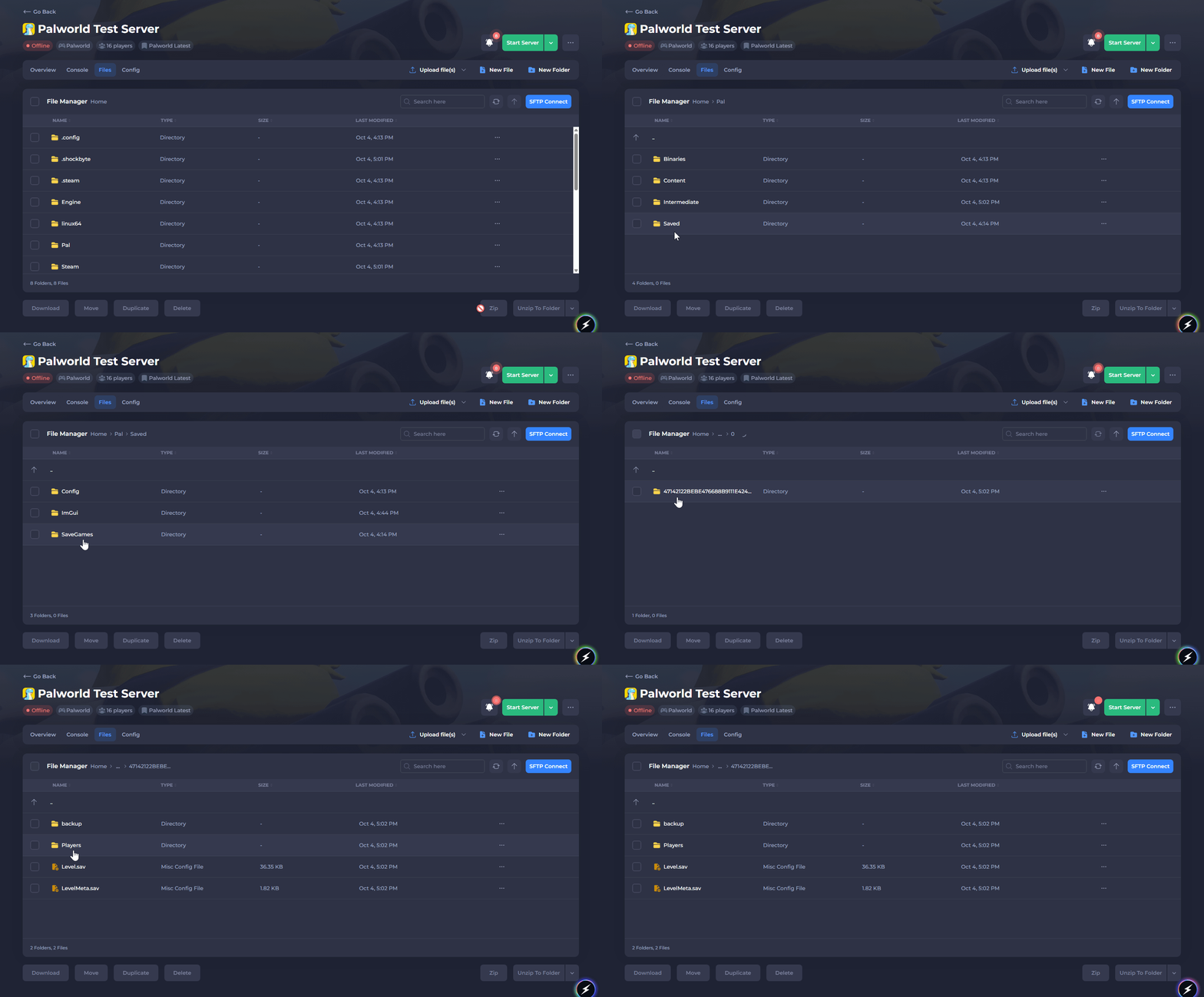
- Navigate to
/Pal/Saved/SaveGames/0, then open the last folder, which will usually be named a random string of characters.
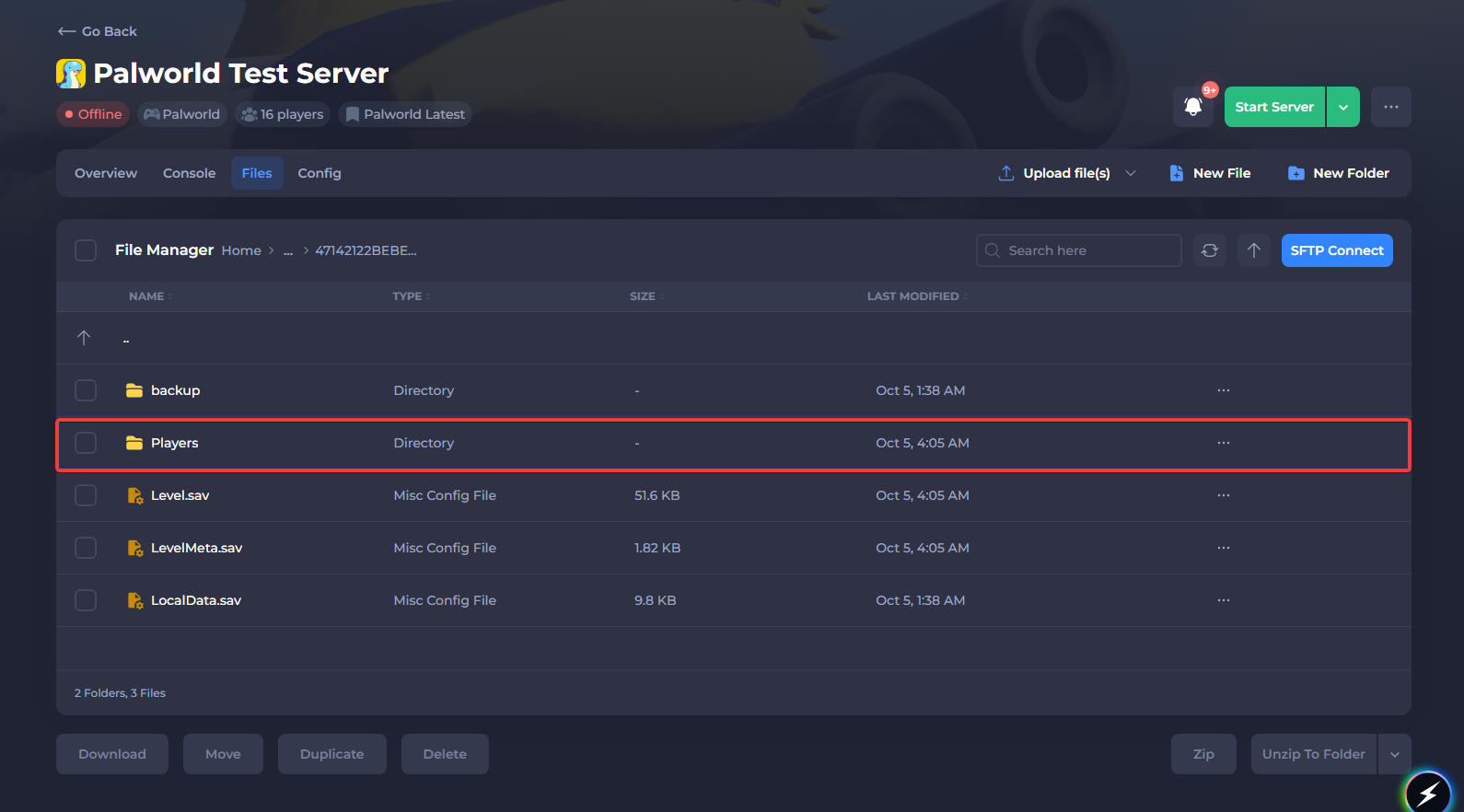
- Open the
playersfolder inside the same directory.
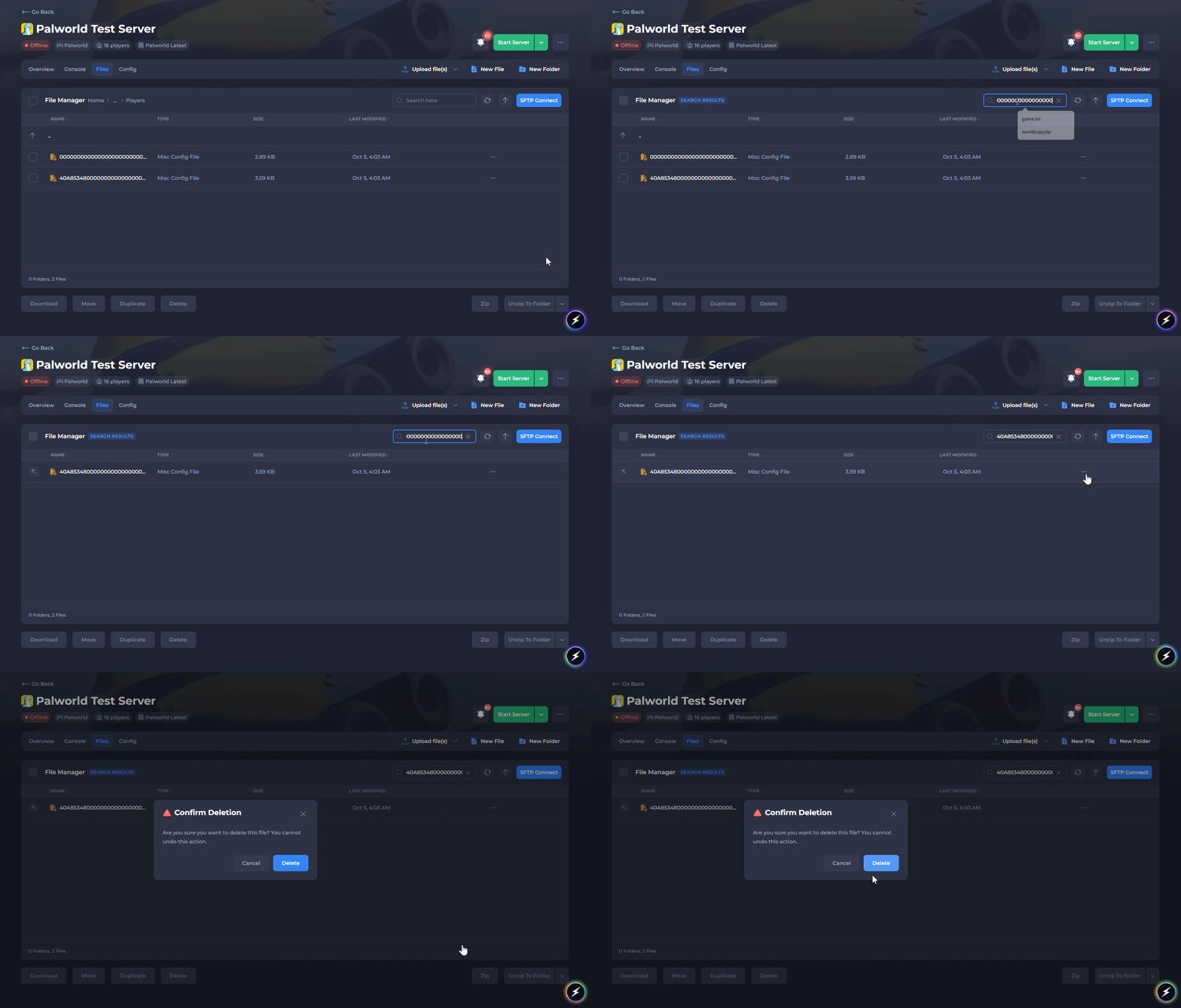
- Paste the Player ID that you copied earlier into the Search Bar and delete the
.savfile.
If there are two files that match the Player ID, both should be deleted. In the following example, the file that's deleted is 40A85348000000000000000000000000.sav.
- Start the server.
That's it! Once the server is started, the affected player's data will be completely reset.