Still have questions?
Come chat with us and we will get back to you as soon as possible!

Nuno Paiva
Game Integration Specialist @ Shockbyte
How to Install Mods on Your Palworld Server
Palworld supports mods, allowing you to customise almost every aspect of your server, from Pal stats and spawn rates to entirely new items, maps, and gameplay systems. On Shockbyte, mods are handled through a built-in mod installer, so you can browse and install them directly from your panel without any manual file uploads.
#Before You Start
Mods are only supported on the Palworld (modded) server type. This runs the Windows build of the game (rather than the default Linux build) and is the only version that includes the mod installer.
Important
Switching an existing server between the default and modded types installs a different build of the game. This can affect your existing configs and save data, so we recommend keeping the two separate rather than switching back and forth on the same server.
The safest way to set this up is to create a dedicated instance for the modded version:
-
Access your Control Panel and navigate to the Instances tab.
-
Click Create New and set up a new instance using the Palworld (modded) server type.
-
Switch to your new modded instance.
This keeps your original server untouched and lets you switch between the two at any time.
If you'd rather convert an existing server instead, select Edit Server Type, ensure Palworld (modded) is selected, and create a backup first.
#Installing Mods
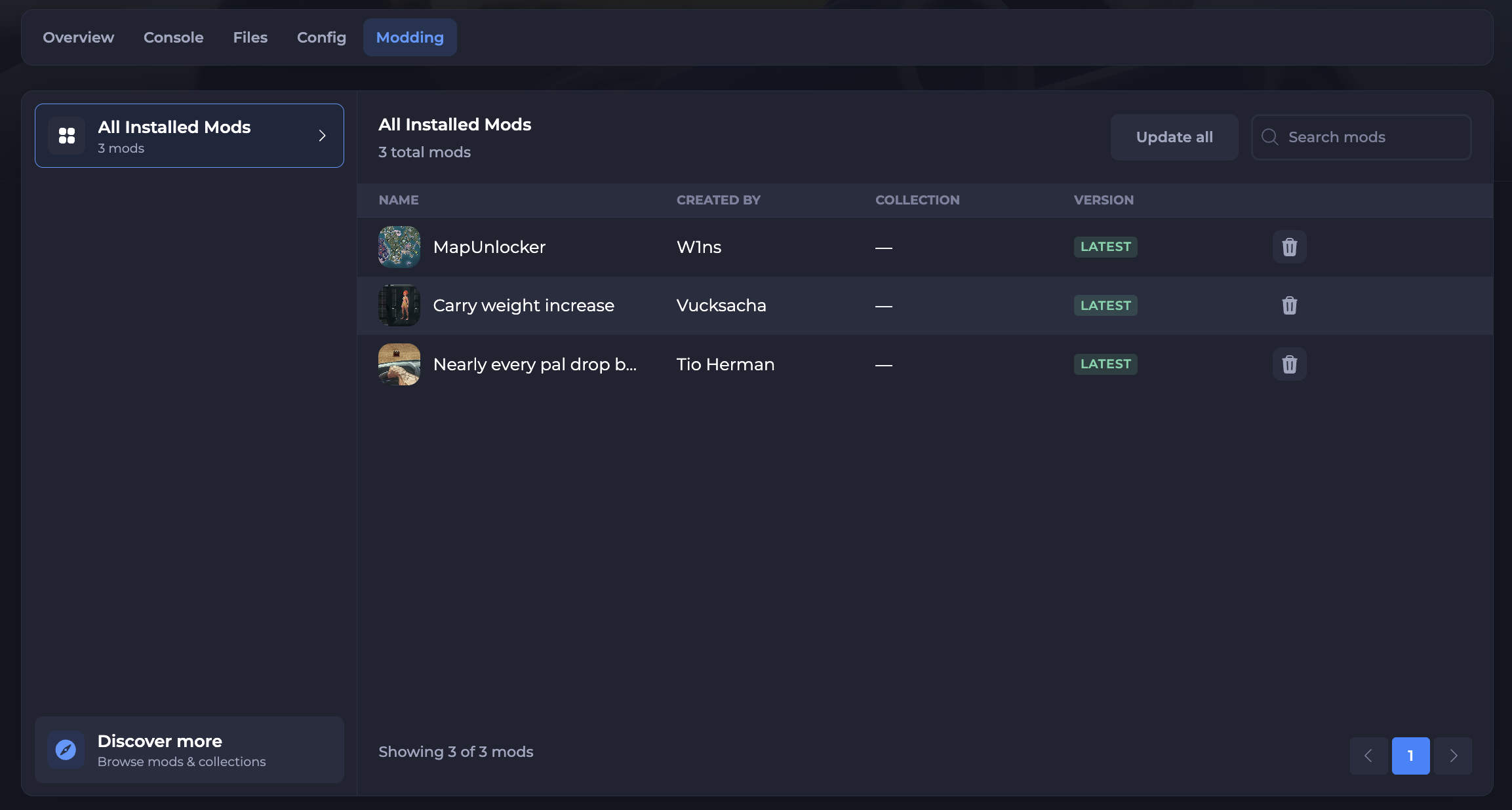
Once you're running the modded server type, a Modding tab will appear at the top of your server panel.
-
Access your Control Panel and open the Modding tab.
-
Click Discover More to browse the available mods and collections from Nexus Mods.
-
Find the mod you'd like to add and click Install.
The mod will be added to your All Installed Mods list.
- Restart your server to apply the changes.
Note
Some mods may not be compatible with the latest version of the game, and some are client-side, meaning players will also need the same mod installed on their own game client to connect or see its content.
#Managing Mods
You can manage everything from the Modding tab at any time.
-
To update a mod, use the Update All button, or install the newer version from the mod's page.
-
To remove a mod, click the delete (trash) icon next to it.
After making any changes, restart your server for them to take effect.