Still have questions?
Come chat with us and we will get back to you as soon as possible!

Shockbyte
Support Team

How to Setup RCON for your FiveM Server
RCON (Remote Console) is a protocol that allows administrators to remotely access and control a FiveM server without directly interacting with the server environment.
In FiveM, RCON is commonly used to execute server-side commands such as player management, configuration changes, and diagnostics, all through a secure, password-protected connection. This enables flexible server administration from external tools, command-line interfaces, or web dashboards without needing to be connected in-game.
#Enabling RCON on your FiveM Server
-
Go to your Shockbyte Control Panel.
-
Launch txAdmin.
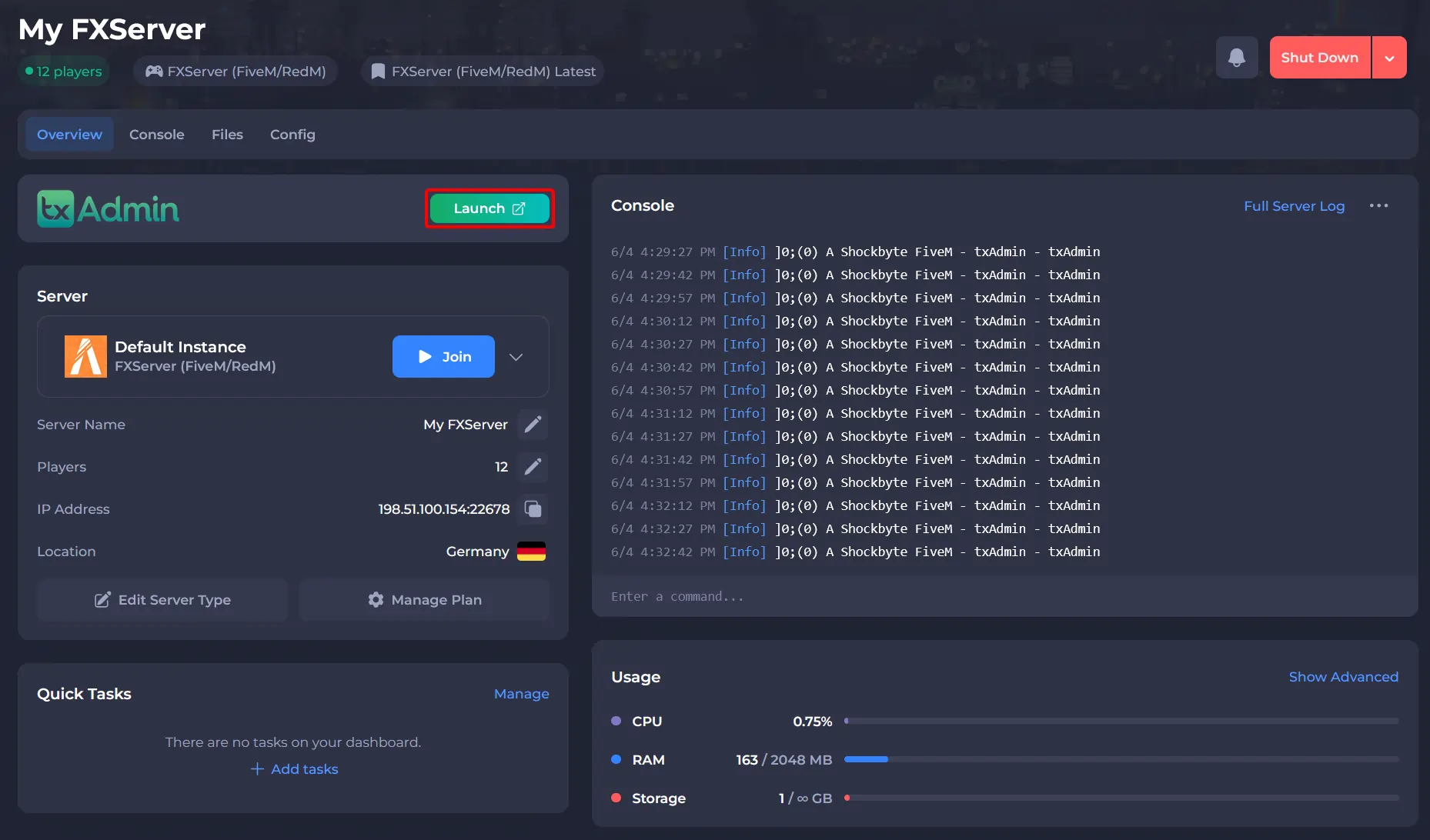
-
Navigate to the CFG Editor tab and add the following lines:
ensure rconlogandset rcon_password "your-secure-password"and set your desired RCON Password. Once these changes have been made, select the "Save File" button at the bottom.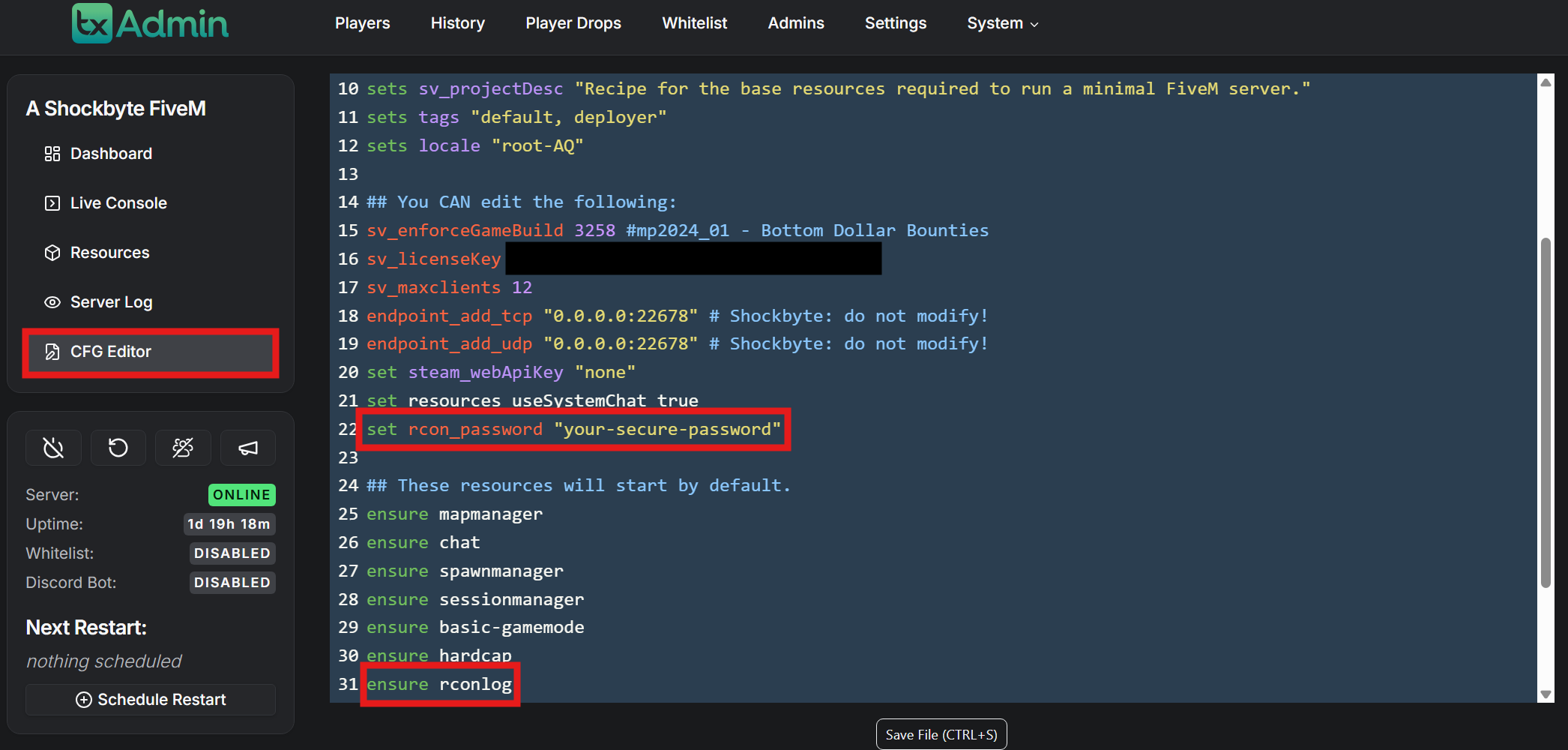
#Connecting to Your FiveM Server via RCON
One of the easiest ways to use RCON on your FiveM server is with a tool called IceCon.
Step 1: Download IceCon
IceCon is a free Windows application available on GitHub. Download and install it on your computer before continuing.
Once installed, launch IceCon to begin setting up your connection.
Step 2: Set Up a New Connection
In IceCon, create a new connection profile and enter the following information:
- Server IP Address – the IP address of your FiveM server
- Game Port – the port your FiveM server is running on
- RCON Password – the password set in your server configuration
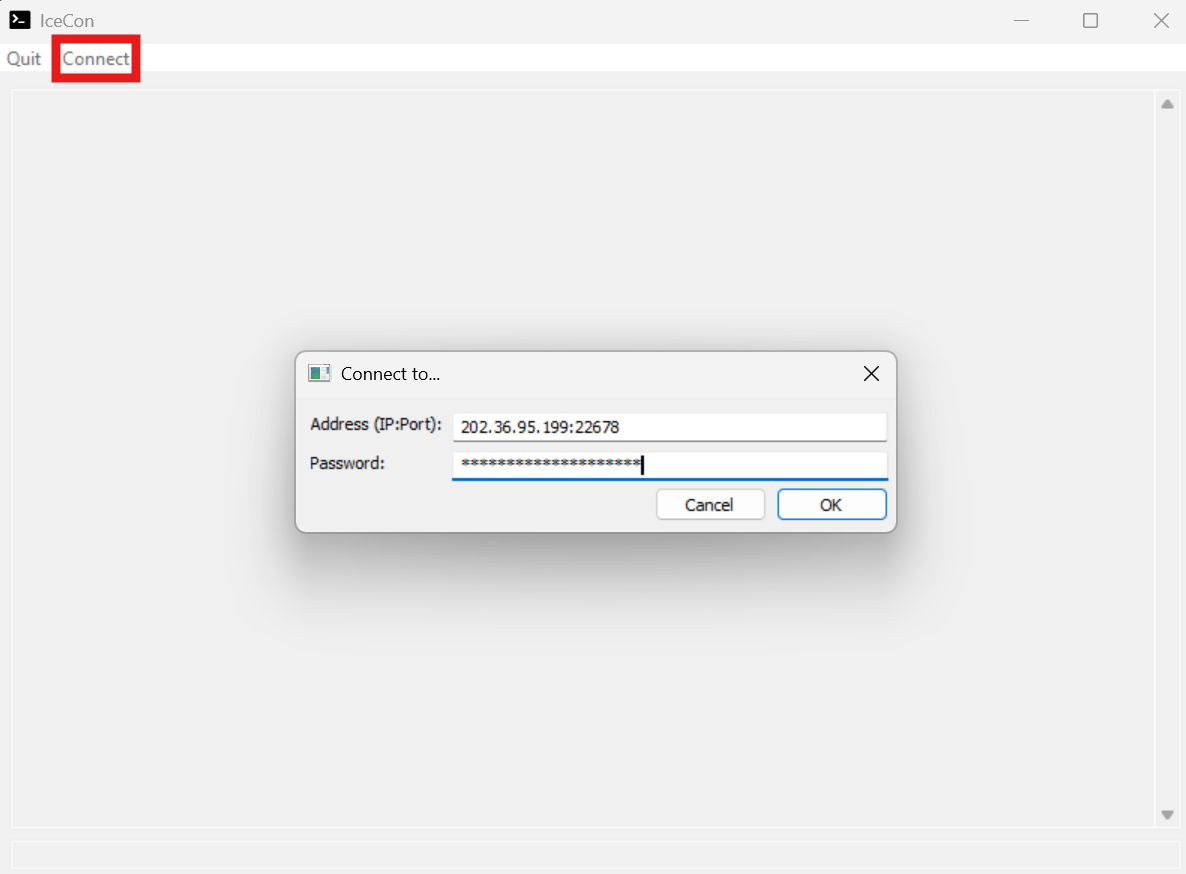
Step 3: Connect to the Server
After entering the required information, connect to the server. If the details are correct, IceCon will successfully establish the RCON connection.
Once connected, you will see a console window where you can:
- Send RCON commands to the server
- View command responses in real time
- Manage the server without joining the game
Helpful IceCon Features
IceCon includes several beginner-friendly features that make server management easier:
- Command history and auto-completion to avoid retyping commands
- Server log viewer for monitoring activity
- Custom command buttons for frequently used commands
- Multiple connection profiles for managing more than one server
These tools help simplify RCON usage, even for users who are new to server administration.
#RCON Commands
Once connected via RCON, you can execute administrative and diagnostic commands directly on your FiveM server. These commands allow you to manage resources, send messages to players, and control the server itself.
Note
Available commands may vary depending on your server configuration and installed resources.
| Command | Description |
|---|---|
say message | Sends a message to all connected players in the in-game chat |
start resource-name | Starts a specific server resource |
stop resource-name | Stops a running server resource |
restart resource-name | Restarts a specific server resource |
ensure resource-name | Starts the resource only if it is not already running |
| refresh | Reloads all resources from the server’s resource directory |
| clear | Clears the server console output |
| crash | Forces the server to crash (intended for debugging purposes only) |
| quit | Shuts down the server cleanly |
Important Notes
- Resource names must match the folder name exactly
- Use caution when running commands like crash or quit, as they will disrupt the server
- Restarting individual resources is generally safer than restarting the entire server
To learn more about FiveM server hosting, you can browse our library of Knowledgebase articles here.