Still have questions?
Come chat with us and we will get back to you as soon as possible!

Shockbyte
Support Team
How to Update Your Palworld server
Automatic updates are enabled by default on our Palworld servers and will automatically attempt to update upon server restart.
#Enabling Steam Automatic Updates
To ensure that automatic updates are enabled on your server, you can follow these steps:
-
Access your Control Panel and Stop your server.
-
Navigate to the Config tab.
-
Open the Palworld Server Settings config.
-
Enable the Steam Updates setting.
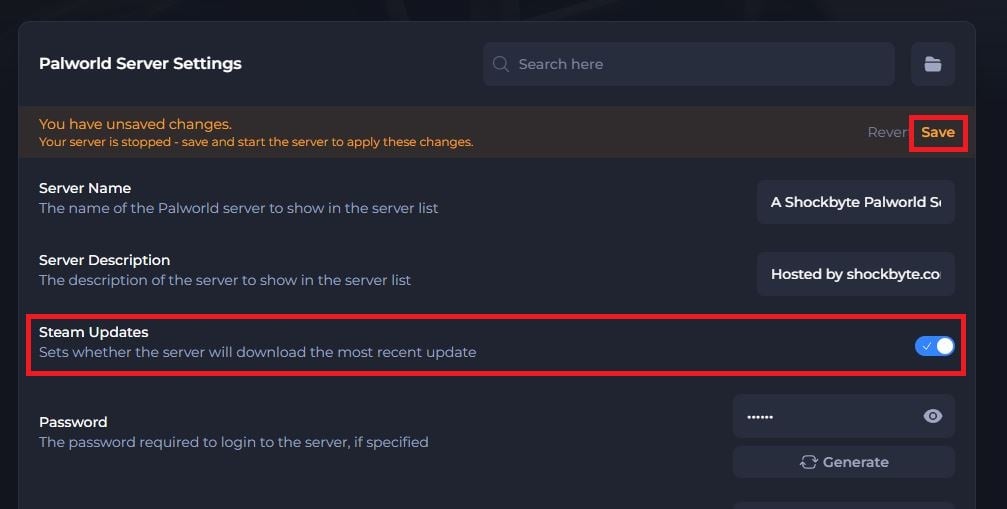
- Click Save and restart your server.
After the restart, your Palworld server should now be updated to the latest available version pulled from Steam.
#My Server Has Not Updated Automatically
If you have enabled Steam Updates, restarted your server, and it is still not running the latest version, deleting steamapps can help force the server to re-pull update files when the local installation is stale or corrupted:
Important
Before proceeding, we recommend Creating a Backup of Your Server Files to prevent any irreversible, unexpected file loss.
-
Access your Control Panel and Stop your server.
-
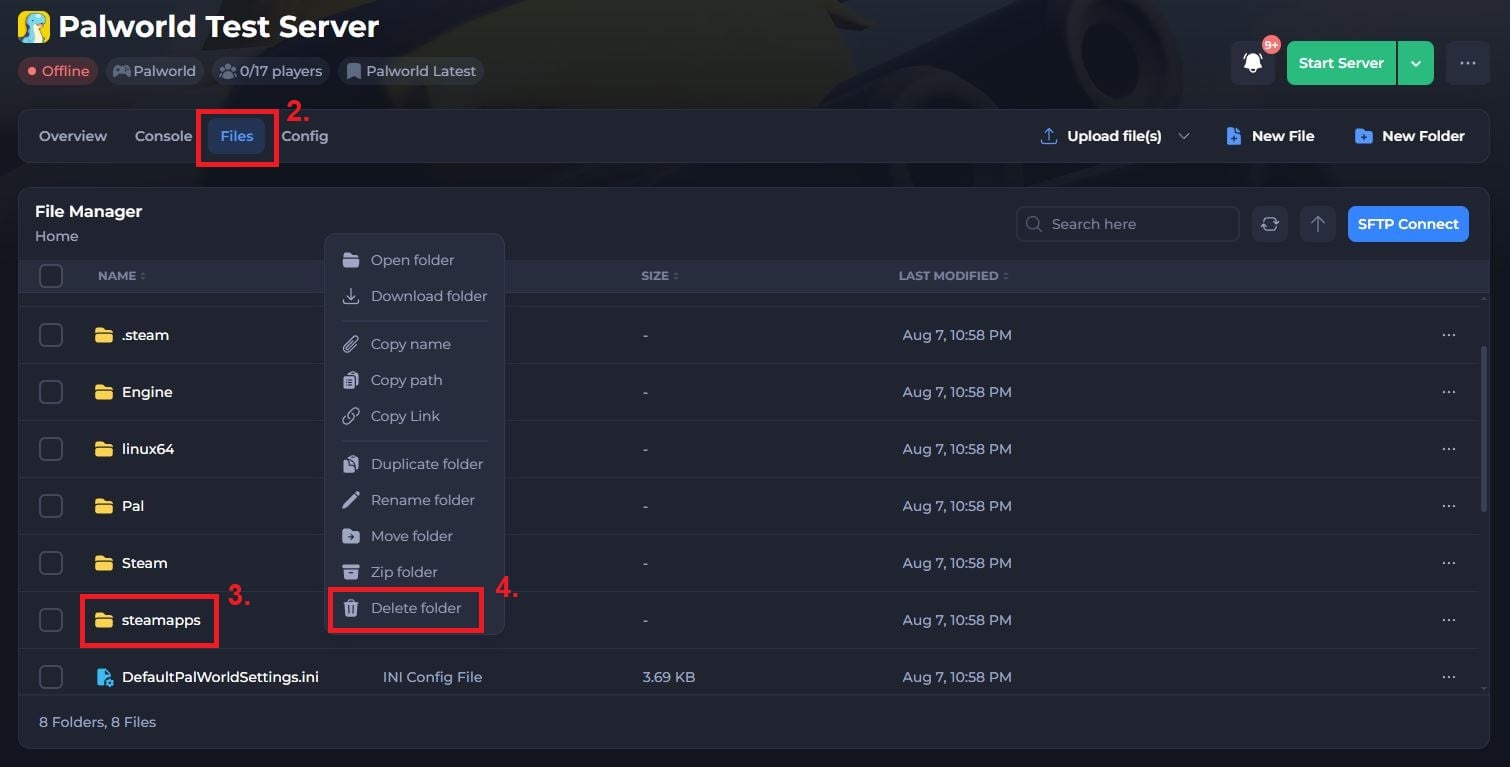
Open the Files tab.
-
Right-click the steamapps folder.
-
Click Delete Folder and confirm the deletion.
- Restart your server.
If an update has recently occurred and your server is still not updating, please allow up to 30 minutes for the update to propagate to our servers.
If you require any further assistance, please contact our support at: https://shockbyte.com/billing/submitticket.php