Aska
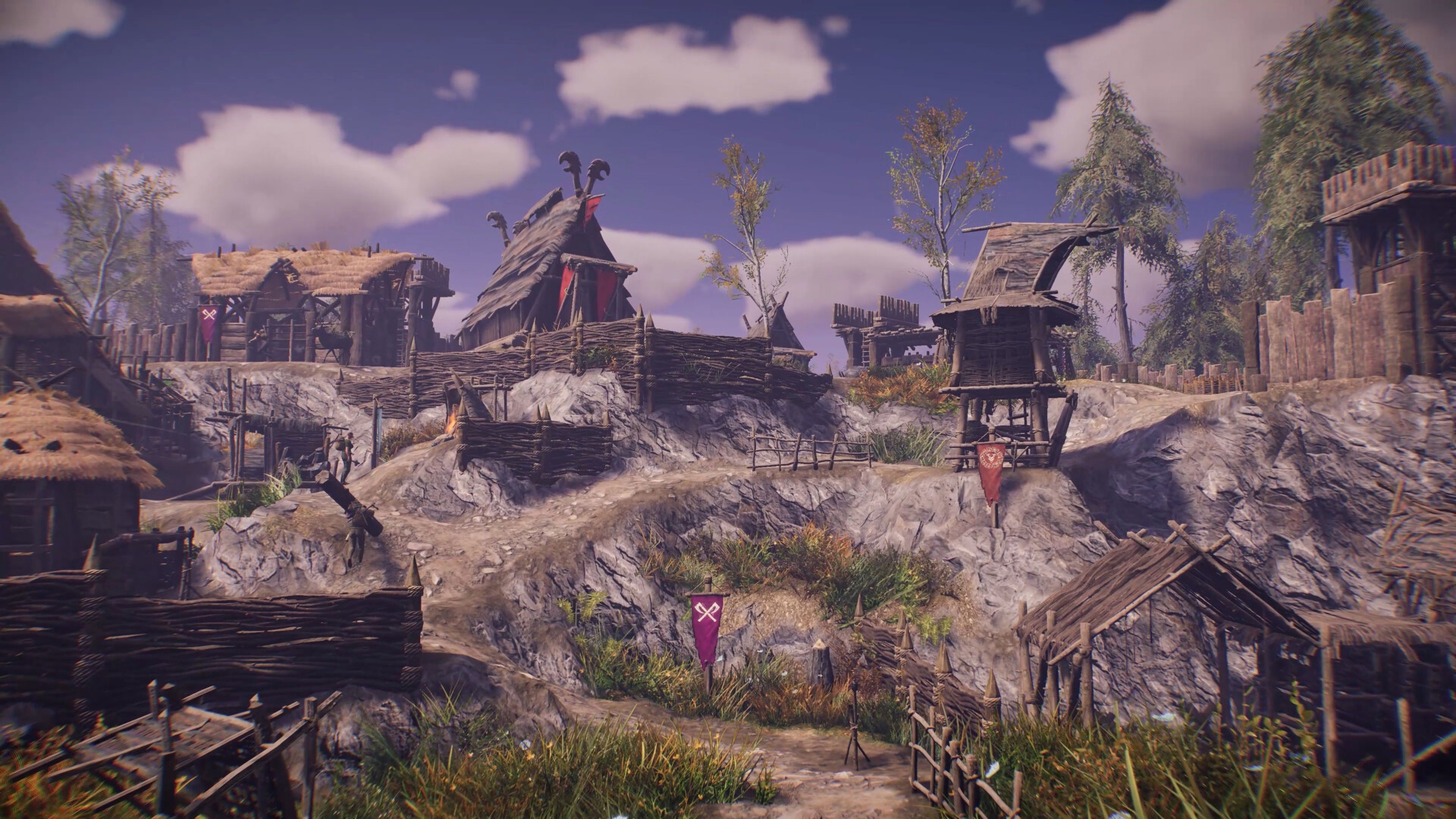

Aska
13 ArticlesHow To Enable Custom Mode On Your Aska Server
Aska offers a Custom Mode that allows server owners to customise the player experience. With Custom Mode enabled you can modify various world settings such as day length, monster density, structure decay, and a range of other settings. This is ideal for players who want a more unique experience. ::ProseNote{title="Important Note" description="Custom Mode can only be enabled when creating a new world. Existing saves cannot be switched to Custom Mode." appearance="danger"} :: Enabling Custom Mode Custom Mode can easily be enabled in the config area of the panel. 1. Navigate to the Panel. 2. Click Config. 3. Locate the Mode dropdown and set it to Custom. 4. Click Save & Restart. Interested in purchasing an Aska server with instant activation, easy customisation, and great & extensive Knowledgebase articles? Click here to purchase one! To learn more about Aska Server Hosting, you can browse our Knowledgebase article library here.
How To Keep Your Aska World Active When No Players Are Online
By default, Aska servers will shut down or pause when no players are online. Enabling the Keep Server World Alive setting ensures that the world remains active even when empty. This allows NPC villagers to continue working, weather cycles to progress, and events to unfold, maintaining a dynamic world for players to return to. --- Enabling Keep Server World Alive You can easily enable the option to keep your server's world active when no players are online in the config area of the panel. 1. Navigate to the Panel. 2. Click Config. 3. Locate the Keep World Alive option and enable it. 4. Click Save & Restart. Interested in purchasing an Aska server with instant activation, easy customisation, and great & extensive Knowledgebase articles? Click here to purchase one! To learn more about Aska Server Hosting, you can browse our Knowledgebase article library here.
How To Make Your Aska Server Private
By default, Aska servers are publicly listed in the server browser, allowing anyone to join. If you want to restrict access to only invited players, you can set a server password to make your server private. --- Setting a Password for Your Server A password can easily be added to your server in the config area of your panel. 1. Navigate to the Panel. 2. Click Config. 3. Locate the Server Password field and enter your desired password. 4. Click Save & Restart. Interested in purchasing an Aska server with instant activation, easy customisation, and great & extensive Knowledgebase articles? Click here to purchase one! To learn more about Aska Server Hosting, you can browse our Knowledgebase article library here.
How To Join Your Aska Server
Once you have your server configured the way you want it you're ready to join. The easiest way to join your server is by using the in-game server browser. ::ProseNote{title="Note" description="Your Aska server must have a Game Server Token set before it appears in the server browser." appearance="danger"} :: Joining an Aska Server You can connect to your server by searching for your server name in the in-game browser. 1. Click Multiplayer. 2. Click Join. 3. Ensure you have the correct region selected. 4. Locate and select your Server Name in the server list. 5. Click Join. Interested in purchasing an Aska server with instant activation, easy customisation, and great & extensive Knowledgebase articles? Click here to purchase one! To learn more about Aska Server Hosting, you can browse our Knowledgebase article library here.
How To Add A GSLT Token To Your Aska Server
Adding a Game Server Login Token (GSLT) to your Aska server is required for it to appear in the in-game server browser. This token is generated through Steam and links your server to the Steam network, allowing players to connect easily. --- Why GSLT Keys Are Required Many games require you to have what is known as a Game Server Login Token to run your server. This is done to ensure that servers are created by real people and to hold accountability to the owner if those servers violate the game's Server's Terms of Service. In order to be able to generate a GSLT, you must have a Steam account which: Is not banned or blocked. Is not limited. Has a qualifying registered phone attached. Owns the game for the server you are making a key for. Has not reached the cap of 1,000 GSLT keys. If your server is found to be breaking Valve's ToS, the server and your linked Steam account may be banned by Valve. --- Generating a GSLT You are able to generate a GSLT Key by creating a new game server account on the Steam Community website. 1. Navigate to Steam Game Servers Account area. 2. Locate the Create a new game server account section at the bottom of the page. 3. Enter in the App ID field. 4. Add a Memo to help you easily identify your token. 5. Click Create. Adding a GSLT to your Aska Server Once you've generated a GSLT token you can add it to your Aska server in the config area of the panel. 1. Navigate to the Panel. 2. Click Config. 3. Locate the Steam GSLT field and enter your token. 4. Click Save & Restart. Interested in purchasing an Aska server with instant activation, easy customisation, and great & extensive Knowledgebase articles? Click here to purchase one! To learn more about Aska Server Hosting, you can browse our Knowledgebase article library here.
How To Change The Name Of Your Aska Server
Changing your Aska server name will allow you and your players to easily find your server on the in-game server browser. --- Changing your Server Name You can easily change your Aska server name in the config area of the Panel. 1. Navigate to the Panel. 2. Click Config. 3. Locate the Server Name field and enter your desired name. 4. Click Save & Restart. Interested in purchasing an Aska server with instant activation, easy customisation, and great & extensive Knowledgebase articles? Click here to purchase one! To learn more about Aska Server Hosting, you can browse our Knowledgebase article library here.