Still have questions?
Come chat with us and we will get back to you as soon as possible!

Shockbyte
Support Team

How to Ban a Player from your FiveM Server
txAdmin provides several tools for banning players from your FiveM server, whether they are currently online or offline. This guide covers the different ways to issue bans, manage existing bans, and configure ban settings to help prevent ban evasion.
#Prerequisites
The following requirements must be met in order to ban a player:
-
txAdmin is installed and configured on your server.
-
You have Administrator or Moderator permissions in txAdmin.
-
You have at least one player identifier, such as: their Steam ID, Discord ID, FiveM license, In-game player ID.
#Banning via Live Console
Online players
This method is recommended when the player is currently connected to the server.
-
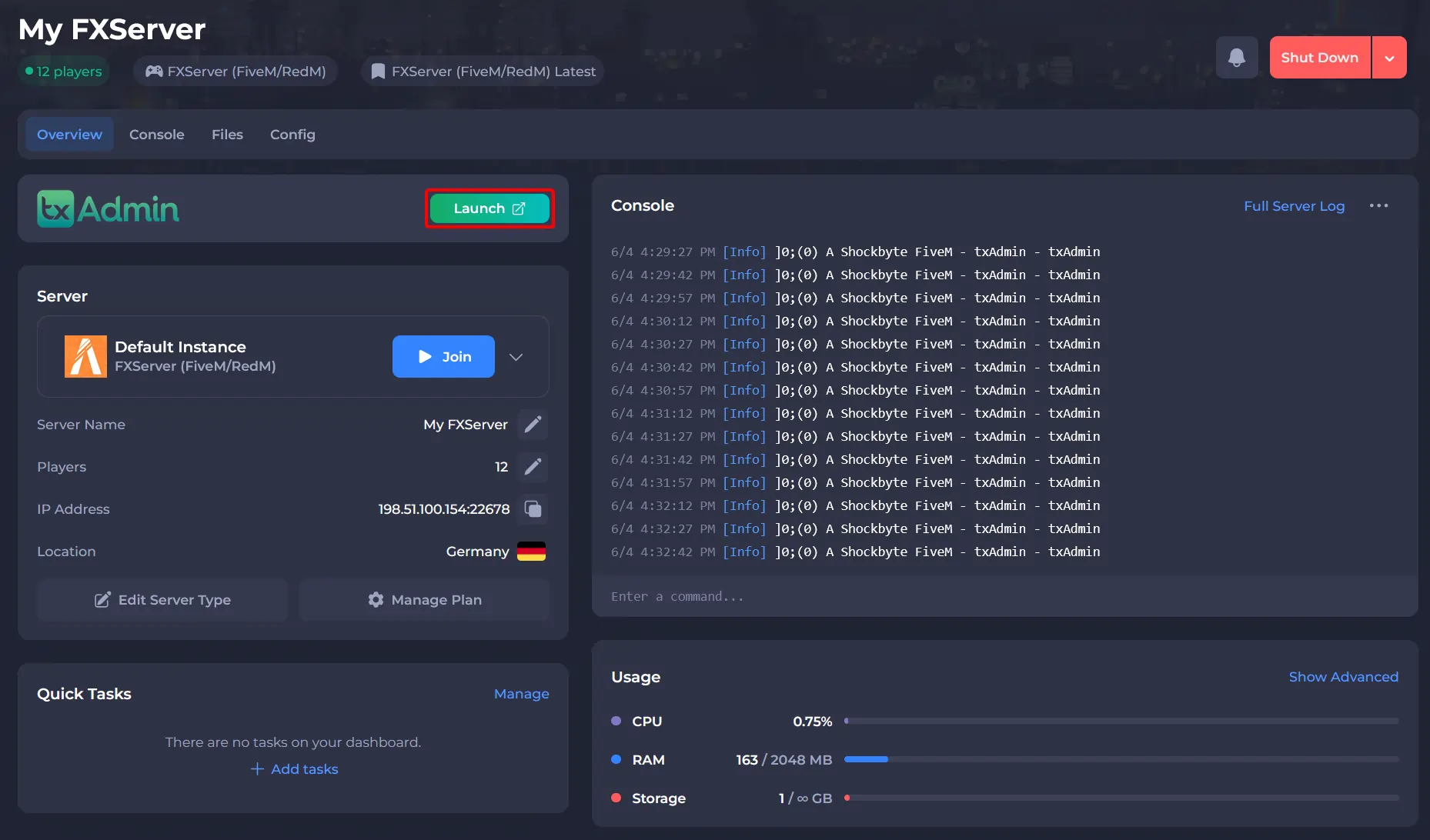
Open your Shockbyte Control Panel.
-
Launch txAdmin.
-
In txAdmin, navigate to Live Console on the left sidebar.
-
Locate the player in the connected players list and click their name.
-
Select Ban Player and complete the ban form:
-
Duration: Permanent or temporary (hours or days)
-
Reason: Clear explanation for the ban
-
Note: Internal staff notes (optional)
- Click Confirm Ban.
#Banning via Players Page
This method allows you to search for players using stored identifiers.
-
Open your Shockbyte Control Panel.
-
Launch txAdmin.
-
In txAdmin, navigate to Players on the left sidebar.
-
Search for the player using:
-
Username
-
Steam, Discord, or License ID
-
IP address (if enabled)
-
Click the player’s entry to open their profile.
-
Select Ban Player and complete the ban form:
-
Duration: Permanent or temporary (hours or days)
-
Reason: Clear explanation for the ban
-
Note: Internal staff notes (optional)
- Click Confirm Ban.
#Ban Configuration Options
Global Ban Settings
You can customize how bans behave across your server:
- Go to Settings > Bans > Ban Templates.
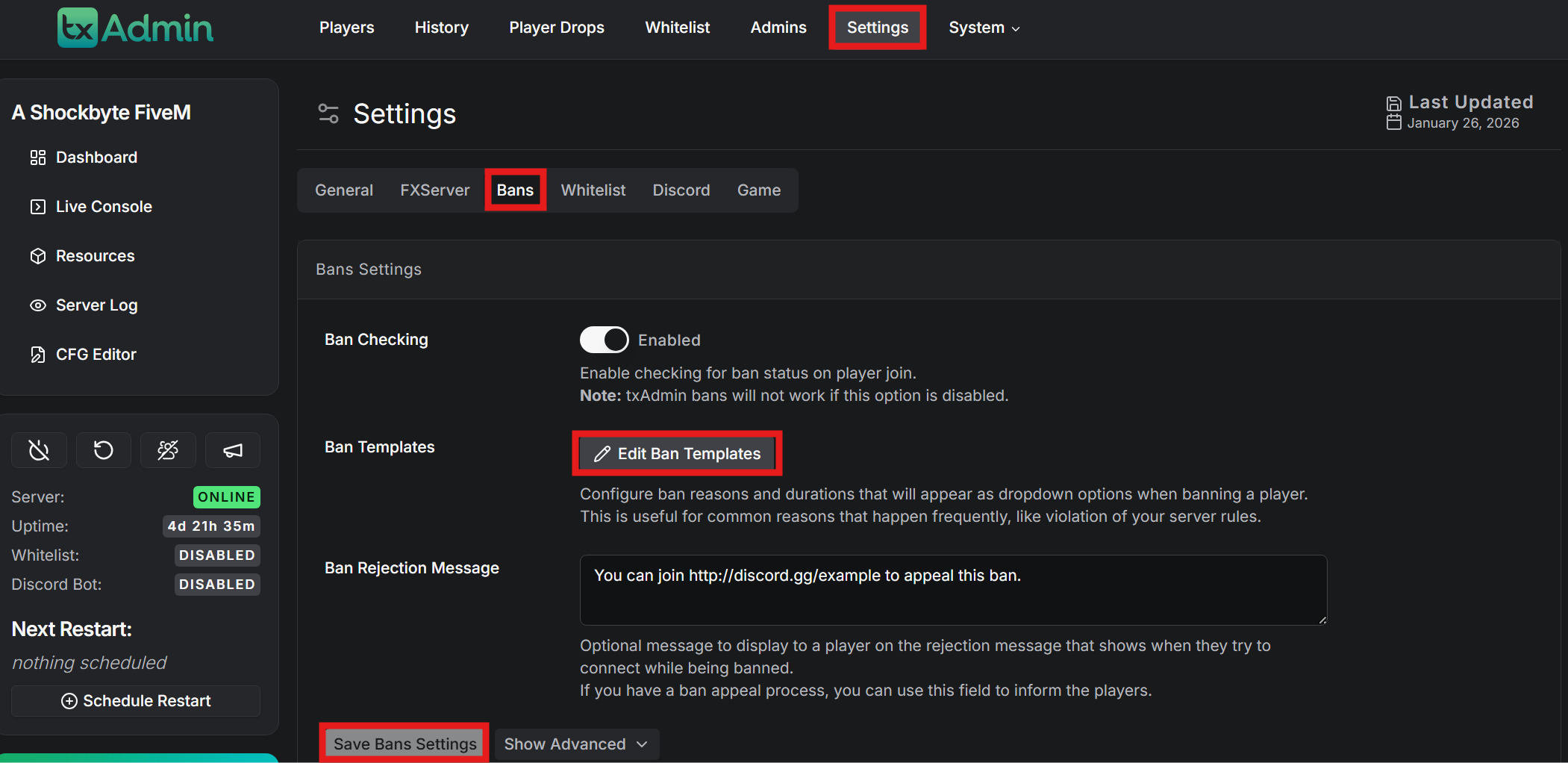
- Configure:
-
Default ban duration
-
Predefined ban reasons
-
Ban message templates
-
Hardware ID banning (recommended)
- Select Save Bans Settings.
Identifier Priority
txAdmin applies bans across multiple identifiers by default:
-
Hardware IDs (most effective)
-
Steam ID
-
FiveM license
-
Xbox Live ID
-
Discord ID
-
IP address (optional, not recommended)
#Verifying and Managing Bans
View Active Bans
- Navigate to Players > More > Ban Identifiers.
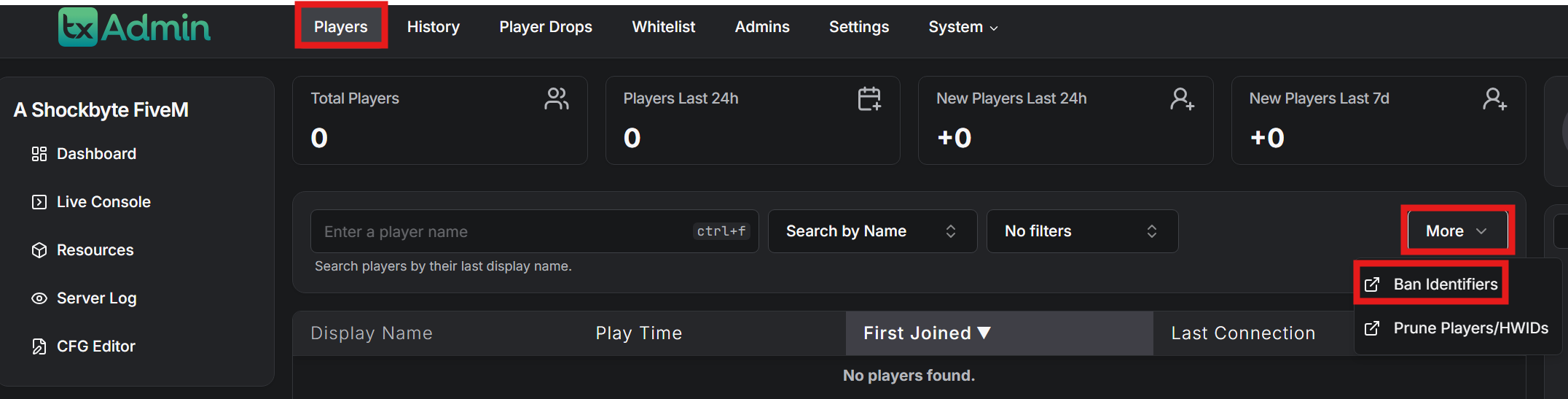
- Review:
-
Player identifiers
-
Ban reason
-
Admin who issued the ban
-
Expiration date and time
Revoke a Ban
-
Go to Players > Bans.
-
Locate the banned player.
-
Click Revoke Ban.
-
Enter a reason for the revocation.
-
Confirm the action.
To learn more about FiveM server hosting, you can browse our library of Knowledgebase articles here.