Still have questions?
Come chat with us and we will get back to you as soon as possible!

Nuno Paiva
Game Integration Specialist @ Shockbyte
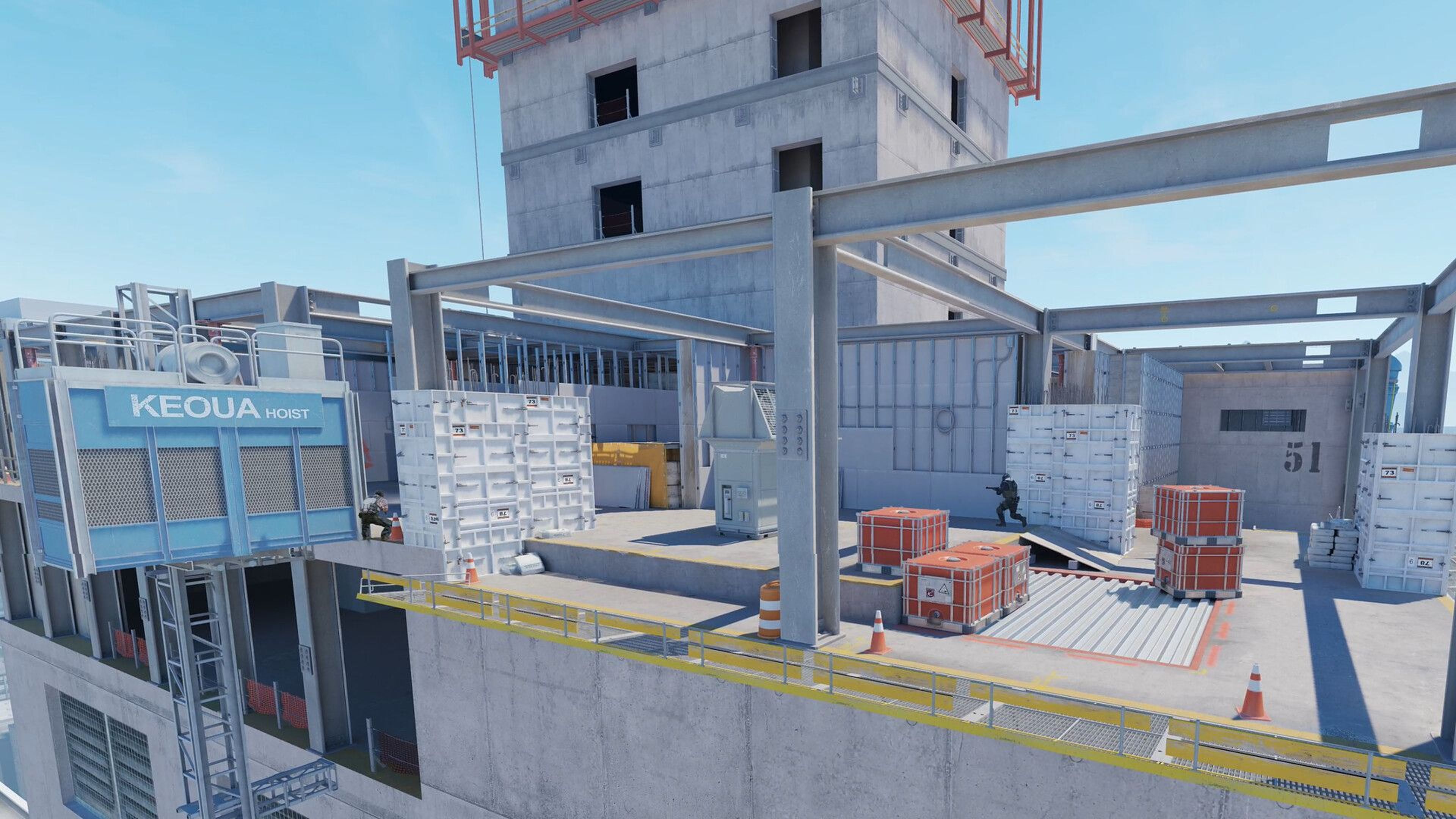
How to Enable and Use GOTV on your Counter Strike 2 Community Server
GOTV allows you to spectate matches, record replays, and review gameplay from your Counter Strike 2 community server. This guide explains how to enable GOTV, spectate with it, and record and watch demos.
#Enabling GOTV
To enable GOTV on your CS2 server:
- Navigate to your control panel and Stop your server.
- Go to the
Configtab. - Find the Enable GOTV option and enable it.

- Save the changes and Start your server.
#Spectating with GOTV
Once GOTV is enabled, spectators can watch your server using the GOTV port. To connect:
- Launch CS2.
- Open the developer console by pressing the tilde (
~) key. - Enter the following command:
connect IP:GOTVPort
You can find the GOTV port for your server by visiting the Ports tab in your control panel.

#Recording GOTV Demos
GOTV supports manual demo recording from the server console or RCON. This allows you to start and stop recordings at any time and set a custom name.
- To start recording a demo:
tv_record <demo_name> - To stop recording:
tv_stoprecord
The recorded <demo_name>.dem file will be saved to the /game/csgo directory on your server using the name you provided.
#Watching GOTV Demos
To watch a recorded demo:
- Go to your panel's Files tab.
- Download the
.demfile from the/game/csgofolder. - On your computer, place the file into:
/Counter-Strike Global Offensive/game/csgo - Launch CS2 and open the developer console.
- Enter the following command:
playdemo <filename>
Replace filename with the name of your demo file.
If you require any further assistance, don't hesitate to get in touch with our support at: https://shockbyte.com/billing/submitticket.php