Still have questions?
Come chat with us and we will get back to you as soon as possible!

Ruben B
Partnership Manager
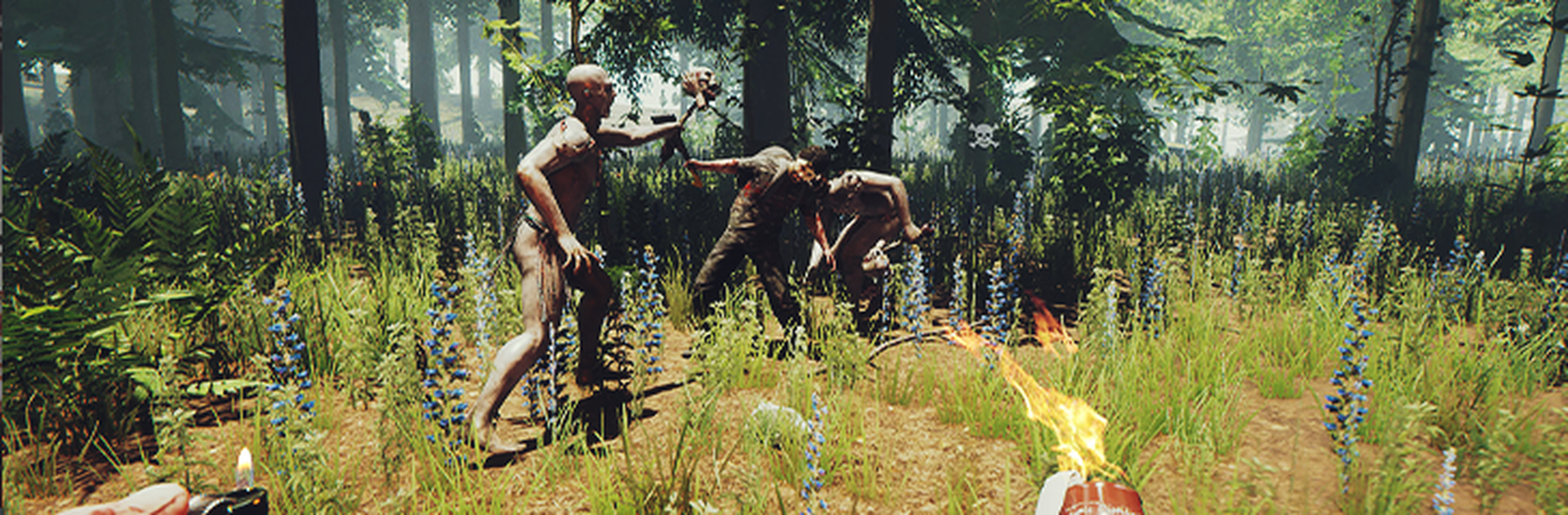
How to Use the Developer Console for Your The Forest Server
The Forest offers an in-game Developer Console which can be useful to players who wish to use cheats or modify their game settings. By default, the Developer Console is disabled and must be enabled before joining a server to be able to use certain developer features.
Note
In order to use certain commands, cheats must be enabled on your server. If you need to know how to enable this setting we have another article that will guide you through the process here.
#Enabling The Developer Console
The Developer Console can be enabled by making a change to the gameplay options and then typing a command in the main menu of the game.
Note
If the Developer Console does not appear above The Forest logo, please ensure that you do not have F Lock enabled.
- Launch The Forest.
- Click Options.

- Click Gameplay.

- Set Allow Cheats to On.

- Return to the main menu, type
developermodeon. - Press the F1 key to open the developer console.

#Using The Developer Console
You can use the Developer Console by pressing the F1 key when you are in the game.
- Locate your server in the server list.
- Fill in the Admin Password field and click Join.

- Once in-game, press the F1 key to open the developer console.

- Type in your desired command and press Enter.
