Table Of Contents
Configuring an Automated Backup ScheduleStill have questions?
Come chat with us and we will get back to you as soon as possible!

Kobe Plane
Game Experience Engineer

How to Automatically Backup your Server
It is important to frequently backup your server in case something irreversible happens, such as a world corruption, grief or loss of files. With Shockbyte, it is possible to automatically configure backups so you don't have to do this yourself.
#Configuring an Automated Backup Schedule
The Shockbyte Panel makes it quick and easy to configure automated backups on your server.
Keep in mind, though, you can only store up to 3 backups at a time, so you might want to consider using a longer interval during setup.
-
Navigate to the Shockbyte Panel and open your server panel.
-
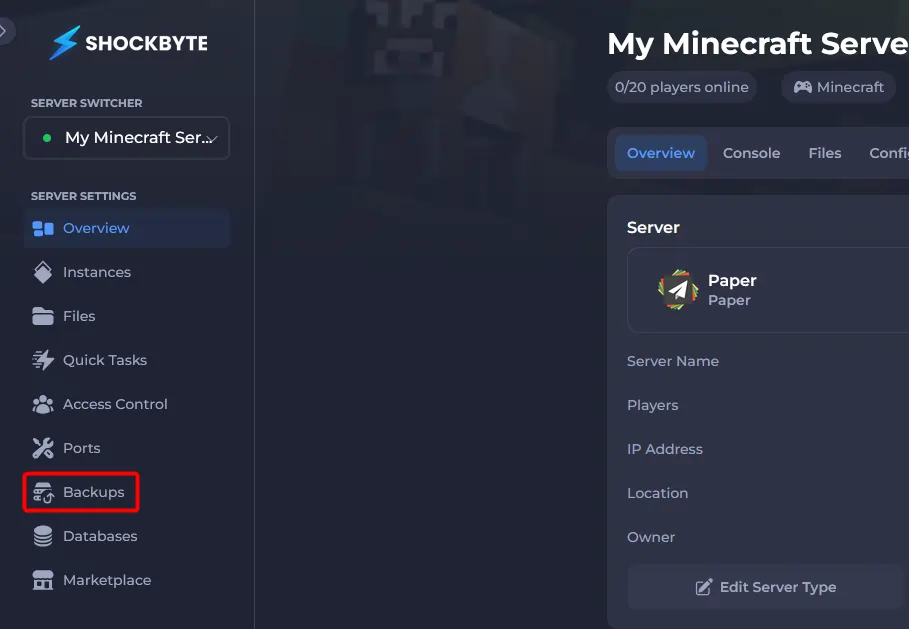
On the left-hand sidebar, click the Backups tab.
-
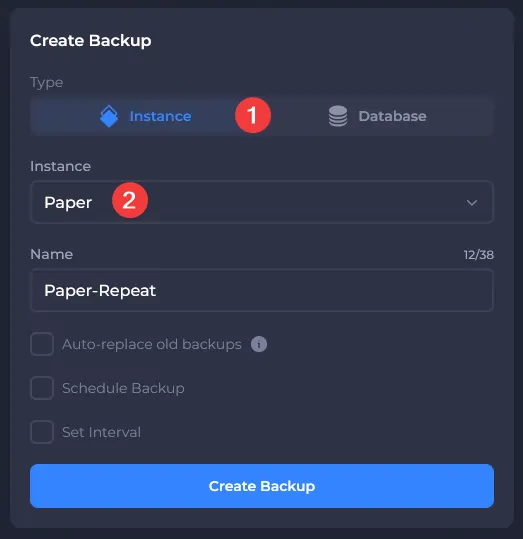
Choose which Instance or Database you would like to schedule backups on.
-
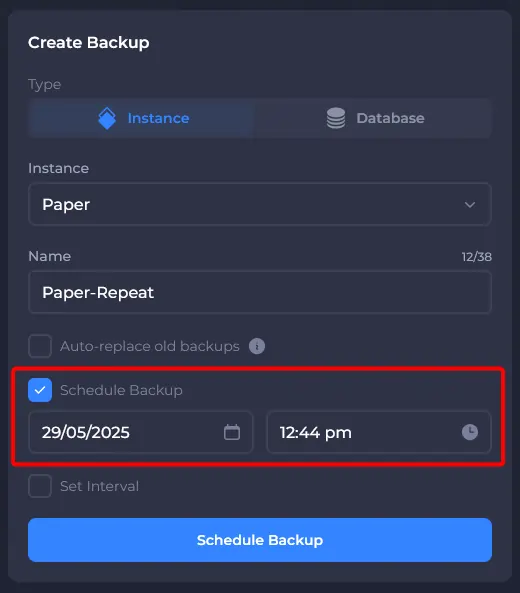
(Optional) Schedule the time you would like the first backup to generate.
-
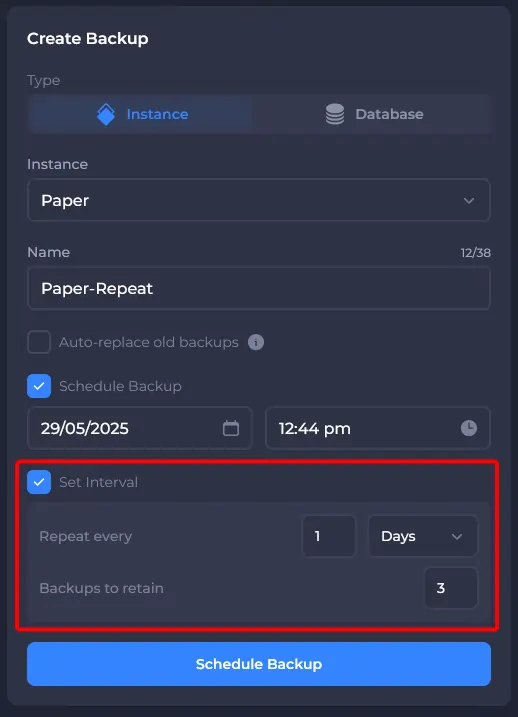
Enable and set your desired repeating interval duration.
Note:
It is recommended to enable Auto-replace old backups to ensure that backups are still able to be made when you run out of available backup slots.
-
Click the confirmation button to Schedule or Start your first backup interval.
-
View, edit, or delete your existing schedules in the Scheduled Backups section.
That's it! Your server will now automatically back up according to the schedule you have defined.