Still have questions?
Come chat with us and we will get back to you as soon as possible!

Shockbyte
Support Team
How to Host a Custom Map for Your Rust Server
Custom maps are hand-made by players and are not generated naturally by the game. If you're looking to use a naturally generated map for your Rust server, check out our guide on the topic here.
#Getting Started
Custom maps can be downloaded from sites such as Lone.Design and Codefling. Once downloaded, the map must be hosted on a file-sharing service before it can be added to your server.
This guide goes over three common methods to host your map: Dropbox, Google Drive, and Rustmaps.com.
#Dropbox (Recommended)
-
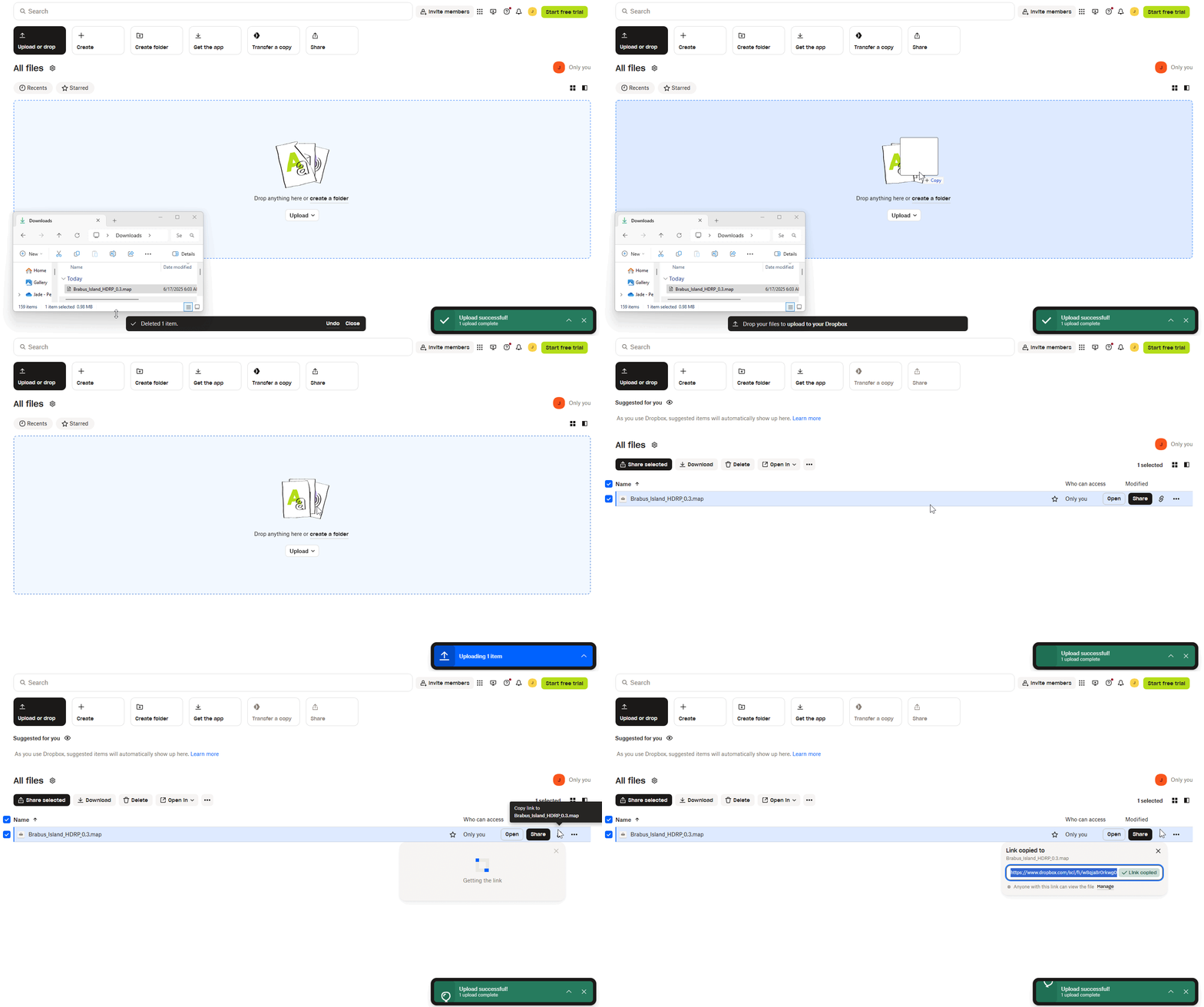
Navigate to the Dropbox home page.
-
Upload the
.mapfile that you downloaded into Dropbox. -
Once uploaded, hover over the file and select the Copy Link button.
Once the link has been copied, proceed to our guide on how to add the custom map to your server here.
#Google Drive
-
Navigate to the Google Drive home page.
-
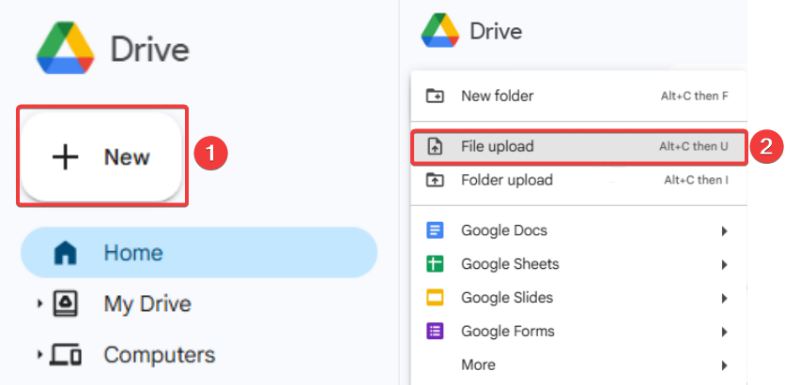
Select the "New" Button, then select "File Upload".
-
Select the
.mapfile that you downloaded. -
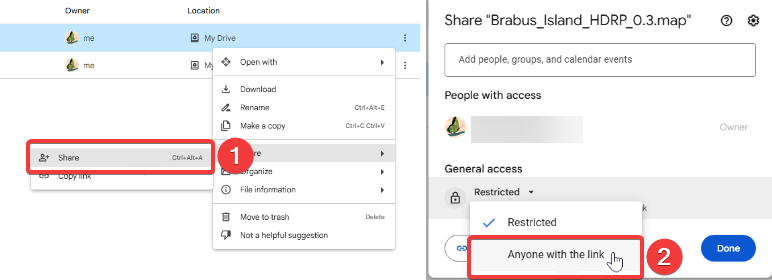
After the file has been uploaded, select the three dots next to the file, "Share", and set it to "Anyone with the link".
-
Copy the link and enter it on the following website: https://sites.google.com/site/gdocs2direct/
-
Select "Create Direct Link" and copy the output link.
Once the link has been copied, proceed to our guide on how to add the custom map to your server here.
#Rustmaps.com
-
Navigate to the Rustmaps website.
-
Select "Sign in" at the top right to sign in with Steam.
-
Open the "Dashboard" at the top of the website, then select "Custom Map Upload" under your profile.
-
Select "Upload Map" and then select the
.mapfile that you downloaded. -
After the file has been uploaded, select the "Show Map" icon next to the map.

-
Select the "Use" button on the map page, then copy the direct download link.
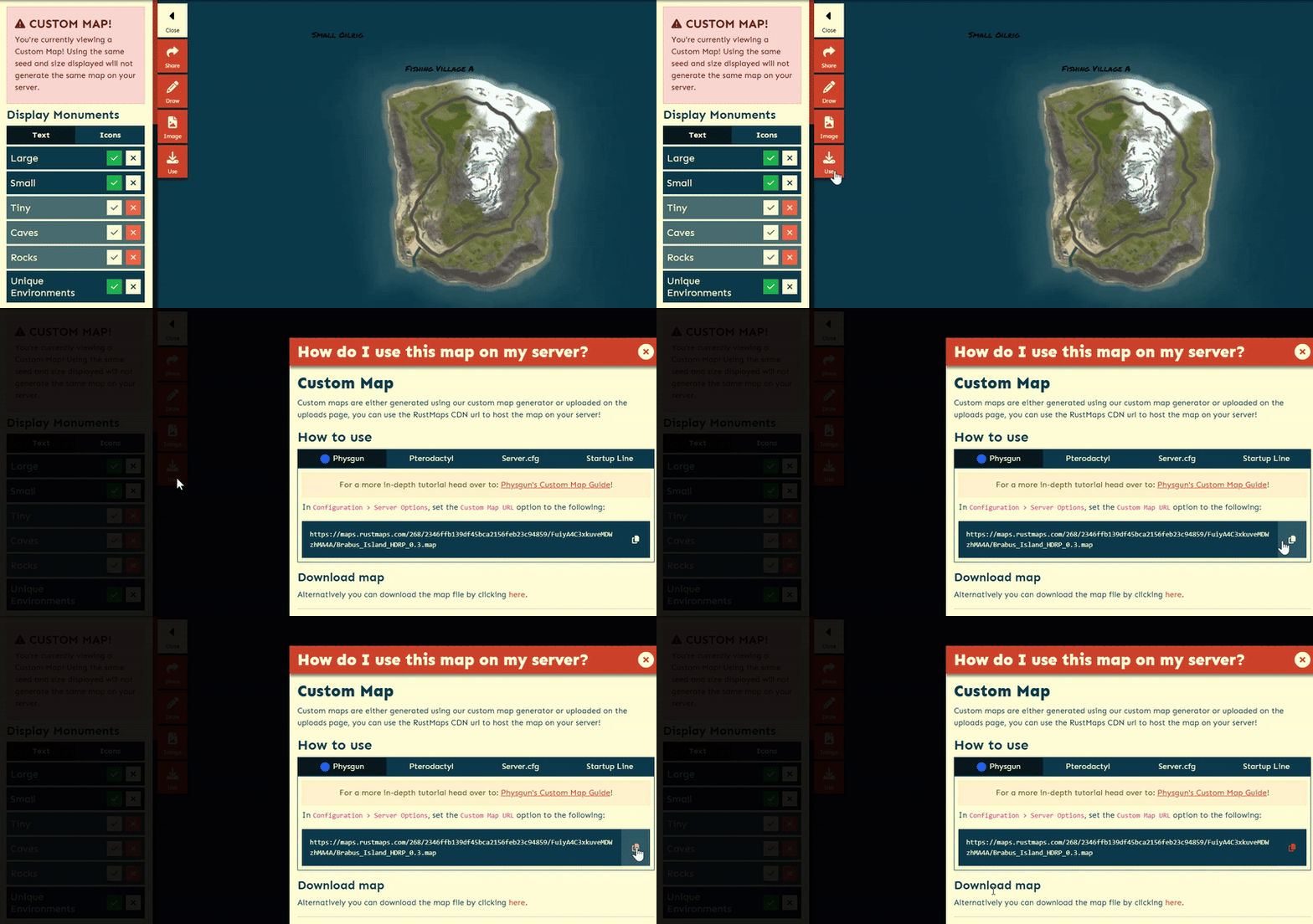
Once the link has been copied, proceed to our guide on how to add the custom map to your server here.