Still have questions?
Come chat with us and we will get back to you as soon as possible!

Shockbyte
Support Team

How to Upload an Existing World on your Necesse Server
Uploading your existing Necesse save from another server or single-player will allow you to continue your world's progress on a Shockbyte server. To do this, you will need to locate and upload your existing world save folder to the server.
#Locating Local Save Files
Before you can upload your single-player world to your server, you will need to locate your single-player save files.
-
Press
WIN+Rto open the Windows Run application. -
Enter
%Appdata%/Necesse/saves/worldsin Windows Run.
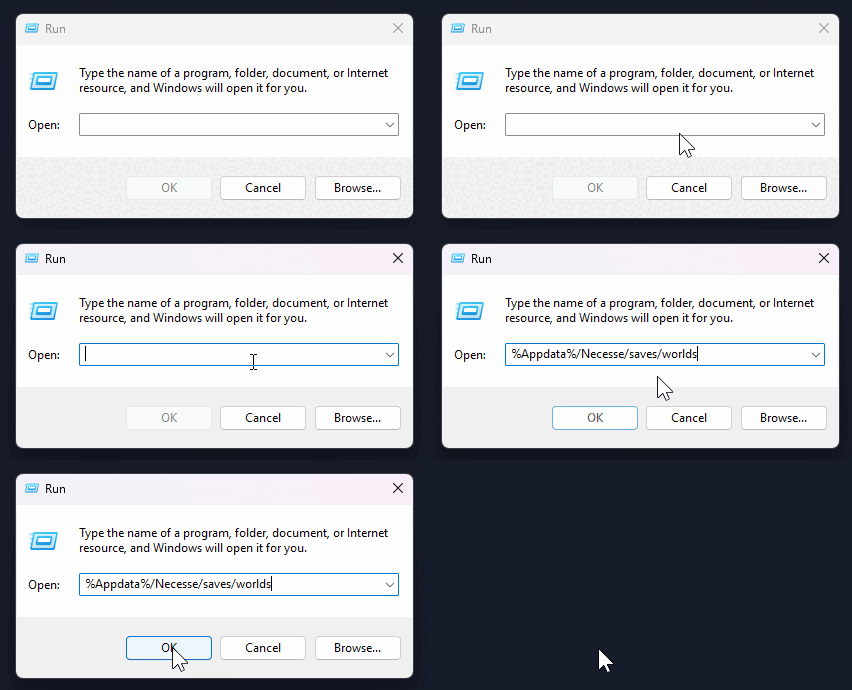
- Locate the correct world .zip file, then Extract it.
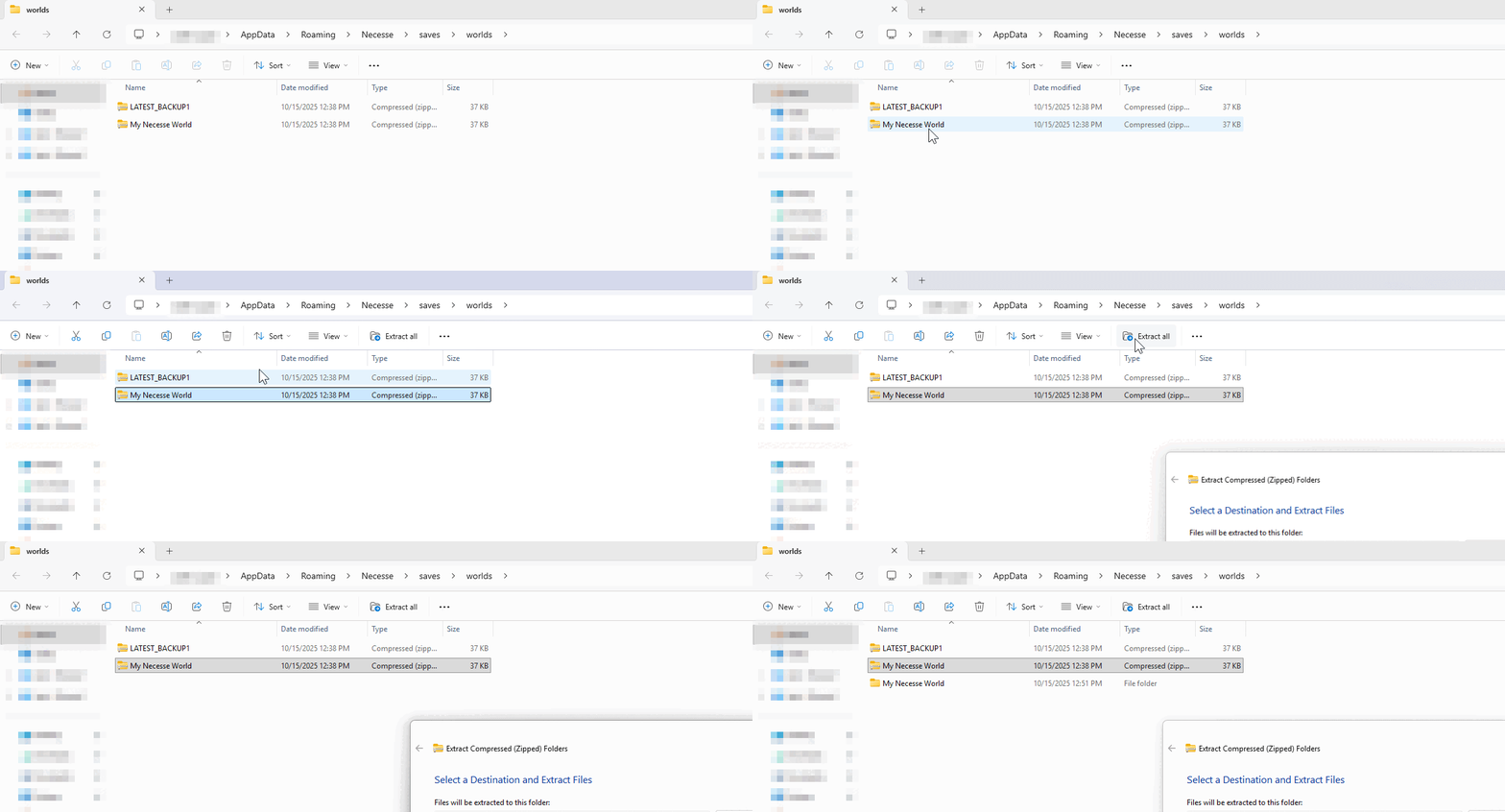
#Uploading an Existing World
After obtaining the world save folder, it can be uploaded to the server using FileZilla. Once uploaded, select the world on the server by specifying its name in Necesse Server Settings.
-
Open your Server Control Panel.
-
Stop the server and wait for it to go Offline.
-
Access your server files with an SFTP client; we recommend using Filezilla.
Note: Using an SFTP client like FileZilla is strongly recommended. It manages large uploads much faster than your browser.
- Navigate to the directory
/saves/worlds.
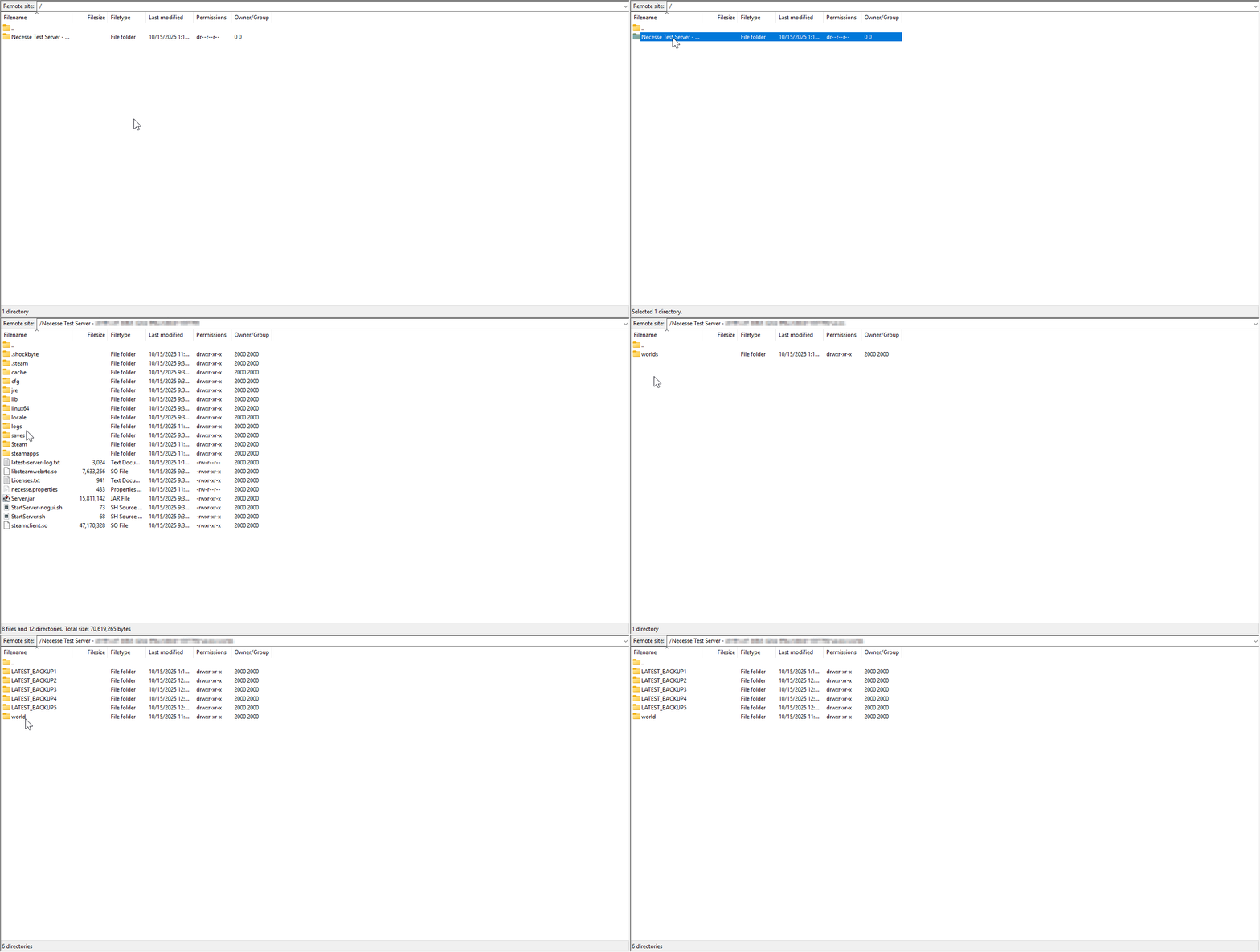
- Upload the extracted world folder.
Important
Once uploaded, double-check if the world folder is nested. If it's nested, the server won't recognize the files. The nested files must be pulled out.
-
An example of a nested world is
/saves/worlds/world/world/<world files>. -
An example of a correct world is
/saves/worlds/world/<world files>.
-
Navigate to Config and open Necesse Server Settings.
-
Locate World Name and set it to match the name of the uploaded world.
-
Start your server.
To learn more about Necesse server hosting, you can browse our library of Knowledgebase articles here.