Arma 3
Arma 3
13 ArticlesGet the ultimate guides to Arma 3 game server hosting, packed with tips, tricks, and everything you need to start hosting like a pro!
How To Configure Voting On Your ARMA 3 Server
Arma 3 servers have a built-in voting feature that allows players to vote for certain events or changes to take place in real time. Server owners can configure the available commands and their configuration within the server.cfg file. --- Voting Configuration Syntax Arma 3 voting configuration properties require the use of the following syntax. For more details on this syntax, and Arma 3 voting configuration, please refer to this wiki page. - the name of the command, for example, "admin" (Optional) - true to allow command before the mission starts. Default: true (Optional) - true to allow command after the mission starts. Default: true (Optional) - voting threshold 0...1. Default: value assigned to voteThreshold param. Otherwise 0.5 (Optional) - percent side threshold 0...1. Default: 0.5 --- Allowed Vote Commands Config You can configure the details of your server's enabled voting commands, or decide which vote commands are enabled by using the proper configuration property inside the Arma 3 Server Config found in your Shockbyte control panel. 1. Access your control panel and Stop your server. 2. Navigate to your server files and open the server.cfg file. 3. Locate the configuration section. If this section is missing, copy and paste it from here. 4. Configure these options to your liking, refer to this wiki page for syntax details. 5. Click Save and Start your server. --- Allowed Voted Admin Commands Config Configure what commands "voted-in" admins will have access to on your server by using the proper configuration property inside the Arma 3 Server Config found in your Multicraft control panel. 1. Access your control panel and Stop your server. 2. Navigate to your server files and open the server.cfg file. 3. At the bottom of the file, copy and paste the following: 4. Configure these options to your liking, refer to this wiki page for syntax details. 5. Click Save and Start your server. --- That’s it! You’re all set to configure voting on your ARMA 3 server. Whether you're running a small game with friends or managing a larger community, setting up voting ensures everyone gets a say in how the action unfolds.
How To Configure Missions For Your ARMA 3 Server
Arma 3 missions provide scenarios or campaigns which help keep the content on your server fresh. In some cases, an Arma 3 server owner may wish to configure a single mission to be active on their server at all times. This situation may apply to you if you intend on using a persistent mission for your server. Before you can configure a single mission or mission cycle on your Arma 3 server, you must first locate your desired mission files locally and then upload them to your server. --- Finding your Local Mission Files After downloading custom missions or loading vanilla ones, their .pbo files can be found in the MPMissionsCache. 1. Press + on your keyboard to open a Run window. 2. Enter , then press ok. 3. In the opened directory, navigate to . 4. Locate your desired missions .pbo file. --- Uploading a Mission File to your Server After locating your desired mission .pbo file(s), you'll need to upload them to your mpmissions folder on your server. 1. Navigate to your control panel and Stop your server. 2. Go to your server files and navigate to the directory. 3. Upload your local mission file (.pbo) to the directory. --- Configuring a Single Mission To configure a single active mission on your Arma 3 server, you will have to define the mission in your server.cfg file. 1. Access your control panel and Stop your server. 2. Navigate to your server files and open the server.cfg file. 3. Copy and paste the following code block at the bottom of the file. 4. Replace with the name of the mission file without the . 5. Save and Start your server. You have now learned how to configure missions for your ARMA 3 server. With these steps, you can tailor the gameplay experience to match your community’s style
How To Configure Mission Cycles On Your ARMA 3 Server
As an Arma 3 server owner, you can configure a custom automatic mission cycle/rotation. This removes the need for an online admin to manually change the active mission on your server. Before you can configure a mission cycle for your Arma 3 server, you must first locate your desired mission files locally and then upload them to your server. --- Finding your Local Mission Files After downloading custom missions or loading vanilla ones, their .pbo files can be found in the MPMissionsCache. 1. Press + on your keyboard to open a Run window. 2. Enter , then press ok. 3. In the opened directory, navigate to . 4. Locate your desired missions .pbo file. --- Uploading a Mission File to your Server After locating your desired mission .pbo file(s), you'll need to upload them to your /mpmissions folder on your server. 1. Navigate to your control panel and Stop your server. 2. Go to your server files and navigate to the directory. 3. Upload your local mission file (.pbo) to the directory. --- Configuring a Mission Rotation To configure an automatic rotation of missions on your Arma 3 server, you must define a mission class in your server.cfg file. 1. Access your control panel and Stop your server. 2. Navigate to your server files and open the server.cfg file. 3. Copy and paste the following code block at the bottom of the file. 4. Between the curly braces ({ }), paste a mission class for the missions you'd like in the mission rotation. For example: 5. Replace with the name of the mission file without the . 6. Save and Start your server. --- You’ve now mastered configuring mission cycles on your ARMA 3 server. Whether you're customizing gameplay or ensuring variety for your players, you’ve got the tools to make it happen.
How To Change The Name Of Your ARMA 3 Server
One way to locate your Arma 3 server is by using the in-game public server browser. To locate your server through the public server browser you will need to know your Server Name. The Server Name configuration option is especially useful when your server is running a popular game mode as it can be difficult to spot and identify your server in the public server browser. --- Changing your Server's Name Your server name can be changed in your Arma 3 Server Settings file, which is found on your Shockbyte control panel. 1. Access your control panel and Stop your server. 2. Navigate to your server files and open the server.cfg file. 3. Locate the hostname field and enter your desired server name. 4. Click Save and Start your server. You’ve successfully learned how to change the name of your ARMA 3 server. Whether you are rebranding, adding a bit of flair or just starting fresh, this guide has you covered.
How To Add An Administrator On Your ARMA 3 Server
Adding an administrator to your Arma 3 server grants the specified player the ability to perform administrative actions, modify server settings, and execute all commands on the server. This is useful for server administrators who wish to modify a mission during a session or they wish to moderate/remove troublesome players from the server. --- Adding an Admin You can add an admin using the proper configuration property inside the Arma 3 Server Config found in your Shockbyte control panel. 1. Access your control panel and Stop your server. 2. Navigate to your server files and open the server.cfg file. 3. At the bottom of the file, Add the option 4. Enter the player's SteamID64 under the option. The format will appear as follows: 5. Click Save and Start your server. --- Logging In as an Admin To log in as admin without adding yourself to the server configuration, use the login command followed by your server's configured admin password. 1. Launch Arma 3 and Connect to your server. 2. Press the key on your keyboard to open the chatbox. 3. Enter the command to log in as an administrator. You have now successfully added an administrator to your ARMA 3 server. With your new admin powers in place, managing your server will be a breeze.
Getting Started With Your ARMA 3 Server
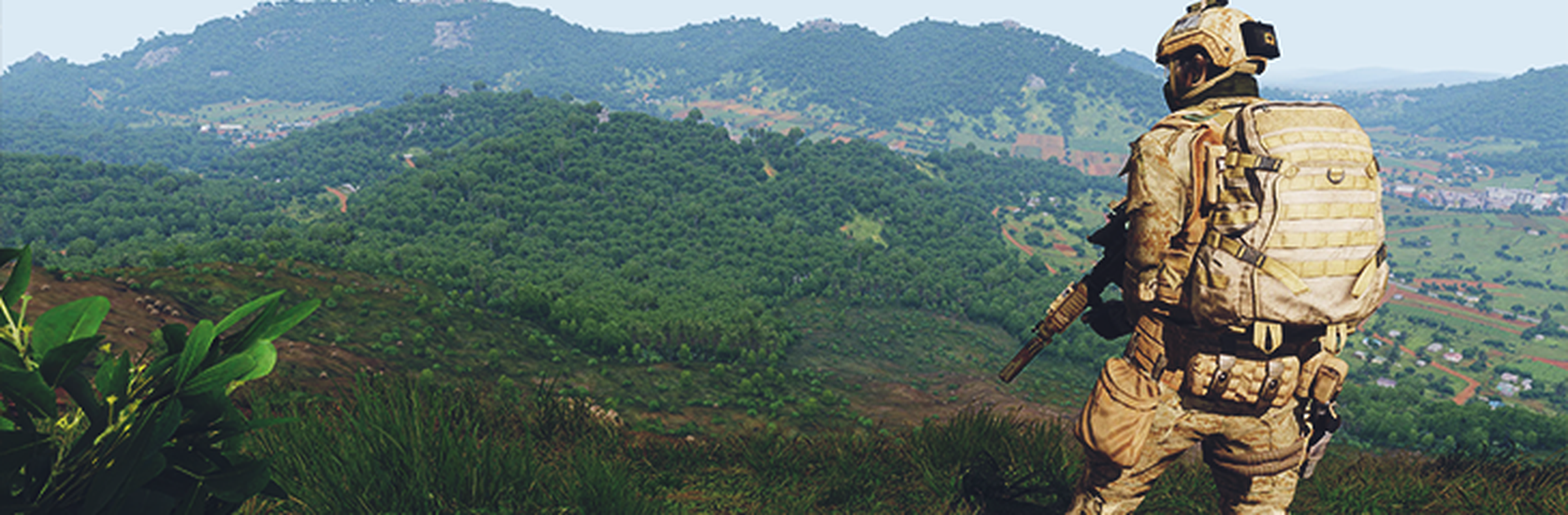
Experience true combat gameplay in a massive military sandbox on your Shockbyte Arma 3 dedicated server. Deploy with friends across a huge variety of multiplayer content and mission with over 20 vehicles and 40 weapons. Authentic, diverse, open - Arma 3 sends you to war. --- Getting Started The following articles cover the most common questions you may have when first starting out with your new Arma 3 server. How to Join your Arma 3 Server How to Change the Name of your Arma 3 Server How to Upload Missions to your Arma 3 Server How to Add an Administrator on your Arma 3 Server How to Kick/Ban Players from your Arma 3 Server --- Configuring Your Server Once you have your server online, you might want to make some additional changes to your server configuration. These articles will walk you through the process of easily configuring additional settings on your server. How to Configure your Arma 3 Server How to Configure Missions for your Arma 3 Server How to Configure Mission Cycles on your Arma 3 Server How to Configure Voting on your ARMA 3 Server How to Disable BattlEye on your Arma 3 Server How to Install Workshops Mods Locally on your ARMA 3 Client To learn more about Arma 3 server hosting, you can browse our library of Knowledgebase articles here.