Minecraft
How To Play Multiplayer Minecraft With My Friends (A Full Guide)
 Cami
CamiTo play multiplayer Minecraft with friends, make sure everyone is on the same edition, then choose a setup: Bedrock friend invites, Java/Bedrock servers, LAN, or Realms. For a world your group can join anytime, use a private server or Realms instead of a friend-hosted world.
#Before You Start: Check Your Minecraft Edition
Before anyone starts sending invites, check which version of Minecraft everyone is using. This is the step that saves you from the classic “why can’t I join?” spiral.
Minecraft has two main editions:
- Minecraft: Java Edition - PC only, including Windows, Mac, and Linux.
- Minecraft: Bedrock Edition - Windows, Xbox, PlayStation, Nintendo Switch, iOS, and Android.
The important part is that Java and Bedrock players cannot normally join the same world. Java players usually play with other Java players, while Bedrock players can play with other Bedrock players across supported platforms.
So, before setting up minecraft multiplayer, ask your group:
- Is everyone on Java Edition?
- Is everyone on Bedrock Edition?
- Is anyone on console or mobile?
- Does everyone have the same Minecraft update installed?
If you’ve been searching “how to play minecraft with my friends”, this is the first answer: get everyone on the same edition, update the game, then pick the multiplayer method that fits your group.
#The Main Ways To Play Minecraft Multiplayer
There are a few different ways to play Minecraft with friends, and none of them are “the one correct way.” It depends on what you’re trying to do.
Here’s the quick breakdown:
- Friend-hosted world.
- Best for: Quick Bedrock Sessions
- Limitation: Host must be online.
- LAN world.
- Best for: Same house, same Wi-Fi
- Limitation: Only works locally.
- Realms.
- Best for: Simple private worlds.
- Limitation: Limited customization.
- Public Servers.
- Best for: Minigames and big communities.
- Limitations: Not your own world.
- Private servers.
- Best for: Long-term worlds, mods, plugins.
- Limitaitons: Requires hosting/setup.
For a quick survival night, joining a friend’s world is fine. For a long-running world where everyone can build whenever they want, a private server is usually the better choice.
#How To Play Minecraft With Friends On Bedrock Edition
Bedrock Edition is usually the easiest option for friends on different devices. If one friend is on Xbox, another is on Switch, and another is on mobile, Bedrock is the version that makes that kind of cross-play possible.
#What You Need First
Before joining each other, make sure you have:
- A Microsoft account.
- Your Xbox/Microsoft gamertag.
- Your friend added in Minecraft.
- Multiplayer enabled in your world settings.
- A stable internet connection.
- The latest Minecraft update installed.
Console players may also need an active online subscription, depending on platform. That usually means Nintendo Switch Online, PlayStation Plus, or Xbox Game Pass Core.
#How To Add A Friend On Bedrock
To add a friend in Bedrock Edition:
- Open Minecraft.
- Select Play.
- Go to the Friends tab.
- Choose Add Friend or Find Cross-Platform Friends.
- Enter your friend’s gamertag.
- Send the friend request.
- Ask them to accept it.
Your gamertag is the name your friends use to find you. If you’re helping a friend set this up, tell them to double-check spelling, numbers, and spaces. One tiny typo can make it look like the account does not exist.
#How To Join A Friend’s Bedrock World
Once you’re friends in Minecraft, joining is simple:
- Open Minecraft.
- Select Play.
- Open the Friends tab.
- Look under Joinable Friends.
- Select your friend’s world.
- Join and start playing.
Your friend needs to be online and inside the world. If they leave, the world usually closes for everyone else too. This is the easiest way to play, but it is not ideal for a shared world that your whole group wants to access at any time.
#How To Invite Friends To Your Bedrock World
To host the world yourself:
- Open Minecraft.
- Select Play.
- Choose your world or create a new one.
- Open the world settings.
- Make sure Multiplayer Game is turned on.
- Start the world.
- Pause the game.
- Select Invite to Game. 9 Choose your friends and send the invite.
This is great for casual play. Maybe you want to beat the Ender Dragon over the weekend, start a cozy survival base, or run around in Creative building a city that makes zero architectural sense. Perfect.
#How To Play Minecraft With Friends On Java Edition
Java Edition works differently from Bedrock. There is no simple universal Friends tab in the same way, so Java multiplayer usually happens through LAN worlds, Realms, or servers.
#How To Join A Java Server
If your friend has a Java server, they will give you a server address. This may look like a normal website URL or a string of numbers.
To join:
- Open Minecraft: Java Edition.
- Click Multiplayer.
- Select Add Server.
- Enter any server name you want.
- Paste the server address.
- Click Done.
- Select the server.
- Click Join Server.
Once you add the server, it stays in your list, so you do not need to paste the address every time.
#How To Use LAN On Java
LAN is best when everyone is in the same room, house, dorm, or local network.
To host a LAN world:
- Open Minecraft: Java Edition.
- Start a single-player world.
- Press Esc.
- Select Open to LAN.
- Choose the game mode and cheat settings.
- Click Start LAN World.
Your friends can join by opening Multiplayer. The LAN world should appear automatically. If it does not show up, check that everyone is on the same Wi-Fi, using the same Minecraft version, and not being blocked by firewall settings.
#Can You Play Minecraft With Friends On Nintendo Switch?
Yes, Minecraft on Nintendo Switch can play multiplayer, but there are a few extra things to know.
For online multiplayer on Switch, you generally need:
- A Nintendo account.
- A Microsoft account signed into Minecraft.
- A Nintendo Switch Online subscription.
- Your friend’s Microsoft gamertag.
- Matching Minecraft versions.
For nearby players, Switch also supports local play options, which can be handy if you are in the same room and do not want to deal with a full online setup. For online cross-play with friends on other platforms, though, you will need to sign in with a Microsoft account.
A common Switch setup looks like this:
- Open Minecraft on Switch.
- Sign in with your Microsoft account.
- Add your friend using their gamertag.
- Go to the Friends tab.
- Join their world, accept their invite, or enter their Realm code.
If the login screen gives you a code, use a phone or computer to enter it on the Microsoft sign-in page shown on your Switch. After that, your gamertag should appear in Minecraft.
#Should You Use Minecraft Realms?
Minecraft Realms is Mojang’s built-in private multiplayer option. It is designed for players who want a simple invite-only world without managing a full server.
Realms can be a good fit if you want:
- A private world for close friends.
- Easy invites through gamertags or links.
- A world that stays available when the host is offline.
- A simple setup with less technical work.
- Cross-platform play on Bedrock.
#How To Join A Realm
If a friend invites you to their Realm, you may get an invite in-game, a share link, or an invite code.
To join on Bedrock:
- Open Minecraft.
- Select Play.
- Go to Friends.
- Look for the Realm invite.
- Join from the list or enter the invite code if needed.
On some devices, a Realm invite link or QR code can open Minecraft directly. If the link includes a code, the last section of that link is usually the invite code you enter in-game.
#When Realms Might Not Be Enough
Realms are convenient, but it is not the best fit for every group. It has fewer customization options than a private server, especially if you want heavy modding, plugins, advanced settings, larger communities, or more control over performance.
For a small vanilla world, Realms is fine. For a serious long-term world with custom rules, mods, plugins, and backups, a private server is usually better.
#Why A Private Minecraft Server Is Best For Long-Term Worlds
A friend-hosted world is fun until the host logs off, their internet starts struggling, or everyone wants to play while they are busy. That is where a private Minecraft server makes life much easier.
With a private server, your world can stay online even when you are not. Your friends can gather resources, build farms, decorate the base, or accidentally start a raid while you are away. You know, normal friend group behavior.
When your group wants a world that feels like it actually belongs to everyone, reliable Minecraft server hosting is the cleanest option. It keeps your world running on proper hosting instead of depending on one person’s PC, console, or home internet.
A private server is especially useful if you want:
- 24/7 access for your friend group.
- Better control over world settings.
- Backups in case something breaks.
- Java mods or plugins.
- A long-term SMP-style survival world.
- More player slots than a basic hosted session.
- A server that can grow beyond one small group.
This is the best route if your group is planning more than a quick weekend world. Once people start building mega bases, shops, nether highways, and suspiciously large villager trading halls, you’ll be glad the world is not trapped on one person’s device.
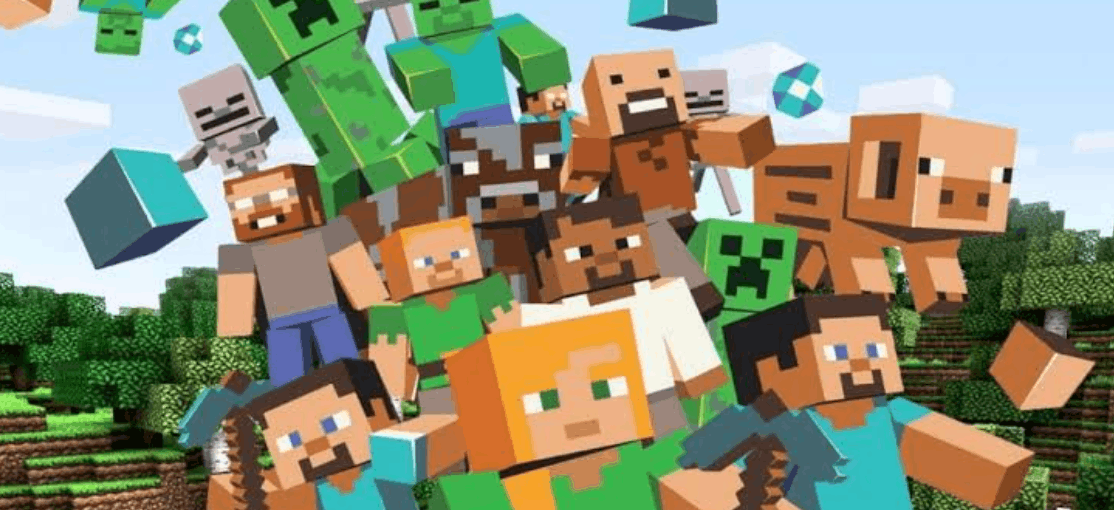
#Public Servers vs Private Servers
Public servers are great when you want instant action. You can play BedWars, Skyblock, Survival Games, parkour, roleplay, factions, PvP, or economy survival without setting anything up yourself.
But public servers are not the same as having your own world.
#Public Servers Are Best For:
- Minigames.
- Meeting new players.
- PvP.
- Large communities.
- Quick sessions.
#Private Servers Are Best For:
- Friend-only survival worlds.
- Custom rules.
- Modded Minecraft.
- Plugins.
- Long-term builds.
- More control and privacy.
Think of it this way: public servers are like joining a busy arcade. Private servers are like getting your own clubhouse.
#Minecraft Multiplayer Troubleshooting
If multiplayer is not working, do not panic. Most issues come down to account settings, version mismatch, permissions, or connection problems.
#Check These First
- Make sure everyone is on the same edition Java players need Java. Bedrock players need Bedrock.
- Update Minecraft If one player is on a different version, the connection may fail.
- Check gamertags Make sure the gamertag is typed correctly.
- Confirm you are actually friends On Bedrock, both players may need to add or accept each other properly.
- Enable multiplayer in world settings The host should check that multiplayer is turned on.
- Sign in with a Microsoft account This is especially important for Bedrock cross-play.
- Check console subscriptions Switch, PlayStation, and Xbox players may need an active online plan.
- Restart Minecraft It sounds basic, but it works more often than it should.
#If A LAN World Does Not Show Up
Try these fixes:
- Make sure everyone is on the same Wi-Fi.
- Restart Minecraft on all devices.
- Restart the router.
- Check firewall or security software settings.
- Make sure the host actually opened the world to LAN.
- Confirm everyone is using the same Minecraft version.
#If A Server Does Not Work
Check the server address carefully. For Bedrock servers, you may also need the correct port. For Java servers, make sure you are joining from the right Minecraft version, especially if the server uses mods or an older version.
Some Bedrock console platforms may also have limits around adding custom servers directly, so Realms or approved server options may be easier for console-heavy groups.
#Tips For A Better Minecraft World With Friends
Getting everyone into the world is step one. Keeping the world fun is step two.
Before your group gets too deep, agree on a few basics:
- Is PvP allowed?
- Can people borrow items?
- Are pranks okay?
- Is griefing an instant ban?
- Are you using keep inventory?
- Who is allowed to use commands?
- Are builds protected or is everything shared?
A few simple rules can save a lot of drama later.
#Multiplayer Ideas To Try
Once your server is running, try giving your group a shared goal:
- Build a starter town around spawn.
- Make a shopping district.
- Create a nether hub.
- Beat the Ender Dragon together.
- Build themed bases in different biomes.
- Run a weekly building challenge.
- Make a community storage room.
- Set up farms everyone can use.
Minecraft multiplayer works best when everyone has their own thing to do, but the world still feels connected. One friend can mine, one can build, one can farm, and one can spend three hours designing a staircase. Every group has that person.
#How To Choose The Best Multiplayer Method
Here’s the easiest way to decide:
- Use Bedrock friend invites if you want the fastest way to play with friends online.
- Use LAN if everyone is in the same place.
- Use Realms if you want a simple private world with easy invites.
- Use public servers if you want minigames or big communities.
- Use private server hosting if you want a long-term world with more control.
For a quick hangout, friend invites are enough. For a serious survival world, private hosting is the better call.
Minecraft multiplayer is not complicated once you know which version everyone is using. Bedrock is usually best for easy cross-platform play, Java is great for mods and custom servers, LAN works for same-network sessions, and Realms keeps things simple for small private groups.
But if your friend group wants a world that is always online, easy to access, and ready for bigger plans, a private server is the way to go. So add your friends, pick your setup, and start building. Just maybe don’t let the friend who “only needs a little TNT” anywhere near the base.
We think you will also enjoy the following blogs:

Table Of Contents
Before You Start: Check Your Minecraft EditionThe Main Ways To Play Minecraft MultiplayerHow To Play Minecraft With Friends On Bedrock EditionHow To Play Minecraft With Friends On Java EditionCan You Play Minecraft With Friends On Nintendo Switch?Should You Use Minecraft Realms?Why A Private Minecraft Server Is Best For Long-Term WorldsPublic Servers vs Private ServersMinecraft Multiplayer TroubleshootingTips For A Better Minecraft World With FriendsHow To Choose The Best Multiplayer MethodJoin Our Newsletter
Get updated on the latest news!
Join Our Discord
Be part of our community!