Table Of Contents
Importing a WorldStill have questions?
Come chat with us and we will get back to you as soon as possible!

Jay Miller
Game Engineer

How to Import a World using Multiverse-Core
Multiverse-Core is an all-in-one world management plugin for servers. Aside from generating new worlds, running and managing multiple active worlds, controlling access to these worlds and other things, Multiverse-Core also allows you to easily import existing / custom worlds into your server so that you can load and access these alongside your server's default world.
Before importing a world, you must have Multiverse-Core installed on your server. You may directly download the plugin from its official page: Multiverse-Core. Additionally, we have a guide on how to install plugins here: How to Install Plugins on Your Minecraft Server
#Importing a World
You can import a world with Multiverse-Core by uploading the world to your server and using the import command.
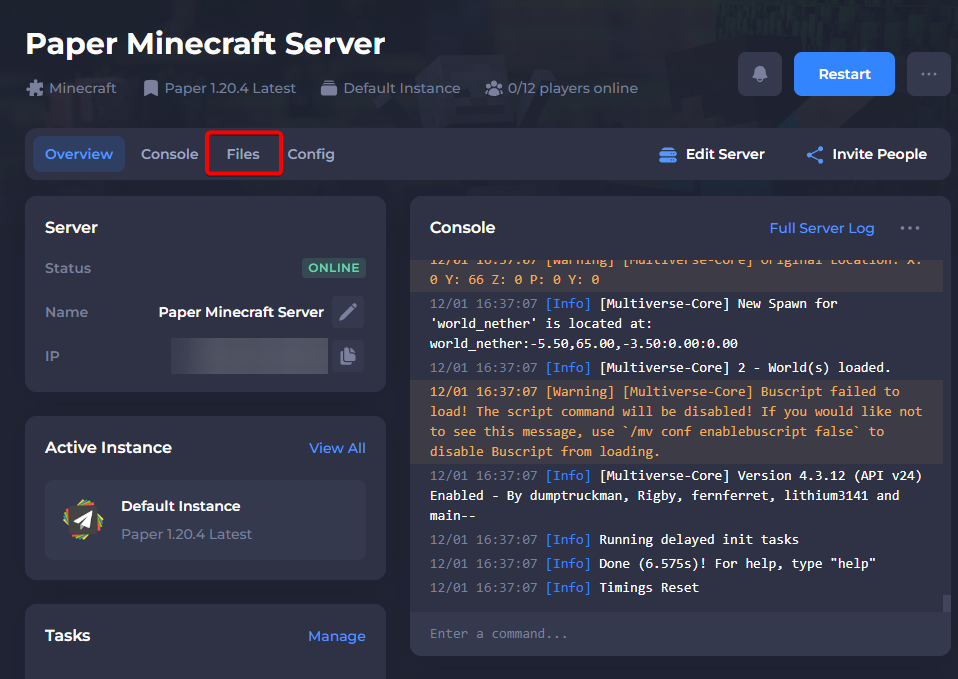
- Access your control panel and navigate to your server files.
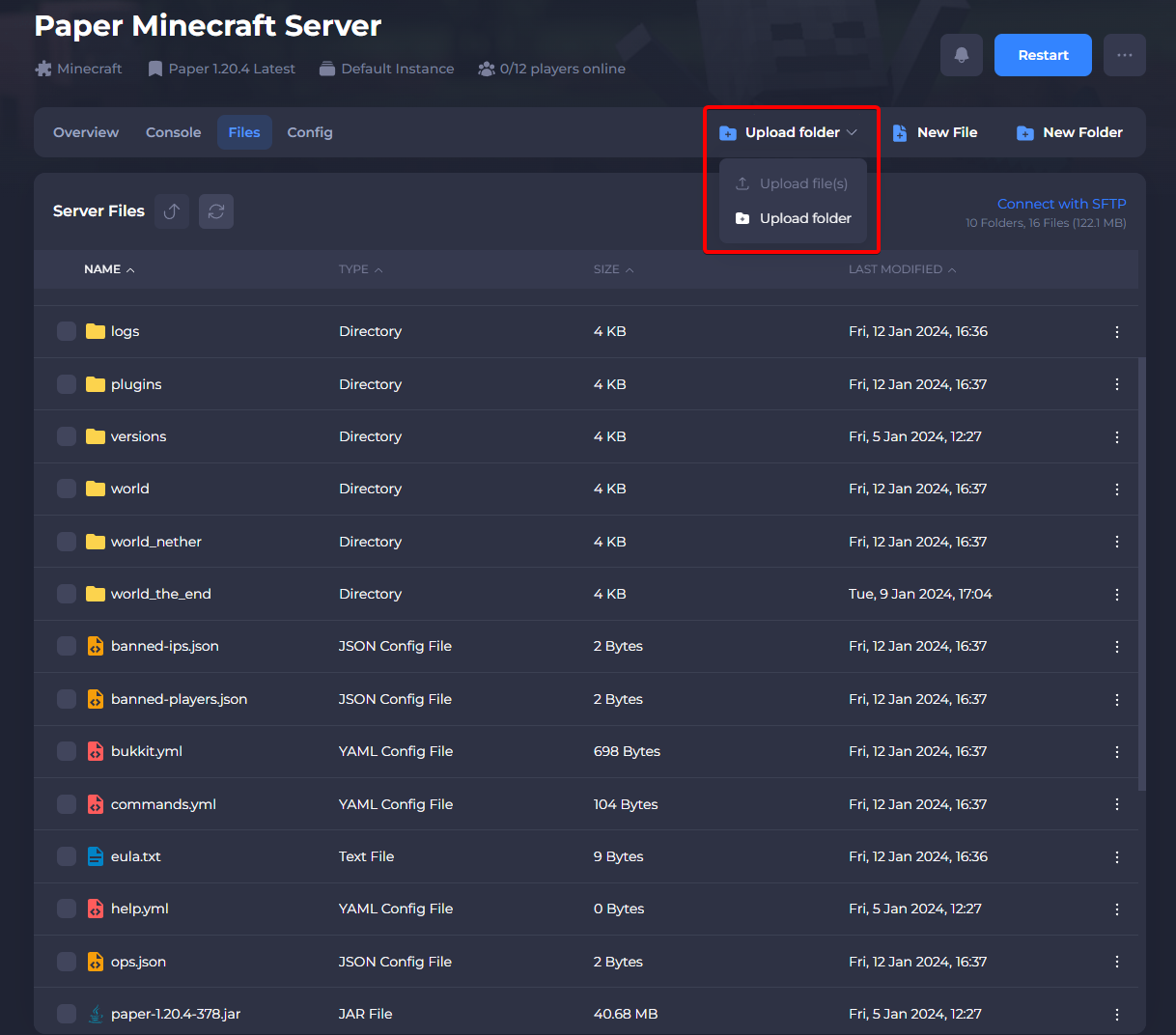
- Select Upload Folder to upload your world save.
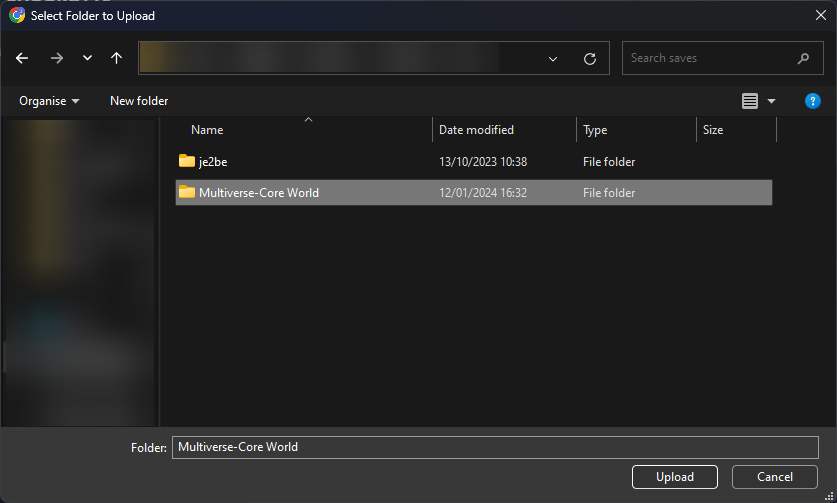
- Upload your desired world.
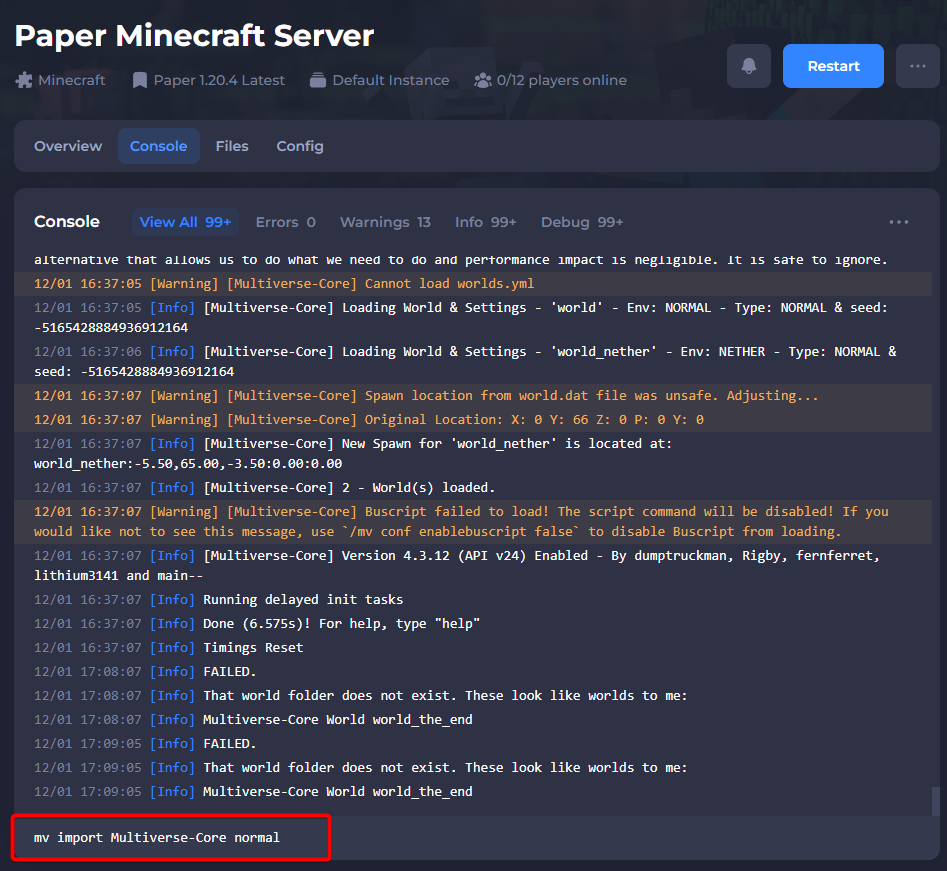
- Navigate to your server console, and enter the command
mv import {world name} {environment_type}.
-
{world name} is the exact name of the folder you uploaded; from our example, that would be "Multiverse-Core".
-
{environment type} is the type of world that's being uploaded; if a regular overworld, this would be "normal".
Learn more about how the import command works from the Multiverse-Core wiki page here: Multiverse-Core -Import Command
If you would like to upload and use a custom world as your server's main world, check out this tutorial instead: Upload and Use a Custom World
Note: You can make feature requests or bug reports directly to Multiverse Core's developers if you're having a bug that's caused by the plugin and not user/server error on their Bukkit page.