How to Upload an Existing Save to your RuneScape: Dragonwilds Server
Still have questions?
Come chat with us and we will get back to you as soon as possible!

Shockbyte
Support Team

How to Upload an Existing Save to your RuneScape: Dragonwilds Server
This guide explains how to upload an existing world to your RuneScape: Dragonwilds server. Transferring a local world allows you to continue your progress or share a pre-existing environment with other players.
Your world file can be found in your AppData directory using File Explorer, then uploaded to your server. Once uploaded, you’ll need to update the server configuration to ensure the correct world loads. The steps below will walk you through this process.
Note
Unfortunately, Console and Gamepass worlds are not directly compatible with PC dedicated servers by default, though it is possible these worlds can be transferred using community conversion tools.
#Locating your Existing Save File
-
Navigate to the Start Menu on your PC and search
Run. -
Open the Run program and type:
AppData.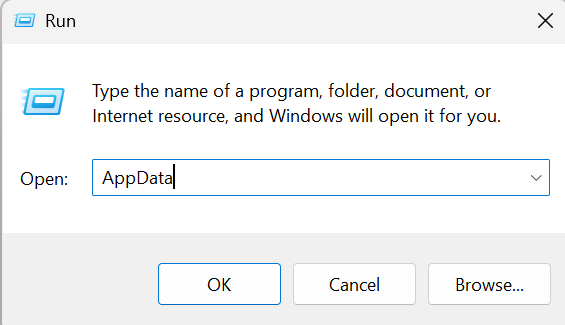
-
Navigate to the following directory:
/Local/RSDragonwilds/Saved/SaveGames. Locate the name of the world of your Singleplayer server. In this example, the name of the world isTest.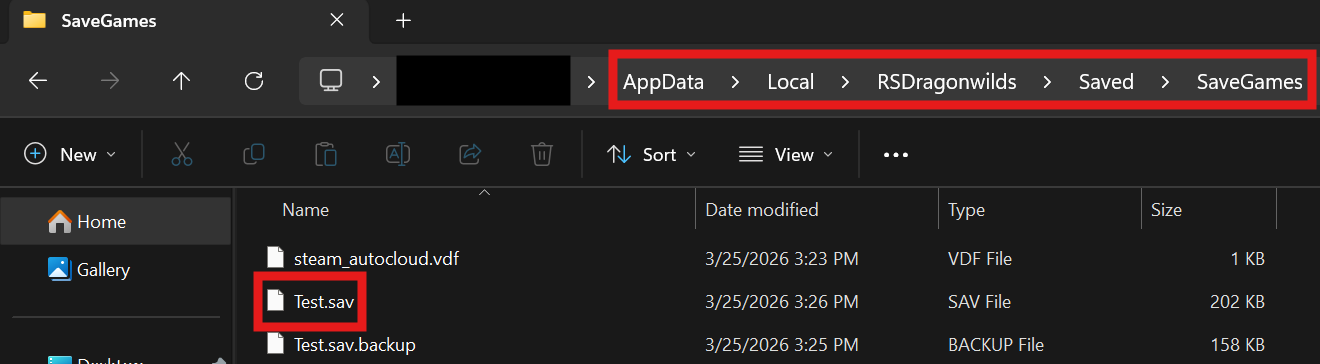
#Uploading your Existing Save to the Server
- Access your Control Panel and Stop your server.
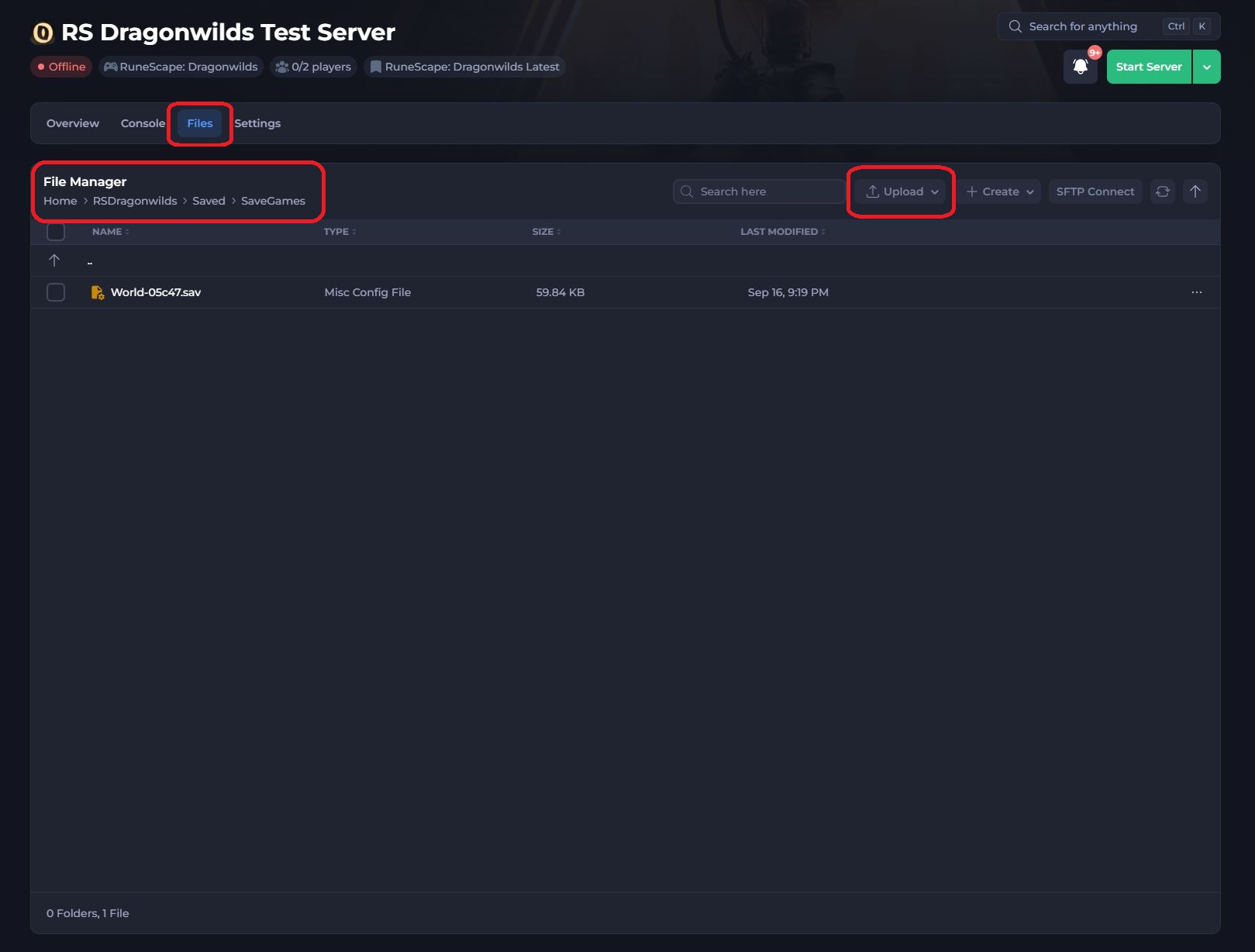
- Navigate to the Files tab and locate the
/RSDragonwilds/Saved/SaveGamesdirectory. - Select the Upload File(s) button and upload your save.
#Setting the Default World Name
Once you have uploaded your existing save to the server, we will need to change the default world name so it is loaded on server startup.
- Access your Control Panel and Stop your server.
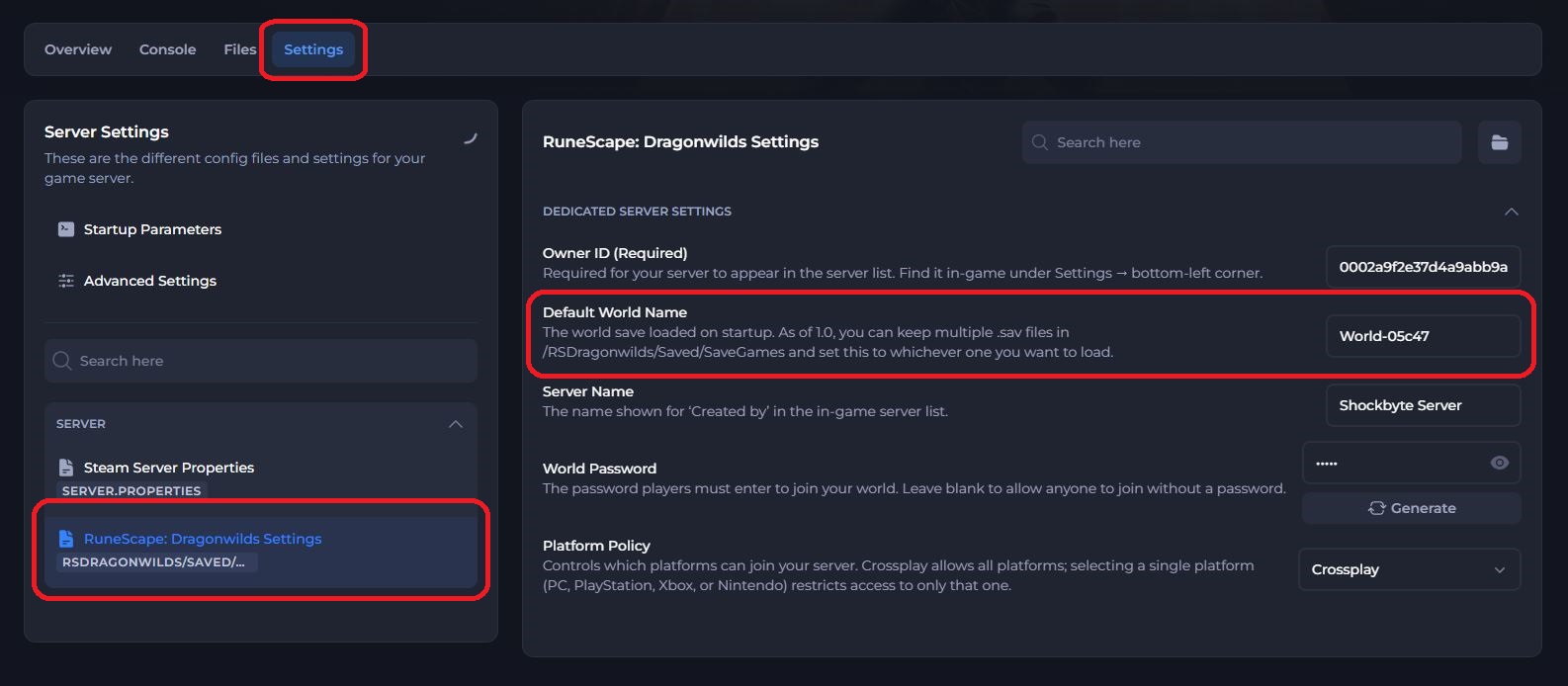
- Navigate to the Settings tab and select the RuneScape: Dragonwilds Settings file.
- Locate the
Default World Nameoption and change this to the name of the world you uploaded earlier.
- Save and Start the server to ensure the new changes apply.
If you require any further assistance, please contact our support at: https://shockbyte.com/billing/submitticket.php