RS Dragonwilds Server not showing in Public Server List / Black Screen Issue
Still have questions?
Come chat with us and we will get back to you as soon as possible!

Shockbyte
Support Team

RS Dragonwilds Server not showing in Public Server List / Black Screen Issue
When uploading a world save to your RuneScape: Dragonwilds server, you may encounter an issue where the world loaded correctly in single-player but failed to load on the server, preventing it from showing up in the public server list and causing a black screen upon direct connection.
This guide explains what is causing this issue and how to resolve it using the steps below.
#What is causing this issue?
The world name is stored internally in the .sav file when the world is created. If you happened to rename this save file to something different from its initially generated name, this sadly does not change this internal value.
If the .sav file name differs from the stored world name embedded in the file, the game will fail to load the save.
This issue is only present on dedicated servers, and your world will still load just fine in single-player.
Symptoms:
- The server starts, but the affected world does not appear in the in-game world list.
- Direct connection results in a persistent black screen.
- The server console shows a connection and join request, but does not show:
World load SUCCEEDED (slot: <world_name>). - The same save may load successfully in single-player.
- Rolling back to an earlier backup does not resolve the issue when the filename remains incorrect.
#How to fix the issue
Important
Before proceeding, please be sure to backup your server or download a backup of your current .sav file and any available .sav.backup files.
- Stop your server if it is currently running.
- Test your save in single-player by downloading it from your server and placing the
.savfile in the/AppData/Local/RSDragonwilds/Saved/SaveGamesdirectory on your PC.
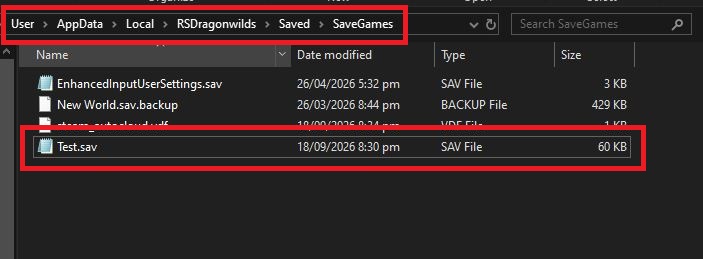
- Confirm that your save loads correctly and allow the game to save after entering the world.
- From the Solo Play world selection screen, select the affected world and click Edit Settings.
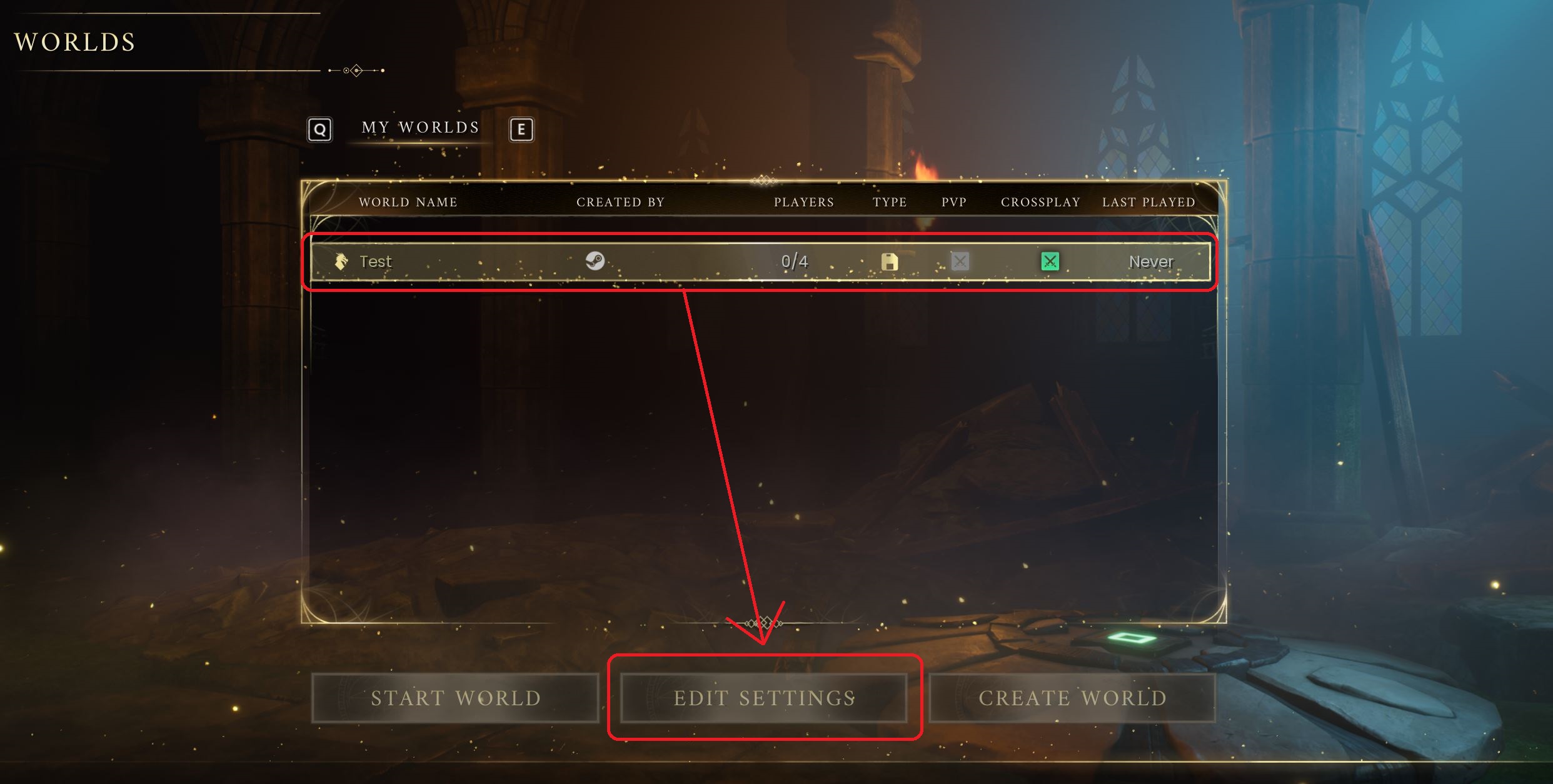
- Record the real-world name displayed within the NAME section in-game.
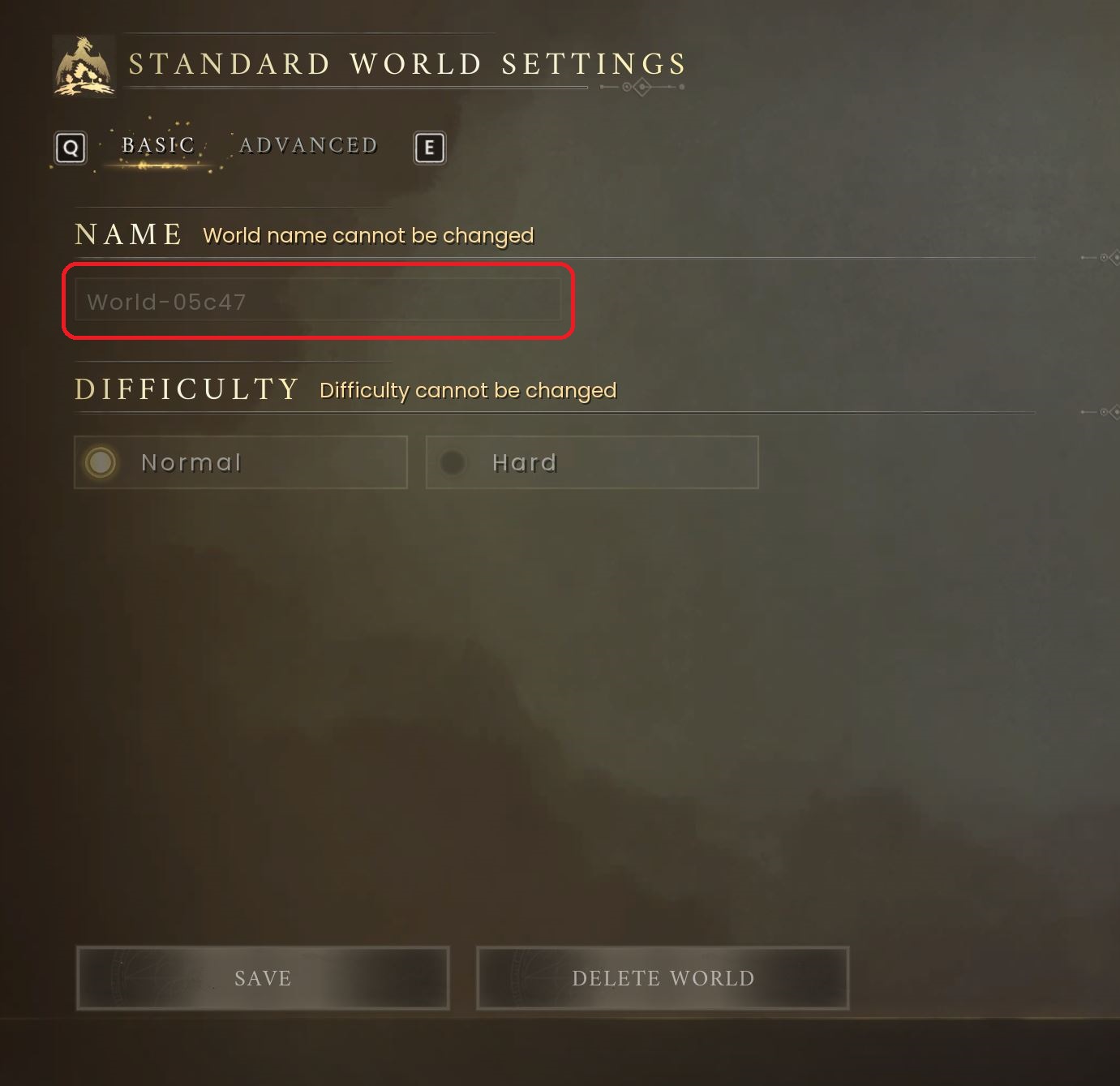
- Rename your
.savfile with this updated name. (If your real-world name isWorld-05c47, your file name should beWorld-05c47.sav)
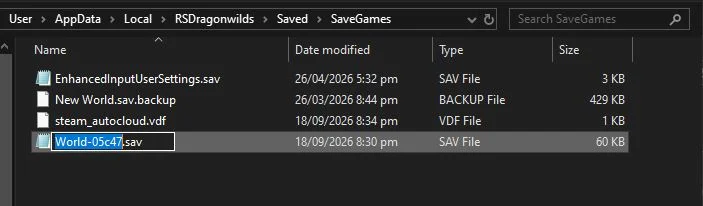
- Proceed with reuploading your world save to your server using the steps found in our guide below.
Your world should now show within the public server list and resolve the black screen issue when connecting.
If you require any further assistance, please contact our support at: https://shockbyte.com/billing/submitticket.php