Still have questions?
Come chat with us and we will get back to you as soon as possible!

Nuno Paiva
Game Integration Specialist @ Shockbyte

How to Add Your Hytale Server to Server Discovery
#How to Add Your Hytale Server to Server Discovery
With Update 5, Hytale added Server Discovery, an in-game server browser that lets players find and join community servers directly from the game client. To get your server listed, you'll need to link it to your own Hytale account.
By default, Shockbyte servers are authenticated using our shared credentials to simplify setup. To list your server on Server Discovery, you'll need to switch to your own Hytale account first.
#Switch to your own Hytale account
The first step is to log out of the default Shockbyte profile and sign in with your own Hytale credentials.
- Access your control panel and navigate to the Console area.
- Run the command
auth logoutto log out of the default profile. - Run the command
auth login deviceand follow the prompts shown in the console to sign in with your own Hytale account.

#Confirm you're authenticated
Before continuing, make sure the new profile is active.
- Run the command
auth status. - In the output, confirm your Hytale username is listed next to Profile:. This confirms you're now using your own credentials instead of Shockbyte's default profile.

#Create a server profile on the Hytale website
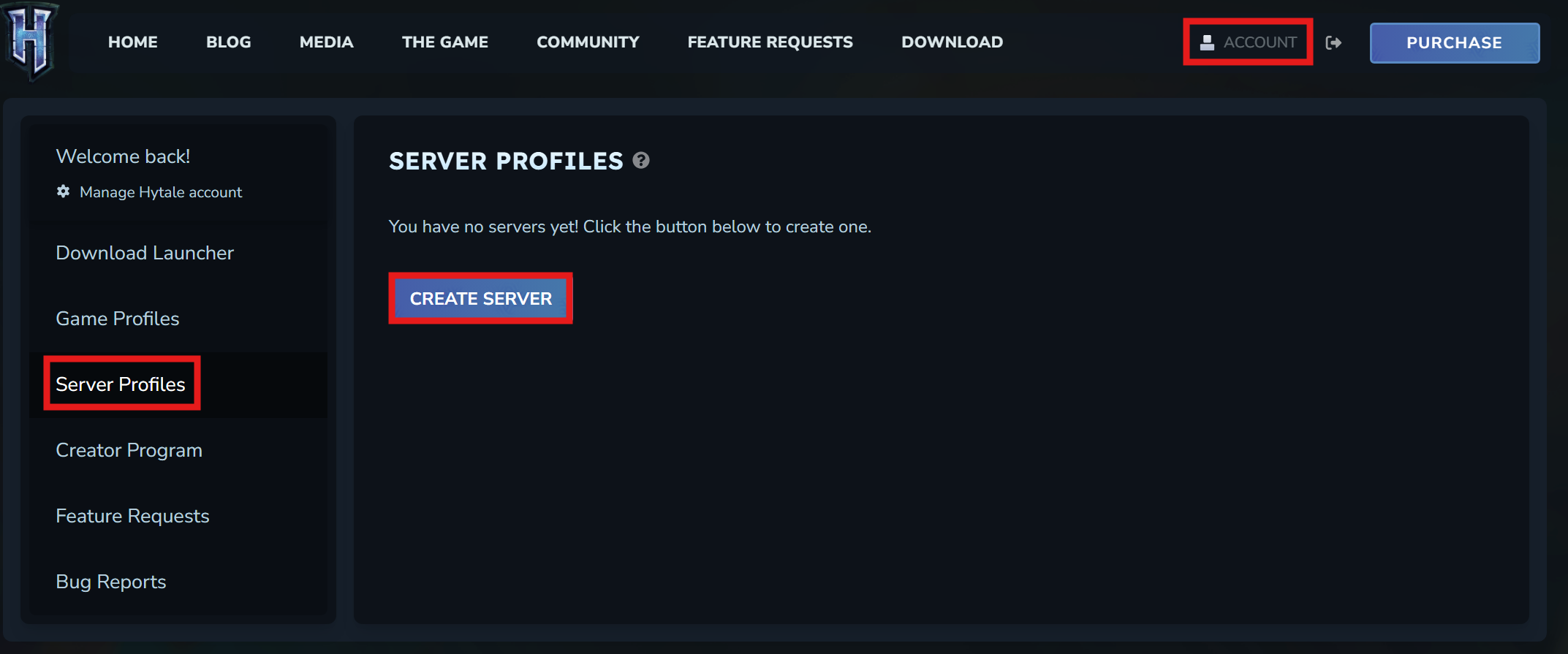
Next, register your server on the Hytale account portal.
- Head to the Hytale server profiles page.
- Click Create Server and fill in your server details.
#Link your server
Finally, link the server profile to your actual server using the /discovery command.
- Once the server profile is created, you'll be given a
/discoverycommand with a token, for example:/discovery link <discovery_token>. - Copy the full command, return to your panel console, and run it there.
Your server will be submitted for review, and once it passes Hytale's manual review process, it will appear on the in-game Server Discovery page.
If you require any further assistance, please contact our support at: https://shockbyte.com/billing/submitticket.php