Still have questions?
Come chat with us and we will get back to you as soon as possible!

Shockbyte
Support Team
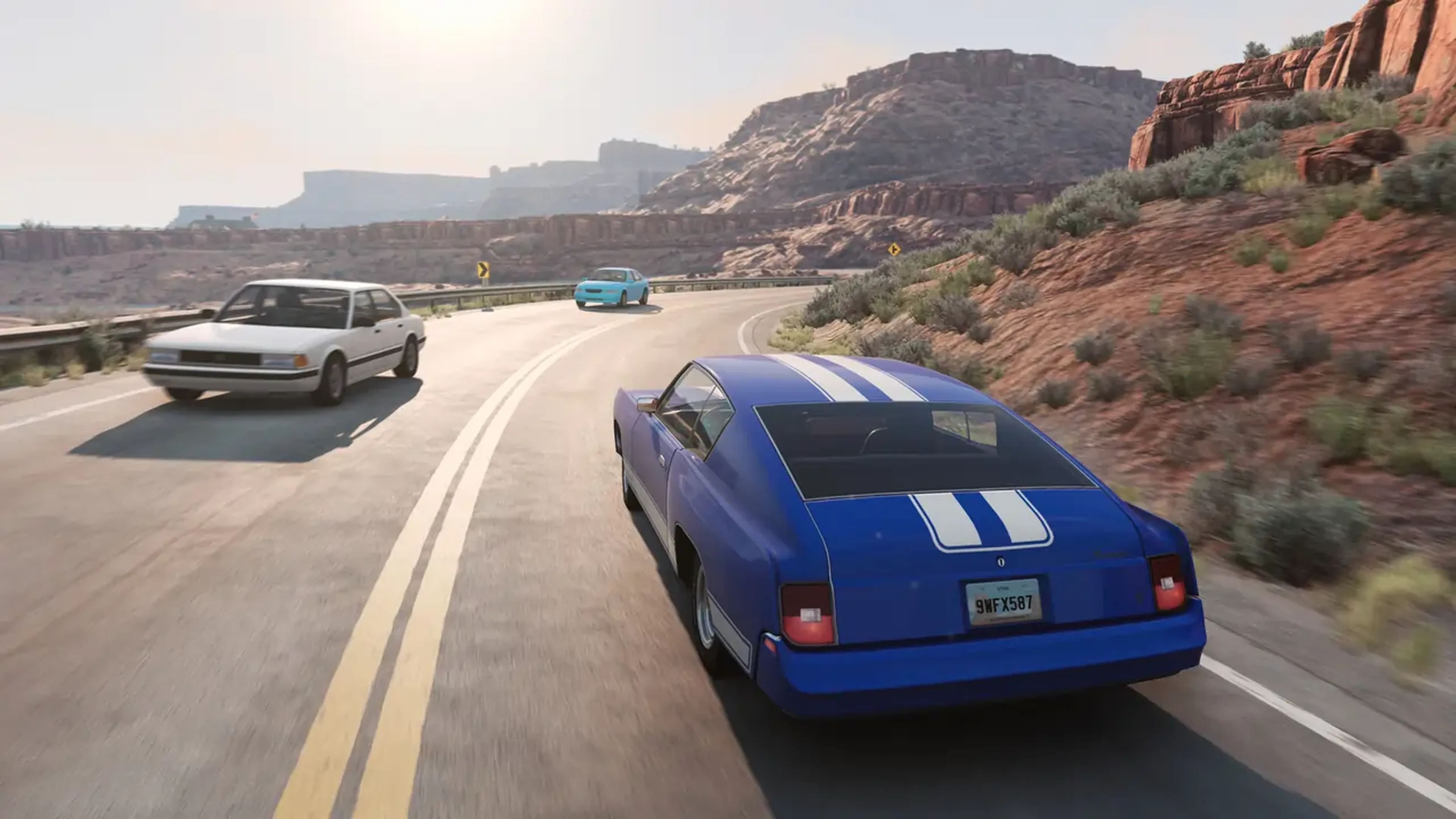
How to Change the Map on your BeamMP Server
This guide explains how to change the map on your BeamMP server. Choosing the right map sets the tone for your server, whether you're after open-world exploration, technical drift courses, or wide-open test tracks. You can update this by selecting the Map option in the Config section of your panel. The steps below will walk you through applying this change so it loads when players connect.
#Changing your Server Map
To change the map on your BeamMP server, follow these steps:
- Access your Control Panel and navigate to the Config tab.
- Locate the
Mapoption and select your desired map from the dropdown menu.
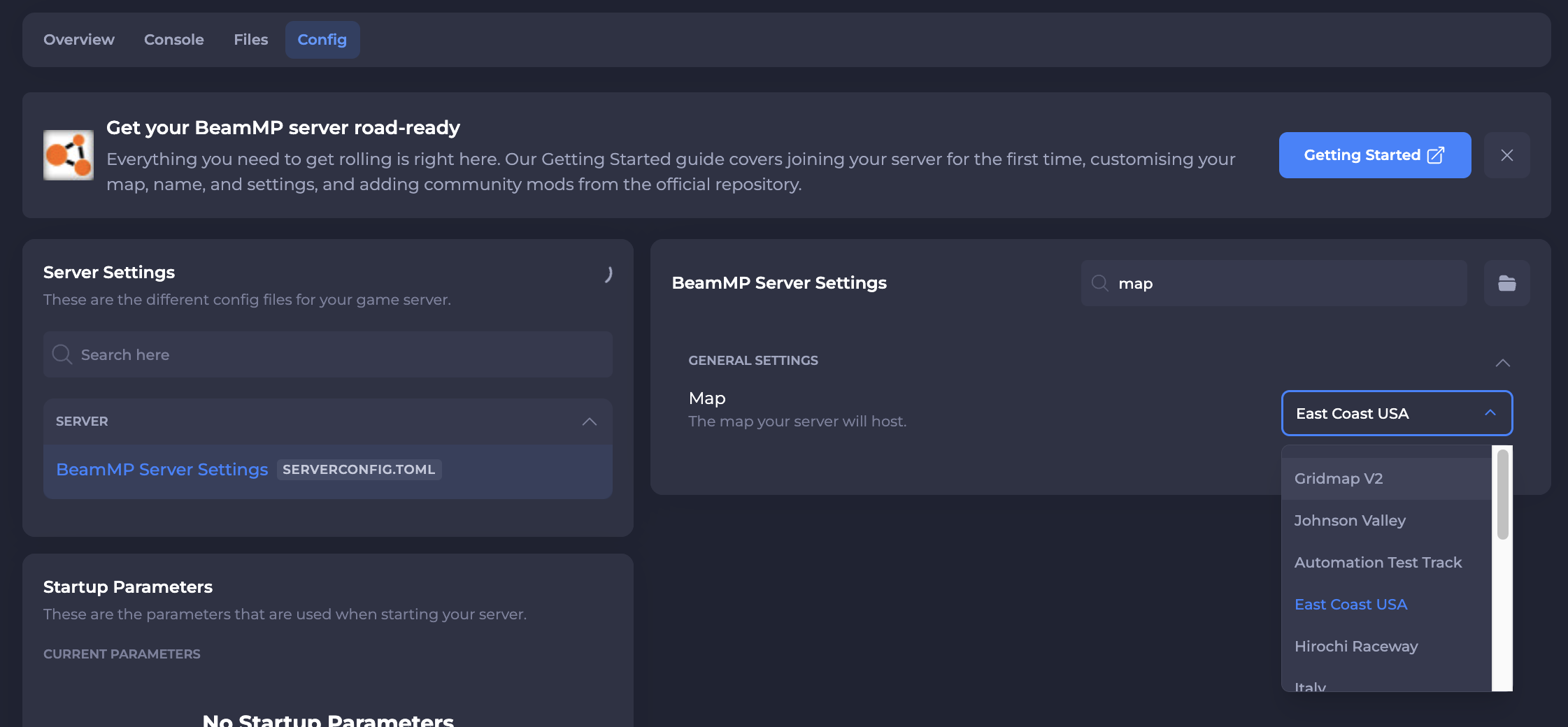
- Save and restart your server to ensure the new changes apply.
#Available Maps
BeamMP supports the following stock maps out of the box, all selectable from the dropdown:
- Gridmap V2
- Smallgrid
- Automation Test Track
- East Coast USA
- West Coast USA
- Italy
- Johnson Valley
- Hirochi Raceway
- Industrial
- Jungle Rock Island
- Small Island
- Utah
- Derby
- Driver Training
#Using Custom Maps
You can also use community-made maps from the BeamNG mod repository. Custom maps are not available in the dropdown menu, so you'll need to set the map path manually by editing the ServerConfig.toml file directly.
- Download the map's
.zipfile (do not extract it). - Upload the
.zipfile to your server'sResources/Clientfolder via the Files tab in your control panel. - Open the
.zipfile on your computer and look inside thelevelsfolder to find the map's folder name (for example,my_map). - Navigate to the Files in your control panel and open the
ServerConfig.tomlfile. - Locate the
Mapline and update it to point to your custom map using the path format/levels/MAPNAME/info.json. For example:
Map = "/levels/my_map/info.json"
- Save the file and restart your server.
Note
When players connect, BeamMP will automatically download the map from your server if they don't already have it. Larger maps may take longer on first connection.
For more details on the ServerConfig.toml file and all available options, refer to BeamMP's official Server Maintenance documentation.
If you require any further assistance, please contact our support at: https://shockbyte.com/billing/submitticket.php