How to Convert Single-Player Save Data to Multiplayer Save Data and Back
Still have questions?
Come chat with us and we will get back to you as soon as possible!

Shockbyte
Support Team

How to Convert Single-Player Save Data to Multiplayer Save Data and Back
When transferring a world between Singleplayer and Multiplayer in Project Zomboid, player data (such as inventory and stats) will not transfer automatically due to differences in how each mode stores data.
If not converted correctly, you may be unable to join your world or experience server crashes. This guide explains how to properly convert player data between formats.
Note
Before proceeding, ensure you have followed the steps in our How to Upload or Download a Save-Game for Your Project Zomboid Server KB guide.
#Key Difference
- Singleplayer data → stored in
/localPlayers - Multiplayer data → stored in
/networkPlayers
Converting between modes requires transferring data between these tables in the players.db file.
#Converting Singleplayer to Multiplayer
-
Access your Control Panel and Stop your server.
-
Upload your Singleplayer world to your server by following our guide here.
-
Create a workspace folder at any location you'd like on your computer. This isn't required but it will make it easier to work on converting your player data. For this example, we will call this
workspace.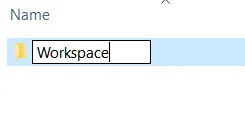
-
Navigate to the Files tab and select the SFTP Connect button to connect via FTP (using either FileZilla or WinSCP).
-
Navigate to the
/Zomboid/Saves/Multiplayer/YOUR_WORLD_NAMEdirectory and downloadplayers.dband rename it tooldPlayers.db. Download this file to yourworkspacefolder you created earlier in this guide.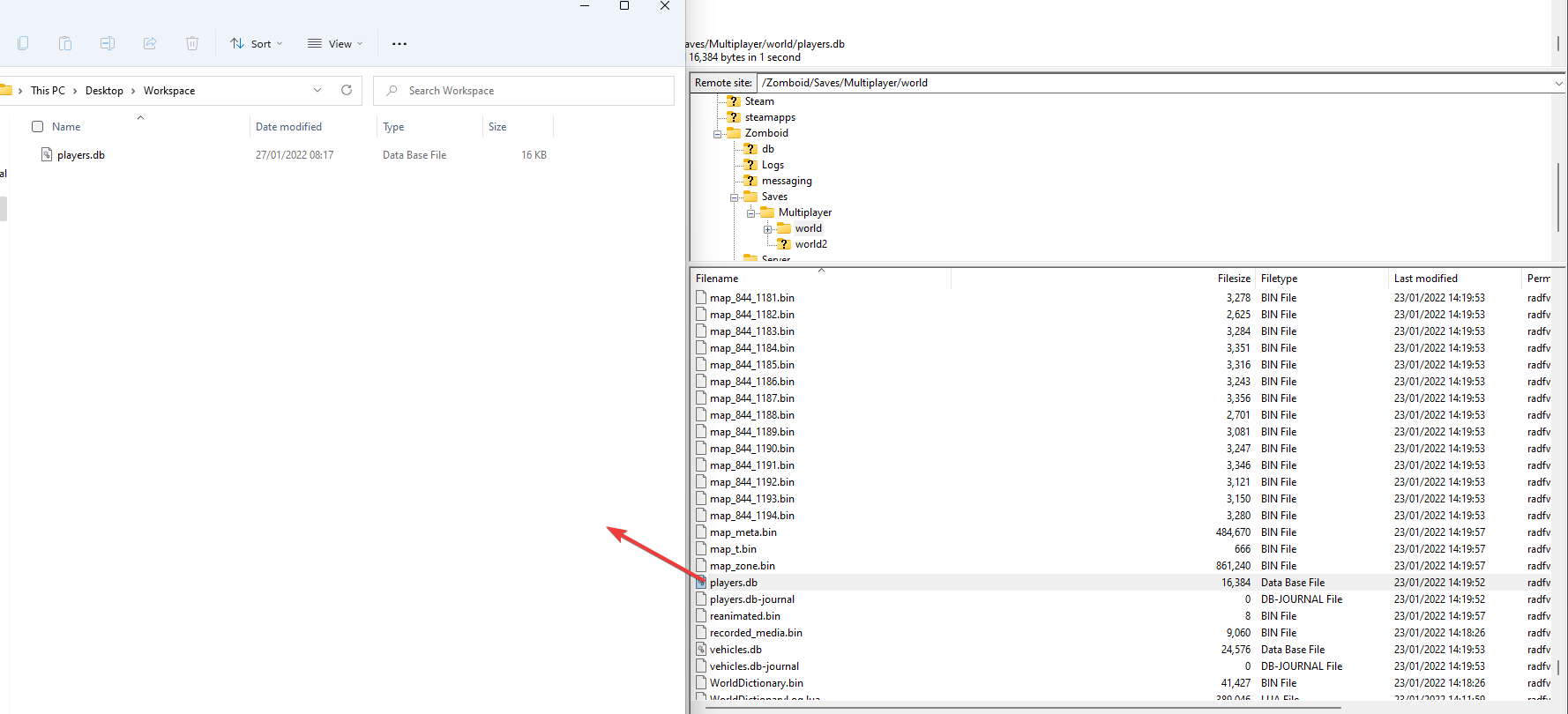
Using the SQLite Database Browser
-
Download SQLite Database Browser (DB Browser) from https://sqlitebrowser.org/dl/.
-
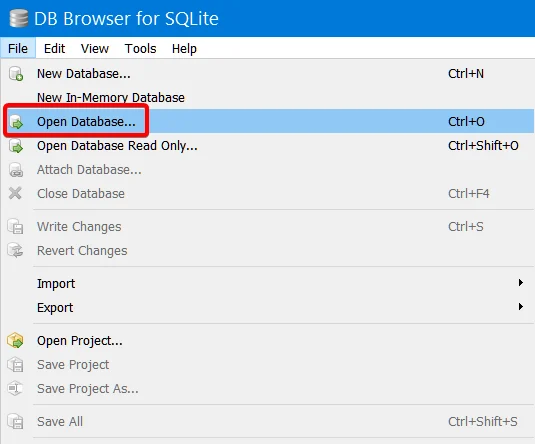
Open DB Browser, then click File > Open Database.
-
Locate the
workspacefolder you've created, then openoldPlayers.db.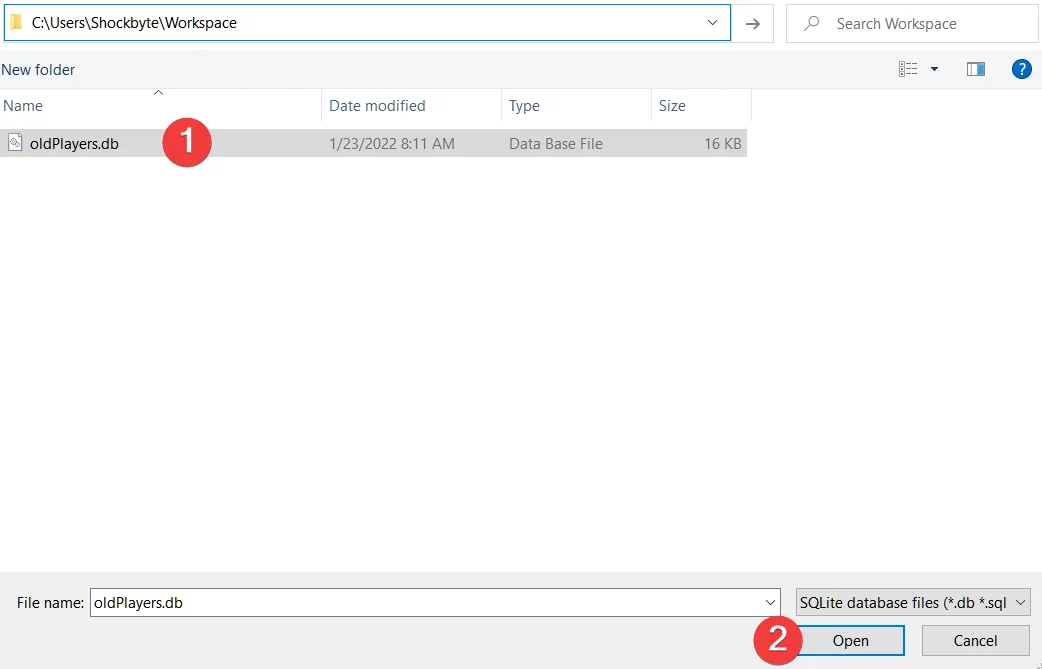
-
Click Browse Data, then select the
localPlayerstable. If there's any player data in the table, you can confirm theoldPlayers.dbfile is using the Singleplayer format.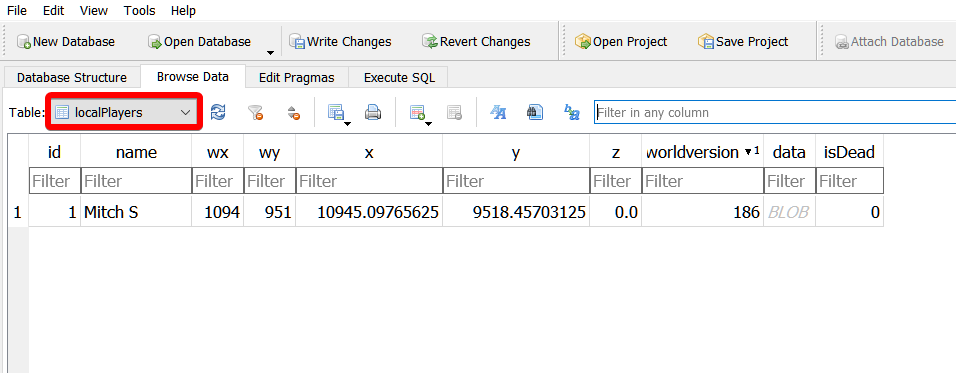
-
Delete the
players.dbfile on your server from the FTP directory.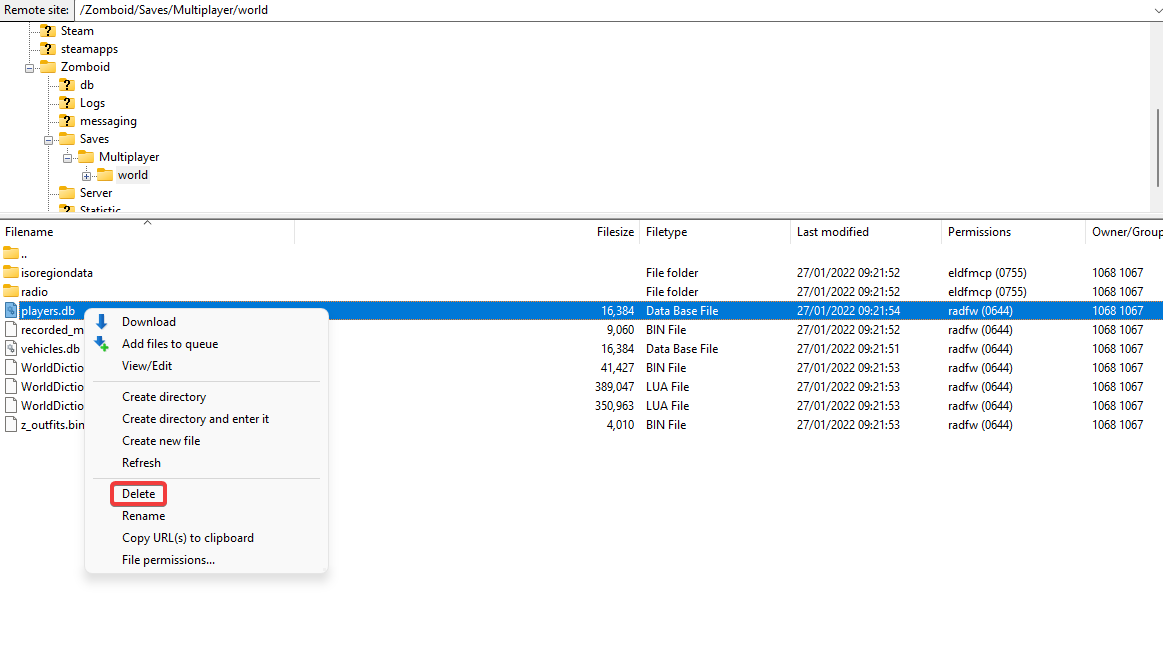
Generate Multiplayer File
- Start the server to generate a new file
- Join once and create a character, then stop the server
- Download the new
players.dband rename it tonewPlayers.db.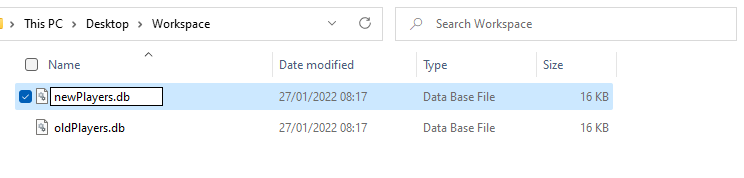
Transfer Player Data
-
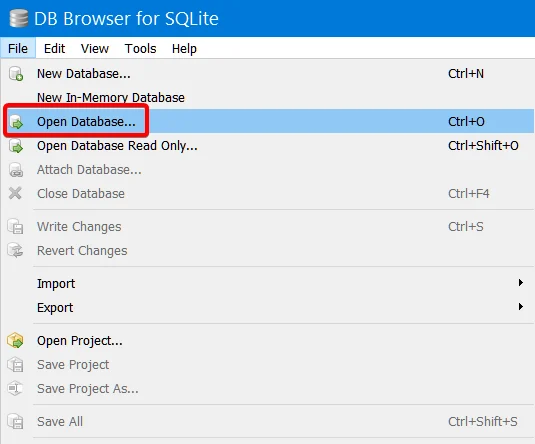
Open DB Browser, then click File > Open Database.
-
Locate the workspace folder, then open
newPlayers.db.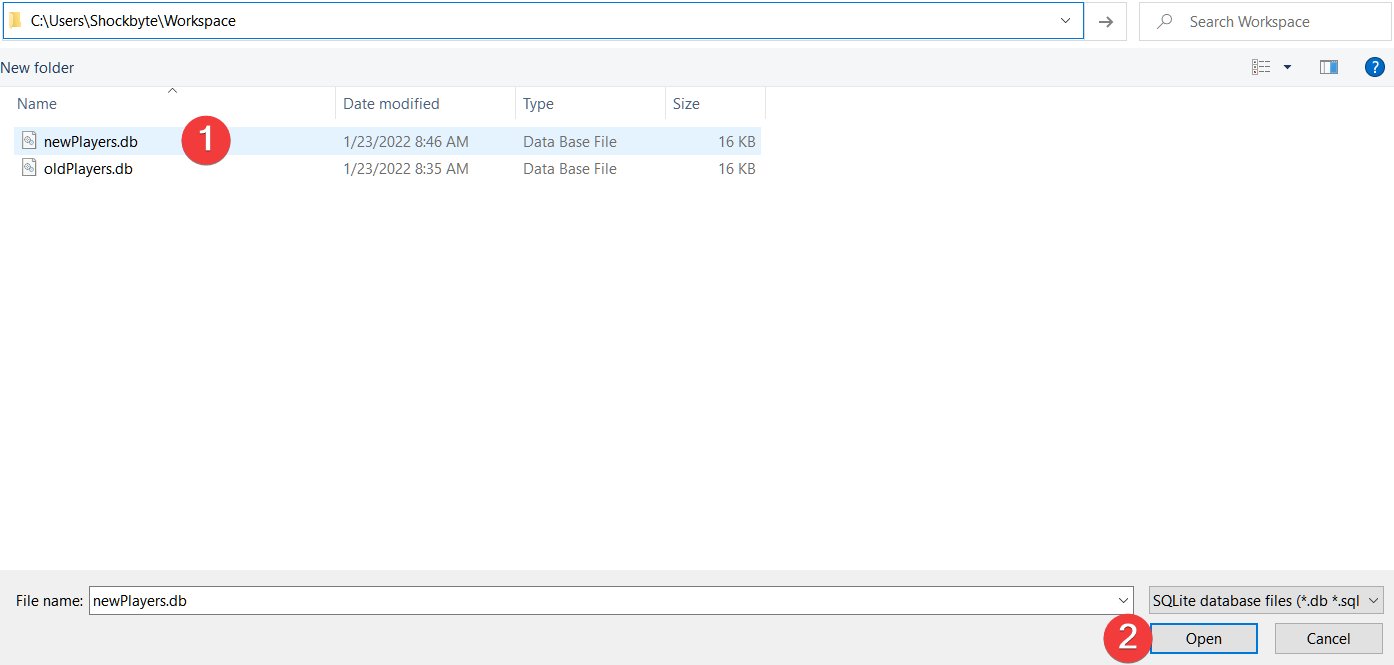
-
Click Browse Data, then select the
networkPlayerstable. If there's any player data in the table, you can confirm thenewPlayers.dbfile is using the Multiplayer format.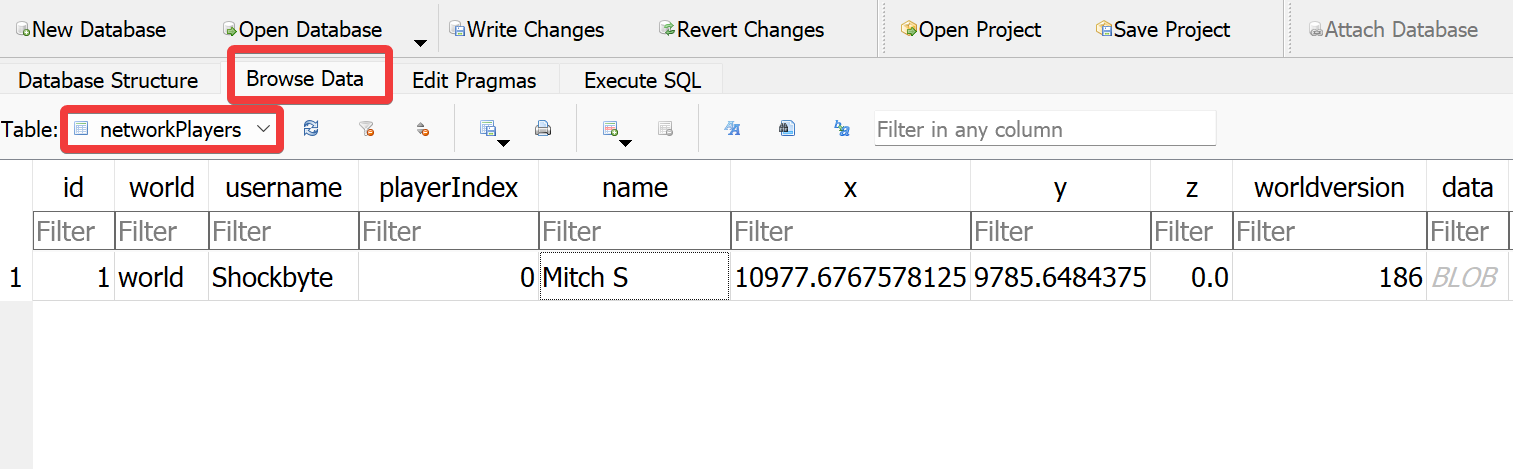
-
Open the oldPlayers.db file with DB browser.
-
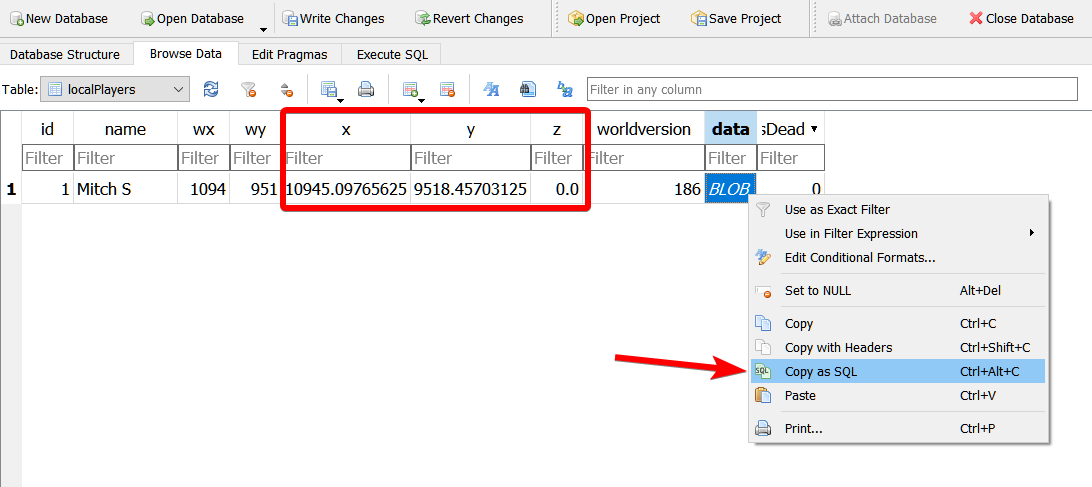
Click Browse Data and open the localPlayers table.
-
Keep a reference of the
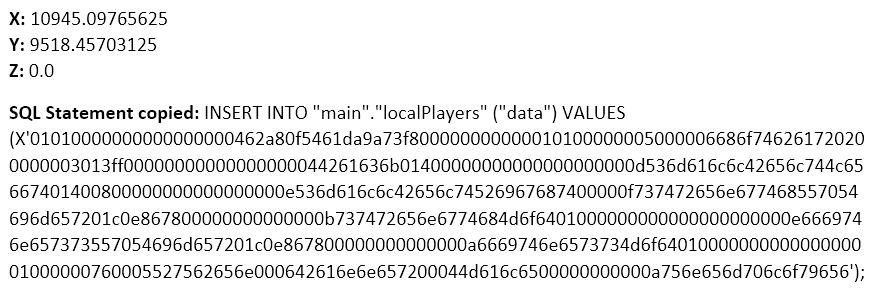
X, Y, and Zvalues. Copy and paste this to any note-taking software of your choice. -
Right click on the field in the data column for your player and press Copy as SQL. Paste this in the document with your X, Y, and Z values.
-
Open the
newPlayers.dbfile with DB browser. -
Click
Execute SQL, then run the SQL command mentioned at the bottom of this Knowledgebase article. Replace the values in the SQL command with the values you've taken note of previously. You will want to modify the networkPlayers table. -
Click the
Execute all/selected SQLbutton. This looks like a play button and is located near the top left of DB Browser.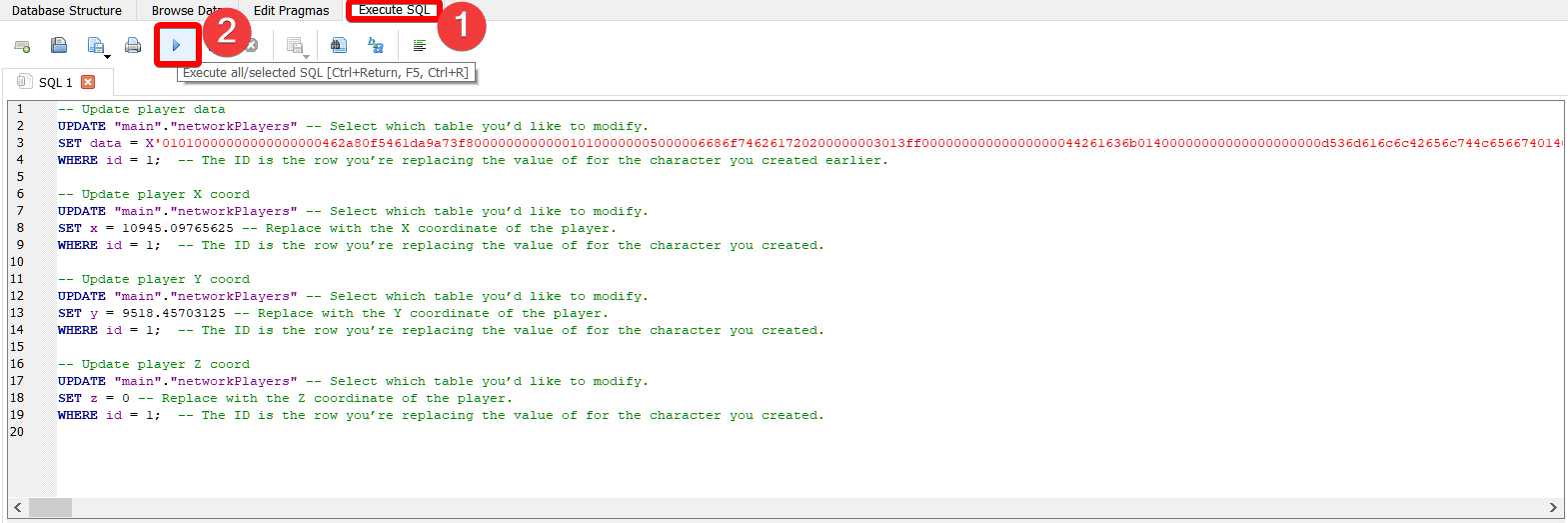
-
Click Browse Data and confirm the changes were applied.
-
Press the File button, then click
Write ChangesandSave All. Exit DB Browser.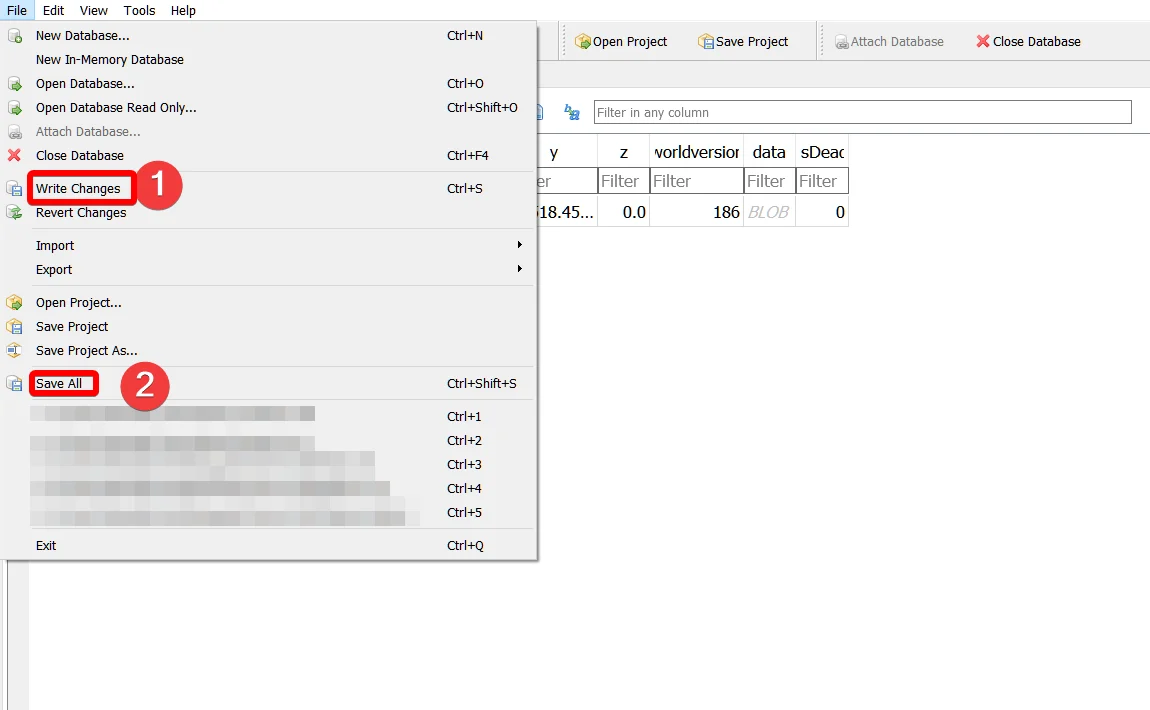
-
Navigate to your workspace folder and rename newPlayers.db to players.db
-
Upload the newly renamed
players.dbfile to/Zomboid/Saves/Multiplayer/YOUR_WORLD_NAME.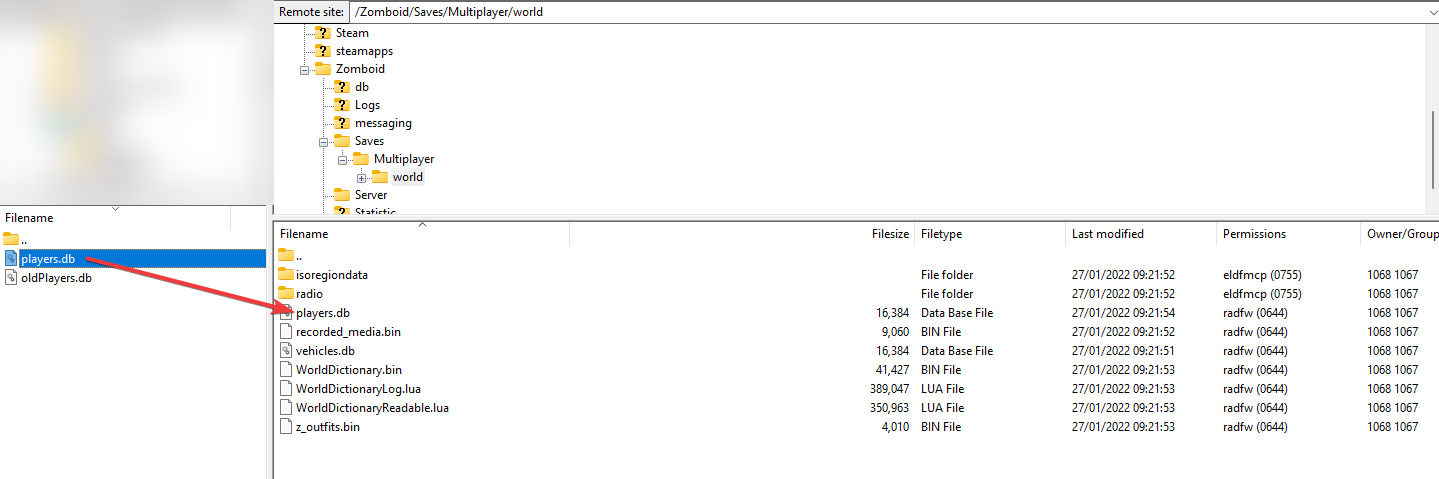
-
Start your server and connect to join with your Singleplayer character data.
#How to Convert Your Multiplayer World to Singleplayer
-
Access your Control Panel and Stop your server.
-
Download your world by following our guide here.
-
Make sure you've replaced the
players.dbfile as mentioned in the previous Knowledgebase guide. -
Create a
workspacefolder at any location you'd like on your computer. This isn't required but it will make it easier to work on converting your player data. -
Navigate to the location you've downloaded your world to in your Project Zomboid game directory.
-
Locate the
players.dbfile that contains your multiplayer player data to the workspace folder you've created. You can find this directly on your server in the world directory.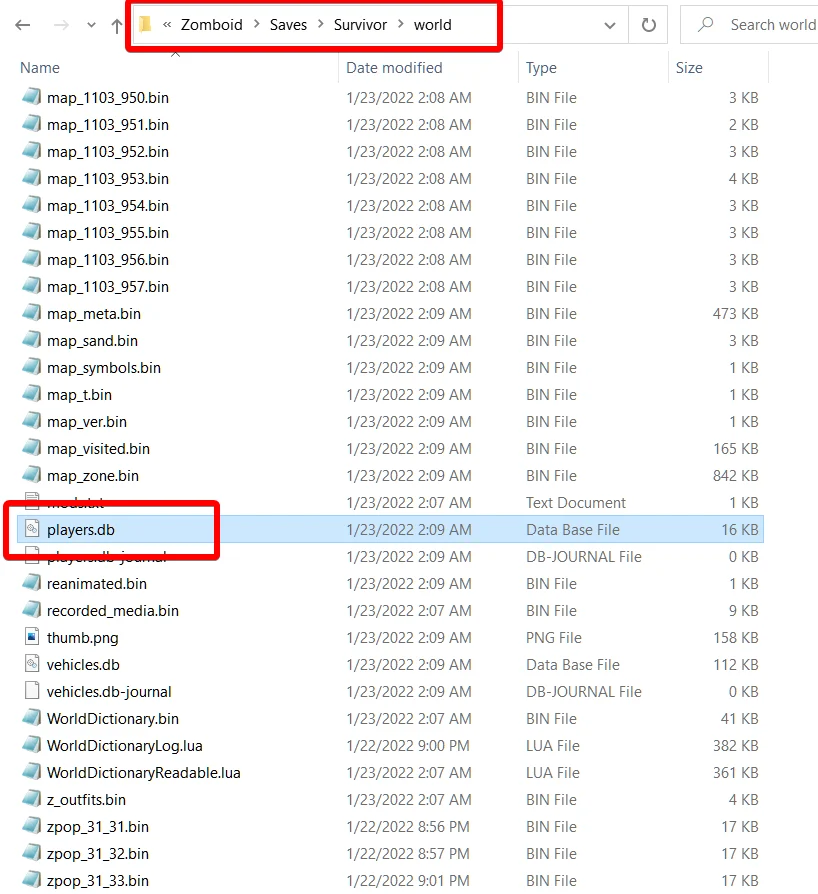
-
Move the
players.dbfile to the workspace folder you've created, then rename this tooldPlayers.db. -
Download SQLite Database Browser (DB Browser) from https://sqlitebrowser.org/dl/.
-
Open DB Browser, then click File > Open Database.
-
Locate the workspace folder you've created, then open
oldPlayers.db. -
Click Browse Data, then select the
networkPlayerstable. If there's any player data in the table, you can confirm the oldPlayers.db file is using the Multiplayer format. -
In the networkPlayers table, keep a reference of the X, Y, and Z values. Copy and paste this to any note-taking software of your choice.
-
Right click on the field in the data column for your player and press Copy as SQL. Paste this in the document with your X, Y, and Z values.
-
Open the
players.dbfile located in the Project Zomboid game directory with DB Browser. This would be the world folder on your computer located underC:/Users/YOUR_USERNAME/Zomboid/Saves.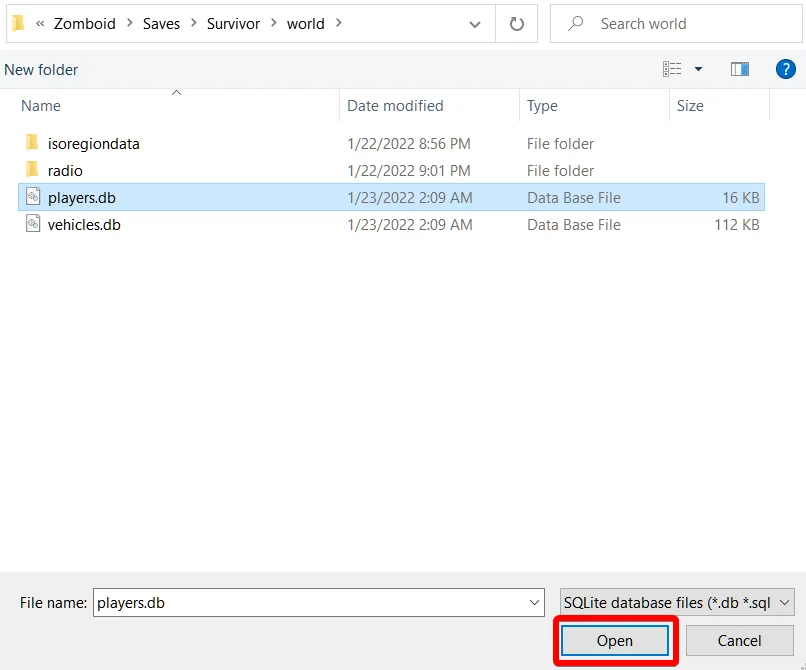
-
Click
Execute SQL, then run the SQL command mentioned at the bottom of this Knowledgebase article. Replace the values in the SQL command with the values you've taken note of previously. You will want to modify the localPlayers table. -
Click the
Execute all/selected SQLbutton. This looks like a play button and is located near the top left of DB Browser. -
Click Browse Data and confirm the changes were applied.
-
Press the File button, then click
Write ChangesandSave All. Exit DB Browser. -
Start Project Zomboid on your computer, then press the
LOADbutton.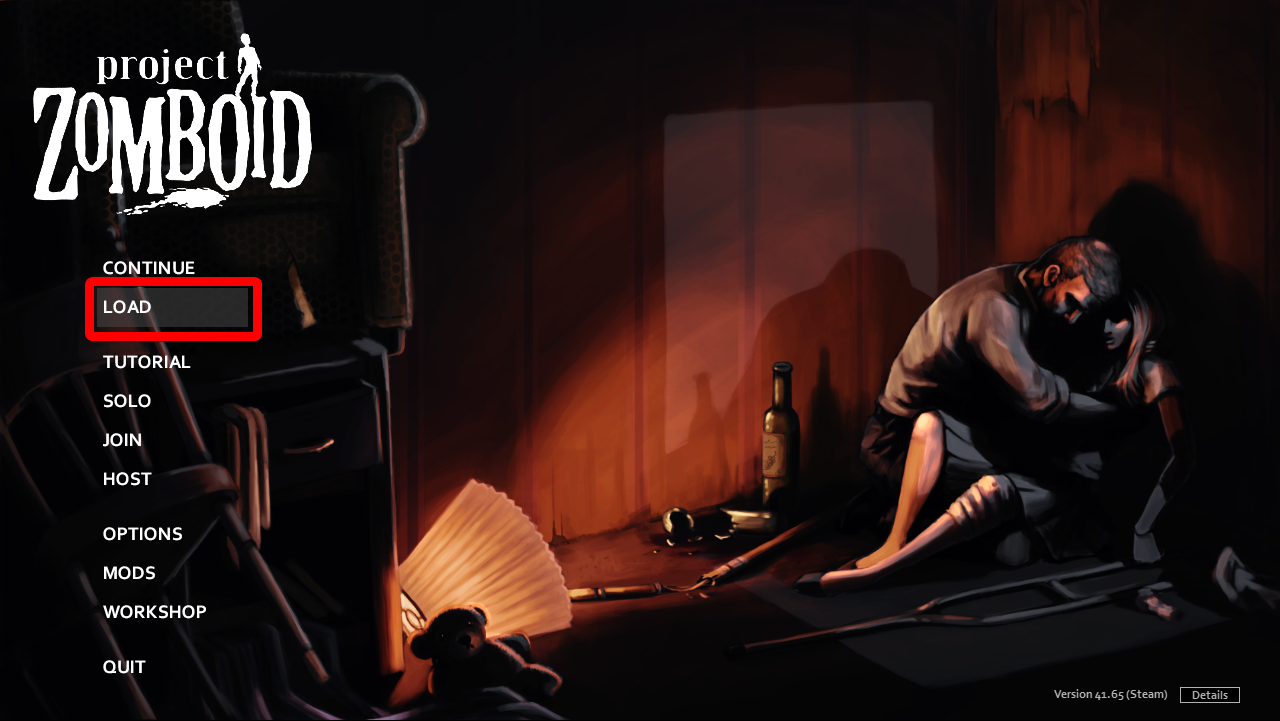
-
Select the world you've just uploaded and press
PLAY.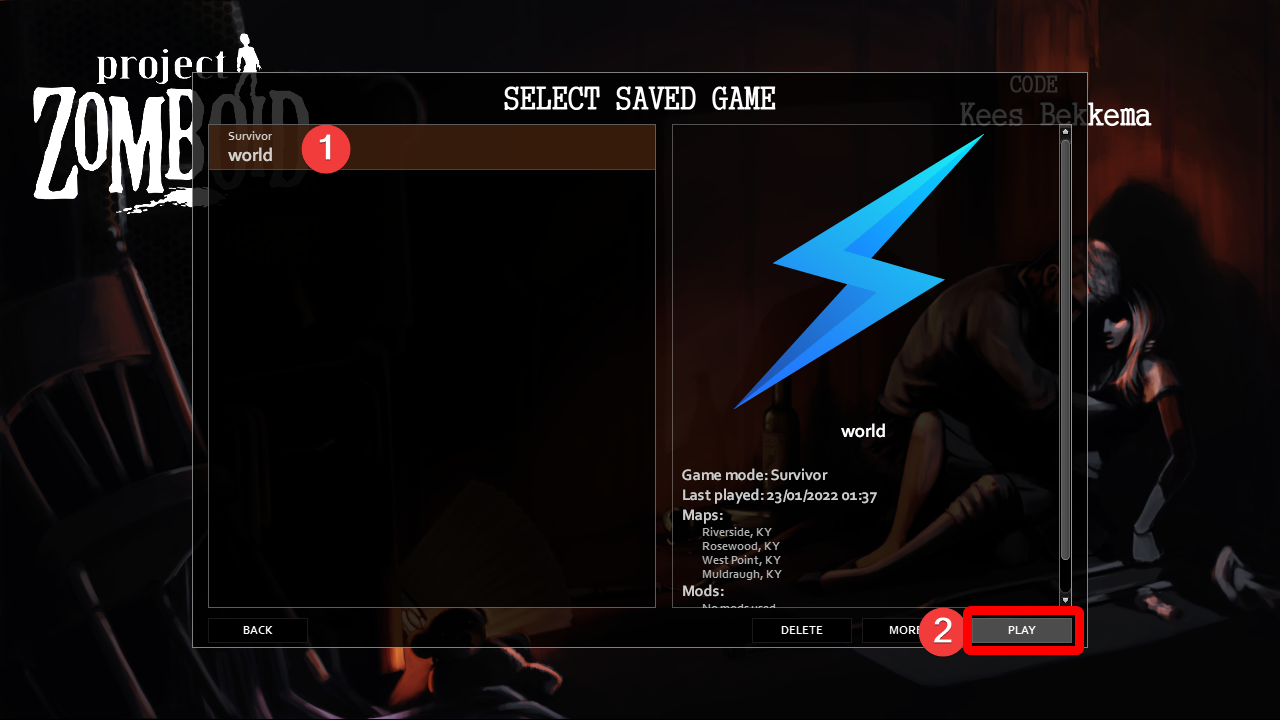
#SQL Command Cheatsheet
When running the command, replace the text REPLACE_WITH_TABLE with the table you're updating.
If you're converting your world from singleplayer to multiplayer, the table you will be modifying is networkPlayers.
If you're converting your world from multiplayer to singleplayer, the table you will be modifying is localPlayers.
You can find the full command below. Don't forget to replace all values indicated in the comments!
-- Update player data
UPDATE "main"."REPLACE_WITH_TABLE" -- Select which table you'd like to modify.
SET data = NULL -- Replace “NULL” with value inside the copied SQL command VALUES(); method
WHERE id = 1; -- The ID is the row you're replacing the value of for the character you created earlier.
-- Update player X coord
UPDATE "main"."REPLACE_WITH_TABLE" -- Select which table you'd like to modify.
SET x = 0 -- Replace with the X coordinate of the player.
WHERE id = 1; -- The ID is the row you're replacing the value of for the character you created.
-- Update player Y coord
UPDATE "main"."REPLACE_WITH_TABLE" -- Select which table you'd like to modify.
SET y = 0 -- Replace with the Y coordinate of the player.
WHERE id = 1; -- The ID is the row you're replacing the value of for the character you created.
-- Update player Z coord
UPDATE "main"."REPLACE_WITH_TABLE" -- Select which table you'd like to modify.
SET z = 0 -- Replace with the Z coordinate of the player.
WHERE id = 1; -- The ID is the row you're replacing the value of for the character you created.
If you require any further assistance, please contact our support at: https://shockbyte.com/billing/submitticket.php