Still have questions?
Come chat with us and we will get back to you as soon as possible!

Shockbyte
Support Team

How to Enable Crossplay on Your 7 Days to Die Server
Crossplay allows Steam and Console players to join the same 7 Days to Die server, but a few settings need to be adjusted for the server to be fully compatible with Console players.
#Enabling Crossplay
-
Open your Server Control Panel.
-
Stop the server and wait for it to go offline.
-
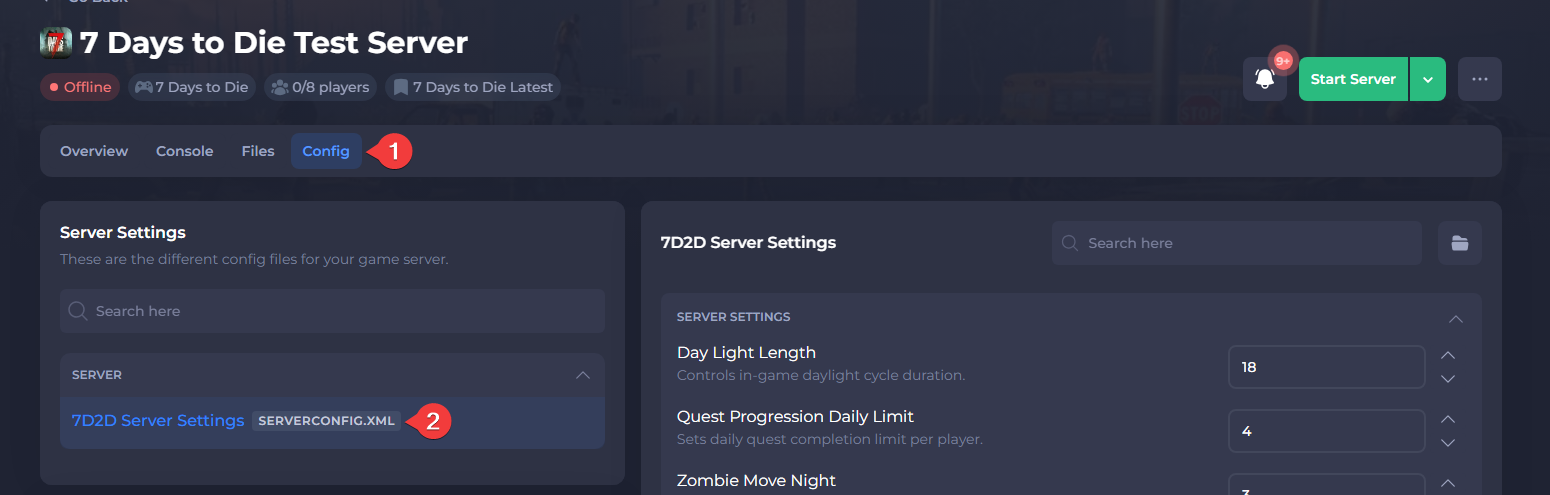
Open the Config tab in the control panel and open 7D2D Server Settings.
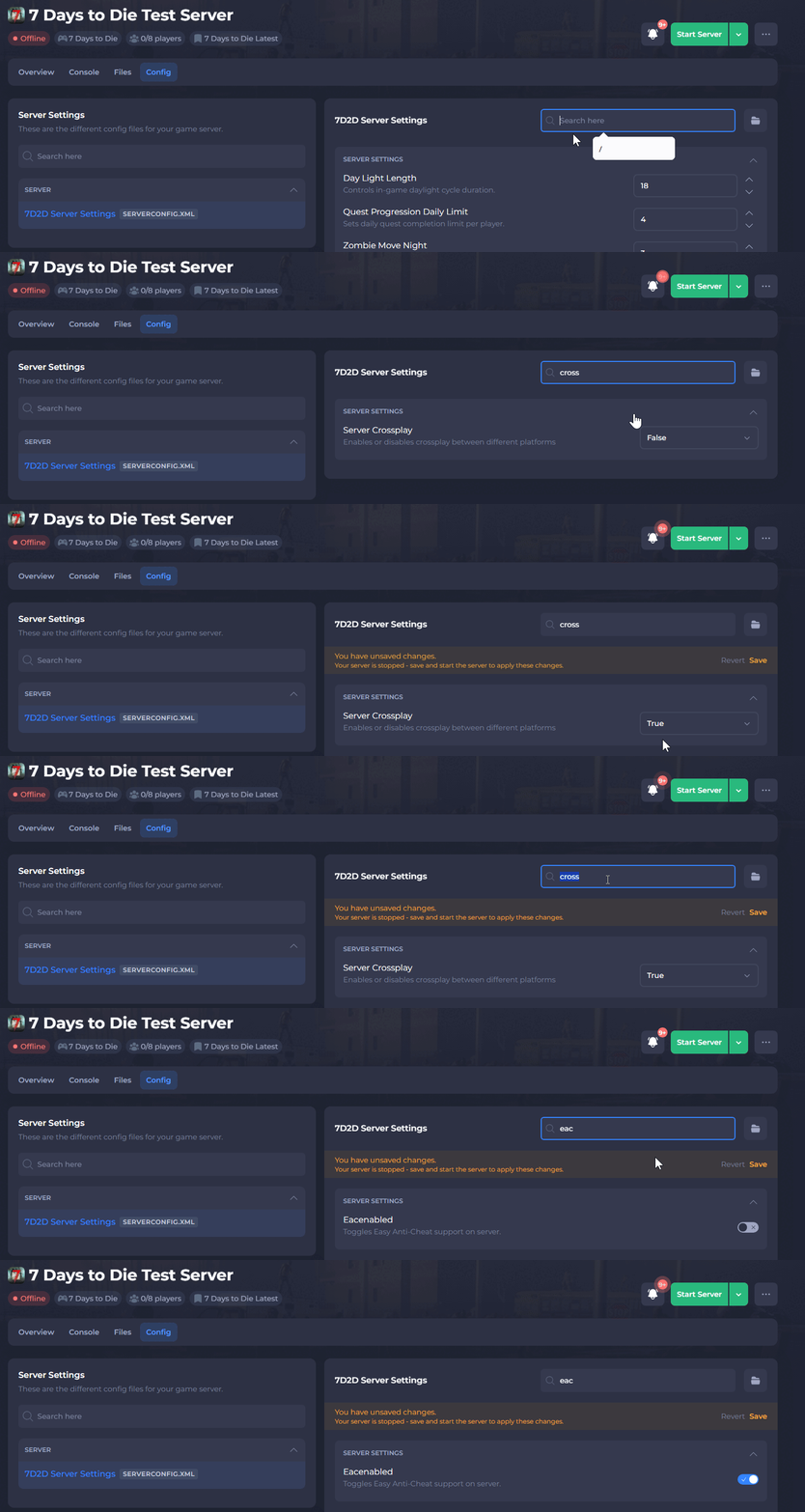
- Locate the following settings and set both to Enabled:
CrossplayandEACEnabled
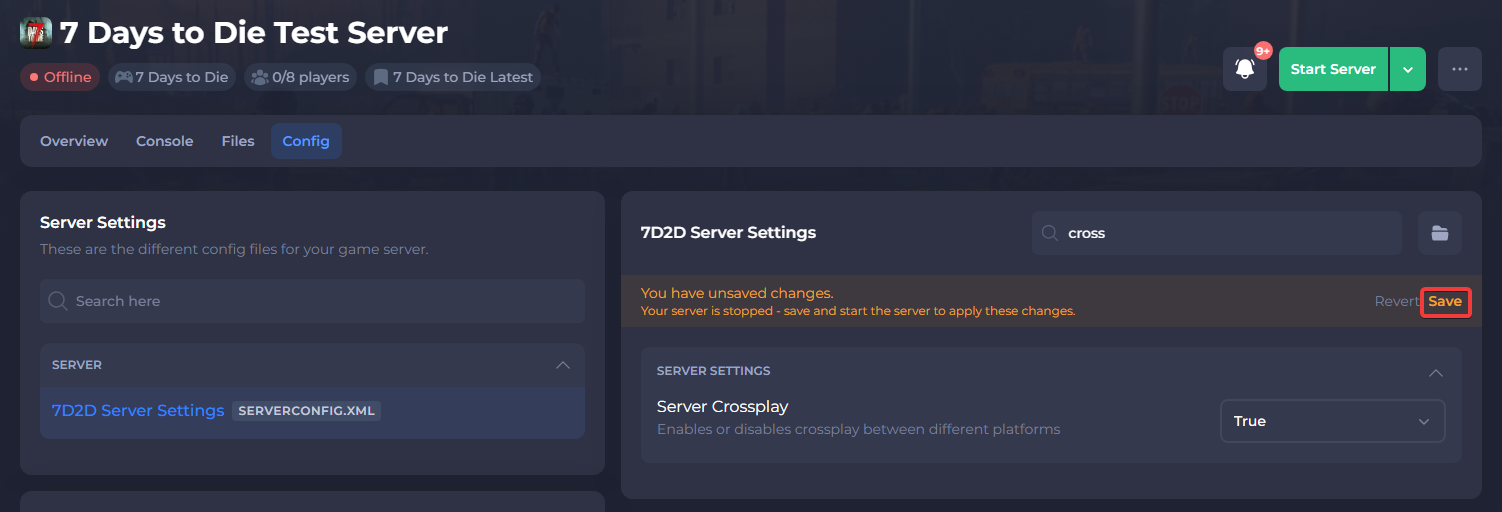
- Save the file and proceed to the next section of this guide.
#Verifying Compatibility Requirements
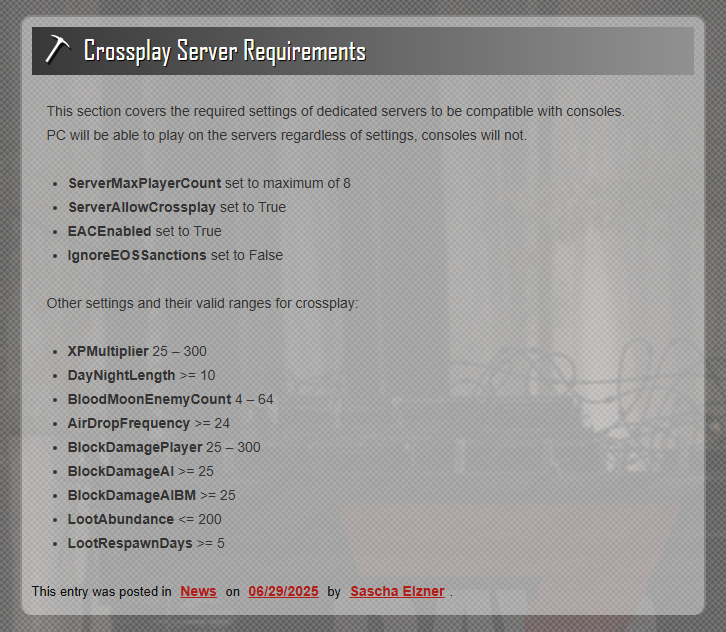
For your server to be fully crossplay compatible, you’ll need to make sure the values in your server settings match the ranges supported by console edition. PC players can still join even if these values differ, but console players won’t be able to connect unless the settings are configured properly.
Console Requirements
You can view the full, up-to-date list of console requirements here: https://7daystodie.com/crossplay-server-requirements/
Once you're done, you can start your server, and crossplay should now be enabled on your 7 Days to Die Server!