How to Install EXILED Plugins on Your SCP: Secret Laboratory Server
Still have questions?
Come chat with us and we will get back to you as soon as possible!

Ruben B
Partnership Manager

How to Install EXILED Plugins on Your SCP: Secret Laboratory Server
SCP: Secret Laboratory servers can use various server-sided plugins to add things such as Discord integration or even modify core gameplay elements. EXILED is the most popular plugin manager within the SCP: Secret Laboratory community and receives frequent updates.
Note
Popular, official, and community-made EXILED plugins can be found on the EXILED Community Discord.
#Downloading and Preparing EXILED
Before you can install EXILED on your server, you will need to download and extract the relevant files.
- Download the latest Exiled.tar.gz release from the EXILED GitHub.

- Using WinRAR/7Zip, extract the downloaded file to a memorable location such as your desktop.

#Installing EXILED on your SCP Server
Now that you have the necessary files prepared, you can upload them to the required directory on your server.
- Access your control panel and Stop your server.
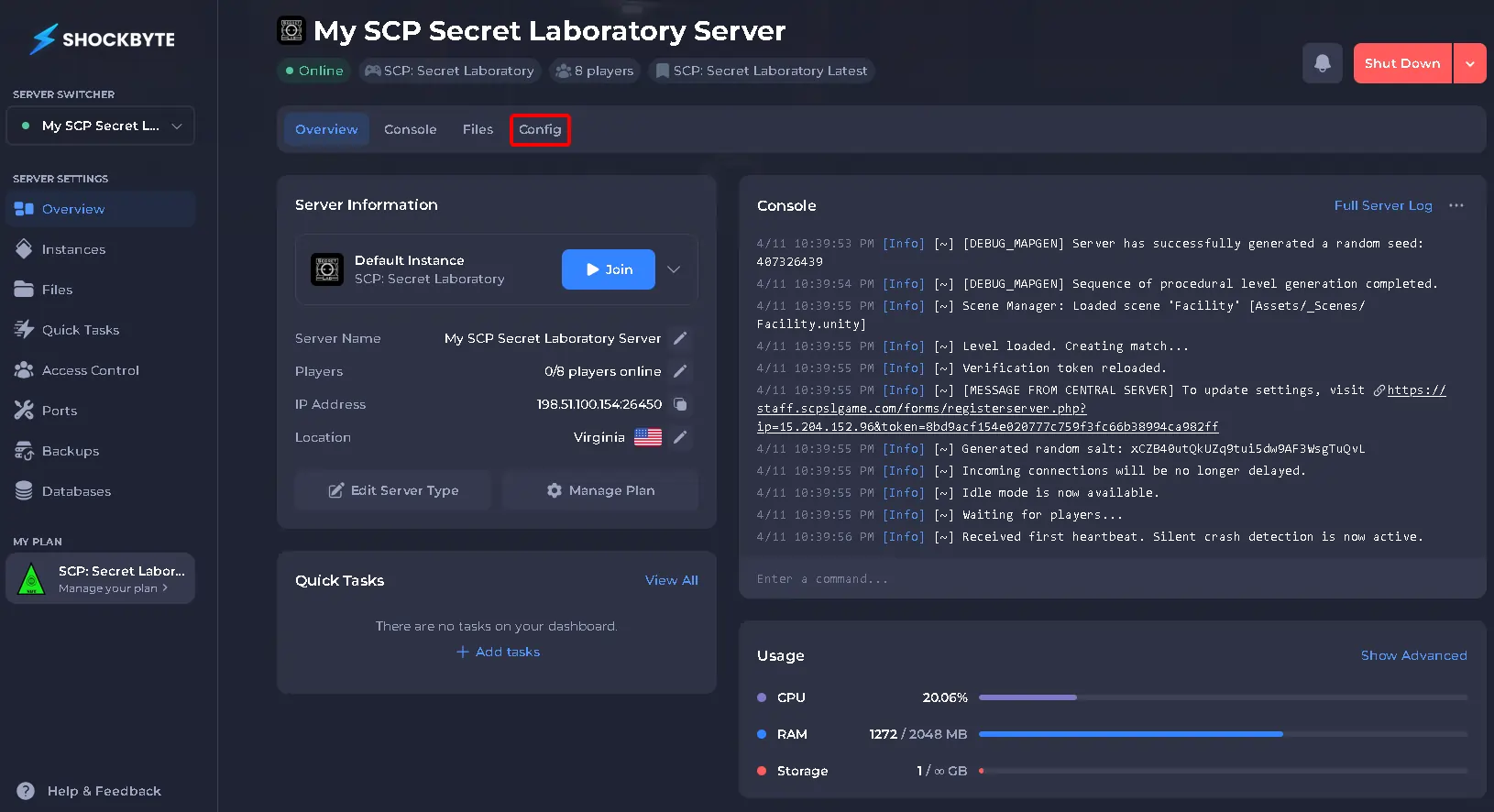
- Navigate to Config.
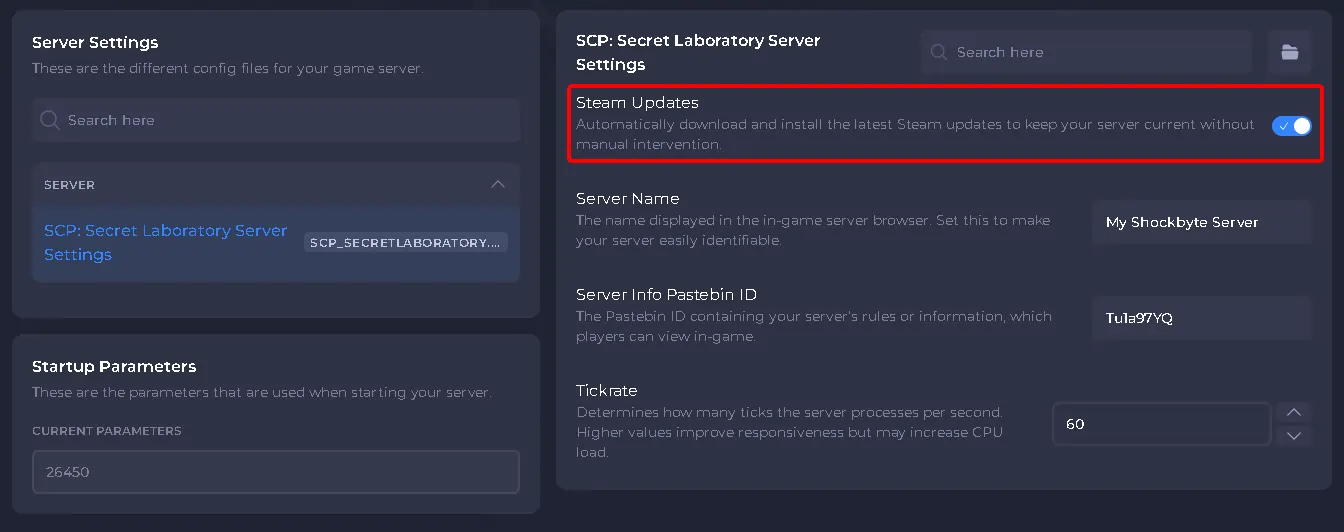
- Click SCP: Secret Laboratory Server Settings.
- Set Steam Updates to Disabled, and click Save.
- Access your server files via FTP, we recommend using Filezilla.
- Navigate to
/.config/, and upload the EXILED and SCP Secret Laboratory folders you extracted.
- Return to your control panel and Start your server.
You will now see EXILED registering within your server console on startup, this means it installed successfully! You can now move on to installing plugins.
#Installing EXILED Plugins
After installing EXILED onto your server, you will be able to upload your desired plugins to the EXILED plugins folder.
- Access your control panel and Stop your server.
- Download your chosen plugin to a new folder. We will be using AdminTools as an example.

- Access your server files via FTP, we recommend using Filezilla.
- Navigate to
/.config/EXILED/Plugins/, and upload theAdminTools.dllfile to this location.
- Return to your control panel and Start your server.