Table Of Contents
Mounting CS:S / TF2 FilesStill have questions?
Come chat with us and we will get back to you as soon as possible!

Shockbyte
Support Team
How to Mount CStrike and TF2 Files to your Garry's Mod Server
Garry's Mod
·Nov 9, 2024
·3 min read
In Garry's Mod, many servers utilise content from Counter-Strike: Source and Team Fortress 2. This article covers mounting the content from these games to your server so that you may utilise maps, models, and other resources from these games.
#Mounting CS:S / TF2 Files
You can mount your CS:S & TF2 files directly to your server by uploading them via FTP and making the appropriate configuration changes.
- Install the game you wish to mount on your PC using Steam.
- Right-click CS:S/TF2 within your Steam Library, and navigate to Properties... > Local Files > Browse...
- Access your Control Panel and Stop your server.
- Navigate to the Files tab. Connect to your server's FTP, we suggest using FileZilla.
- Upload the game folder to the root directory of your server files. This will be
cstrikefor CS:S, andtffor TF2 (these uploads may take a while).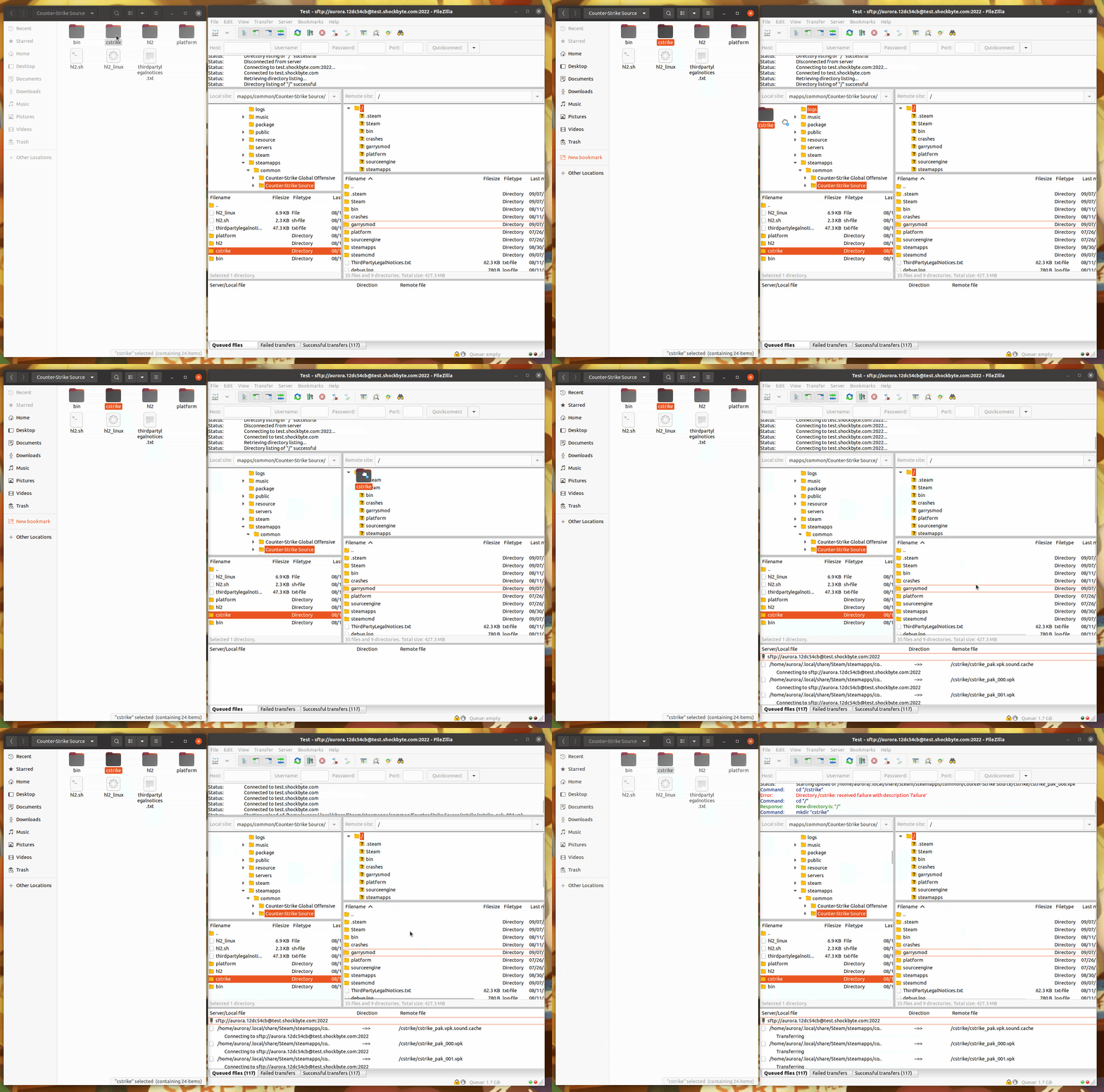
- Edit
mount.cfglocated under the path/garrysmod/cfgas appropriate for the game you are mounting.
- If you are mounting CS:S, change
// "cstrike" "C:\steamcmd\steamapps\common\Counter-Strike Source Dedicated Server\cstrike"to"cstrike" "cstrike". - If you are mounting TF2, change
// "tf" "C:\mytf2server\tf"to"tf" "tf".
- Save
mount.cfgand Restart your server to apply the changes.
- To test if CS:S was mounted successfully, you can run the console command
changelevel de_dust2. If the map changes to Dust 2, CS:S is mounted. - To test if TF2 was mounted successfully, you can run the console command
changelevel ctf_2fort. If the map changes to 2 Fort, TF2 is mounted.
If you require any further assistance, please contact our support at: https://shockbyte.com/billing/submitticket.php