How to Remove Items from a Player's Inventory or Ender Chest on Your Java Minecraft Server
Still have questions?
Come chat with us and we will get back to you as soon as possible!

Shockbyte
Support Team

How to Remove Items from a Player's Inventory or Ender Chest on Your Java Minecraft Server
You may want to remove specific items or all items in a player's inventory or ender chest for several reasons, such as if they obtained corrupt items, duplicate items, or other disallowed items on your server.
Resetting Player Data
Are you looking to reset all of a player's data instead? This includes their inventory, experience, position in the world, achievements, and other progress. Check out our guide on the topic here.
#Getting Started
There are different methods to delete items from a player’s inventory or ender chest, depending on whether the player is online, the server type, whether it's vanilla, supports mods, or supports plugins. This guide will explain the best method to use in each situation.
Important
Make sure to create a backup of your server before proceeding with the steps in this guide. Once items are deleted, they cannot be recovered without a backup.
#Removing the Inventory Items from an Online Player
If a player is online, the Minecraft /clear command can be run to clear either all of the items in their inventory or specific items in their inventory. This does not apply to ender chests.
For a full list of the available arguments that can be used with the command, check out the Minecraft Wiki Page here: Clear Command Arguments
| Command | Effect |
|---|---|
/clear username | Clears all items and armor in their inventory. |
/clear username item | Clears all of the specified item in their inventory. |
/clear username item amount | Clears the specified amount of the item in the player's inventory. |
#Removing the Inventory or Ender Chest Items from a Player
Alternative methods are required to remove items from offline player inventories and player ender chests because the /clear command does not work in these situations. Two methods can be used: Installing mods or plugins, or manually editing the user's player data file.
Mods and Plugins
Mods or plugins can be installed on the supported server types to manage an offline player's inventory, or an enderchest. See our list of popular mods and plugins with this feature below.
Steps to remove items from a player will vary between mods and plugins. Refer to the documentation or support from the mod or plugin author for further guidance.
Unavailable Modification
If you cannot find a mod or plugin for your server type or game version on this list, you can search for alternative options on Modrinth, CurseForge, or SpigotMC, or skip to the next section.
Mods
| Mod | Modloader | Versions | Inventory | Enderchest |
|---|---|---|---|---|
| InvView | Fabric | 1.16.2 - 1.21+ | X | X |
| InvView | Forge/NeoForge | 1.16.5 - 1.21+ | X | X |
Plugins
| Plugin | Versions | Inventory | Enderchest |
|---|---|---|---|
| Invsee++ | 1.8 - 1.21+ | X | X |
| OpenInv | 1.0 - 1.21+ | X | X |
| EssentialsX | 1.8 - 1.21+ | X | X |
#Manually Editing a Player Data file
This section will require the use of a world editor like NBTExplorer. These steps can be followed on any server type, including Vanilla Minecraft servers.
Player
The affected player must remain offline throughout this process for the steps to work correctly.
Downloading the Player Data file
-
Obtain the player's UUID from NameMC and save it for later.
-
Open your Server Control Panel.
-
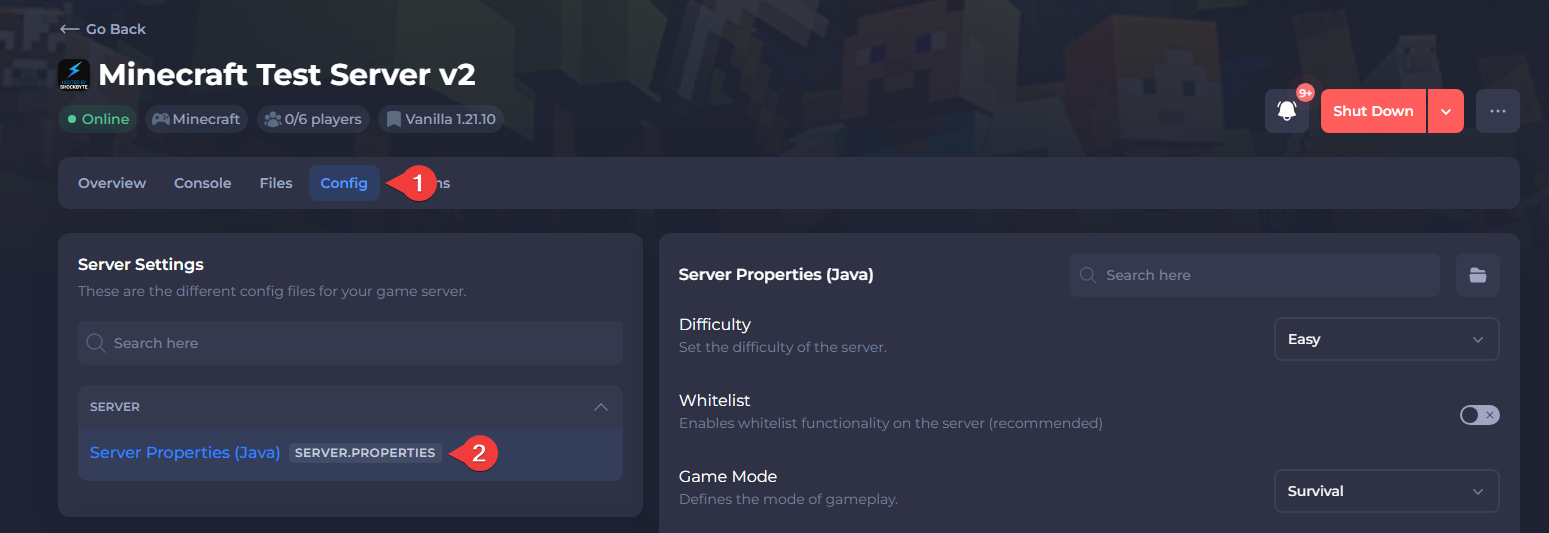
Navigate to the Config tab and open Server Properties (Java).
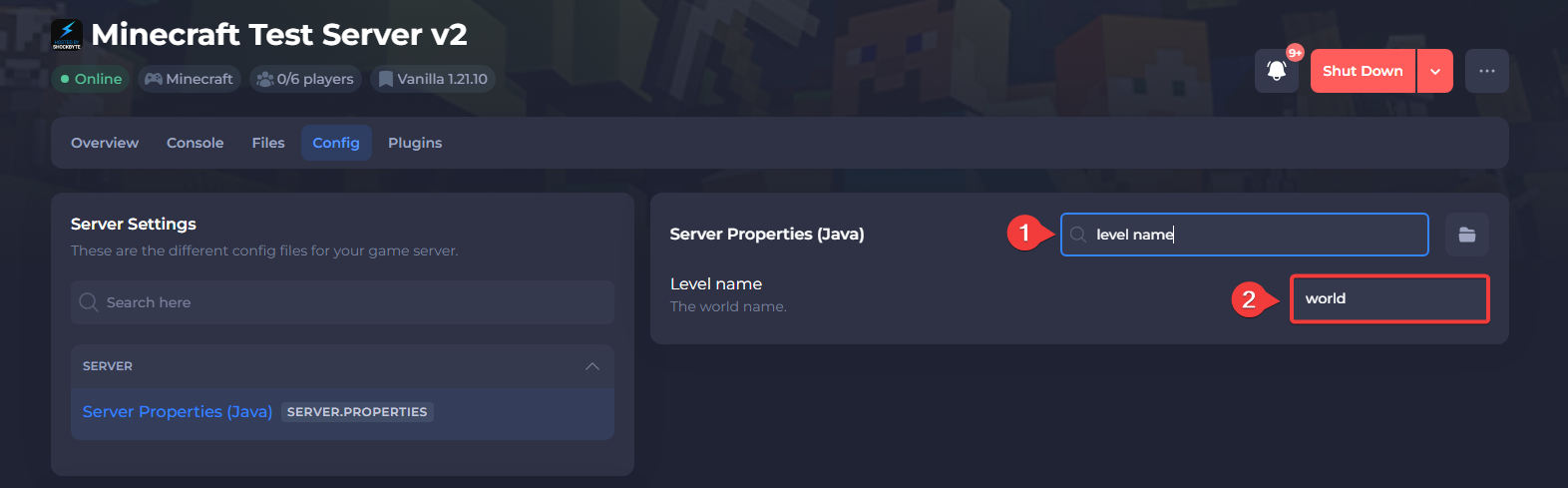
- Locate the Level Name setting and take note of the name for the next step.
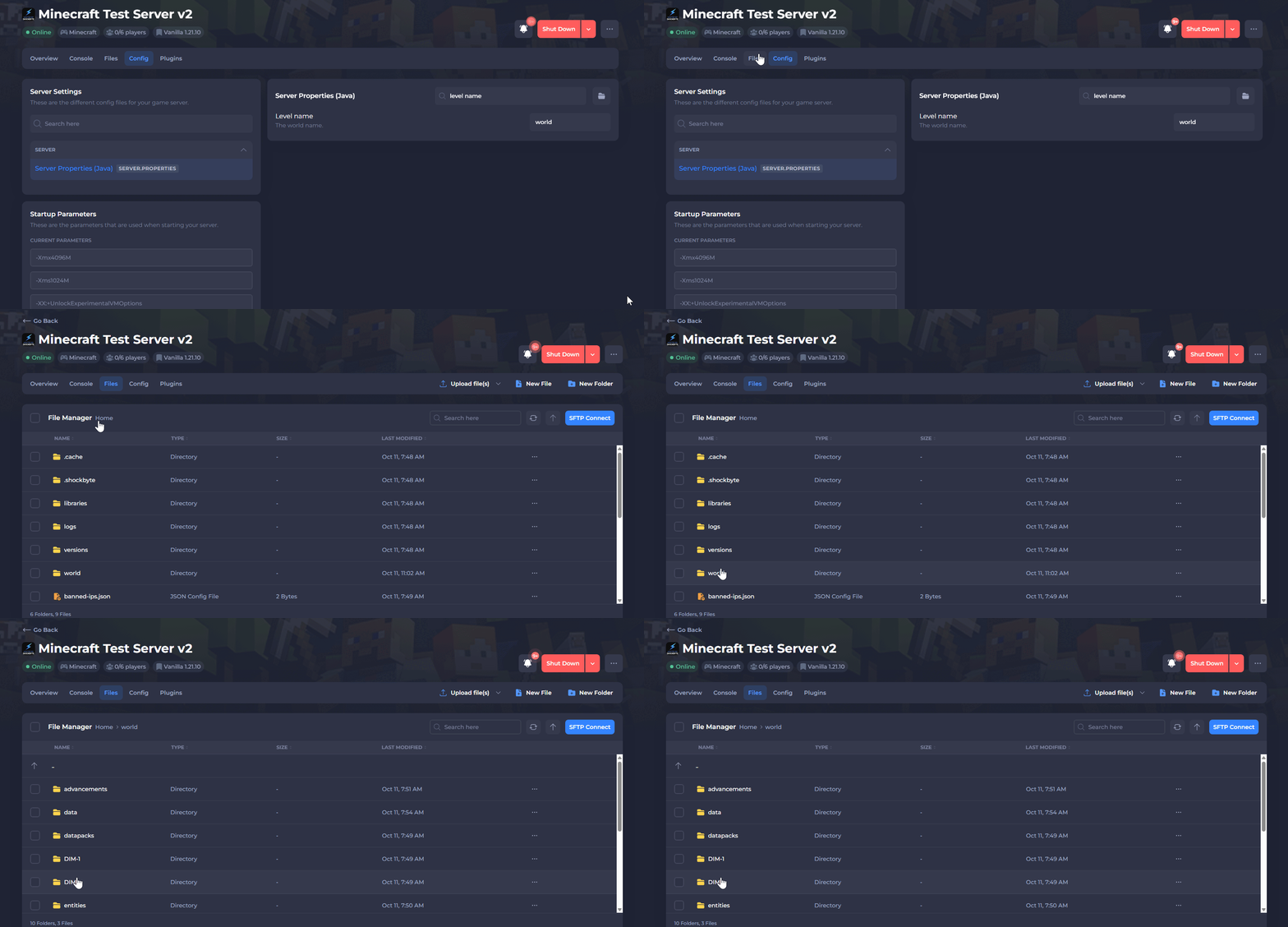
- Navigate to the Files tab and open the world folder matching the name you saw in the Level Name setting.
- Inside the world folder, open the
playerdatafolder.
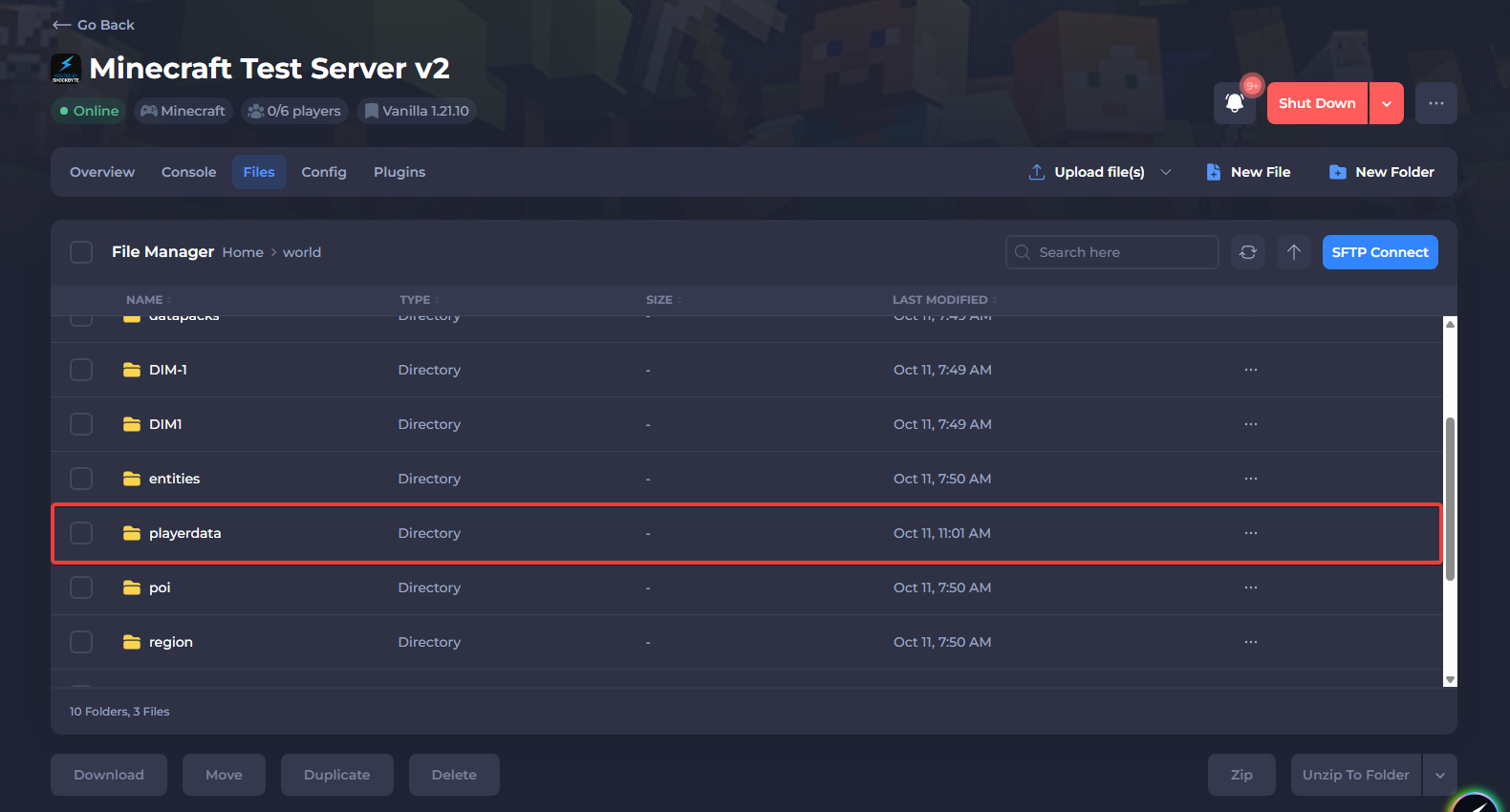
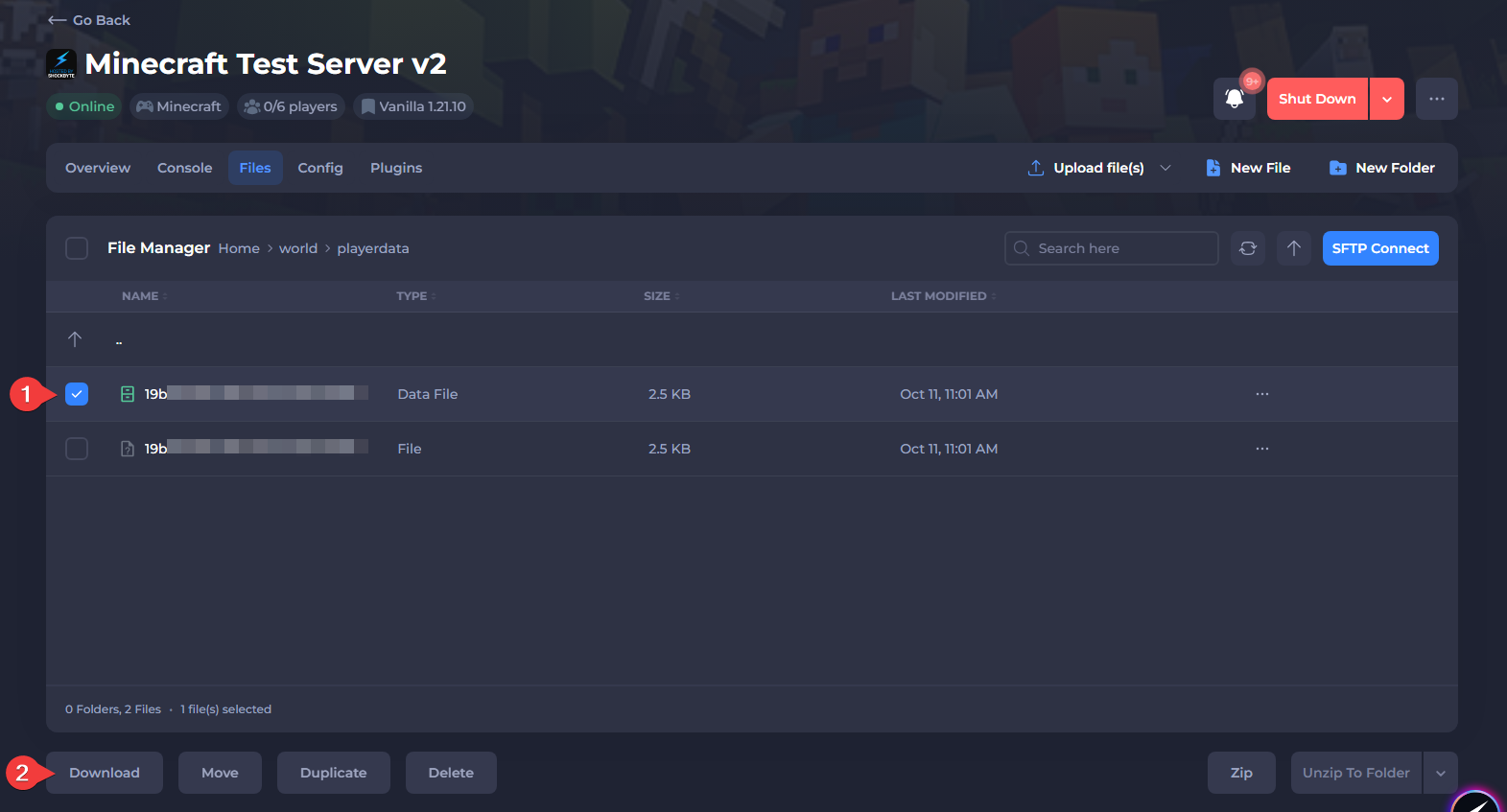
- Select the
.DATfile that contains the player's UUID that you previously identified in Step 1, then Download it.
Do not download the file with _old at the end of the file name. This file is not currently in use and has a gray icon.
Navigating the Player Data File with NBTExplorer
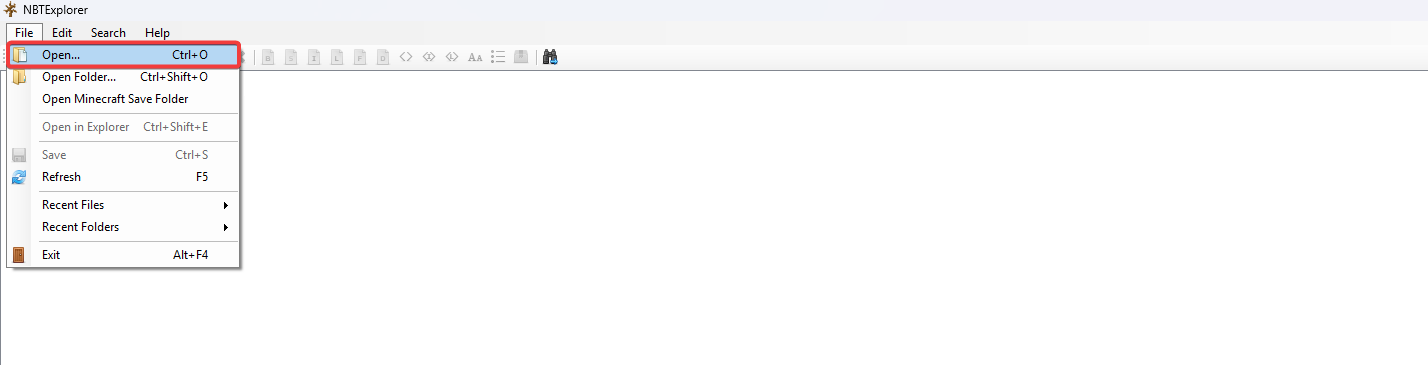
- Launch NBTExplorer and open the player data file that you downloaded.
-
Use the
+button next to each entry to view its data. -
Open the main player data section, then open the next desired section. The Inventory section will be used in the following example.
- Inventory - Inventory item data.
- Equipment - Armor and offhand item data.
- EnderItems - Ender chest item data.
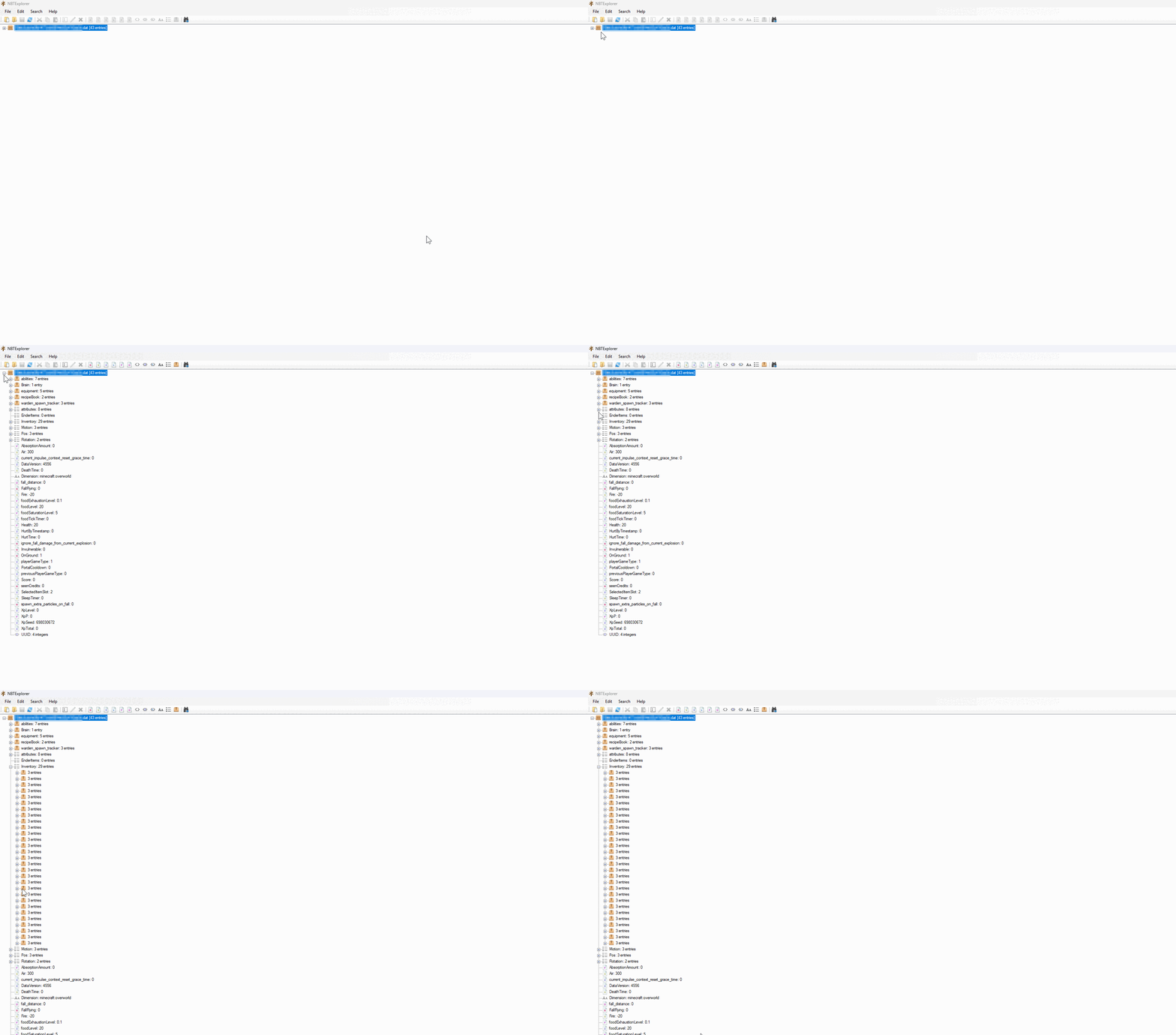
- Inside the Inventory section, folders named
3 entrieswill represent occupied inventory slots. The other sections follow a similar format.
Continue using the + button to expand each folder and view its contents. Each entry inside the folders will consist of the following:
count: X(Amount of the item)id: X(Minecraft ID of the item)slot: x(Inventory slot the item is located in)
You can use MCUtils to see the location of a specific slot in an inventory or ender chest.
Editing and Removing Items
Using NBTExplorer, you can perform advanced changes such as adjusting item quantities, replacing existing items with different ones, moving items between slots, and more.
While the next examples will only focus on removing items from a player’s inventory, the same steps can be used to remove items from an ender chest.
Option 1 - Deleting All Inventory Items
-
Select the Inventory section and click the red
Xto delete all inventory items. -
Select the Equipment section and click the red
Xto delete all of the player's armor, and their offhand item.

- Save the updated player data file.
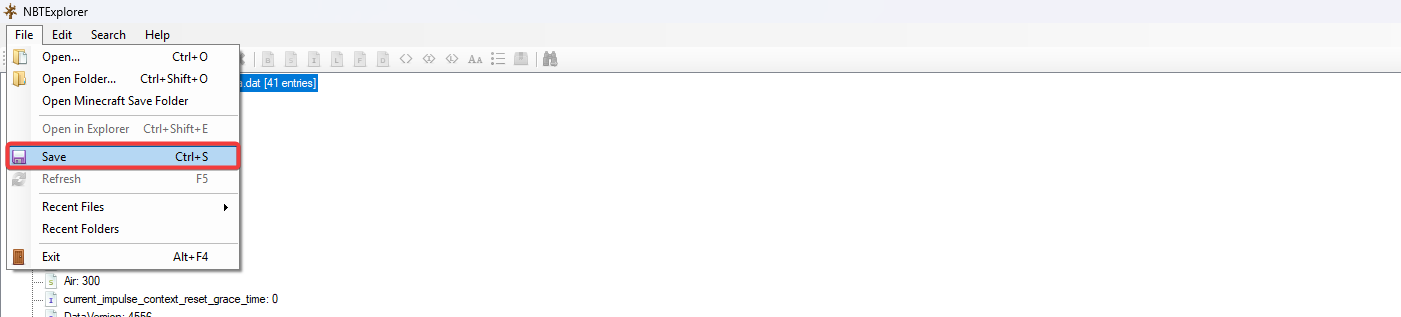
- Upload the file back to the
/playerdatafolder, and Overwrite the existing file.
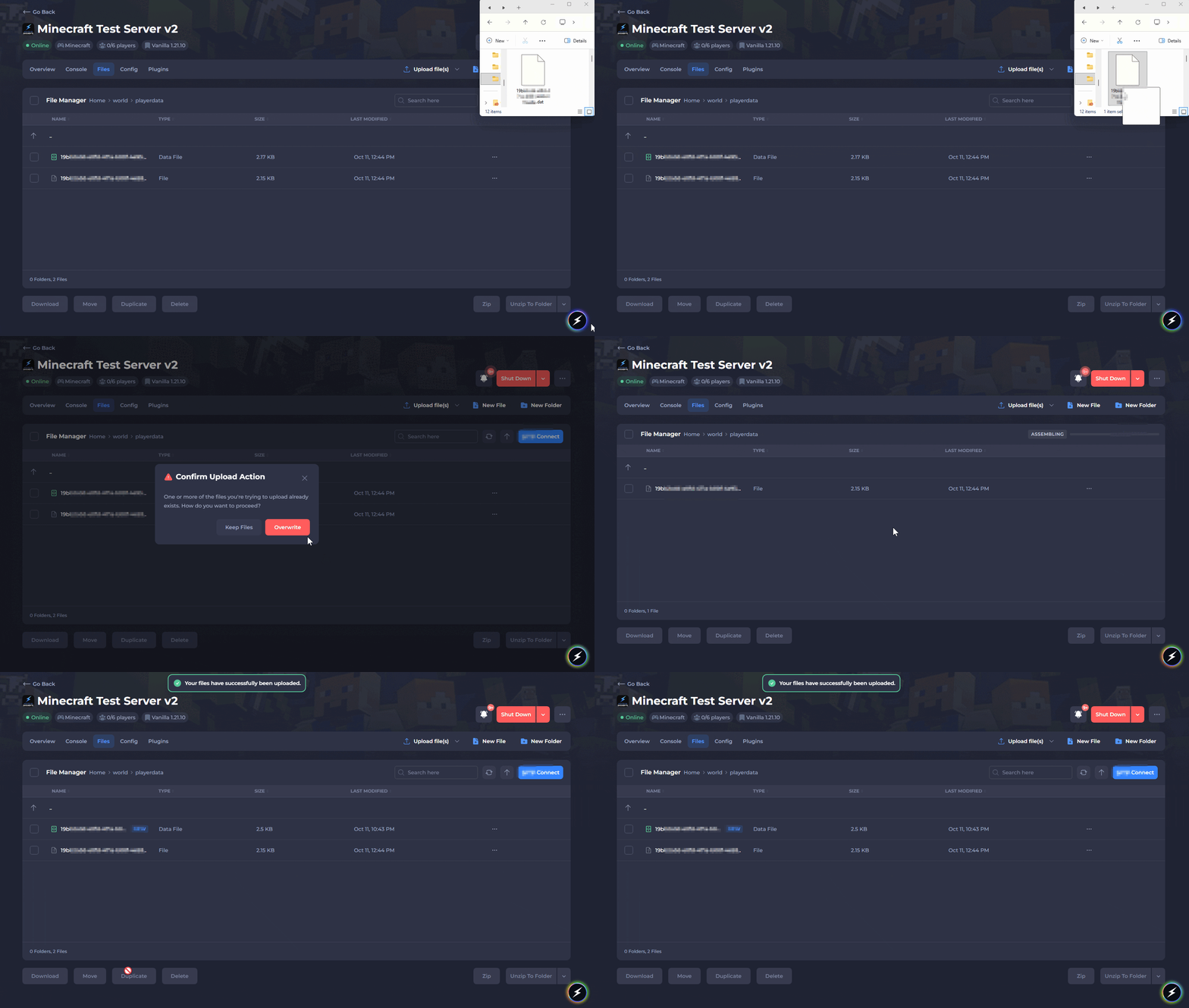
All of the player’s inventory items should now be removed when they next join the server.
Option 2: Deleting a Specific Inventory Item
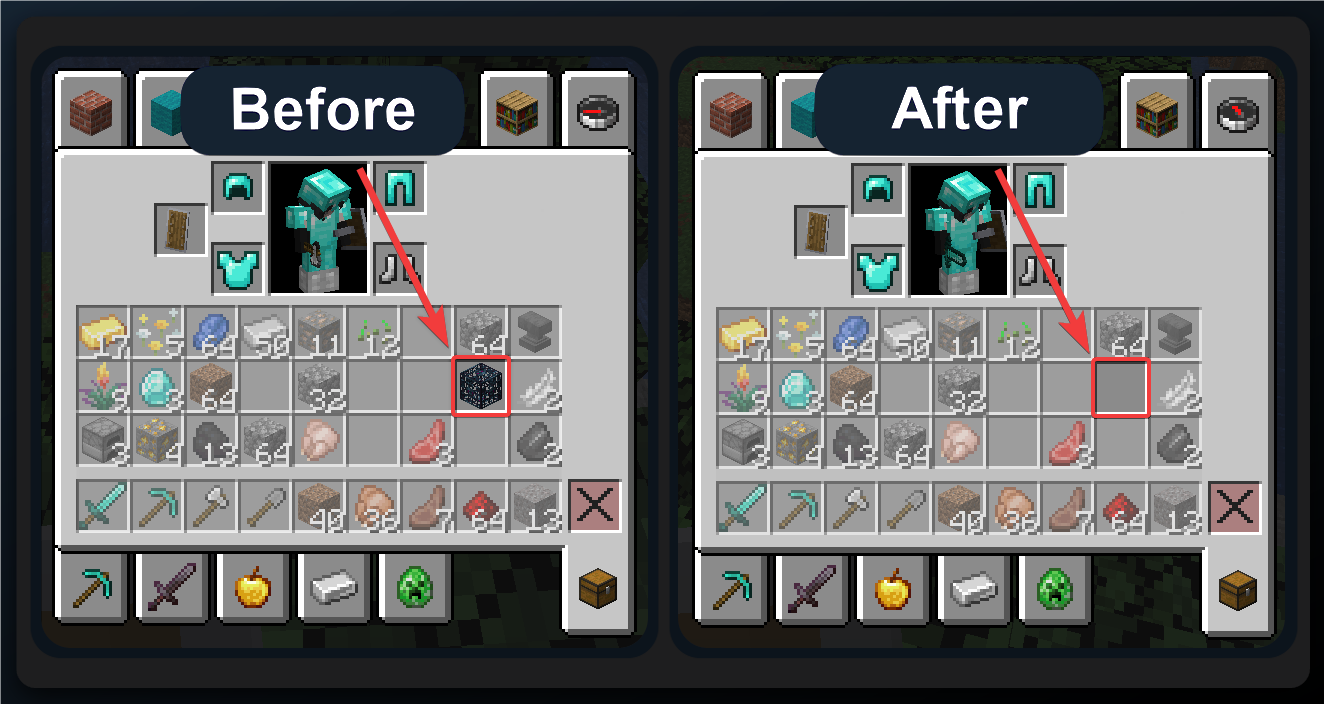
In the next example, we will remove a Mob Spawner from slot 25 in the player's inventory.
- Locate the item by looking through each folder in the Inventory section.
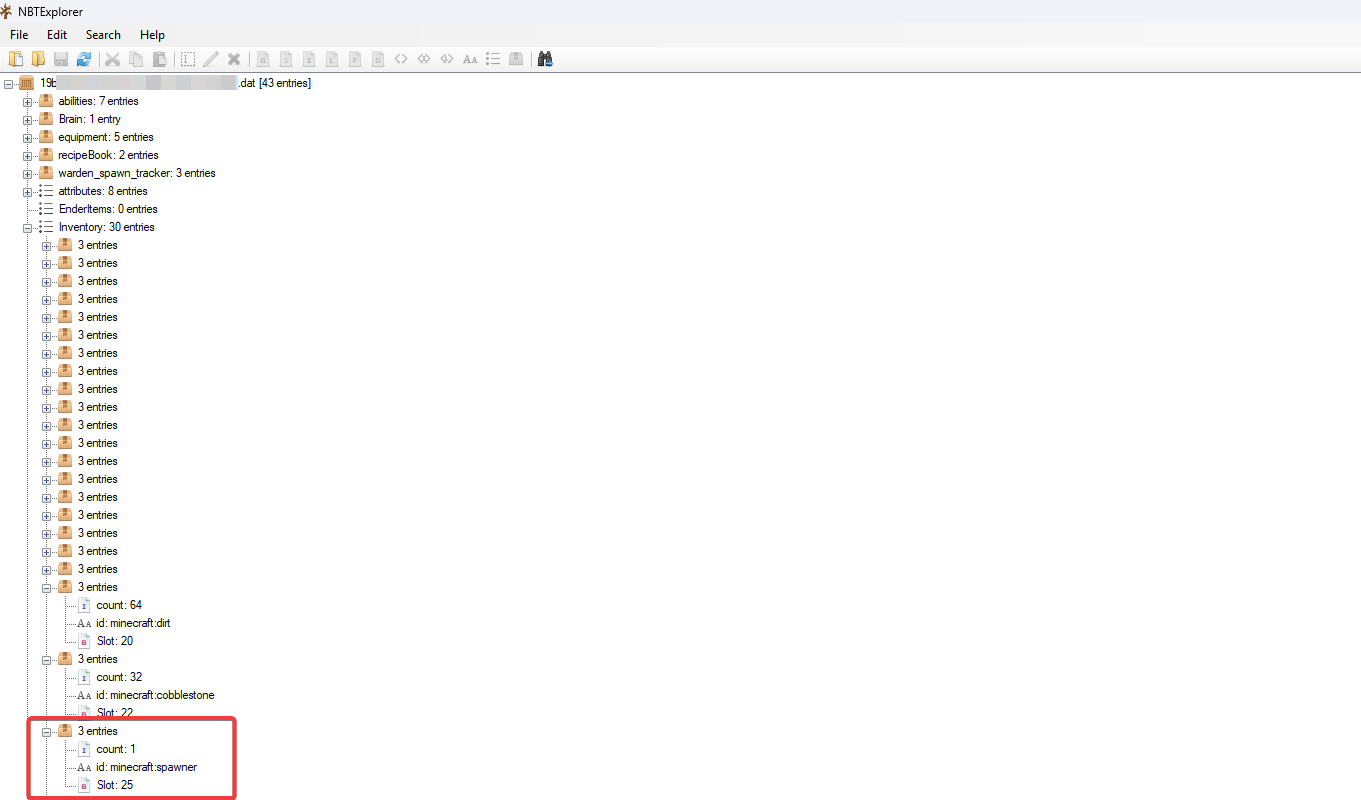
- Select the folder containing the item data and click the red
Xto delete it.
This will delete all item data in that slot, removing the item entirely, whether it’s a single item or multiple of the same item.
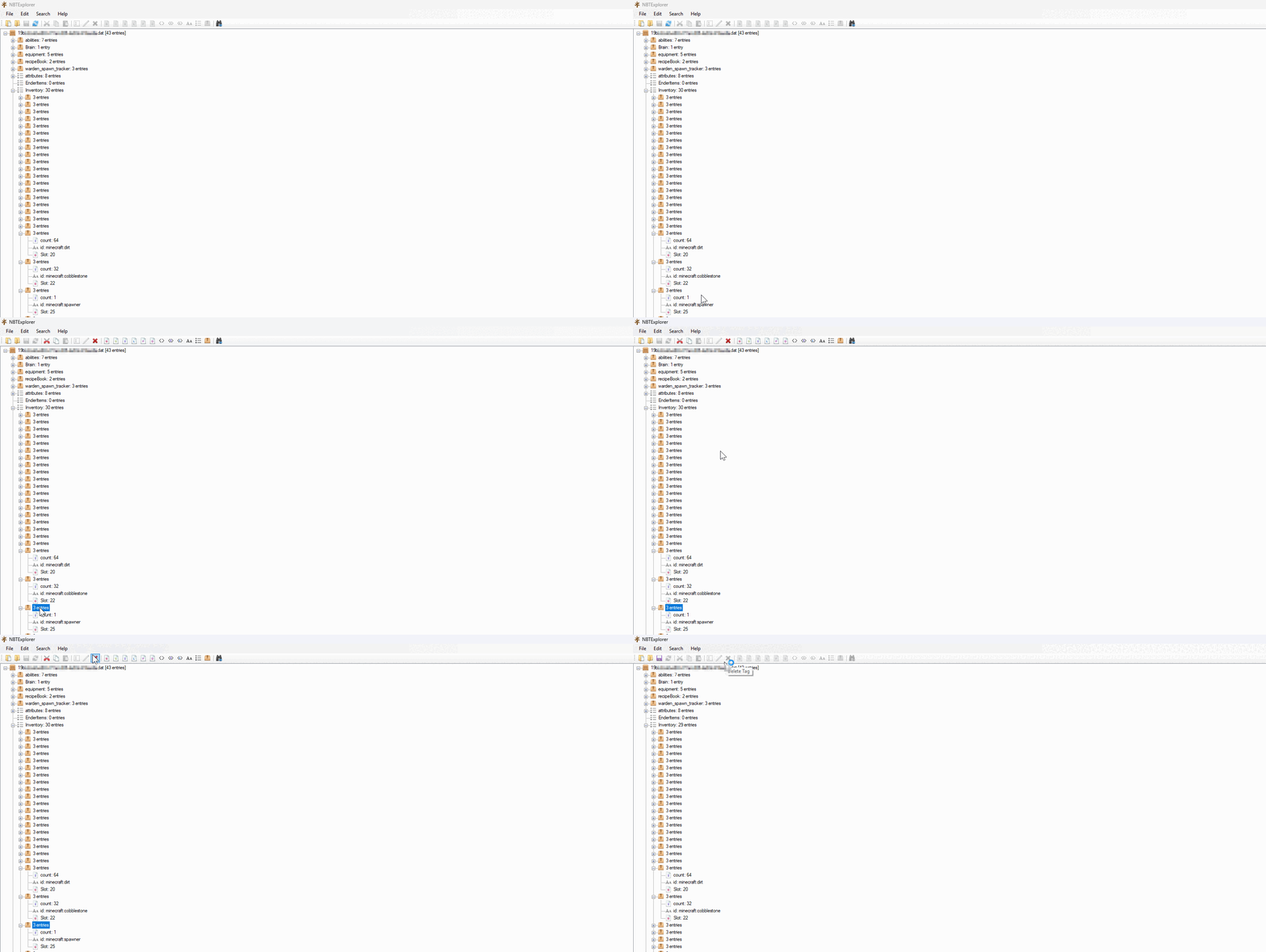
- Save the updated player data file.
- Upload the file back to the
/playerdatafolder, and Overwrite the existing file.
The specified item should now be removed from the player's inventory when they next join the server. The images below show the example player's inventory before and after following this method.
To learn more about Minecraft server hosting, you can browse our library of Knowledgebase articles here.