Still have questions?
Come chat with us and we will get back to you as soon as possible!

Shockbyte
Support Team

How to Upload a Single-Player World to Your Factorio Server
If you have a custom Factorio world you made in singleplayer, downloaded online, shared to you by a friend, or from a previous server, you can easily use this as your server's world.
#Locating the Save File Locally
Before uploading a world, you will need to locate the save file that you want to use for the server. Singleplayer worlds by default are located in \AppData\Roaming\Factorio\saves. The appdata folder can be found by following these steps:
- On your keyboard, press
Windows Key + Rat the same time. This will open a Run dialogue box. - Copy this string
%appdata%/Factorio/savesinto the Run dialogue field and press OK.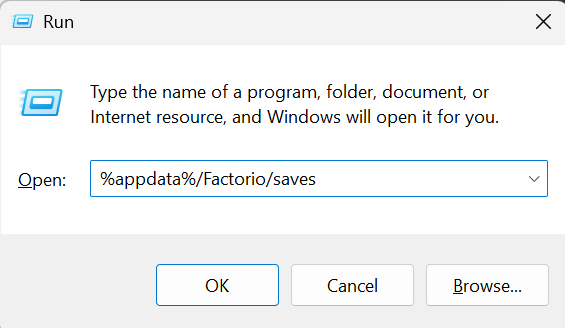
Once you are in the saves folder, you should see all of your save game files as .zip files. Choose the one you want to upload and put it somewhere easy to access, such as your documents folder or desktop.
#Uploading the World to your Server
Now that we have located your local save file, we will need to upload this to the server.
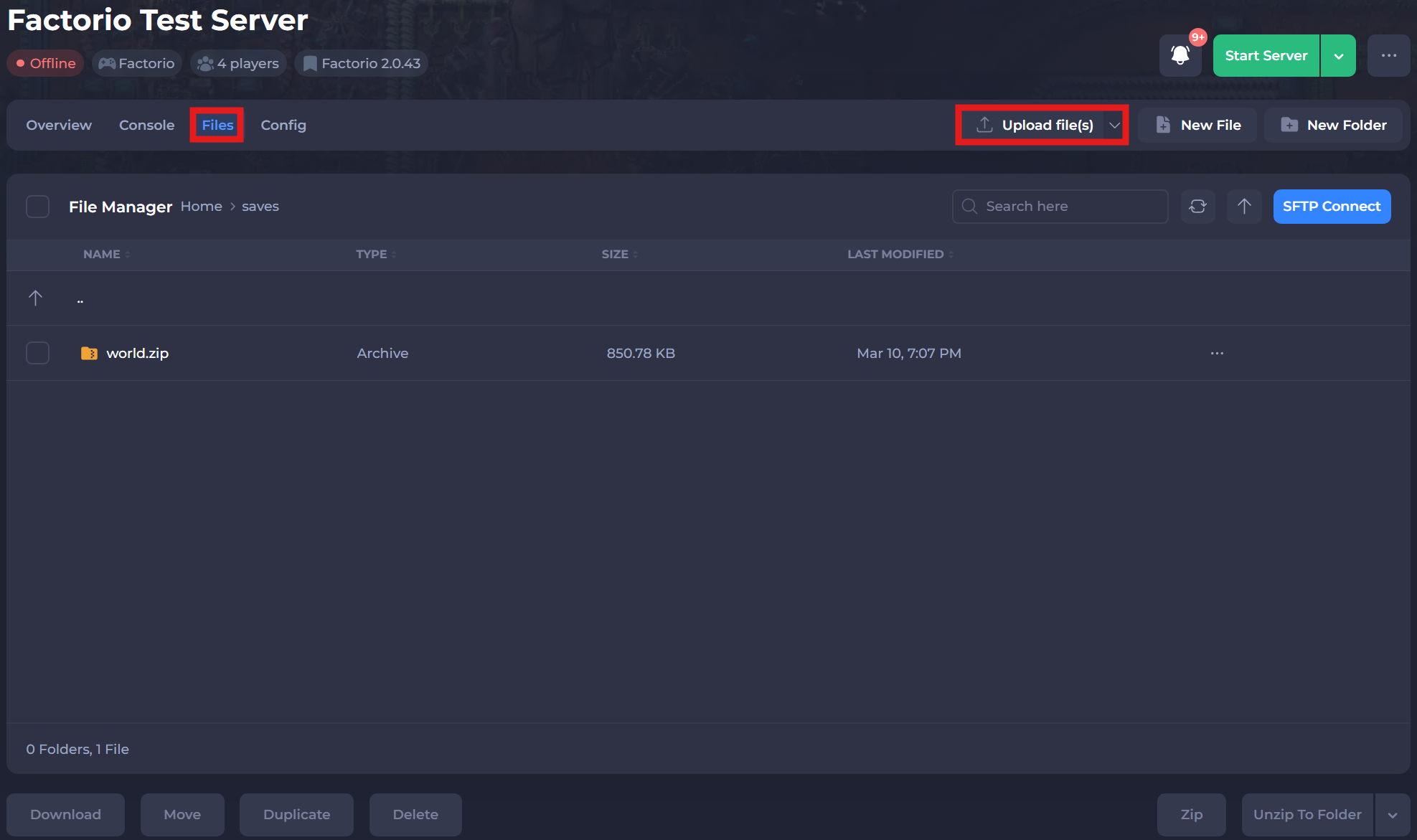
- Access your Control Panel and Stop your server.
- Navigate to the Files tab and select the
/savesdirectory. - Select the Upload File(s) button and upload your world file.
#Setting your World Name
Now that we have uploaded your world file to the correct directory, you will need to set your world to be the active save.
-
Access your Control Panel and Stop your server.
-
Navigate to the Config tab and enter in your world's name in the
World Namesetting.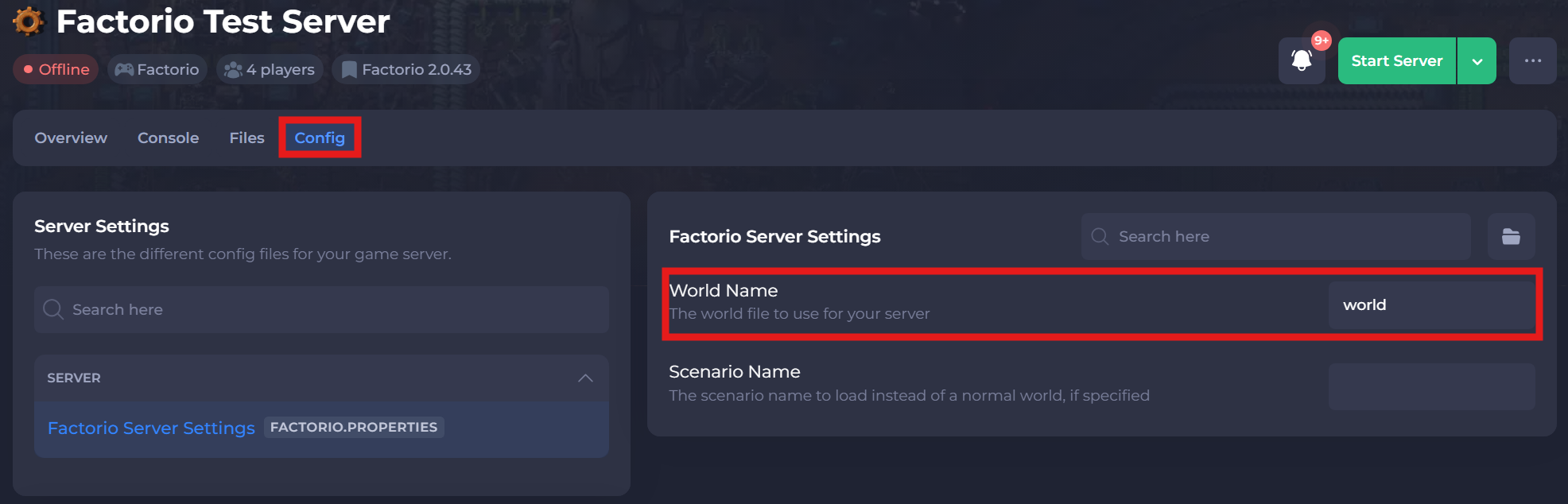
-
Save and restart your server to ensure the changes apply.
If you require any further assistance, please contact our support at: https://shockbyte.com/billing/submitticket.php