Still have questions?
Come chat with us and we will get back to you as soon as possible!

Jay Miller
Game Engineer
How to Upload an Existing Save to your The Forest Server
Uploading your existing local save will allow you to continue your progress on a Shockbyte server with friends. To do this you will need to upload your existing The Forest save folder to your server.
#Locating your Existing Save Folder
You can upload both Singleplayer and Multiplayer saves to your server, which are both located in The Forest's Appdata folder.
-
Using File Explorer, navigate to the
C:\Users<User>\AppData\LocalLow\SKS\TheForestdirectory. -
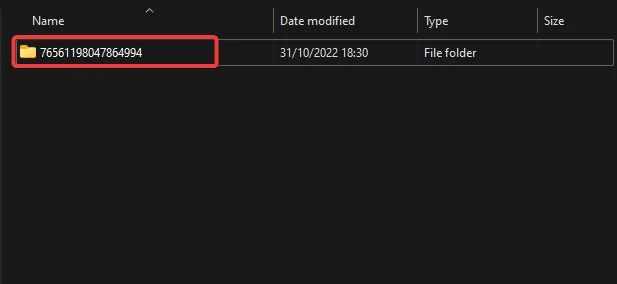
Open the folder with a long string of numbers.
-
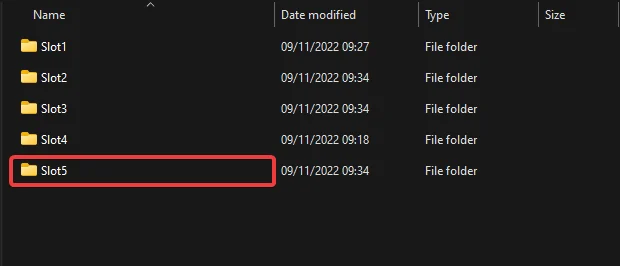
Select either Singleplayer or Multiplayer depending on what mode you've been playing on.
-
Make a note of this file location, as you will need it to upload the save to your server.
#Uploading an Existing Save
Once you've located your save folder you will need to upload it to your server files.
-
Go to your Control Panel and Stop the server.
-
Connect to your server using FTP, we suggest using FileZilla.
-
Navigate to the
/savesMultiplayerdirectory.
-
Locate your local save folder in FileZilla, right-click it and Upload.

#Setting your Server's Active Save Slot
Once you've uploaded your existing save you will need to change your server's active save slot.
-
Go to your Control Panel and Stop the server.
-
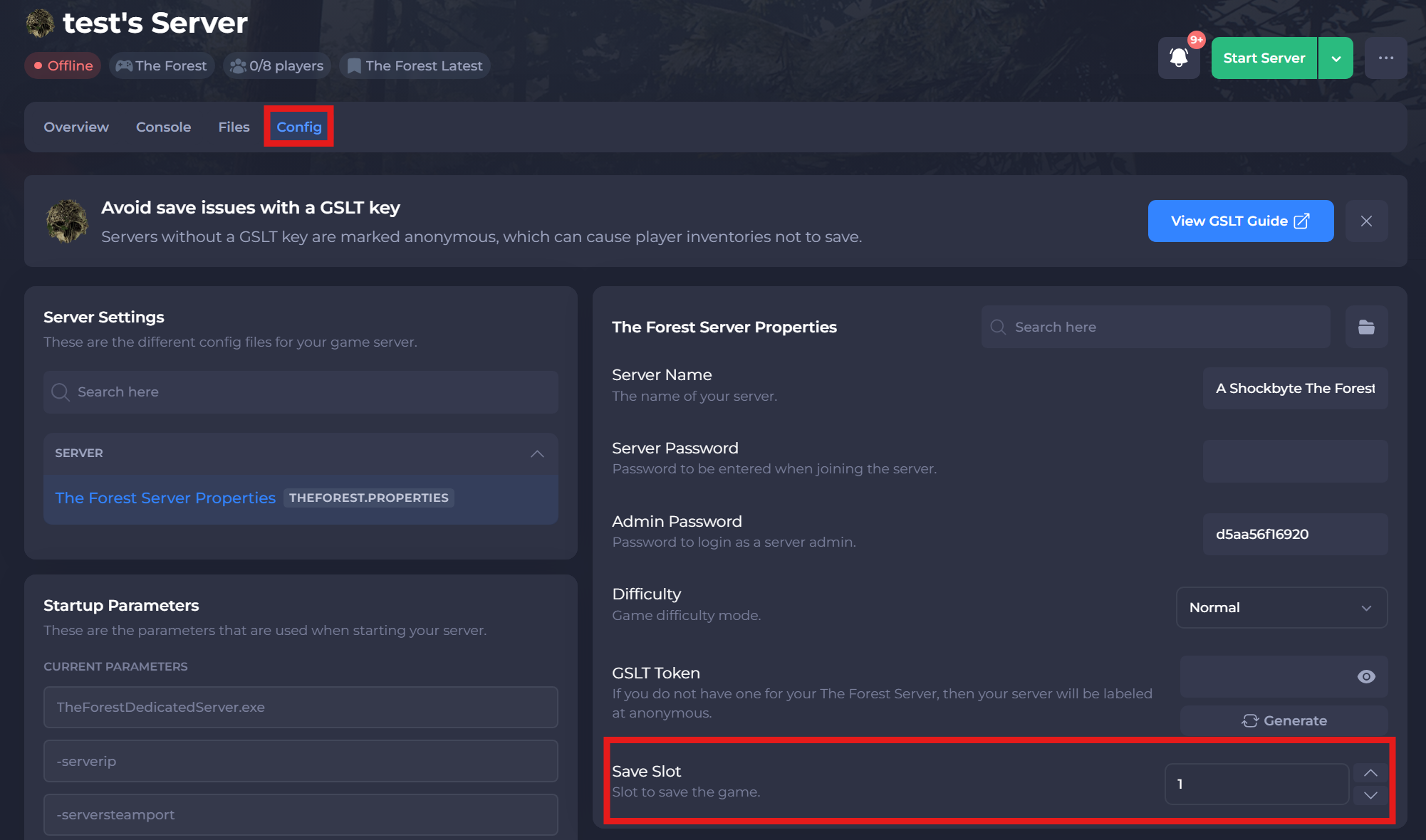
Navigate to the Config tab in the panel and locate the Save Slot option. Select your desired Save Slot in accordance with the existing file you uploaded earlier.
-
Save and restart the server.
To learn more about The Forest server hosting, you can browse our library of Knowledgebase articles here.