Still have questions?

Jay Miller
Game Engineer
How to Upload an Existing Vintage Story World to your Server
You may have previously self-hosted a Vintage Story world that you now want to resume on your new Shockbyte Vintage Story server. It is possible to upload your world file and continue right where you left off.
#Locating Local Save Files
Before you can upload your existing save to your server, you must locate the file on your computer.
-
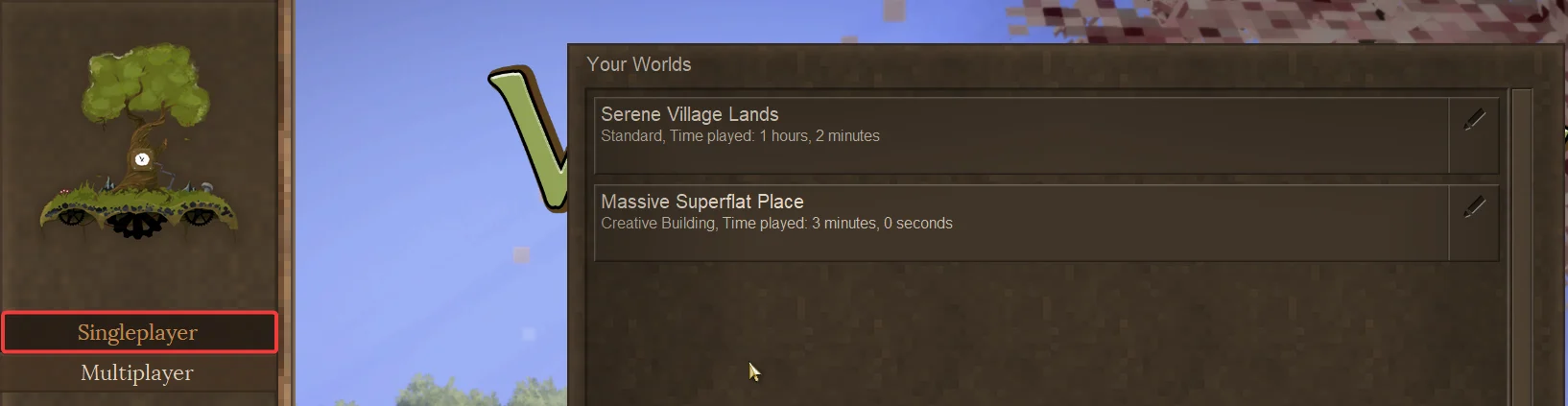
Launch Vintage Story and click Singleplayer.
-
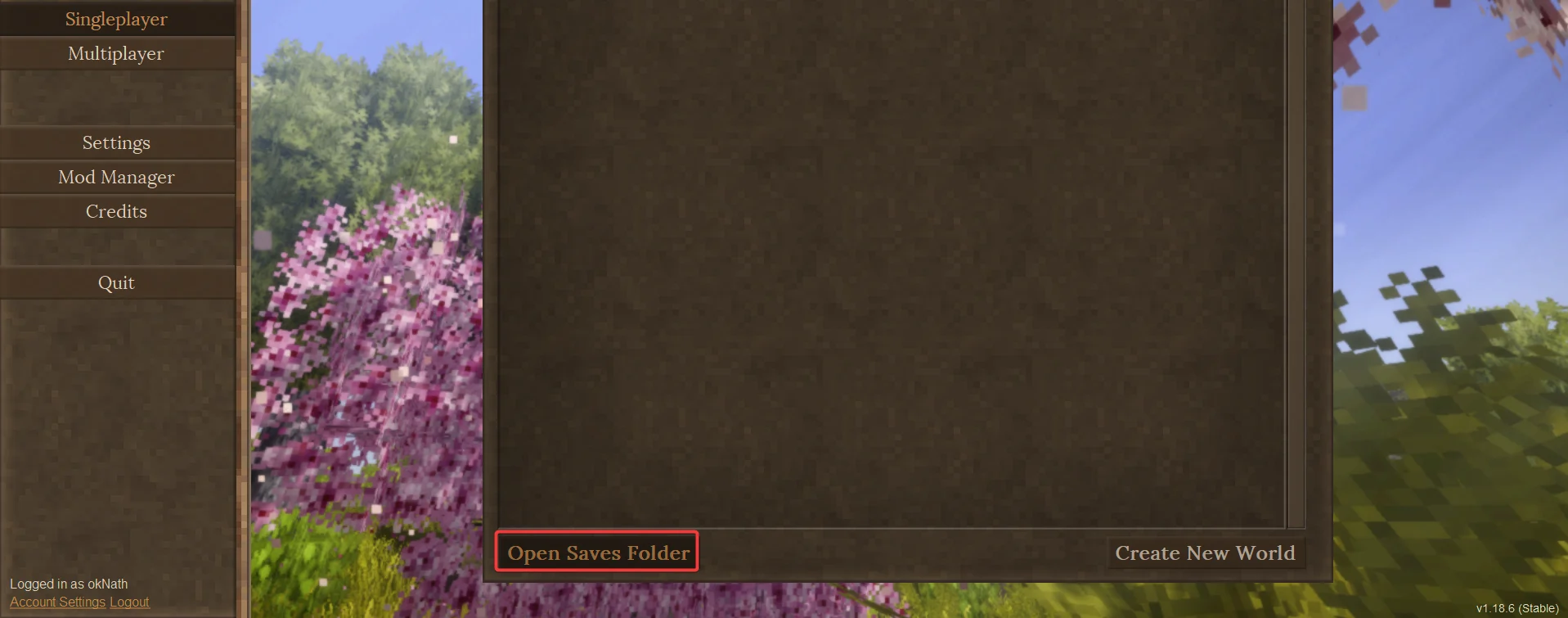
Click Open Saves Folder.
-
Locate your desired
<SaveName>.vcdbsfile, and make note of its location.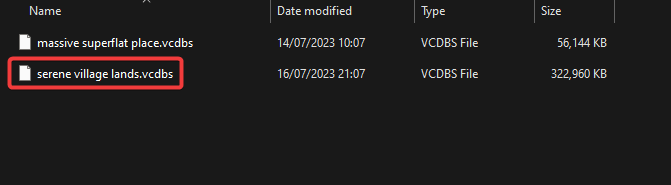
#Uploading a World to your Server
To use an existing save, you will need to upload the corresponding save files to your server.
- Access your Control Panel and Stop your server.
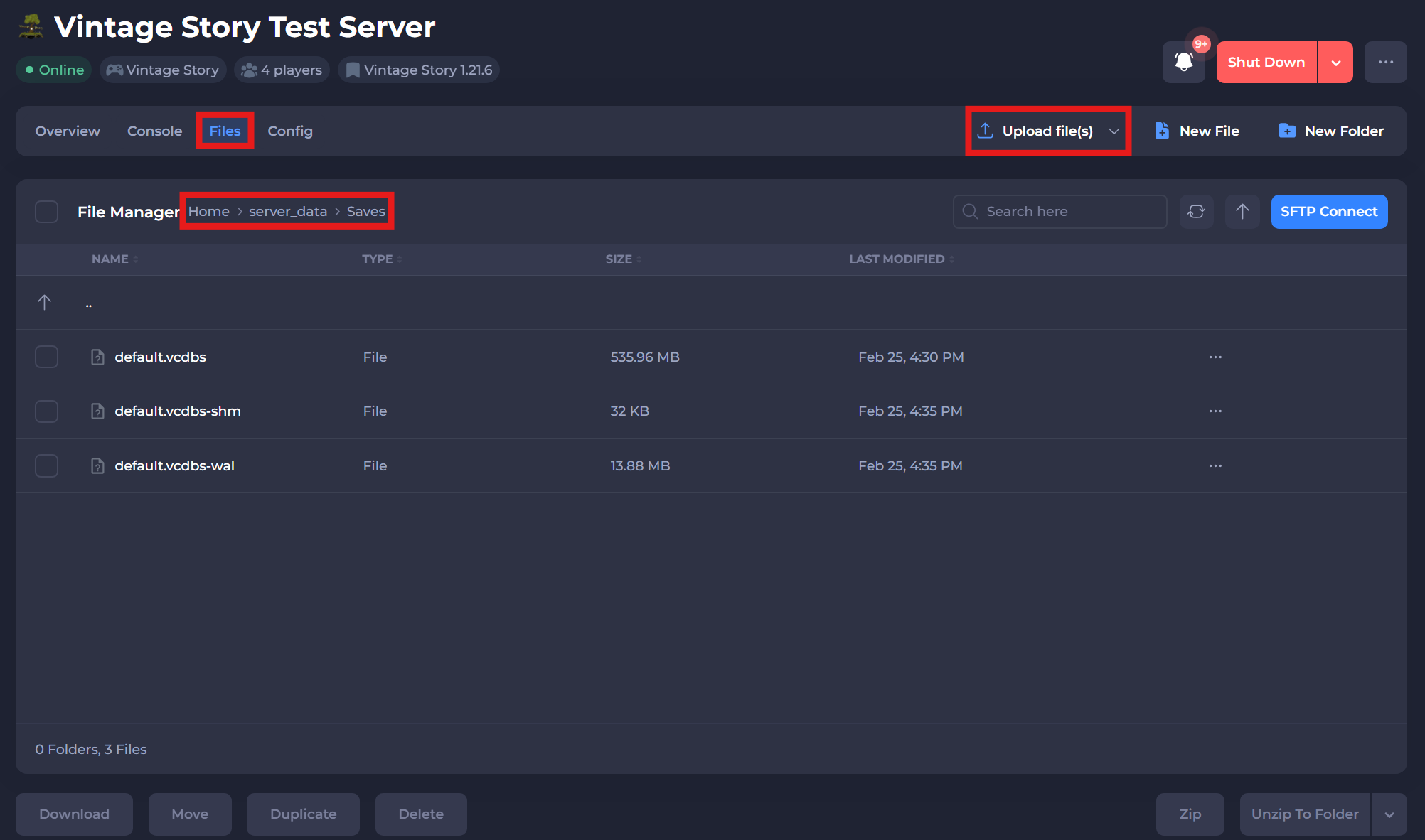
- Navigate to the Files tab and locate the
/server_data/Savesdirectory. - Upload the Save file to this directory using the Upload File(s) button.
#Setting your Active World
After you've uploaded your save file you will need to set your active world in the Vintage Story Server Settings section of your server's control panel.
-
Navigate to the Config tab and locate the Save File Location option and change the word
defaultto your new world name.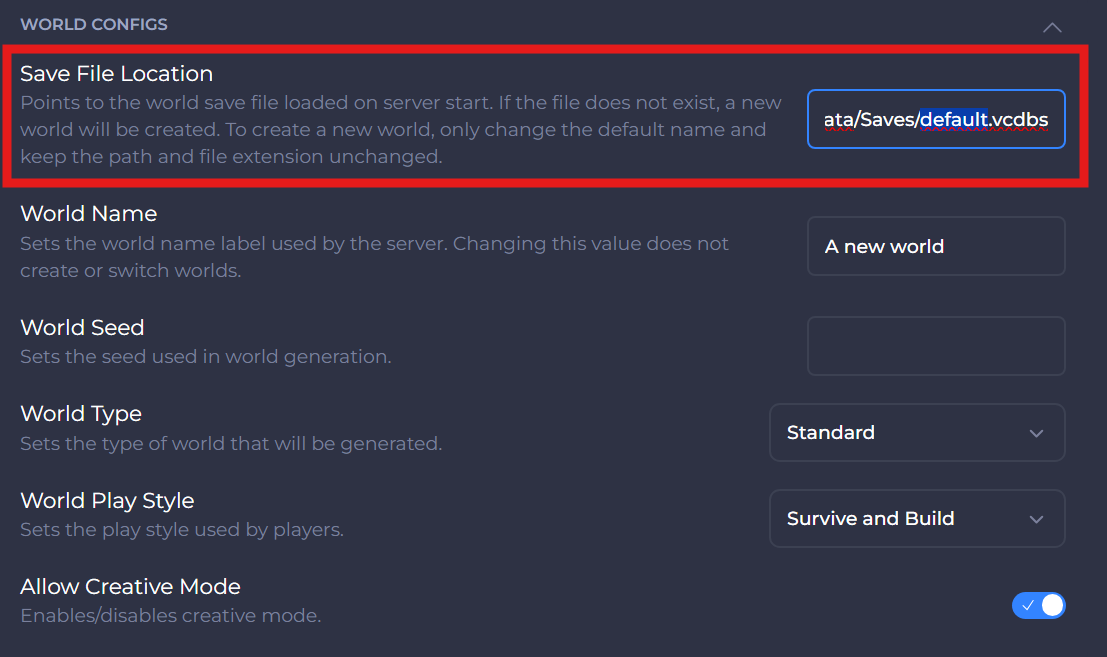
-
Save and restart your server to ensure the new changes apply.
If you require any further assistance, please contact our support at: https://shockbyte.com/billing/submitticket.php