Still have questions?
Come chat with us and we will get back to you as soon as possible!

Shockbyte
Support Team

How to Upload your Local Savegame to your Romestead Server
Want to continue your world on your Romestead server? You can upload your local save file straight from your PC!
Your save files are stored at the following path on your computer:
C:\Users\YourUsername\AppData\Roaming\Romestead\EA\profiles\1\saved_worlds
Make sure to replace YourUsername with your actual Windows username (e.g. if your username is "Alex", the path would be C:\Users\Alex\AppData...).
Not sure what your Windows username is? You can find it by opening the Start menu — it's displayed at the top of the menu, or you can open File Explorer and navigate to C:\Users\ to see your folder name.
Once you've located your save file, follow the steps below to upload it to your server.
#Locating your Local Savegame
In order to upload your savegame to your Romestead server, you will first need to locate it in your File Explorer.
- Open File Explorer on your PC and search for the following directory:
C:\Users\YourUsername\AppData\Roaming\Romestead\EA\profiles\1\saved_worlds. - Download your desired save and keep note of it for the next steps.
#Uploading the Savegame to your Server
-
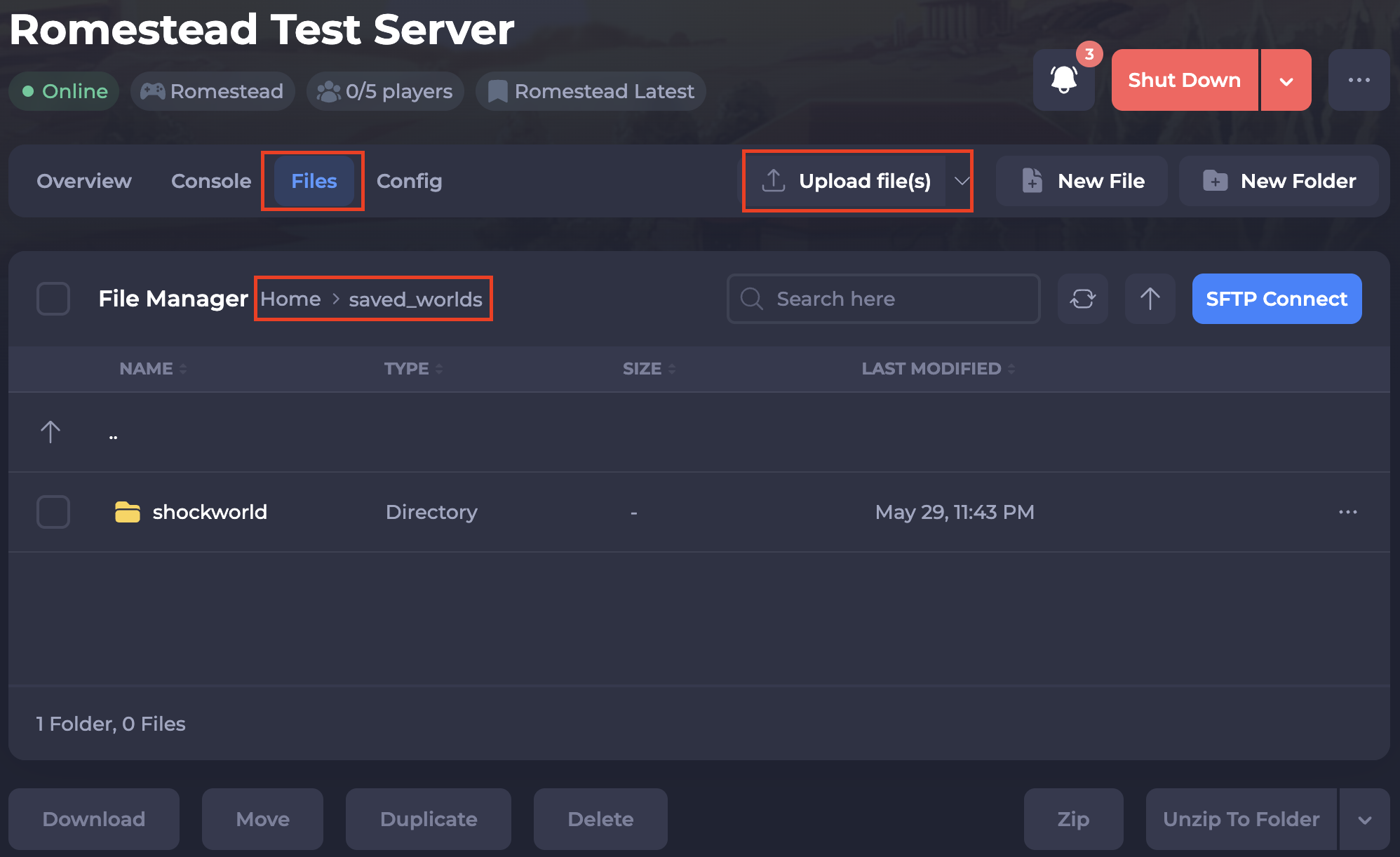
Access your Control Panel and navigate to the Files tab.
-
Locate the
saved_worldsdirectory and selectUpload file(s). -
Upload your saved game file you downloaded in the previous steps above.
-
Navigate to the Configs tab and select the
Romestead Server Settingsfile. -
Change the value in the
Auto Start World Nameto your newly uploaded save file.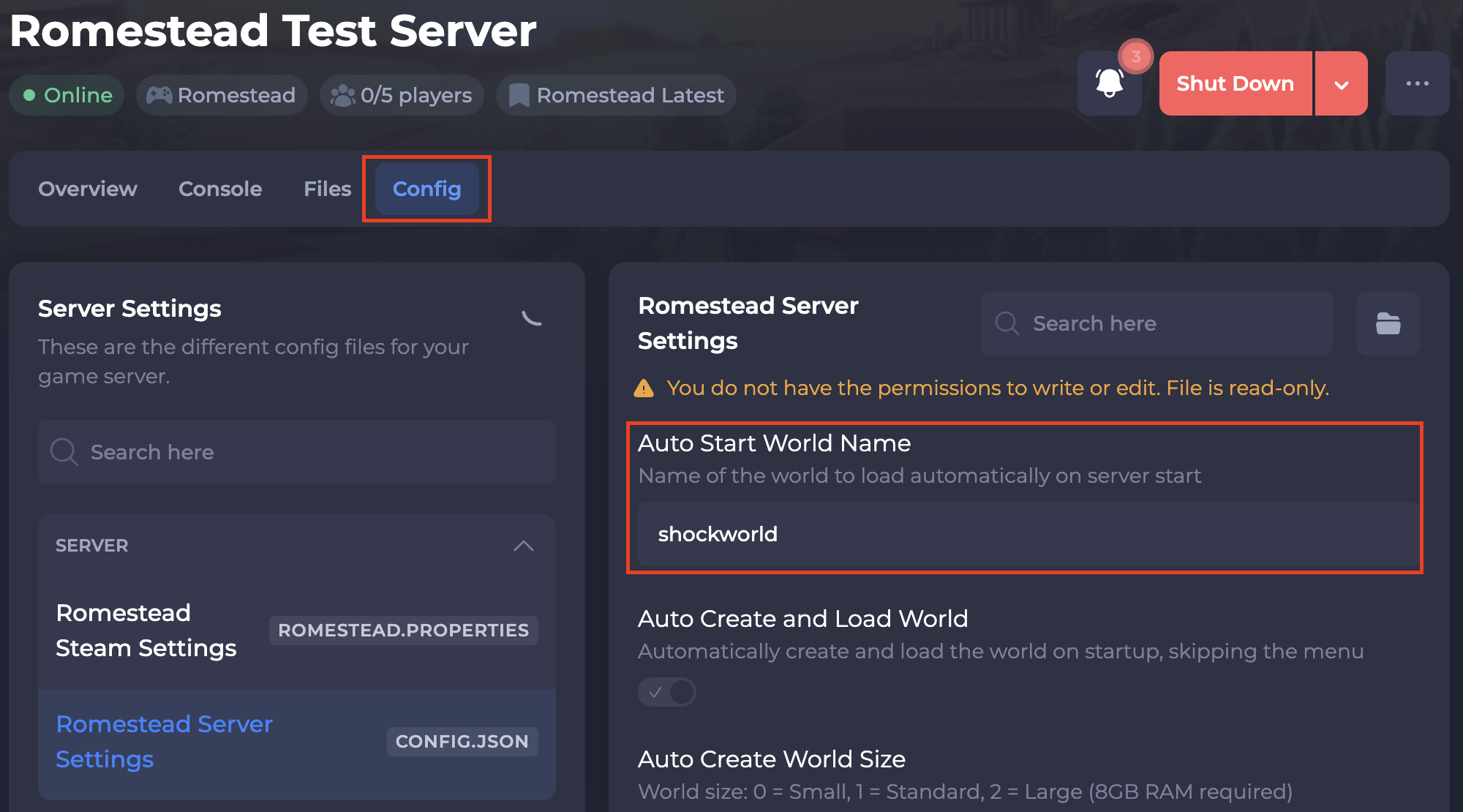
-
Save and restart your server to ensure the new changes apply.
If you require any further assistance, please contact our support at: https://shockbyte.com/billing/submitticket.php