Still have questions?
Come chat with us and we will get back to you as soon as possible!

Shockbyte
Support Team
What to Expect After Submitting a Support Ticket
Once you submit a ticket, our support team gets to work and the status will update as things move along. This article goes over how to check the status, what it means, and frequently asked questions about our support system.
#How to Check Your Ticket Status
Ticket status can be checked through the Client Area or Control Panel, but we recommend the Client Area.
Checking ticket status through the Client Area
- Log in to the Client Area.
- Open the Support dropdown and select Tickets.
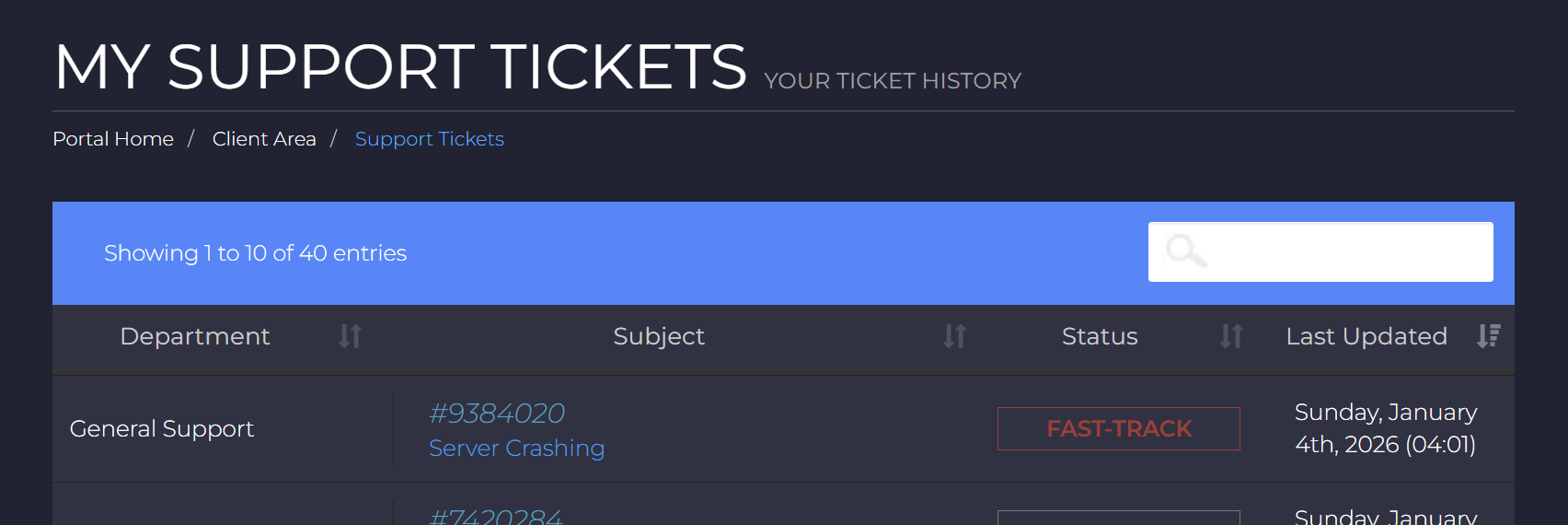
Once opened, the tickets list should clearly display the status of your ticket.
#What Your Ticket Status Means
Once you submit a support ticket, you may notice that its status updates as our team works on it. These statuses show where your ticket is in the support process and whether action is needed from our team or from you.
| Ticket Statuses | What it Means |
|---|---|
| Open, Customer-Reply, Awaiting Staff Reply | Your ticket is open in our queue and is waiting for a response from our support team. |
| In-progress | A support agent is actively working on your ticket. |
| On-hold, Under Review, Escalated | Your ticket is being reviewed or handled by another team and may be temporarily put on-hold. We will follow up with you in your ticket as soon as there's an update. |
| Awaiting Customer Response | We’re waiting on a reply from you, usually requesting confirmation or additional information. |
| Answered | We’ve sent a response to your ticket. Check our reply and follow up with us if needed. |
| Closed, Response Acknowledged | Your ticket was closed, usually after a long period of inactivity. If you were still expecting a response, check your ticket as it was likely already answered. You can reply at anytime to reopen the ticket if needed. |
#Ticket Response Times
Our support team works 24/7 and responds to each ticket shortly after submission. If your ticket requires additional expertise, it is escalated to our technical or billing teams. While we aim to resolve escalated tickets as quickly as possible, some may take up to 24–48 hours, depending on the complexity of the issue, and the availability of our most experienced support members.
#Busy Periods
During holidays or periods of limited team availability, response times may take longer than expected. As long as your ticket status shows it is still in the queue, it is waiting for our team and will be responded to as soon as possible.
#On-Hold Tickets
On-hold tickets are less common and may involve deeper technical issues that require input from our IT specialists, panel developers, or other teams with more limited availability. We are actively working on them and will follow up once there is an update.
#Can I Submit Multiple Tickets?
We only recommend opening multiple tickets for different issues. Opening multiple tickets for the same issue can slow down support and cause confusion for our support team.
If you have already submitted a ticket for the issue, please refer to that ticket instead of opening a new one. This helps us track it efficiently and allows us to respond to you faster.
#Can I Bump My Ticket?
If you already have a ticket open and don’t have any new information to add, please avoid “bumping” it by sending a response. Your ticket’s status can be checked at any time. If it’s still awaiting a response, our team will get to it as soon as possible – there's no need to bump it.
Repeatedly bumping a ticket can actually slow things down, as it may cause the ticket to move between queues and delay our response.
#Why Was My Ticket Closed?
If your ticket is closed, but you were expecting a reply, it was likely already answered. Tickets are typically only closed after a response has been sent by our support team. Our system automatically closes answered tickets after a long period of inactivity.
If your ticket was closed unexpectedly, you can reply at any time to reopen it. It will return to our queue, no matter how much time has passed.
#Can I Close My Ticket?
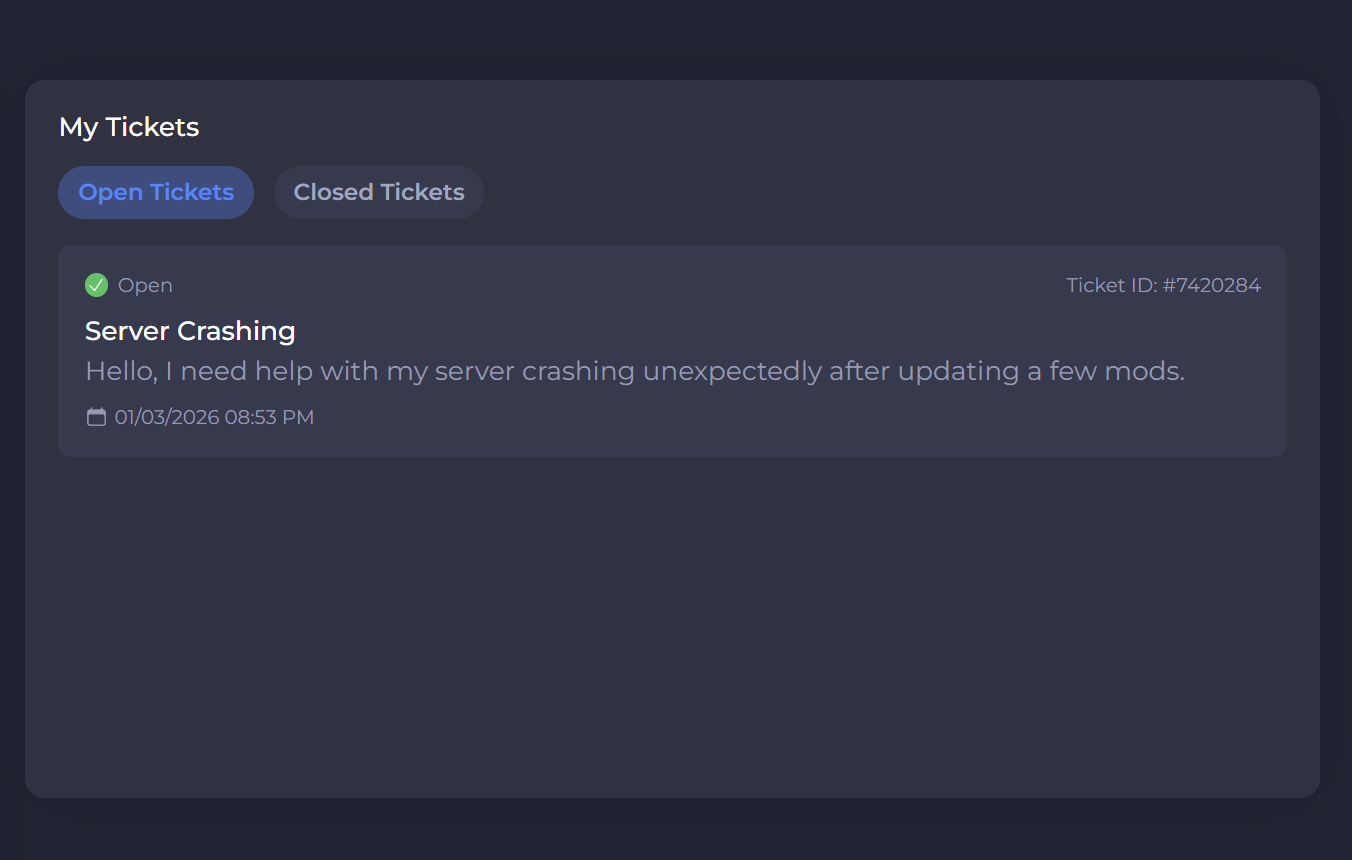
Tickets can be closed through the Client Area or Control Panel.
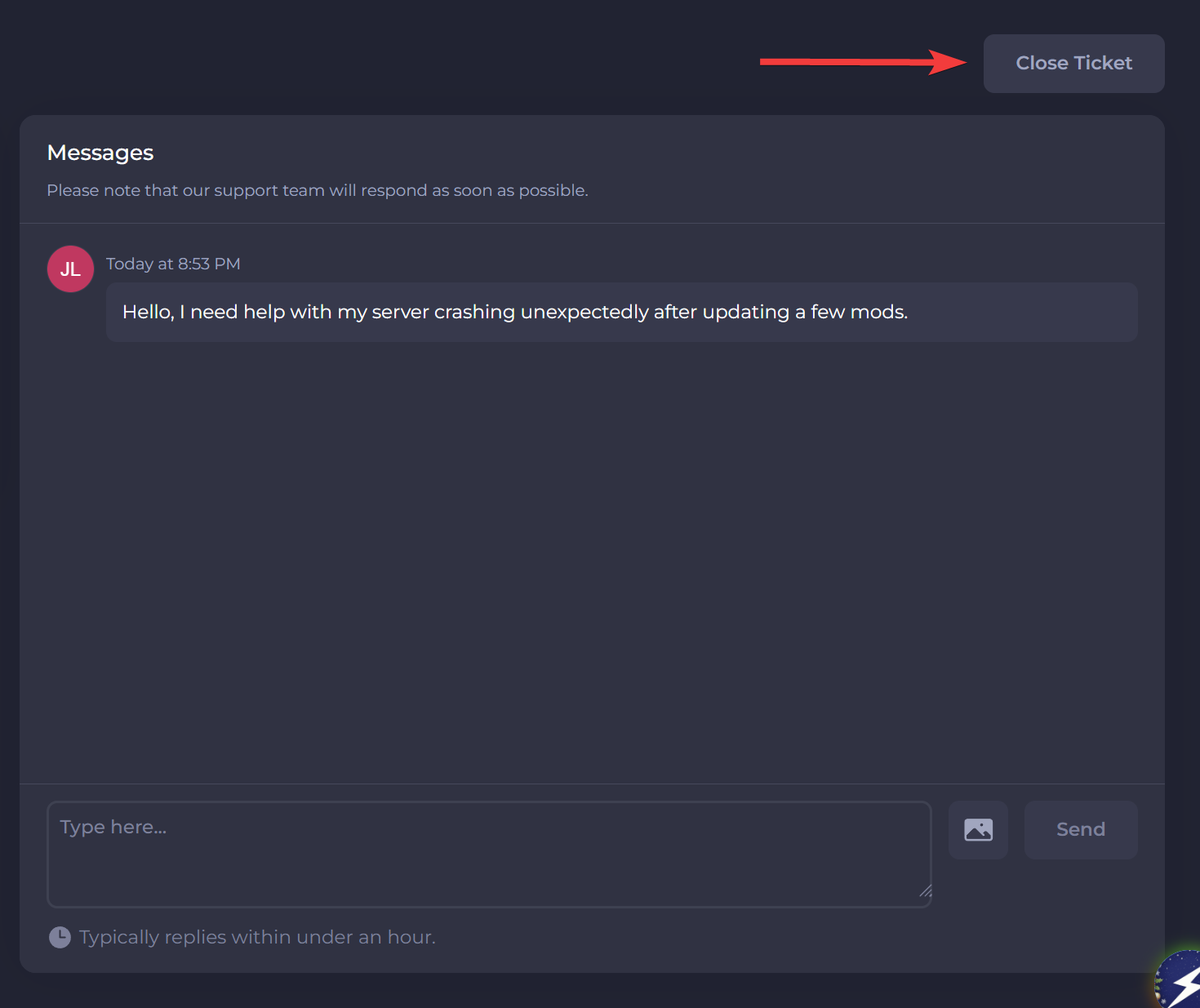
Closing a ticket through the Control Panel
- Open the Control Panel.
- Navigate to the Support button on the left sidebar.
- Open the ticket and select Close Ticket.
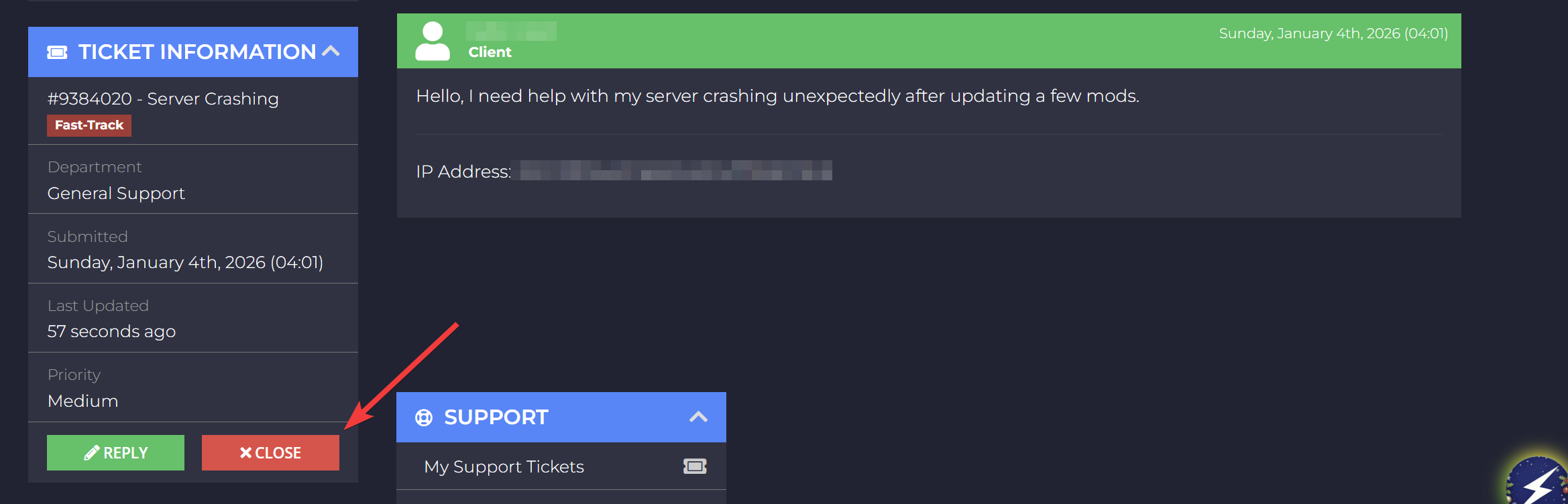
Closing a ticket through the Client Area
- Log in to the Client Area.
- Open the Support dropdown and select Tickets.
- Open the ticket and select Close.
To learn more about server hosting, you can browse our library of Knowledgebase articles here.