Still have questions?
Come chat with us and we will get back to you as soon as possible!

Shockbyte
Support Team
How to Change the Permission Group Settings on Your Enshrouded Server
Permission Groups control what each player can do on your Enshrouded server. Every group has its own password, and the password a player enters when joining decides which group they belong to. You can give trusted friends full building rights, let your admins kick and ban troublemakers, and limit visitors to exploring without touching your base.
With the Enshrouded 1.0 release, you can manage your Permission Groups from the Settings tab on the Shockbyte Panel, so you don't need to edit the server's configuration file by hand.
#How Permission Groups Work
Your server comes with two Permission Groups, and you can add more if you need them. Each group has a name, a password, a set of permissions, and a number of reserved slots. When a player joins your server, Enshrouded asks them for a password. The server places them in the group that matches the password they enter, and they receive that group's permissions for the session. To move a player into a different group, give them that group's password and ask them to rejoin.
Note
Enshrouded 1.0 lets players who host a game from inside the game client promote or demote other players in-game. This option isn't available on dedicated servers. On your Shockbyte server, the password a player joins with always decides their permissions.
#Permission Settings Explained
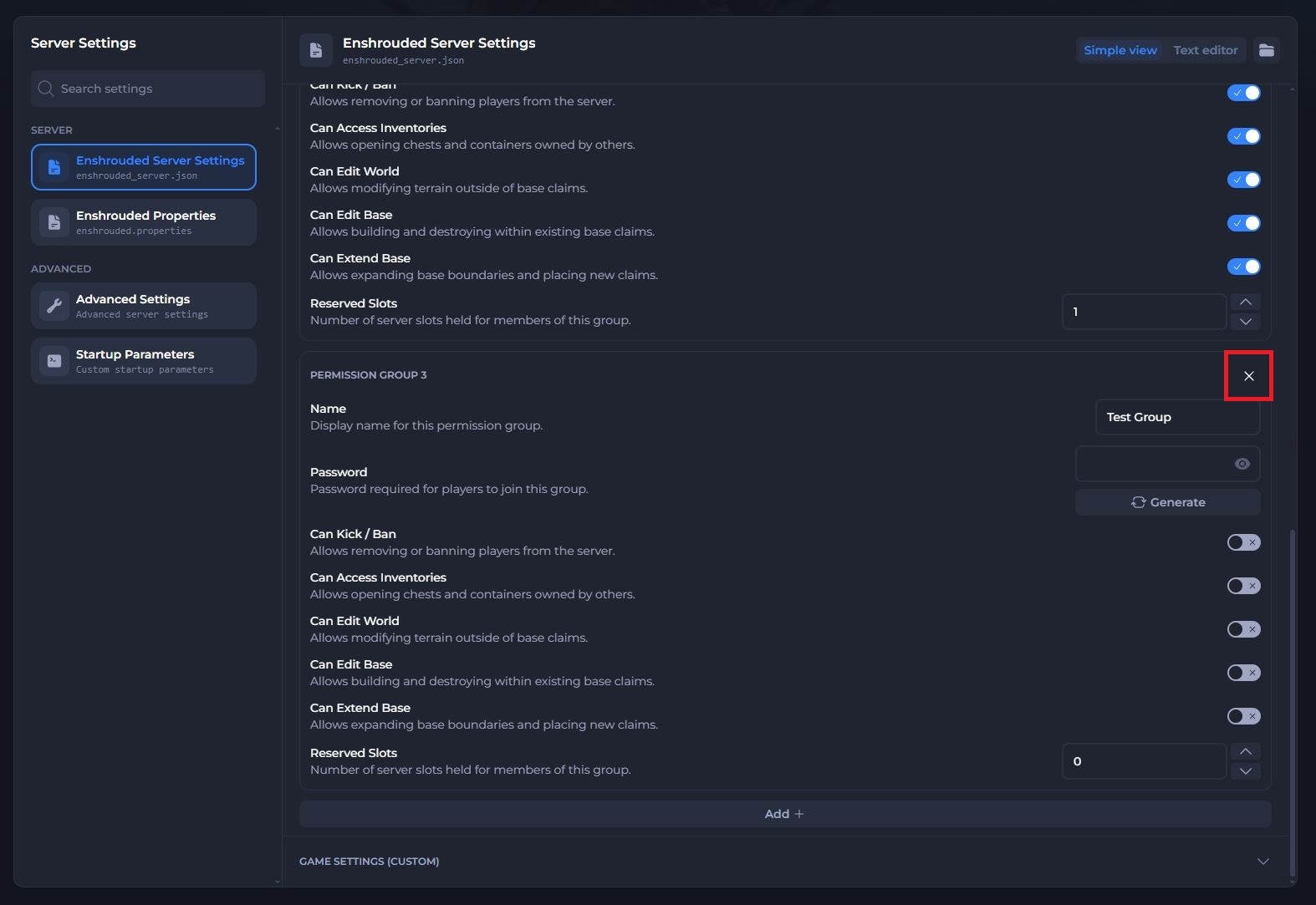
Each Permission Group has the same eight settings. You set the toggles to on (blue) or off (grey).
| Setting | What it does |
|---|---|
| Name | Sets the display name for the group, such as Admin, Friend, or Guest. |
| Password | Sets the password players enter to join this group. Click Generate to create a random password. |
| Can Kick / Ban | Lets members remove or ban players from the server. |
| Can Access Inventories | Lets members open chests and containers that other players own. |
| Can Edit World | Lets members change terrain outside of base claims. |
| Can Edit Base | Lets members build and destroy inside existing base claims. |
| Can Extend Base | Lets members expand base boundaries and place new claims. |
| Reserved Slots | Holds this number of server slots for members of the group, so they can join when the server is busy. |
#Changing Your Permission Group Settings
You can change any group's settings in a few steps. We recommend stopping your server first so your changes apply cleanly when it starts again.
-
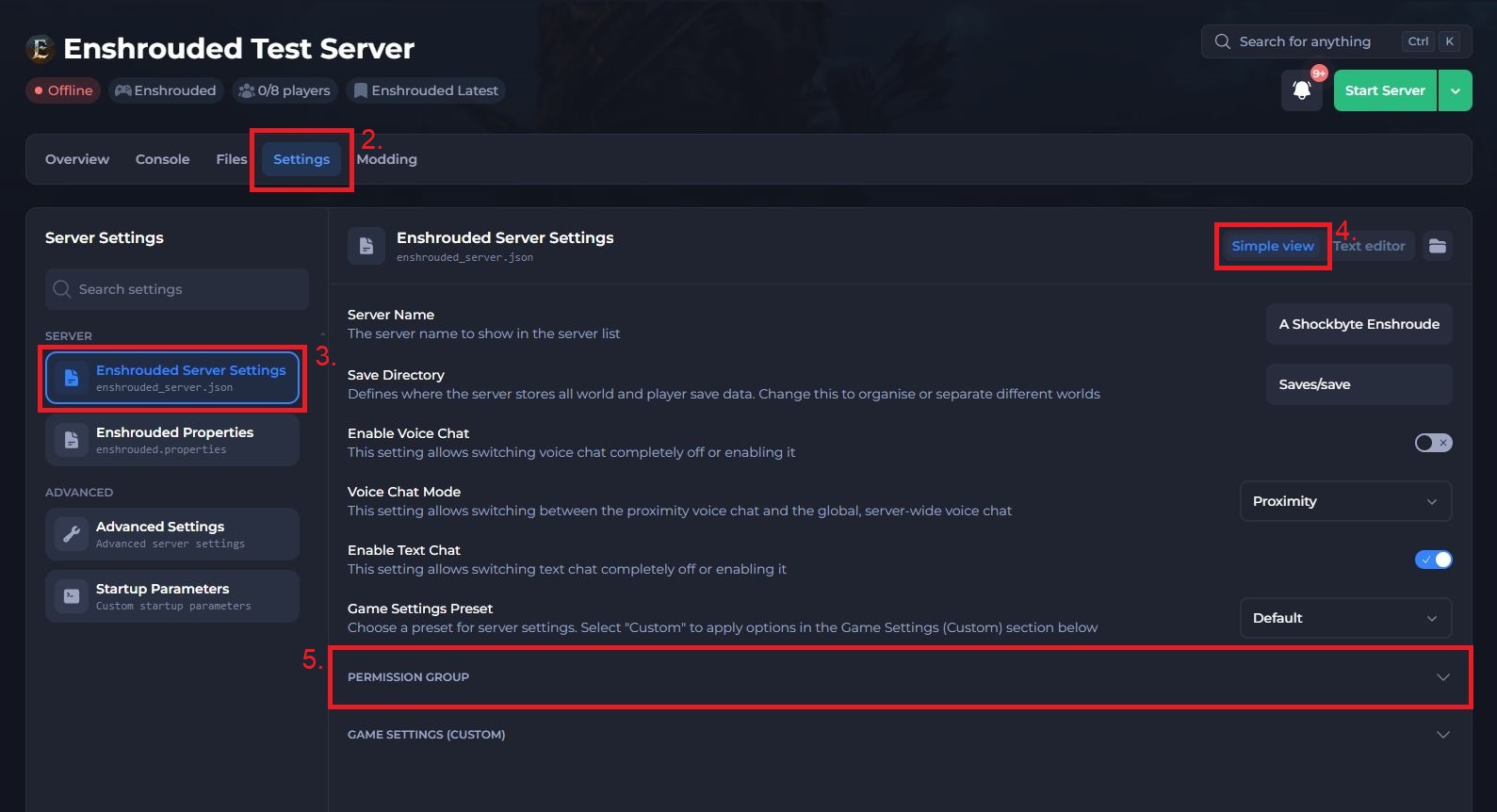
Navigate to the Shockbyte Control Panel and open your Enshrouded server.
-
Click Stop to shut down your server and open the Settings tab.
-
Under Server, select Enshrouded Server Settings.
-
Make sure Simple view is selected in the top right.
-
Scroll down and click Permission Group to expand the section.
-
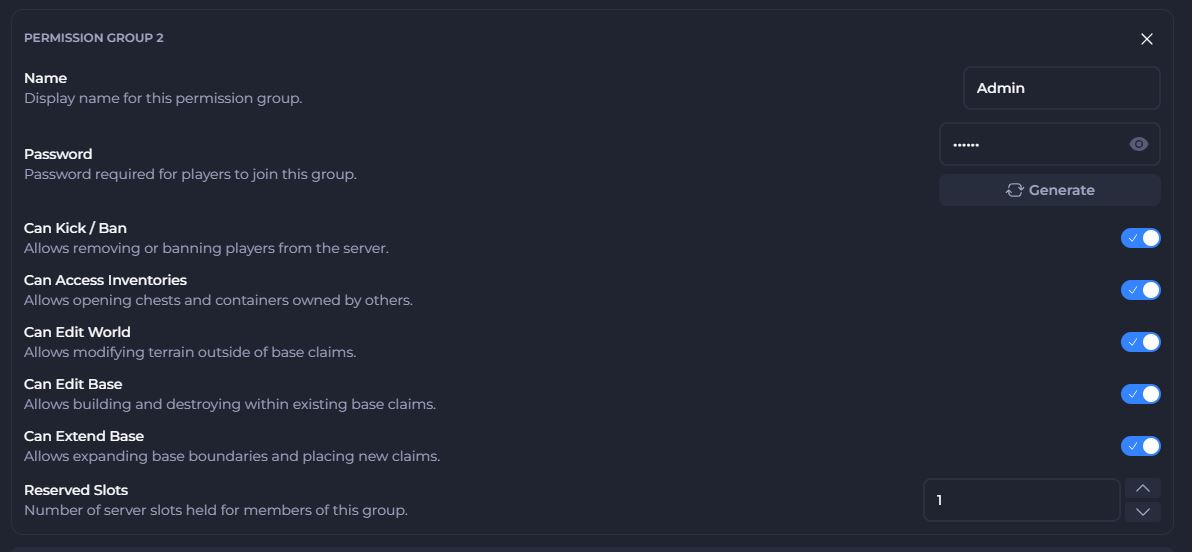
Find the group you want to change, such as Permission Group 2 (Admin), and update its settings:
- Enter a name in the Name field.
- Enter a password in the Password field, or click Generate to create one. Click the eye icon to show or hide the password.
- Click each toggle to turn a permission on or off.
- Use the arrows or type a number to set Reserved Slots.
- Save your changes.
- Click Start Server to start your server with the new settings.
Important
If two groups share the same password, players can land in the wrong group, so give every group its own password.
#Adding or Removing a Permission Group
You can add extra groups if two aren't enough, such as a separate group for builders or VIP players.
To add a group:
-
Open the Permission Group section in your Enshrouded Server Settings.
-
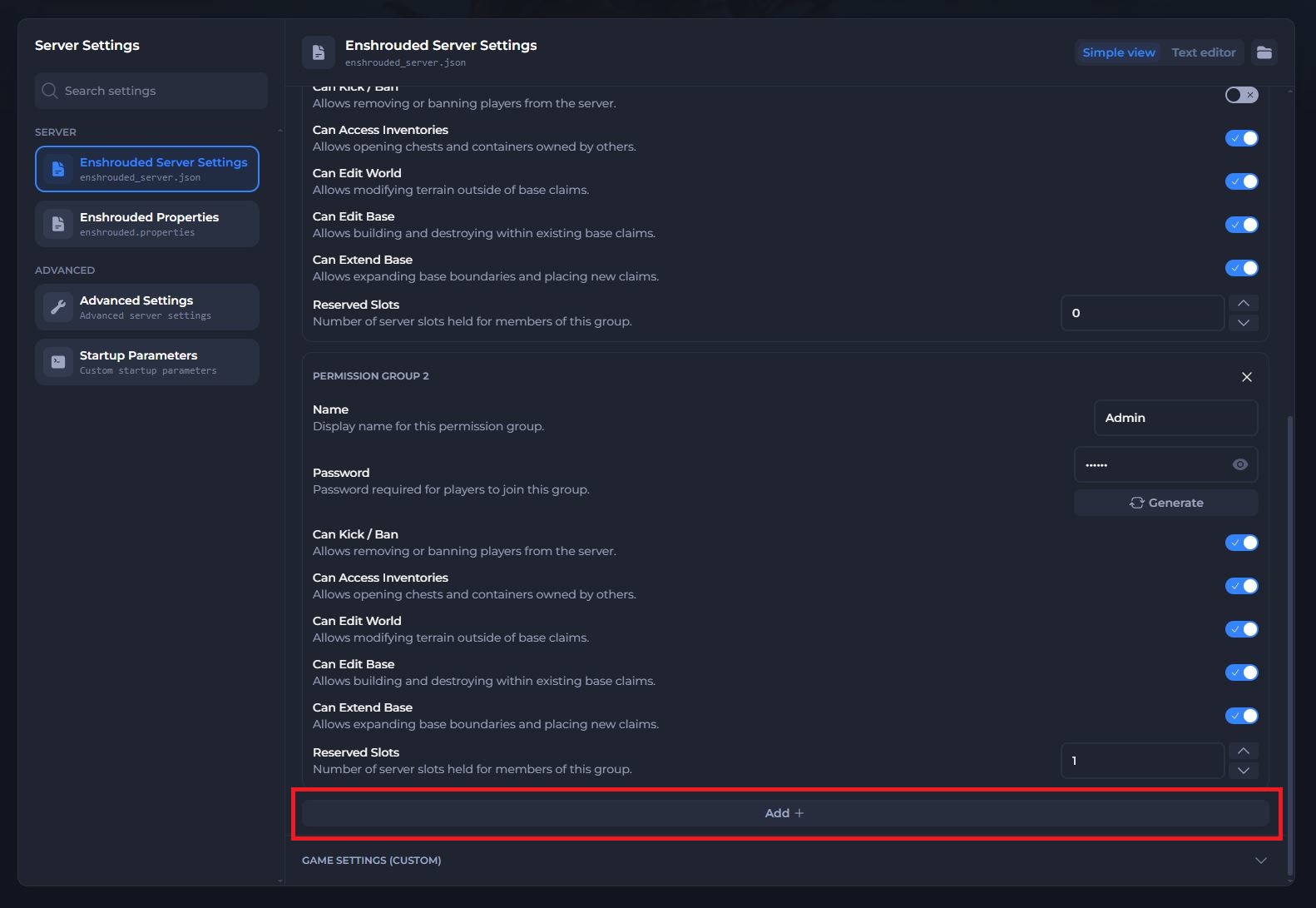
Scroll to the bottom of the section and click Add +.
-
Fill in the new group's name, password, permissions, and reserved slots.
-
Save your changes and restart your server.
To remove a group:
-
Open the Permission Group section in your Enshrouded Server Settings.
-
Click the X in the top right corner of the group you want to remove.
-
Save your changes and restart your server.
Players who used a removed group's password won't be able to join with it anymore. Send them the password for their new group.
#Joining Your Server With a Group Password
Once your groups are set up, send each player the password for the group you want them in. Players join your server like this:
-
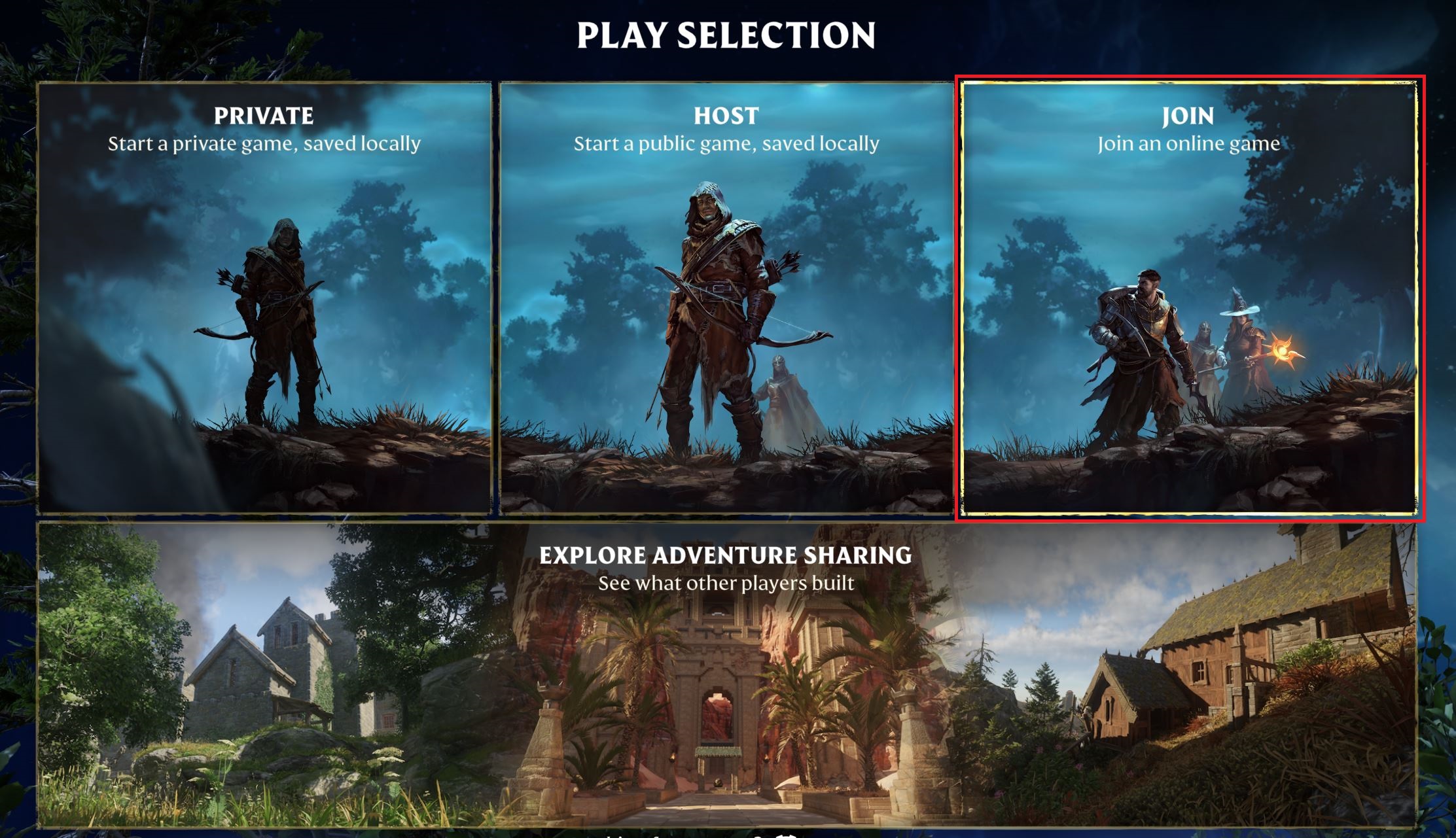
Launch Enshrouded and click Play, then select Join from the main menu.
-
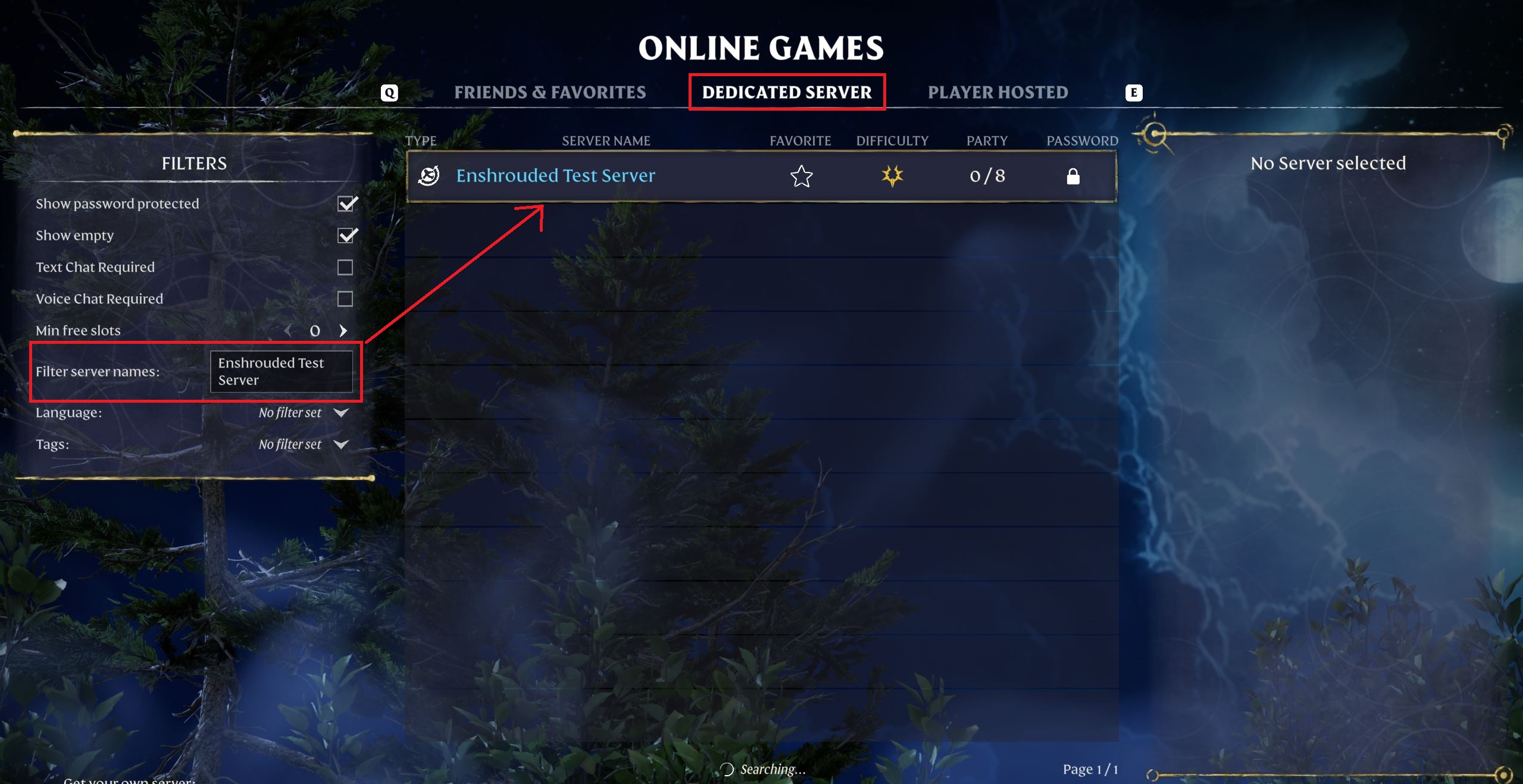
Select the Dedicated Servers tab, then search for your server's name.
-
Select your server and enter the group password when the game asks for it.
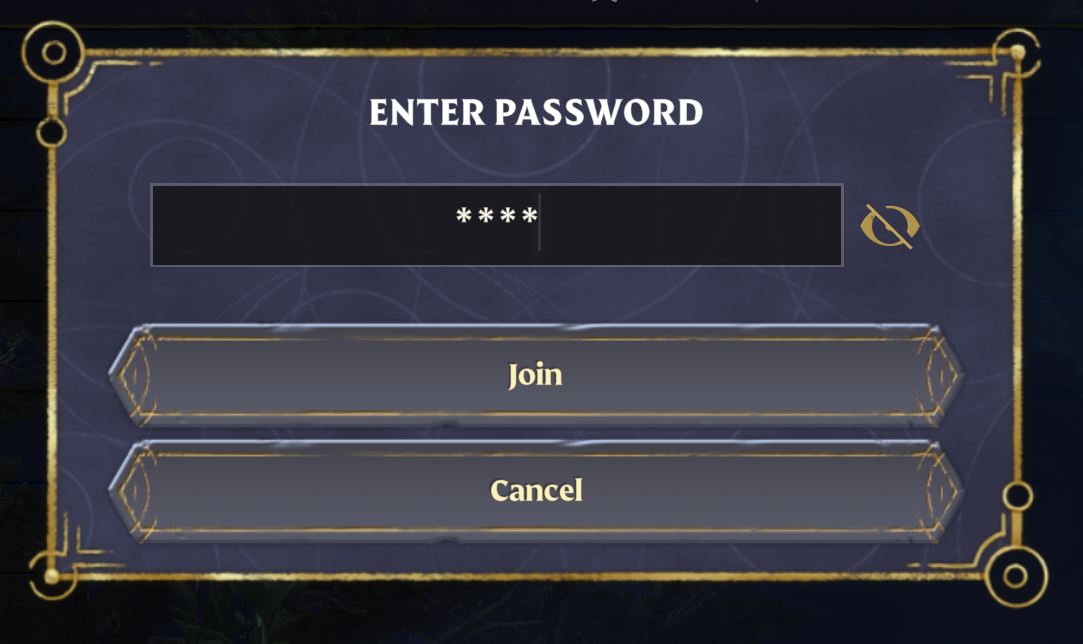
If a player enters the wrong password, the server won't let them join.
Note
Please note your server may take a few minutes to appear in the server browser on initial startup.
#Troubleshooting
- My changes didn't apply. Your server reads its settings when it starts. Restart your server after saving any change to your Permission Groups.
- A player has the wrong permissions. Check which password they used to join. Give them the correct group's password and ask them to rejoin.
- A player can't join with their password. Confirm the password matches the one in the panel exactly, including capital letters. If you changed or removed the group, send them the new password.
- I want to edit the settings as code. Click Text editor in the top right of the Enshrouded Server Settings page. Your Permission Groups appear in the userGroups section of the enshrouded_server.json file.
If you still need help, contact our support team and we'll take a look for you.