Still have questions?
Come chat with us and we will get back to you as soon as possible!

Jay Miller
Game Engineer

How To Use An Existing World On Your Sons Of The Forest Server
Sons of the Forest dedicated servers support using existing world data from previous gameplay. This enables a seamless transition of progress to your new Shockbyte server.
#Locating a Local World
To access a previously played world save, you must locate the world's save data within your local files.
-
Press
Win+R. -
Type
AppDatainto the Run window then click OK.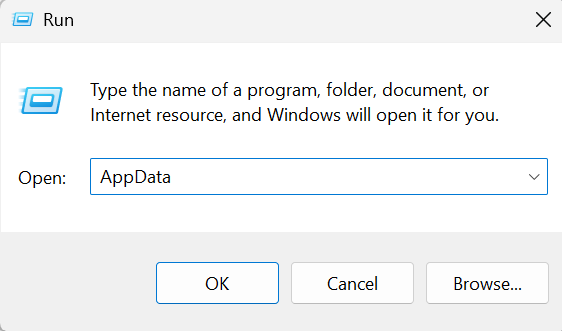
-
Navigate to
\LocalLow\Endnight\SonsOfTheForest\Saves\76561198096227622\Multiplayer. -
Remember where this save folder is located, you will need it in the next section.
#Using an Existing World
To utilise an existing world, upload the desired world folder, adjust the Save Slot configuration to match the new world folder's name, and start your server.
-
Navigate to your control panel and Stop your server.
-
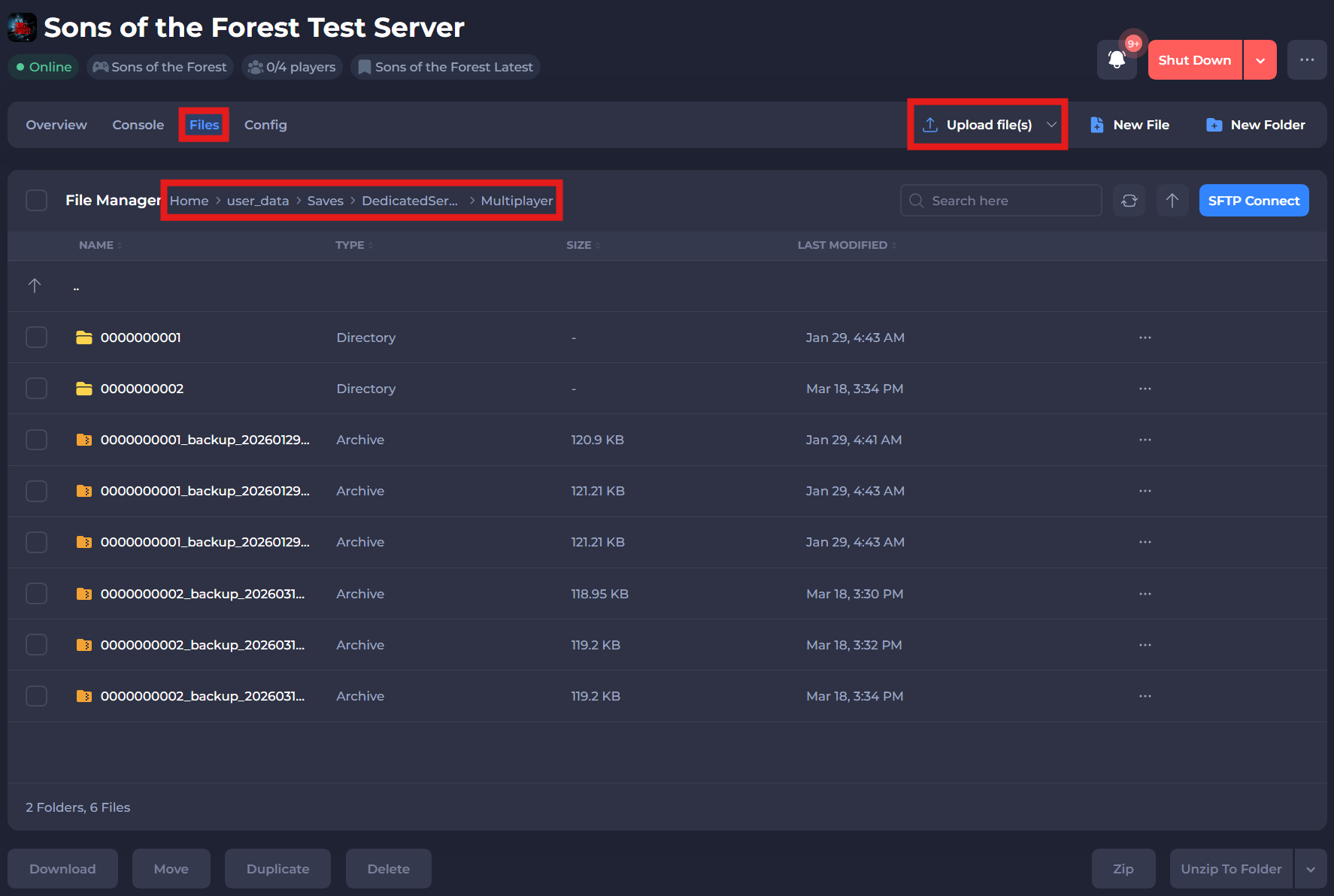
Go to your server files and Navigate to
/user_data/Saves/DedicatedServer/Multiplayer. -
Upload your desired save folder.
-
Copy the name of the save folder you uploaded, you'll need it later.
-
Go to your Server Config tab and open the Dedicated Server Settings.
-
In the Save Slot field, enter the name of the save folder you copied during Step 4.
-
Save and Start your server.
And that’s it! Setting up your existing world on your Sons of the Forest server is super easy and a great way to keep your progress intact while sharing the adventure with friends.
If you need additional help, our support team is always happy to assist: https://shockbyte.com/contact