Still have questions?
Come chat with us and we will get back to you as soon as possible!

Shockbyte
Support Team

How to Change the Banner on your FiveM Server
A custom server banner allows you to visually brand your FiveM server and make it stand out in the server list. This guide explains how to upload a banner image and configure it so it appears correctly for players.
Important
Please ensure that you have followed the Getting Started with your FiveM Server guide before proceeding with the following steps.
#Choosing a Banner Image
Before configuring the banner, your image must be hosted online and accessible via a direct image link.
-
Upload your banner image to an image hosting service.
-
Ensure the image link ends in a supported format such as
.pngor.jpg. -
Confirm the image is publicly accessible via a direct URL
There are no strict size requirements for server banners. Any banner-sized image will work.
#Activating the Banner in txAdmin
For the banner to be added to your FiveM server officially, it must be added to the server.cfg file. You can manage this file easily through the CFG Editor in the txAdmin panel.
-
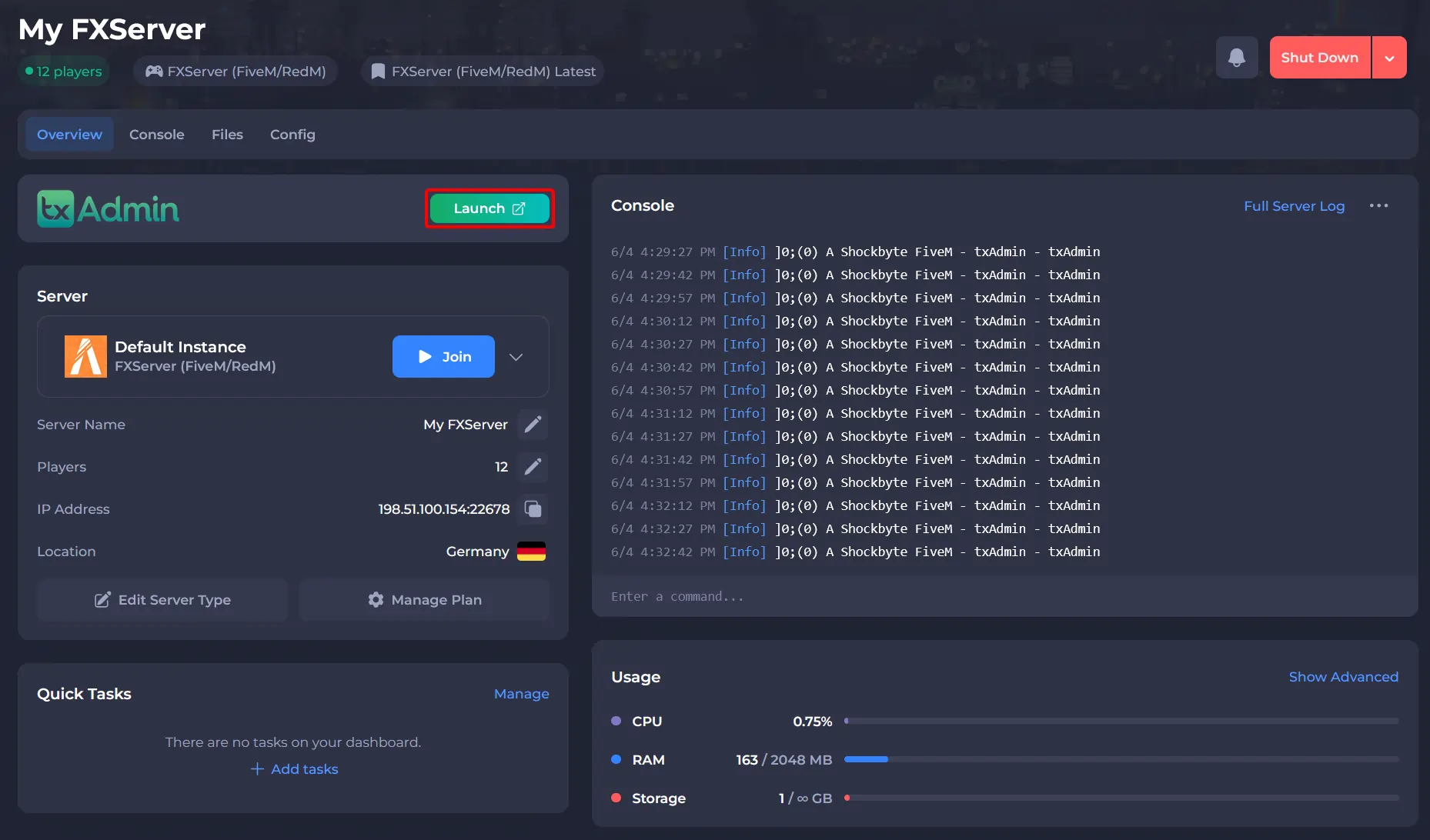
Go to your Shockbyte Control Panel.
-
Launch txAdmin.
-
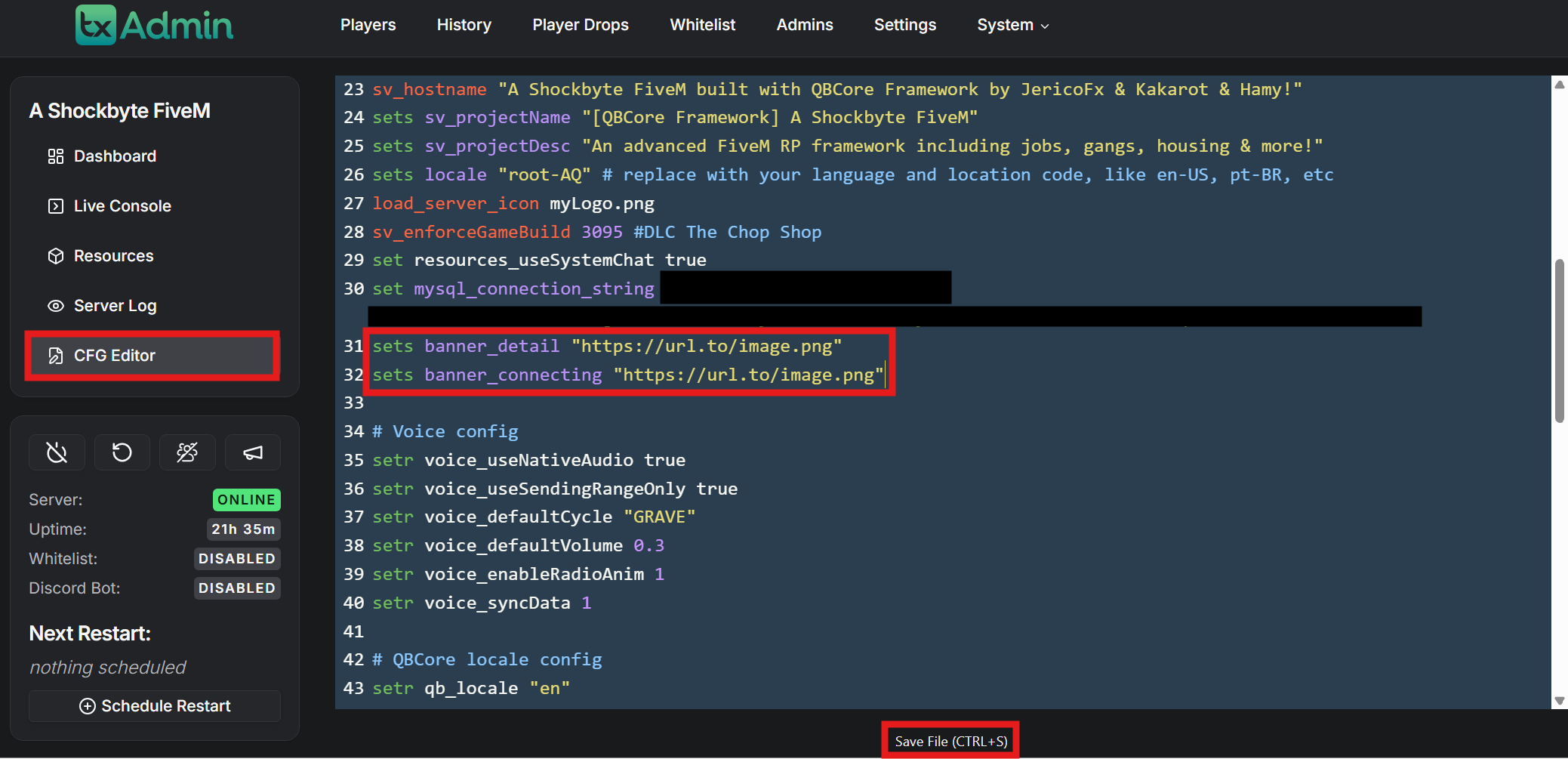
Navigate to the CFG Editor area and add the lines:
sets banner_detail "https://url.to/image.png"
sets banner_connecting "https://url.to/image.png"
-
Replace both of the example URLs with the URL your image is using.
-
Click Save File at the bottom of the page.
To learn more about FiveM server hosting, you can browse our library of Knowledgebase articles here.