Still have questions?
Come chat with us and we will get back to you as soon as possible!

Shockbyte
Support Team

How to Save and Load a Save-Game for Your Project Zomboid Server
It is possible to switch between different saves, which all hold their own playerdata, settings, and configurations. Ensure your server is stopped before attempting to start a new game or upload an existing save.
#Saving your Game
Your server will automatically save every few minutes, and when you shut it down. However, you can always manually save your server using the steps below:
- Open your server console or connect to your server via RCON.
- Type the command
savein the console and press Enter.
#Starting a New Savegame
Starting a new savegame can be easily done by changing the world name.
-
Access your Control Panel and Stop your server.
-
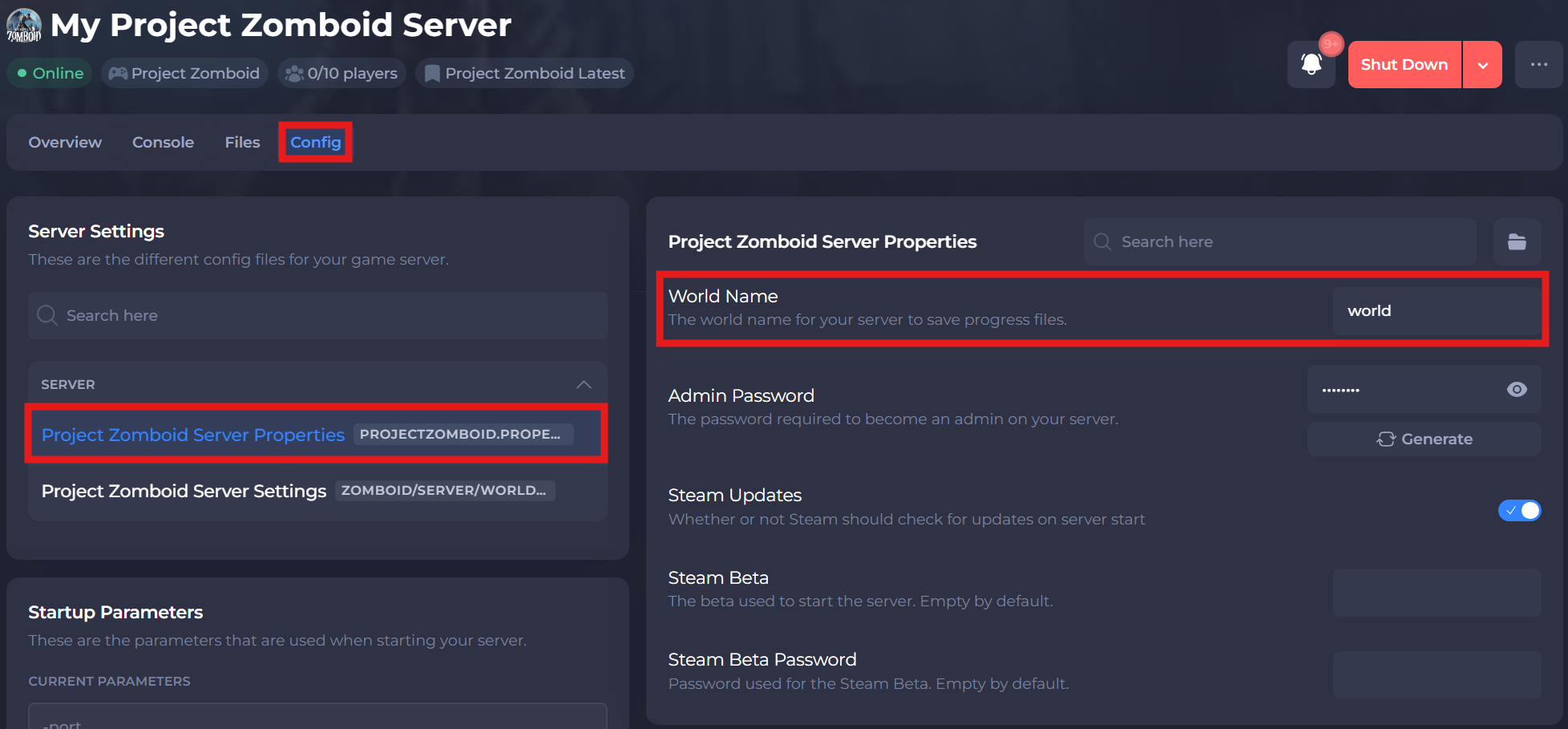
Navigate to the Config tab and locate the World Name option. Change the World Name value to a name you have not used before.
-
Save and restart your server to ensure the new changes apply.
#Loading an Existing Save
You can also load an already existing savegame to continue playing where you left off earlier. If you wish to download a save from the internet, or wish to transfer a save from Multiplayer, consider checking out our guide on How to Upload or Download a Savegame for your Project Zomboid Server.
-
Access your Control Panel and Stop your server.
-
Navigate to the Files tab and locate the
/Zomboid/Saves/Multiplayer/and get the name of the save you would like to restore.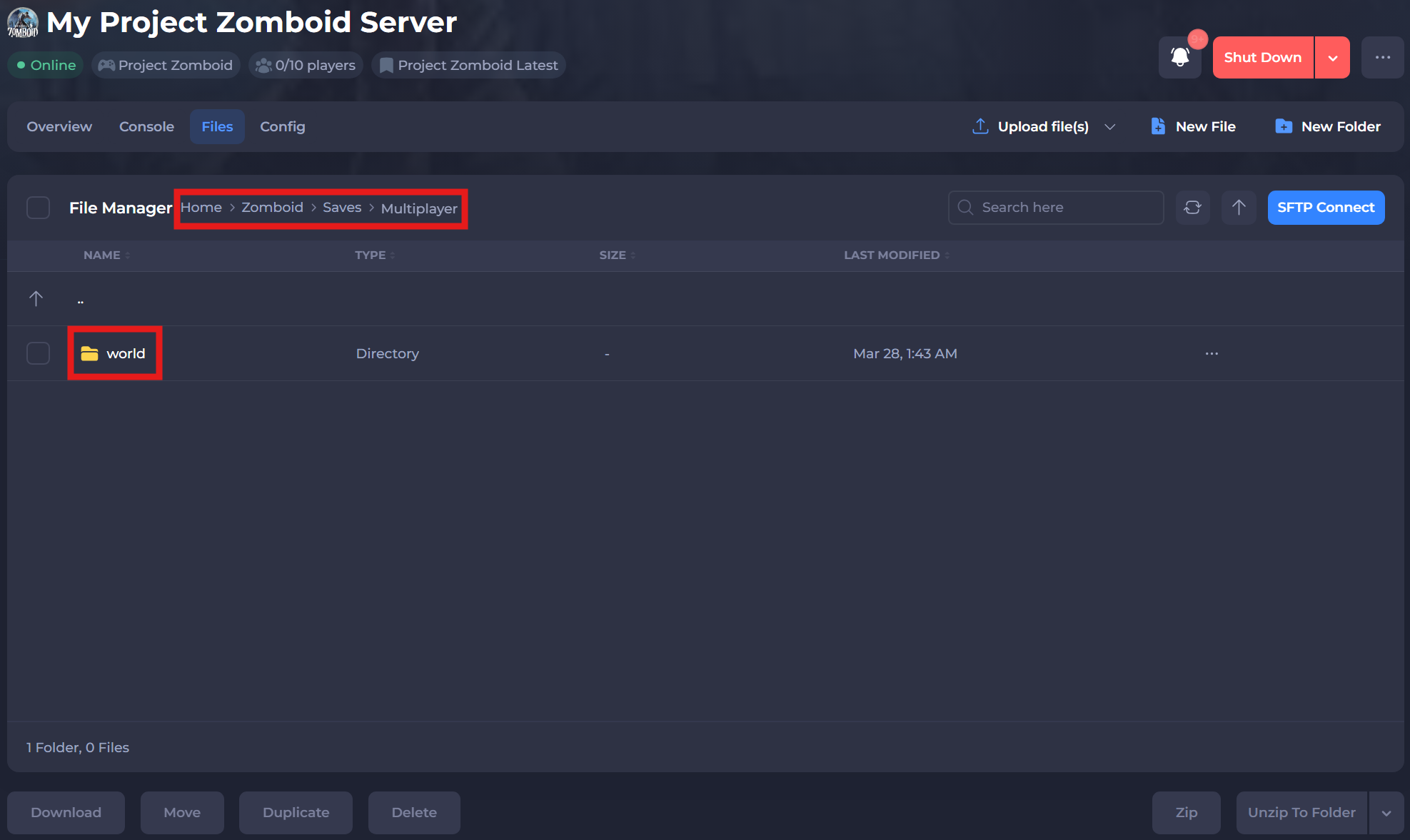
-
Navigate to the Config tab and locate the World Name option. Set this value to the name of the save you located earlier.
-
Save and restart your server to ensure the new changes apply.
If you require any further assistance, please contact our support at: https://shockbyte.com/billing/submitticket.php