Still have questions?
Come chat with us and we will get back to you as soon as possible!

Shockbyte
Support Team
How to Set Up a Custom Map on Your ARK: Survival Evolved Server
ARK: Survival Evolved lets you play on custom maps from the Steam Workshop, each with its own environments, resources, and creatures. As we mention in our guide on How to Change Your ARK Server Map, we support all available ARK maps, including custom Steam Workshop maps.
To load a custom map, you need two details from the map's Workshop page: the Mod ID and the map's internal level name. You then enter both in the Settings tab on the Shockbyte Panel.
#Finding a Custom Map
- Browse the ARK: Survival Evolved Steam Workshop and open the page for the map you want to use.
We will use TaeniaStella for this example.
- Find the Mod ID in the page's address bar. It's the number after
?id=at the end of the URL.
In the url https://steamcommunity.com/sharedfiles/filedetails/?id=2895059095, the mod ID would be 2895059095.
- Find the map's internal level name in the map's description. Map authors usually list it as the Map Name or Level Name.
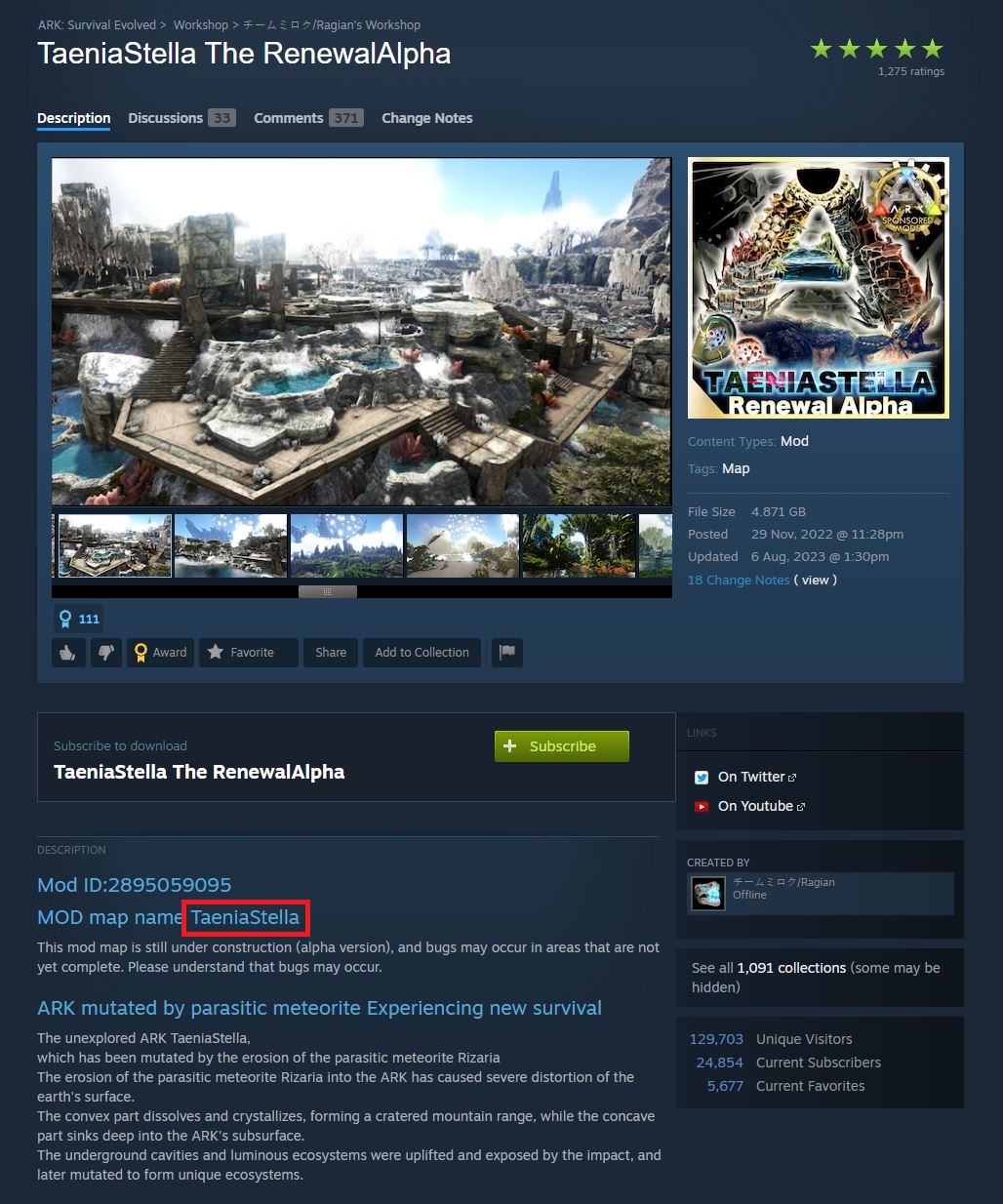
- Note down both details, as you'll need them in the next section.
Note
If the Workshop page doesn't list the map's level name, check the author's pinned comments or discussion threads, or contact the map author.
#Loading a Custom Map
- Navigate to the Shockbyte Control Panel and open your ARK server.
- Stop you server and open the Settings tab.
To add the Mod ID:
-
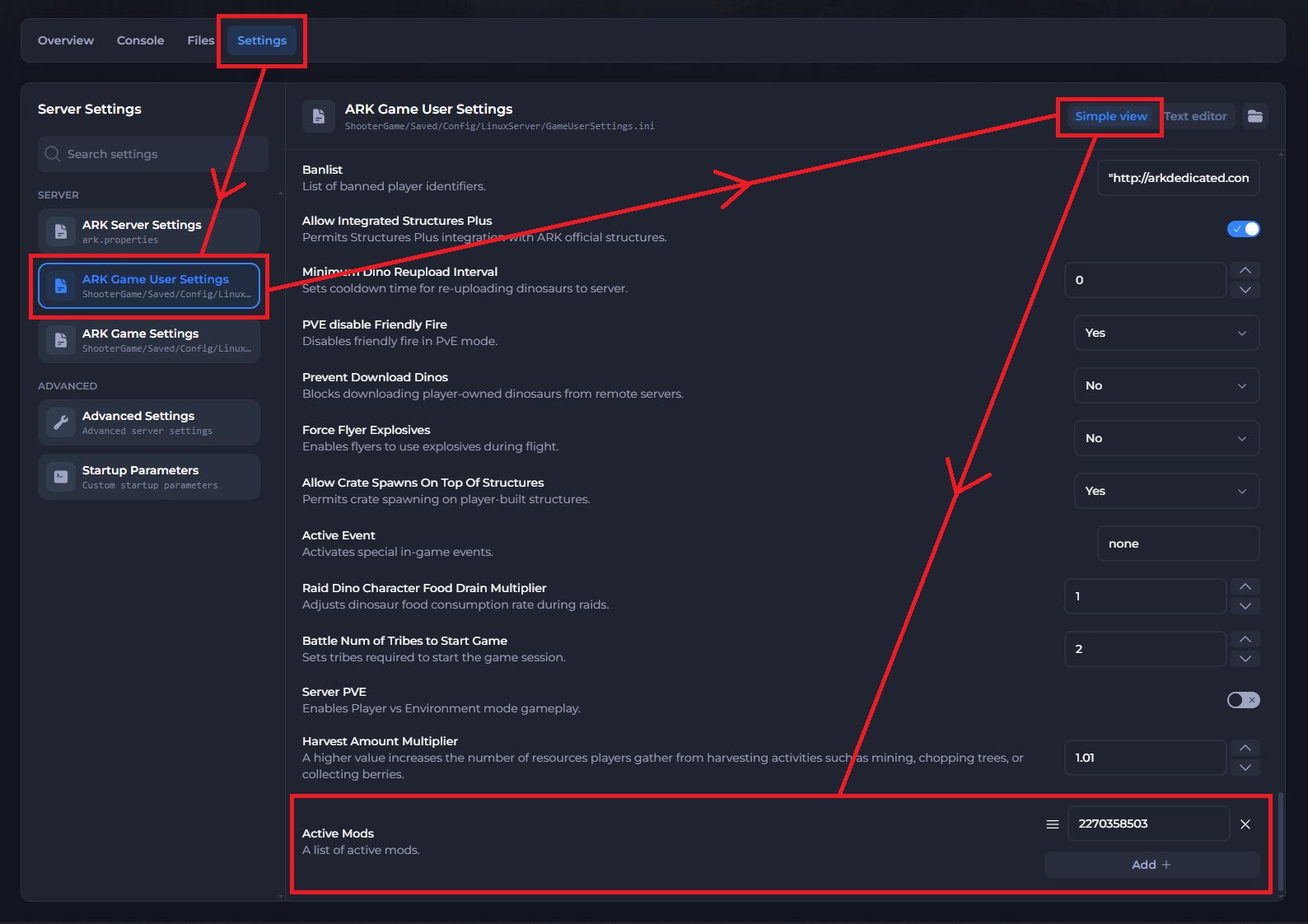
Under Server, select ARK Game User Settings.
-
Make sure Simple view is selected in the top right.
-
Scroll to Active Mods at the bottom of the page, click Add, and enter the map's Mod ID.
-
Save your changes.
To set the custom map:
-
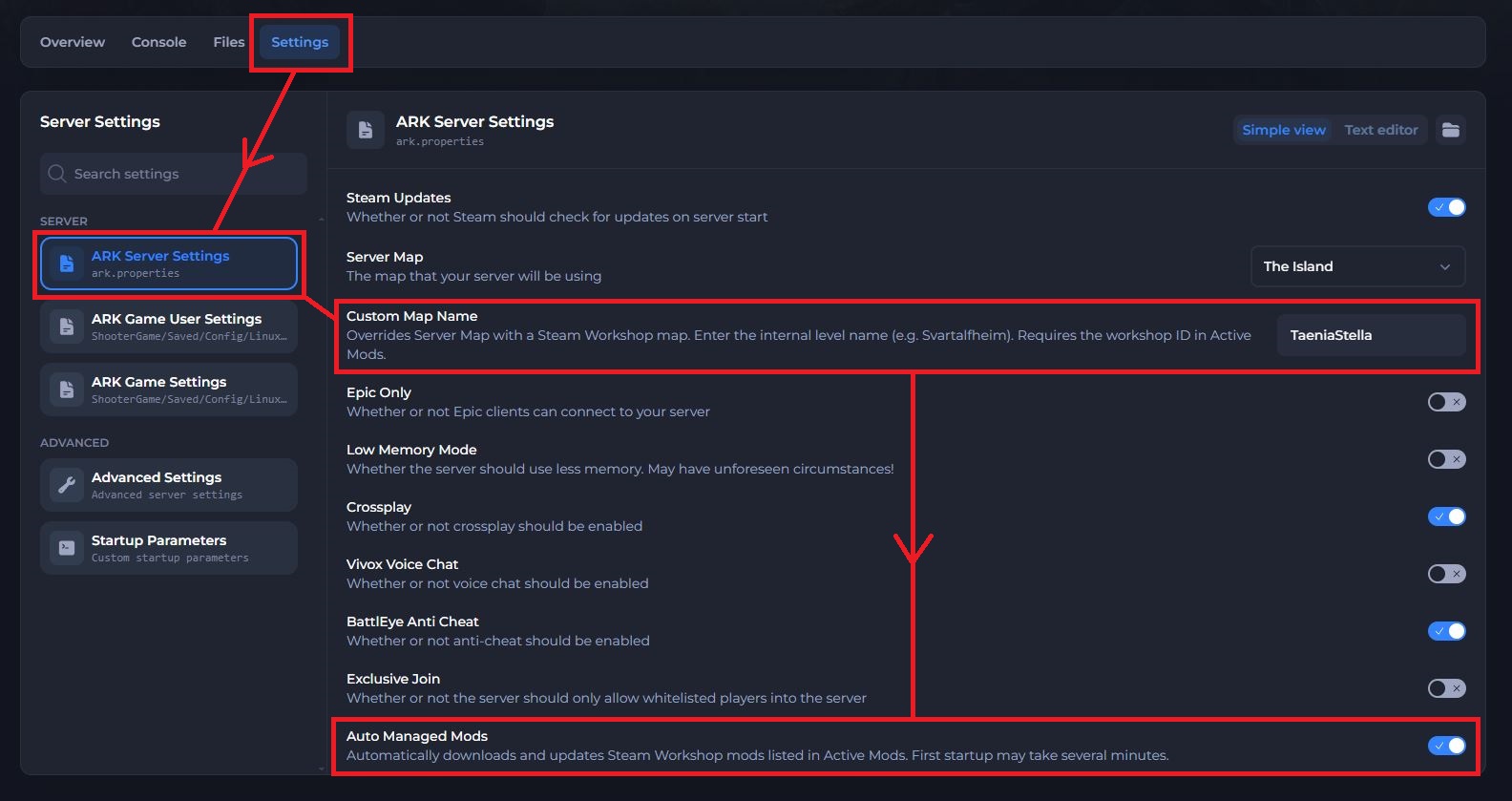
Under Server, select ARK Server Settings.
-
Enter the map's level name in the Custom Map Name field.
-
Scroll down and turn on Auto Managed Mods, so your server downloads and updates the map automatically.
-
Save your changes.
-
Click Start Server to start your server with the new map.
Important
The first startup with a new map can take several minutes while your server downloads it. Your server may not appear in the server list until the download finishes.
#Joining Your Server
The first time you connect, Steam queues the map in your Steam downloads, and the game may disconnect you while it downloads. You may need to try connecting more than once. To speed this up, subscribe to the map on its Steam Workshop page before you join so Steam downloads it in advance.
#Troubleshooting
- My server still loads the old map.
Check that the level name in Custom Map Name matches the name on the Workshop page exactly, including capital letters, Auto Managed Mods is enabled and that the Mod ID is added to the Active Mods setting.
- My server takes a long time to start.
Large maps can take several minutes to download on the first startup. Give your server time to finish before you restart it.
- I can't connect after the server starts.
Subscribe to the map on the Steam Workshop, wait for Steam to finish the download, and try connecting again.
To learn more about ARK: Survival Evolved server hosting, browse our ARK: Survival Evolved Knowledgebase articles.
If you still need help, contact our support team and we'll take a look for you.