Still have questions?
Come chat with us and we will get back to you as soon as possible!

Shockbyte
Support Team

Understanding your RuneScape: Dragonwilds Server Configuration
Your RuneScape: Dragonwilds server reads its settings from a configuration file that controls who owns the server, what it's called, which world it creates, and who can join. You can edit all of these from the Settings tab of your control panel.
This guide explains what each setting does, how to change them without losing your changes, and how world settings such as difficulty differ from server settings.
#Where to Find Your Server Configuration
-
Navigate to the Shockbyte Control Panel and open your RuneScape: Dragonwilds server.
-
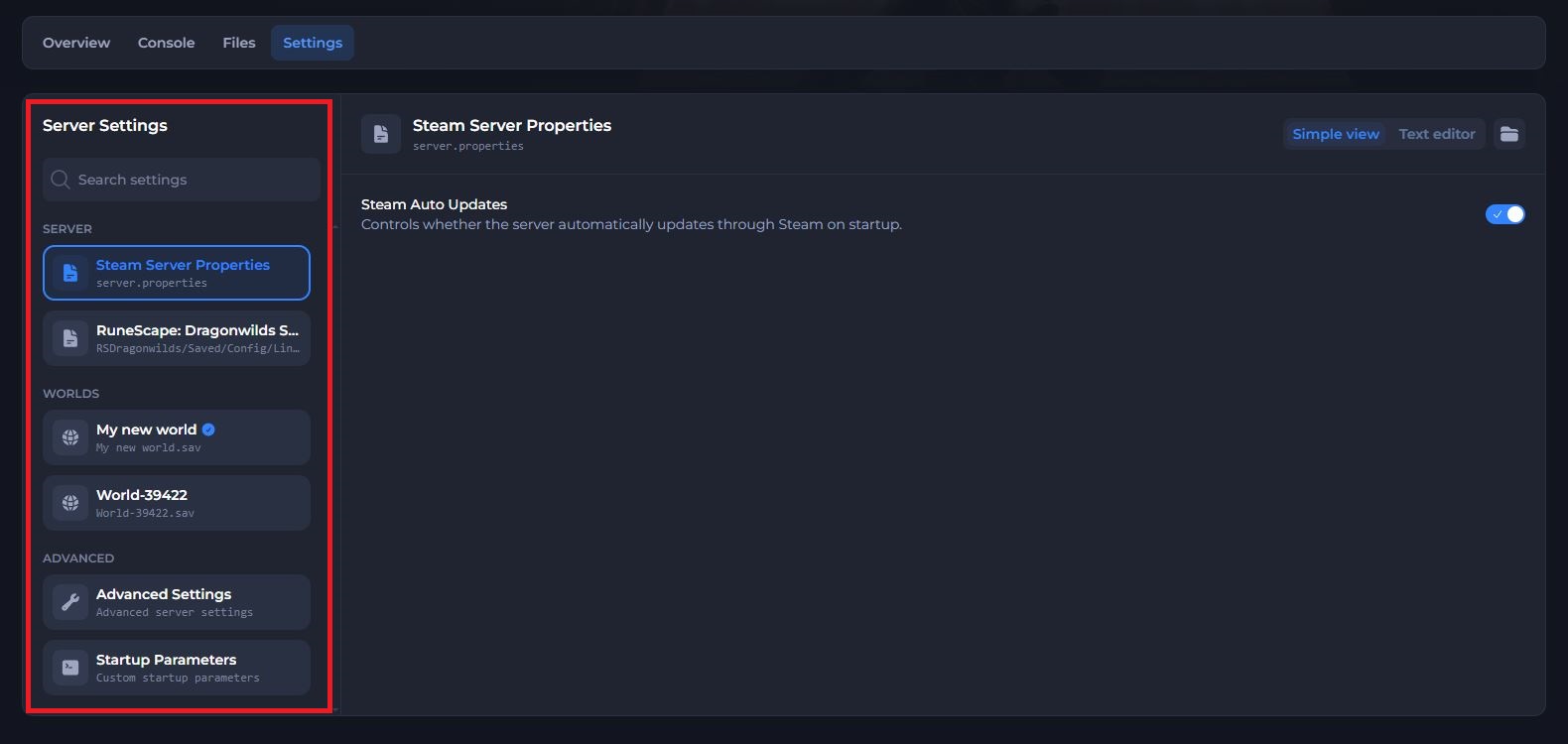
Select the Settings tab. You will see your configs grouped into sections:
- Server contains RuneScape: Dragonwilds Settings, where you set the owner, names and passwords covered in this guide. It also contains Steam Server Properties.
- Worlds lists the world saves on your server. Select a world to edit its difficulty and other world settings.
- Advanced contains Advanced Settings and Startup Parameters.
#Making Configuration Changes
Jagex lists a known issue where the server loses any configuration changes you make while it's running. Always stop your server before you change your configuration, then start it again once you have saved.
-
Navigate to the Shockbyte Control Panel and open your RuneScape: Dragonwilds server.
-
Stop your server.
-
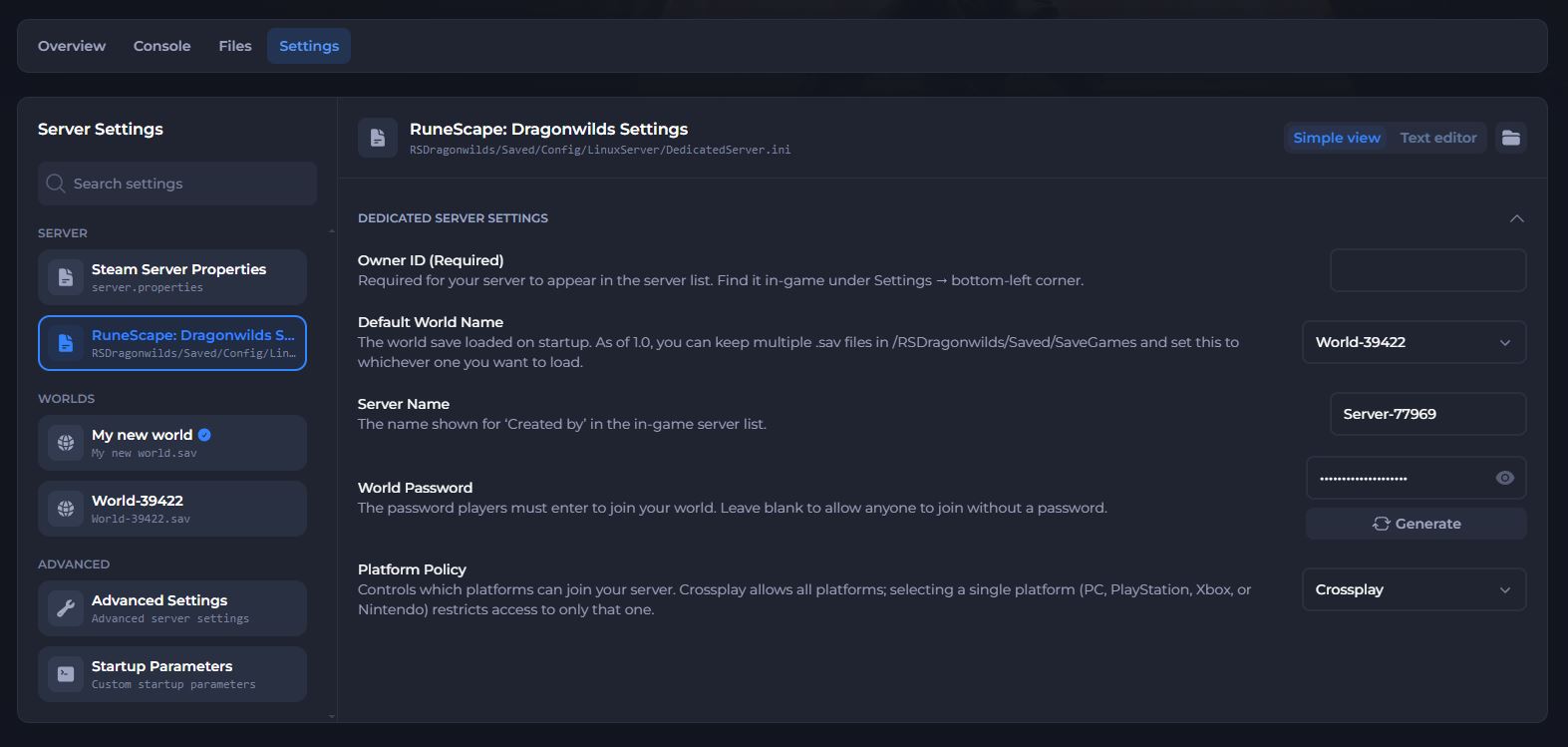
Select the Settings tab and select RuneScape: Dragonwilds Settings.
-
Make your changes to the configuration.
-
Click Save and Start your server.
#Configuration Settings
| Setting | What it does |
|---|---|
| Owner ID | Sets the server owner. Enter your RuneScape: Dragonwilds Player ID here. The owner gets admin permissions automatically and can grant or remove admin permissions for other players. |
| Server Name | Sets the name of your server. This name stays the same no matter which world the server runs. |
| Default World Name | Sets the name of the world your server creates on first startup. Players search for this name to find your server. |
| World Password | Requires players to enter this password to join. Leave it empty if you want anyone to be able to join. This password replaces any password stored in the world save. |
Finding your Player ID
-
Launch RuneScape: Dragonwilds on your PC.
-
Open the Settings menu.
-
Scroll to the bottom and use the copy button next to your Player ID.
-
Paste the ID into the Owner ID field in your server configuration.
For full steps, see our guide on how to set your Owner ID.
Important
Set your Owner ID before you start your server. Your server may fail to start if this field is empty or still contains a placeholder value.
#Owners and Admins
The player whose Player ID matches the Owner ID in your configuration becomes the server owner and gets admin permissions automatically. You don't need a password to become an admin.
As the owner, you can give admin permissions to other players in game:
-
Press
ESCand select thePlayer List. -
Select the
⋮more options button next to the player you want to make an admin. -
Select
Grant Admin.
You can use the same menu to remove a player's admin permissions, or to kick or ban a player. For more detail, see our guide on How to add Admins to your RuneScape: Dragonwilds Server.
#Understanding the Default World Name
The Default World Name setting controls the name of the world your server creates on first startup. Once a world exists, its name lives in the world's .sav file, so updating the field will not rename or replace the existing world.
Players find your server by searching for the world name in the Public tab of the Worlds screen. The search is case sensitive, so share the exact world name with your players.
Starting a fresh world with a new name
-
Stop your server.
-
Select the Settings tab and select RuneScape: Dragonwilds Settings.
-
Enter a new world name in the Default World Name section.
-
Save the configuration and Start your server.
The server generates a fresh world under the new name.
#Changing Difficulty and World Settings
Your server configuration doesn't control the difficulty, friendly fire or crossplay. The game stores these settings inside the world save, separate from your server configuration.
To change them, select your world under the Worlds section of the Settings tab. Our How to Change your RuneScape: Dragonwilds Server Difficulty/World Settings walks you through every option in the editor.
#Advanced Settings and Startup Parameters
The Advanced section of the Settings tab contains two more configs. Most servers run well without changes to either, so only edit them if you know which setting you need.
Advanced Settings
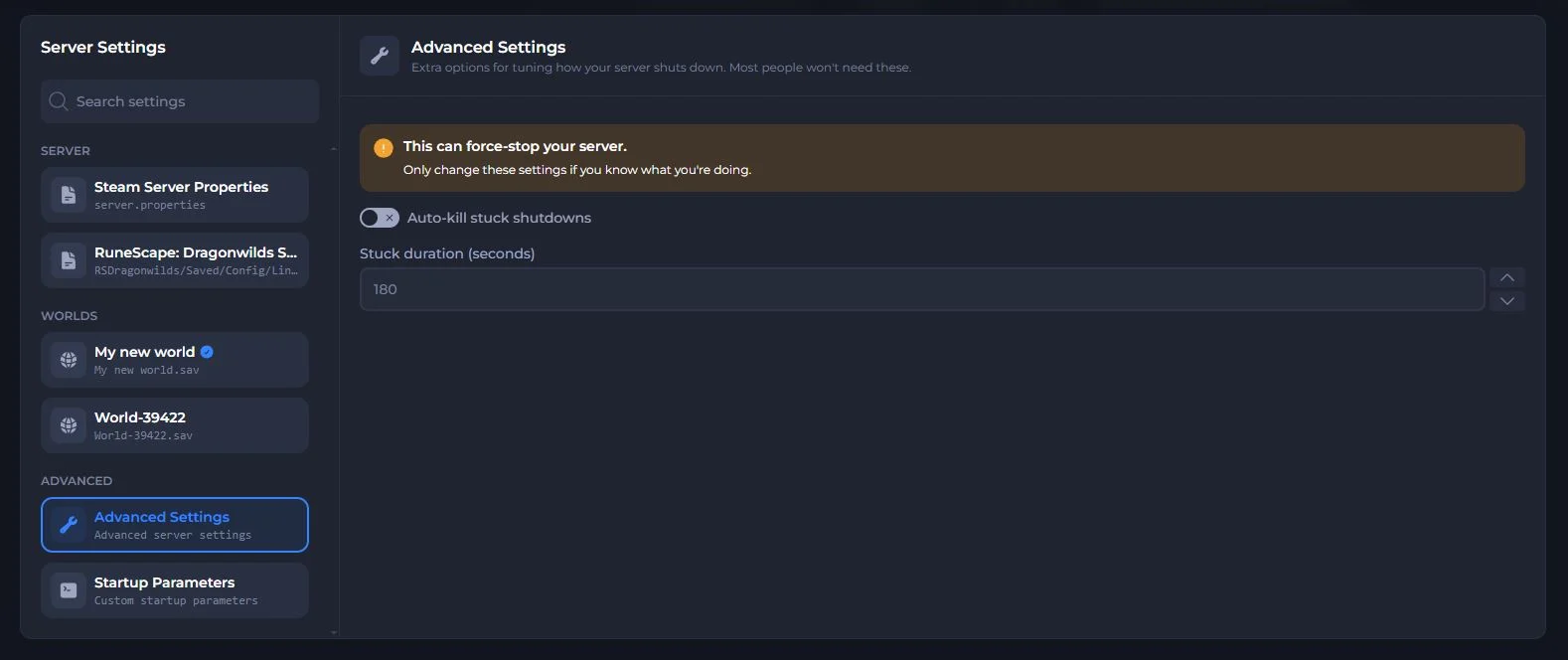
Advanced Settings controls how your server shuts down. When you stop your server, it saves your world and closes. If the shutdown gets stuck, these settings let our system force-stop the server after a set time.
| Setting | What it does |
|---|---|
| Auto-kill stuck shutdowns | When turned on, we force-stop your server if a shutdown takes longer than the Stuck duration. |
| Stuck duration (seconds) | Sets how many seconds a shutdown can run before we force-stop the server. This only applies when Auto-kill stuck shutdowns is turned on. |
Important
A force-stop closes your server before it finishes shutting down, which can lose any progress the server has not saved yet. Only turn on Auto-kill stuck shutdowns if your server often gets stuck while stopping.
If you turn it on, set the Stuck duration long enough for your server to finish saving your world.
Startup Parameters
Startup Parameters lets you add launch arguments that your server passes to the game when it starts. Jagex creates the arguments RuneScape: Dragonwilds supports, so check Jagex's documentation before you add one.
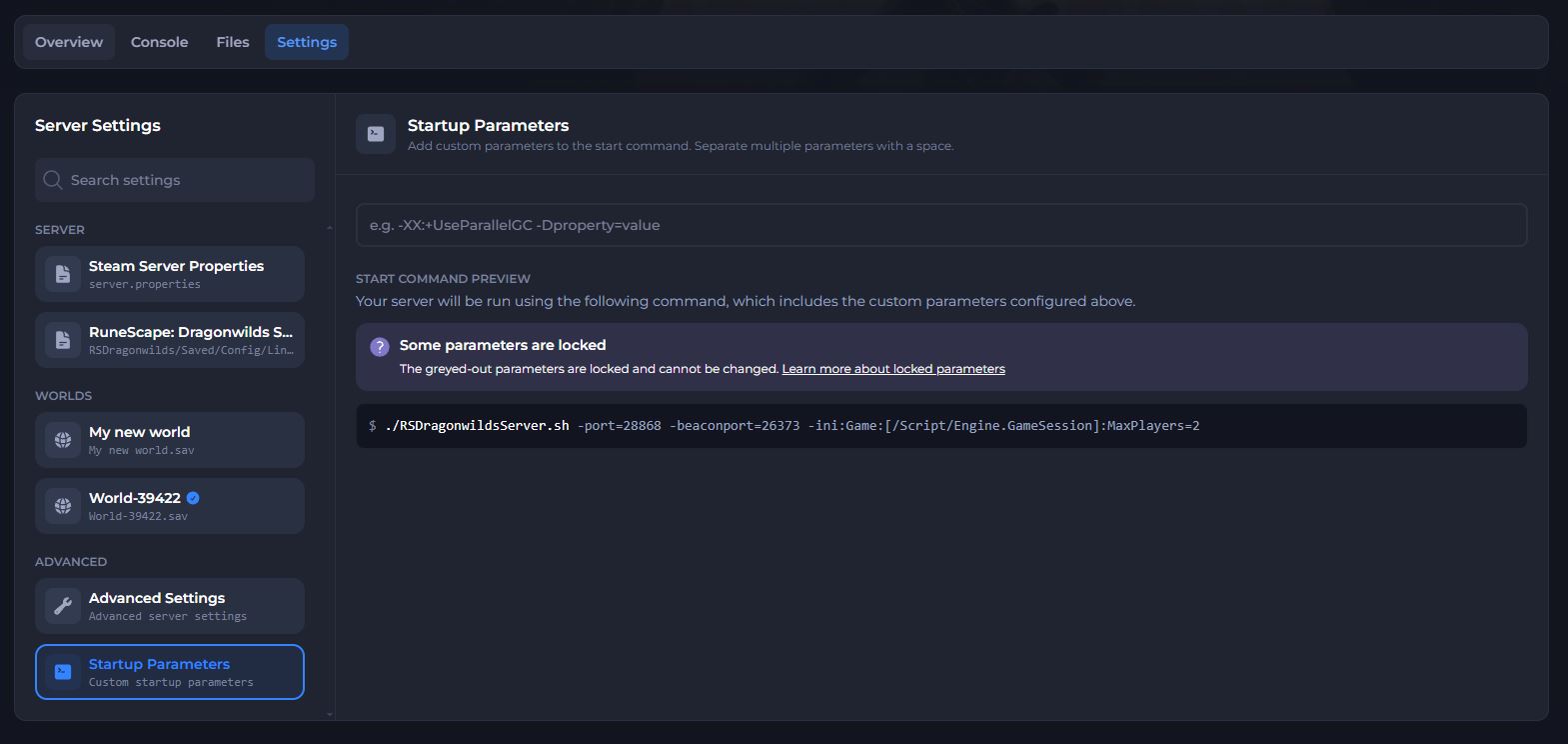
The preview shows some parameters greyed out, and you can't edit these. We lock parameters that control your plan's resources, such as your server's ports and player limit, along with settings our system manages to keep your server stable.
For more detail on custom and locked parameters, see our guide on How to Adjust your Startup Parameters.
Note
Many games treat startup parameters as case sensitive. Check your spelling and capital letters before you save.
#Troubleshooting
- My changes disappeared after I restarted the server. You probably edited the configuration while the server was running. Stop the server, make your changes again, save, and start the server.
- My server won't start. Check that you have entered your Player ID in the Owner ID field.
- I can't find my server in the server browser. Search for the exact world name in the Public tab, with the same capital letters. If the game updated recently, restart your server so it updates to the same version as your game.
- I changed the Default World Name but my world still has the old name. The existing world keeps the name stored in its save. Follow the steps in Starting a fresh world with a new name above.
- My server stopped starting after I added a startup parameter. Stop your server, remove the parameter you added in Startup Parameters, save, and start the server again.
- My server gets stuck when I stop it. Give the server time to finish saving your world. If it often gets stuck, turn on Auto-kill stuck shutdowns in Advanced Settings.
- Someone has admin access who shouldn't. Join your server as the owner, open the
Player List, and remove their admin permissions from the⋮more options menu.
If you still need help, contact our support team and we'll take a look for you.