How to Change your RuneScape: Dragonwilds Server Difficulty/World Settings using 3rd Party Tools
Table Of Contents
Editing your world saveStill have questions?
Come chat with us and we will get back to you as soon as possible!

Shockbyte
Support Team

How to Change your RuneScape: Dragonwilds Server Difficulty/World Settings using 3rd Party Tools
In order to change your world settings/difficulty outside of the control panel, you will need to download your world save file and edit it with a third-party tool.
The steps below will walk you through this process of how to change your world difficulty for your RuneScape: Dragonwilds server using the Dragonwilds Save Editor.
#Editing your world save
Before starting, please be sure to create a backup of your server and/or download a copy of your save files.
-
Access your Control Panel and Stop your server.
-
Select the Files tab and navigate to
RSDragonwilds/Saved/SaveGames.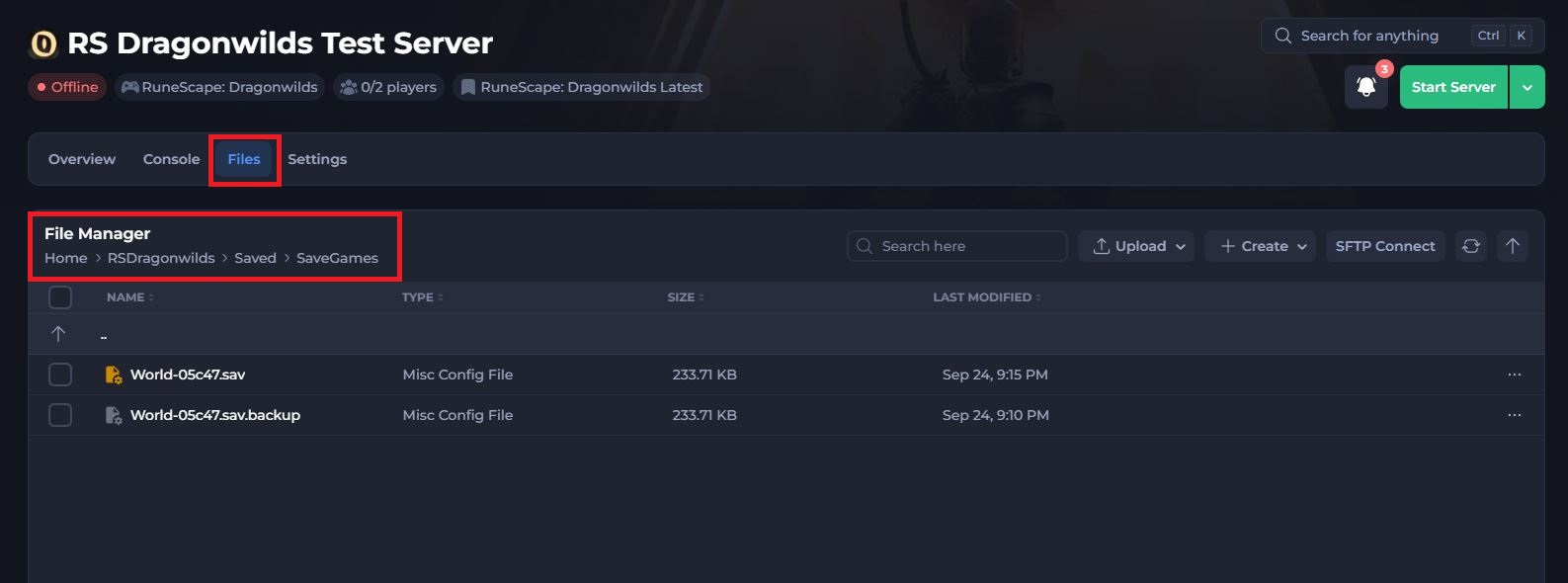
-
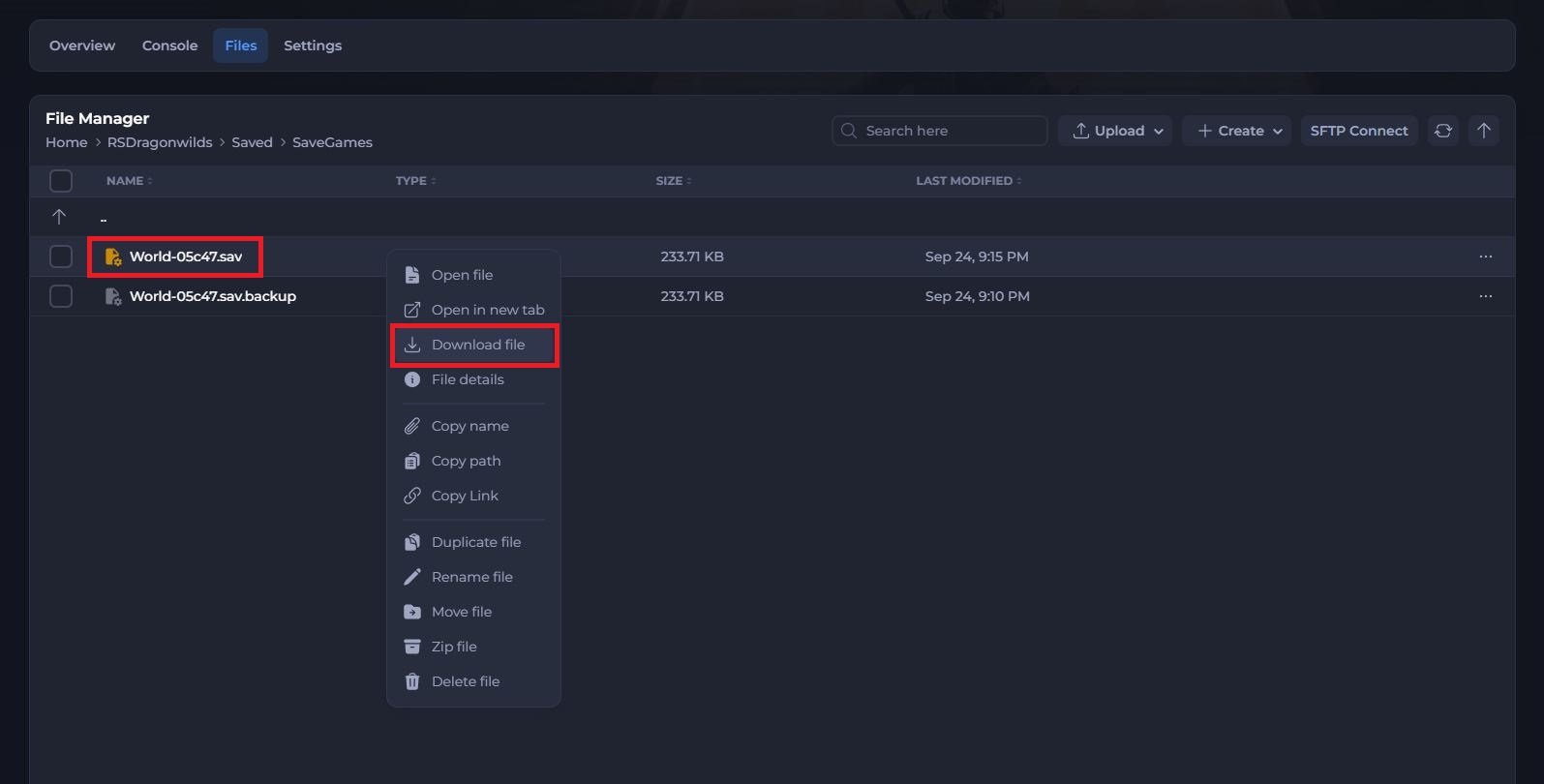
Right-click your world save and select Download file.
-
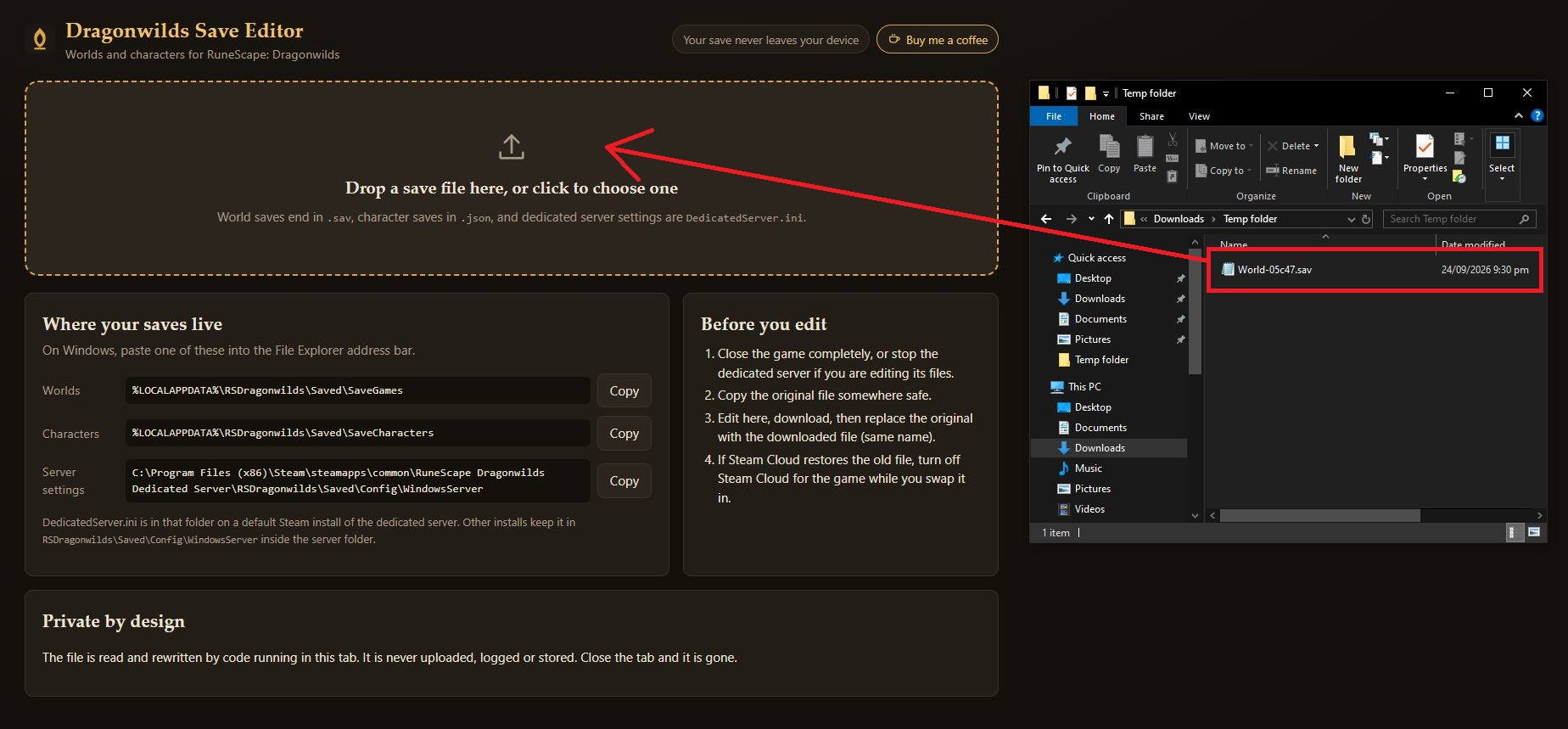
Once your save file is downloaded, open a third-party world save editor. We will be using Dragonwilds Save Editor in this example.
-
Drag and drop your save file into the editor.
-
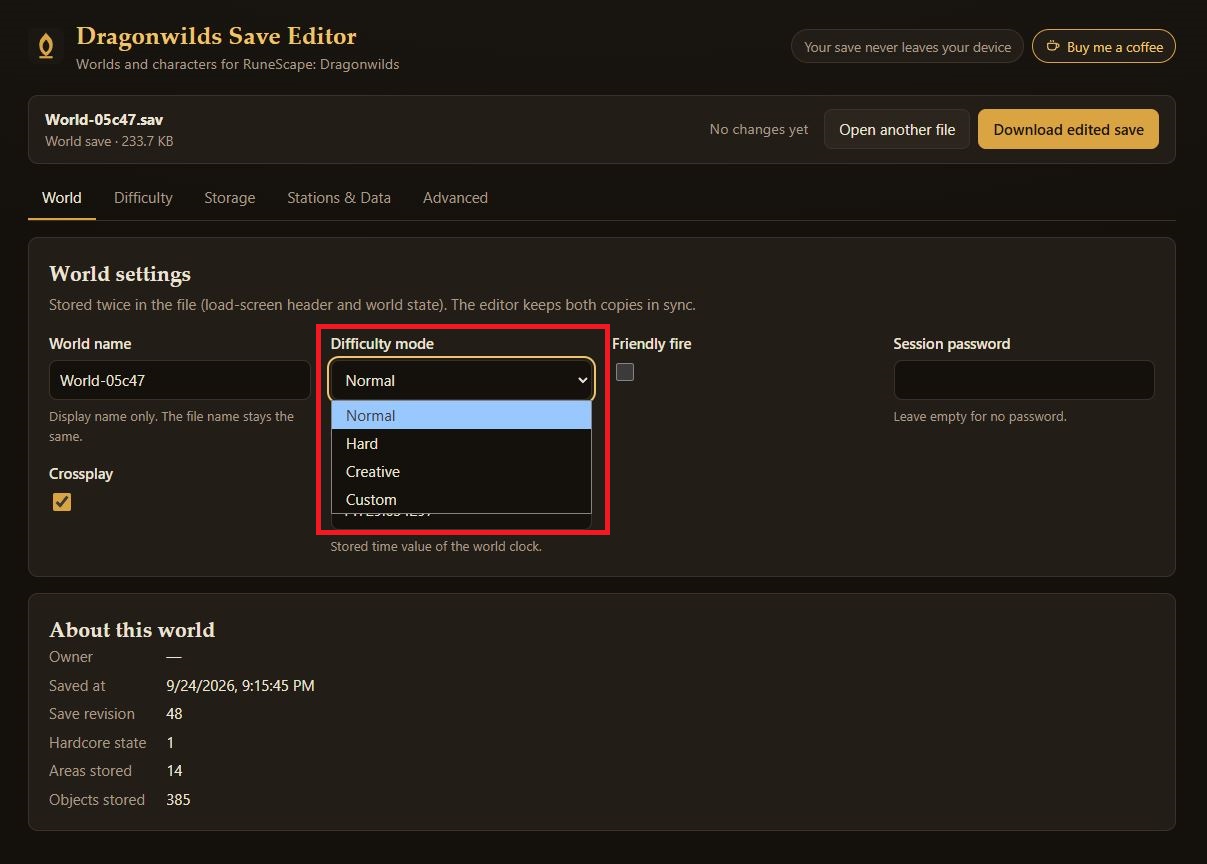
Once uploaded, select the drop-down menu under Difficulty mode and choose your desired difficulty.
-
If you select Custom, you can adjust custom difficulty options using the Difficulty tab at the top. Otherwise, skip this step.
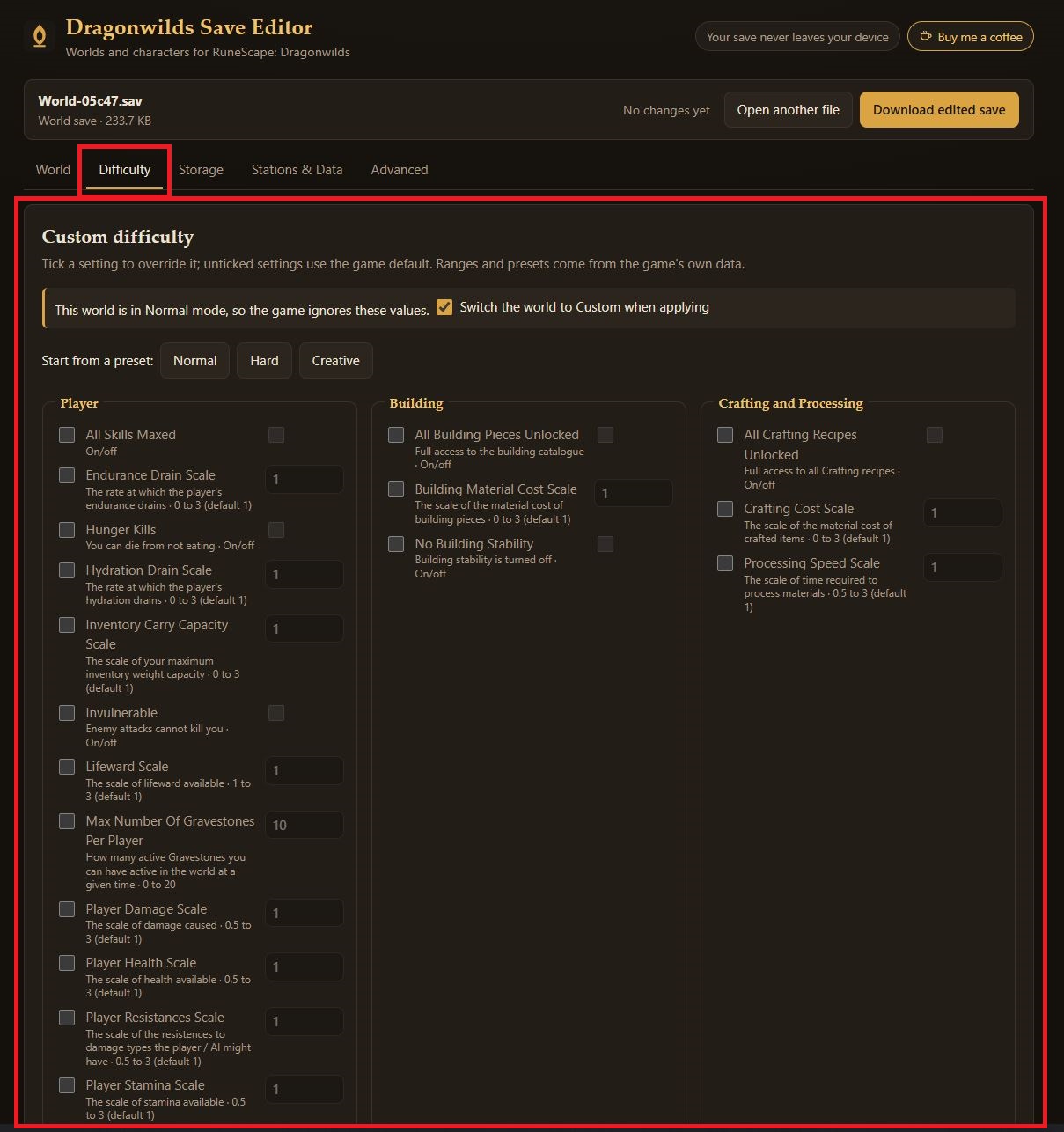
-
Once you have selected your desired settings, select Download edited save in the top right.
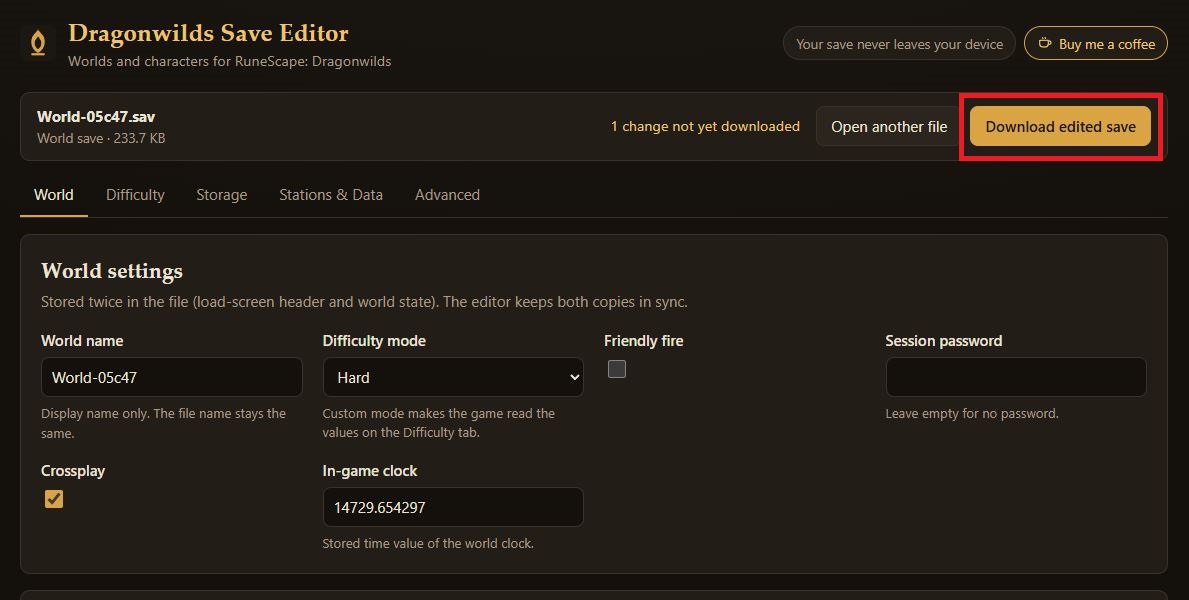
-
When your edited save is downloaded, you will need to delete your previous save and change your newly edited save to the exact same name as it was previously.
World-05c47 (1).sav>World-05c47.sav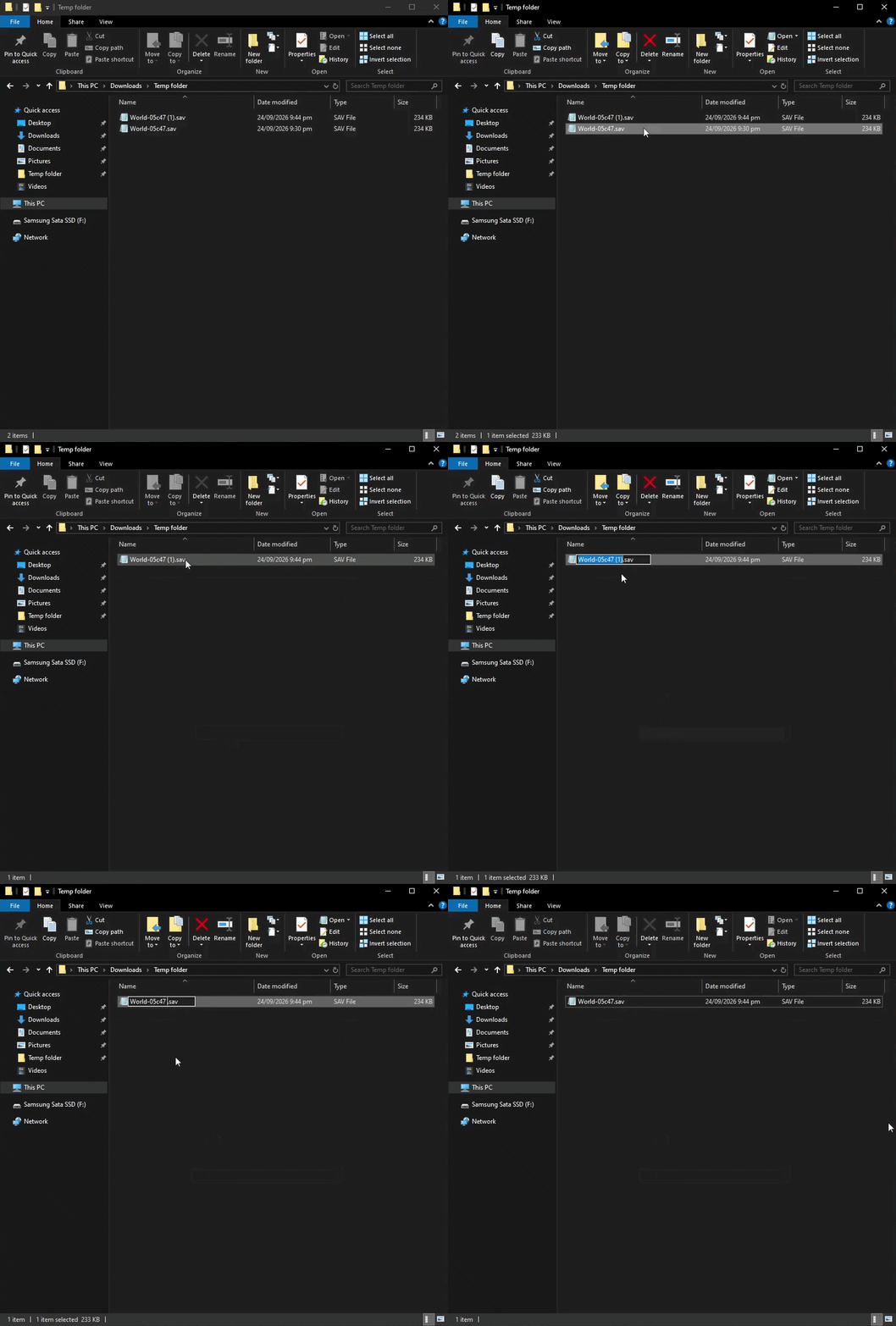
-
Head back to your Control Panel Files tab and navigate to
RSDragonwilds/Saved/SaveGamesagain. -
Delete or rename your current save to something different, then reupload your edited save.
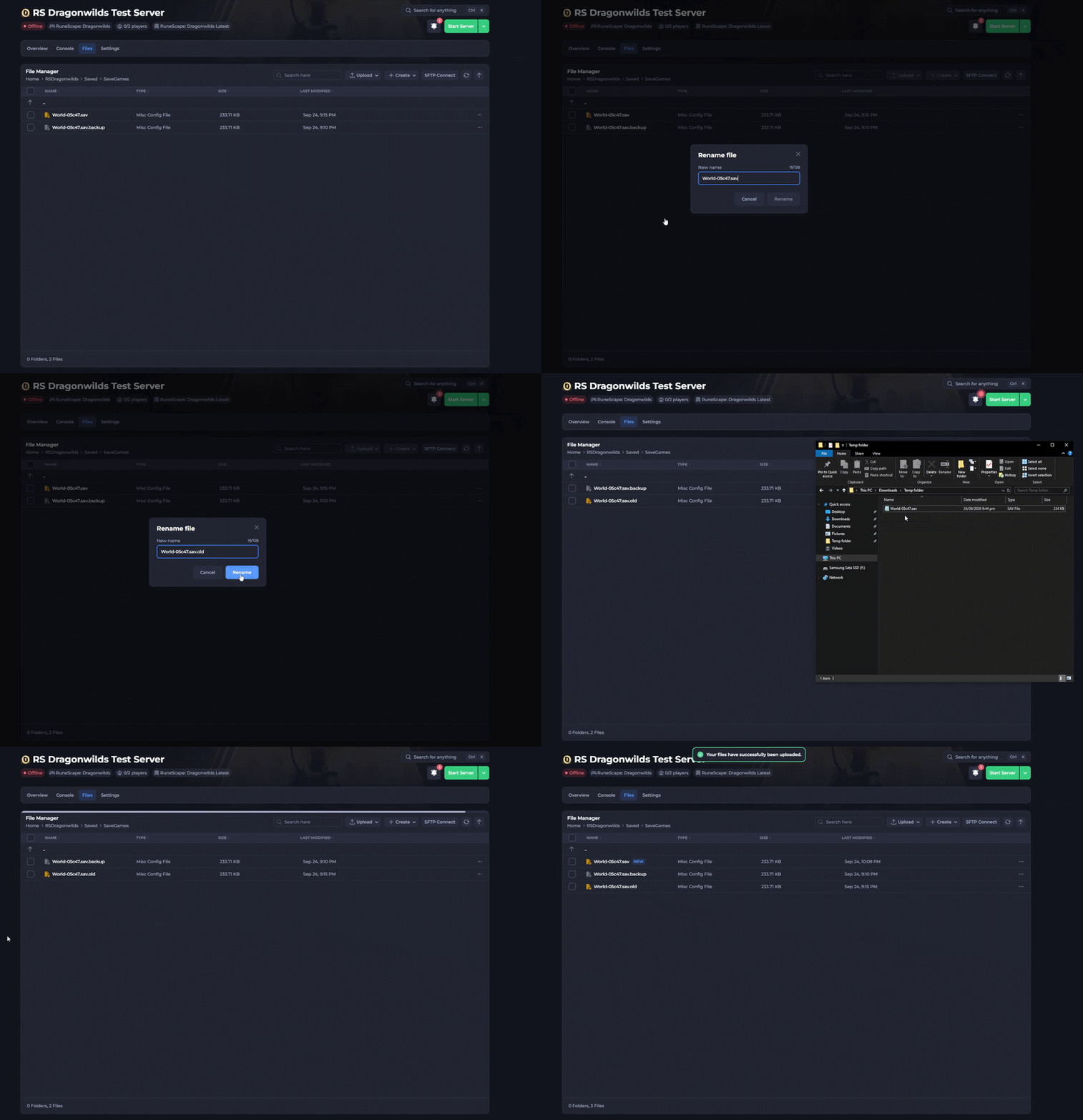
-
Double check the save name is exactly the same as the original save name, then start your server.
Your world difficulty has now successfully been changed.
Important
If you experience a black screen upon connection or can no longer see your server in the server list, this usually means your save name was not renamed correctly and will need to be corrected. You can find our guide on this issue here.
If you require any further assistance, please contact our support at: https://shockbyte.com/billing/submitticket.php