Still have questions?
Come chat with us and we will get back to you as soon as possible!

Jay Miller
Game Engineer
How To Configure Your Enshrouded Server
You can change how your Enshrouded server runs from the Settings tab on the Shockbyte Panel. Use these settings to rename your server, choose where your world saves, control voice and text chat, pick a difficulty preset, and turn automatic Steam updates on or off.
Your Enshrouded settings live in two files. Enshrouded Server Settings holds the main server and gameplay options, and Enshrouded Properties holds the Steam update option.
#Accessing Your Server Settings
-
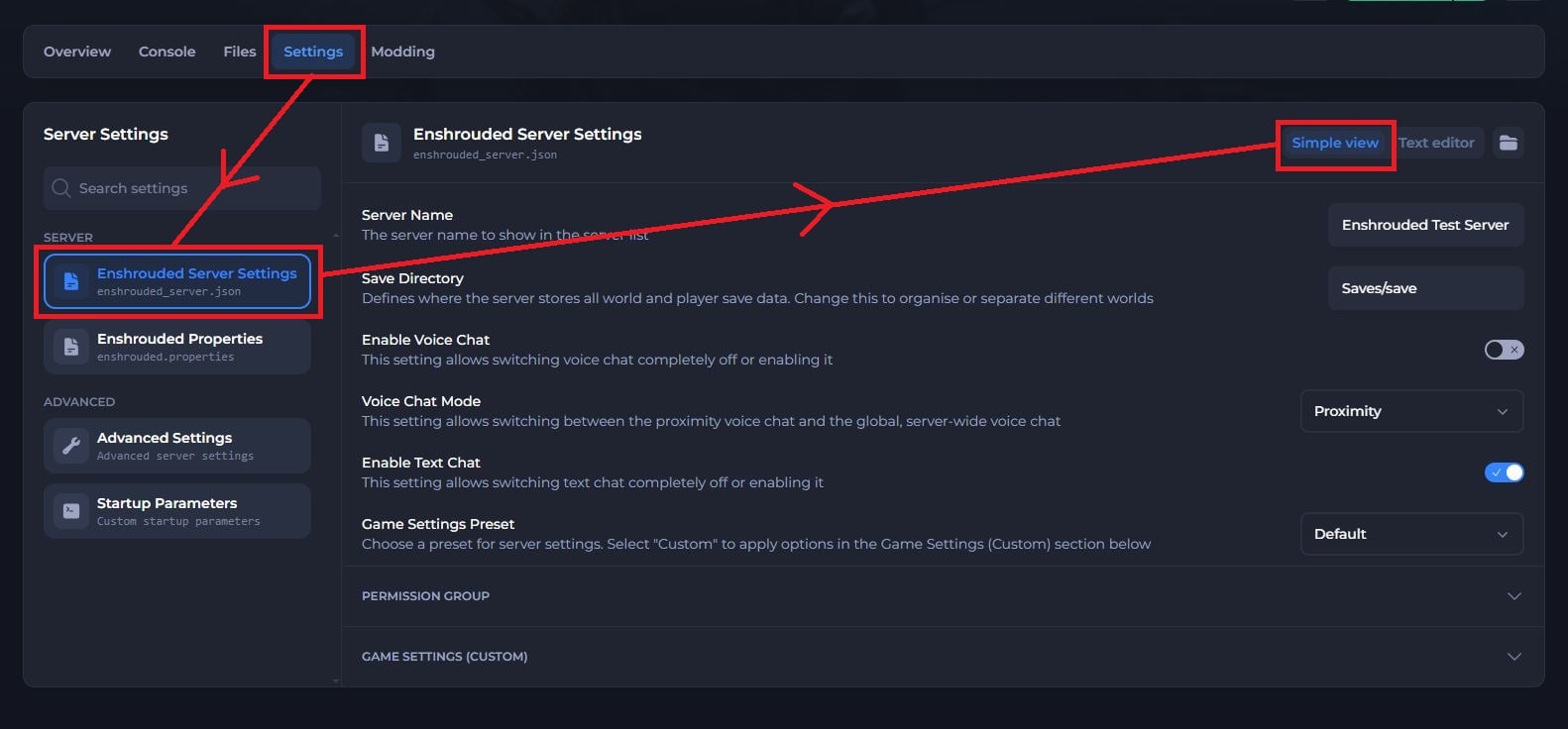
Navigate to the Shockbyte Control Panel and open your Enshrouded server.
-
Click Stop to shut down your server and open the Settings tab.
-
Under Server, select Enshrouded Server Settings or Enshrouded Properties, depending on the setting you want to change.
-
Make sure Simple view is selected in the top right.
-
Make your changes, then save them.
-
Click Start Server to start your server with the new settings.
Note
Stop your server before you change any settings. The server can overwrite changes you make while it is running.
#Enshrouded Server Settings
Select Enshrouded Server Settings to find these options.
| Setting | What it does |
|---|---|
| Server Name | Sets the name players see in the server list. |
| Save Directory | Sets the folder where your server stores all world and player save data. Change it to keep separate worlds in separate folders. |
| Enable Voice Chat | Turns voice chat on or off for the whole server. |
| Voice Chat Mode | Switches voice chat between proximity chat, where players hear others nearby, and global chat, where everyone on the server hears each other. |
| Enable Text Chat | Turns text chat on or off for the whole server. |
| Game Settings Preset | Sets the difficulty preset for your server. Choose from Default, Relaxed, Hard, Survival, or Custom. |
Important
If you point Save Directory at an empty folder, your server starts a new world there. To get your old world back, set Save Directory to its original folder.
Game Settings Preset options:
| Preset | What it does |
|---|---|
| Default | The standard Enshrouded experience. |
| Relaxed | Fewer enemies and more resources, for building and casual play. |
| Hard | More enemies that fight more aggressively. |
| Survival | The most demanding preset, with tougher enemies and harsher survival rules. |
| Custom | Lets you set each gameplay option yourself in the Game Settings (Custom) section. |
Below these settings you will find two expandable sections:
- Permission Group lets you set passwords and permissions for groups of players, such as admins, friends, and guests. See our guide on How to Change the Permission Group Settings on Your Enshrouded Server.
- Game Settings (Custom) lets you adjust individual gameplay options such as enemy strength, resource rates, and day and night length. See our guide on How to Use Custom Game Settings on Your Enshrouded Server.
#Enshrouded Properties
Select Enshrouded Properties to find this option.
| Setting | What it does |
|---|---|
| Steam Updates | Turns automatic Steam updates on or off. When you turn it on, your server checks for and installs the latest Enshrouded update each time it starts. |
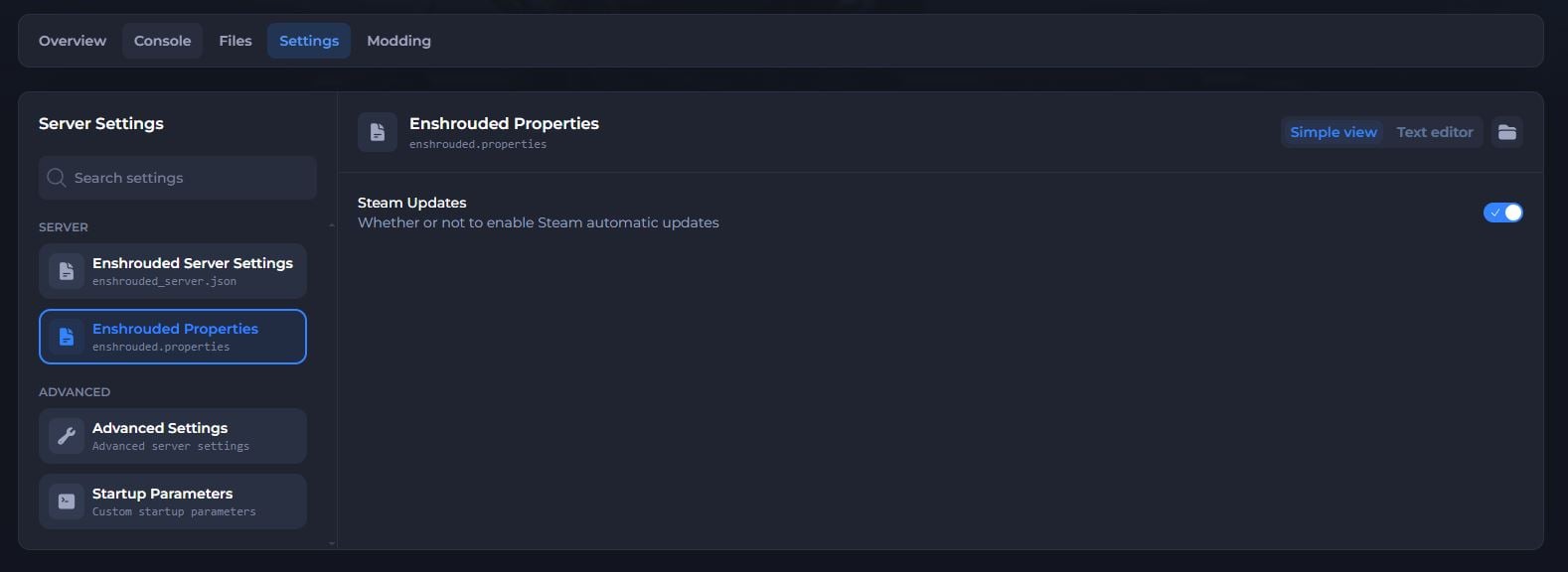
We recommend keeping Steam Updates on. Players can't join your server when it runs an older version of Enshrouded than their game.
#Troubleshooting
- My Game Settings (Custom) changes don't do anything. Set Game Settings Preset to Custom. Your server ignores the custom values while any other preset is selected.
- My world disappeared after I changed the Save Directory. Stop your server, set Save Directory back to its original folder, save, and start your server again.
- Players get a version mismatch error when they try to join. Turn on Steam Updates in Enshrouded Properties, then restart your server so it installs the latest update.
- My changes reset after I saved them. Stop your server before you edit your settings, save, then start your server again.
If you still need help, contact our support team and we'll take a look for you.