Still have questions?
Come chat with us and we will get back to you as soon as possible!

Shockbyte
Support Team

How to Join your Necesse Server
Once you have configured your Necesse Game server the way you would like it, you are ready to join. Necesse provides two ways of connecting to your server which are either using your in-game server list or direct connecting using an IP Address.
#Obtaining your Server IP
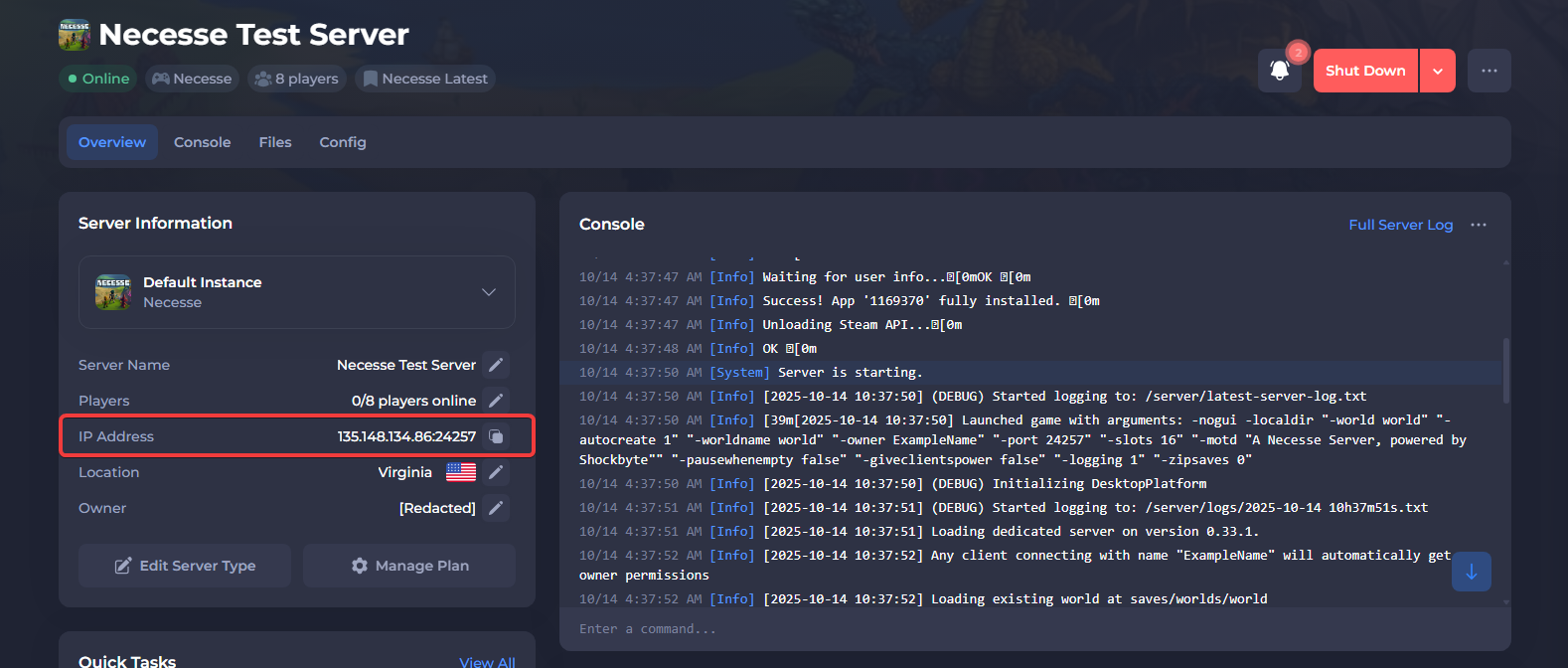
In order to connect to your server, you will need to know both the server IP and port. These can both be found in your Server Control Panel.
Once logged in to the control panel, you will find your server's IP and port in the overview, next to IP Address.
#Using Direct Connect
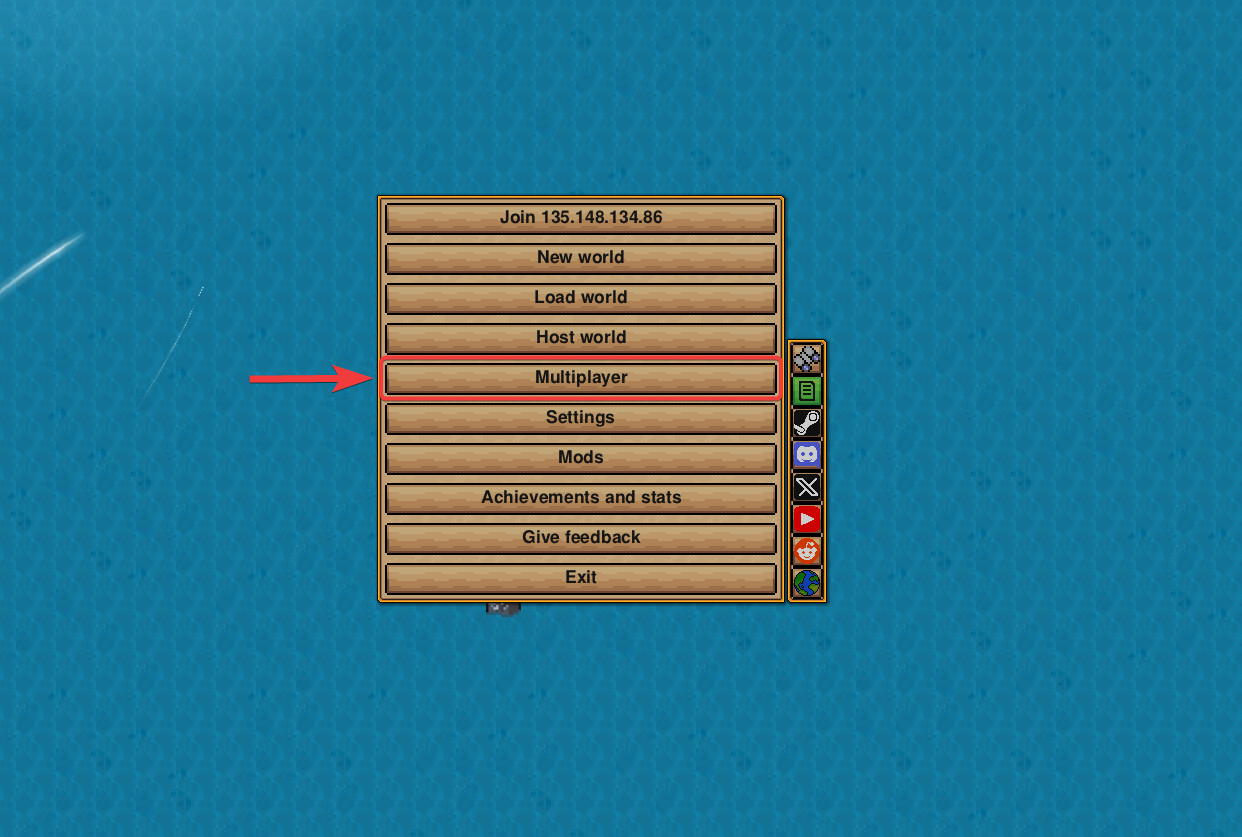
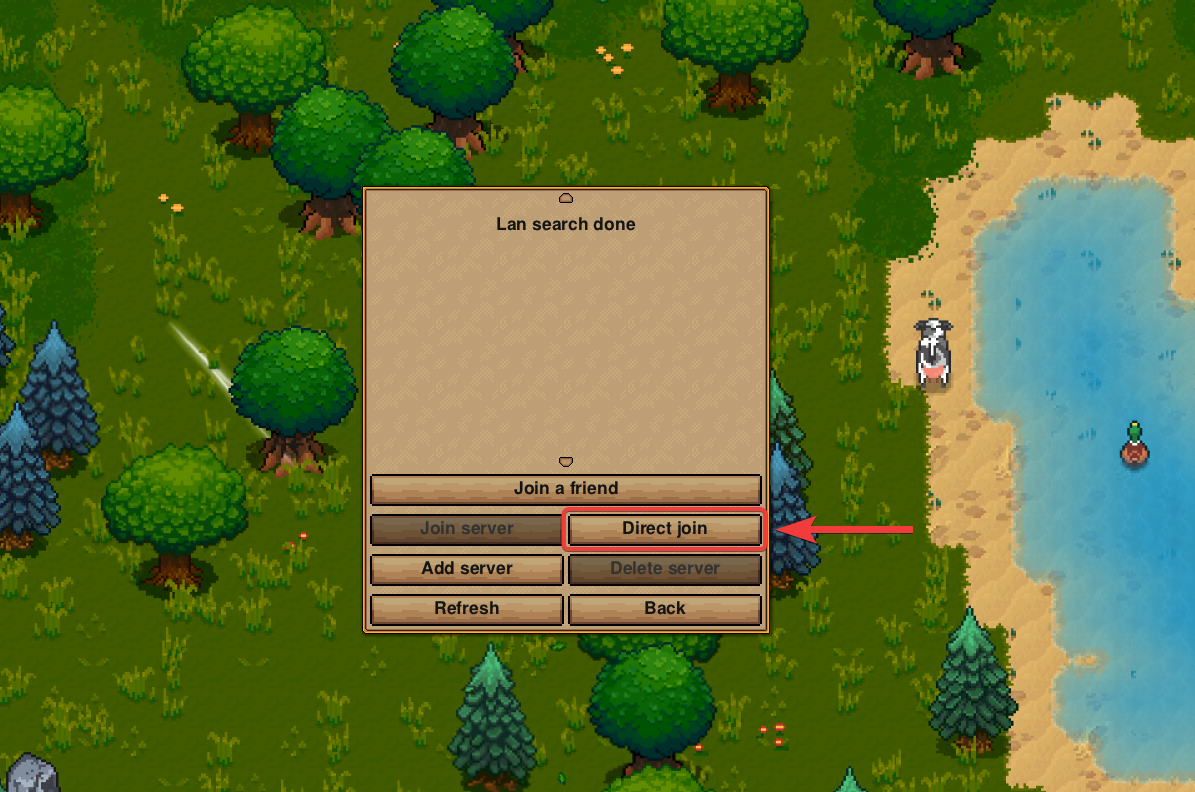
You can join your server using the Direct join button located in the Multiplayer menu.
-
Launch Necesse.
-
Click Multiplayer.
- Click Direct join.
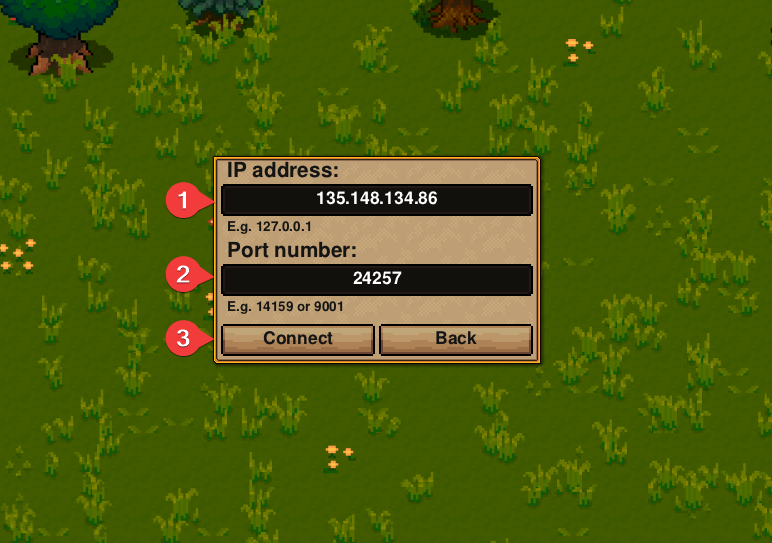
- Enter your server's IP Address and Port separately, then click Connect.
#Using Server List
You can join your server by adding it to the server list in the Multiplayer menu.
-
Launch Necesse.
-
Click Multiplayer.
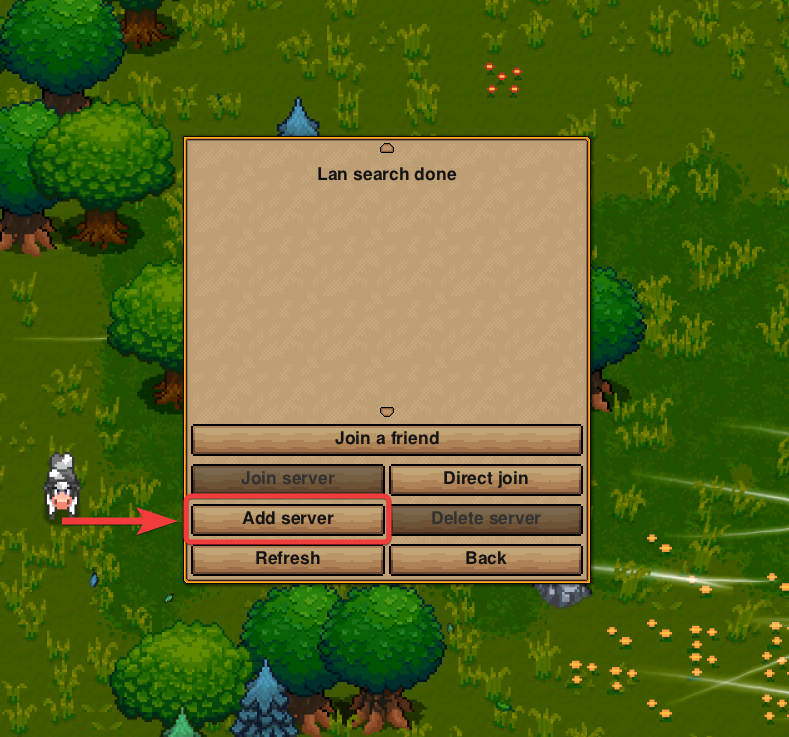
- Click Add server.
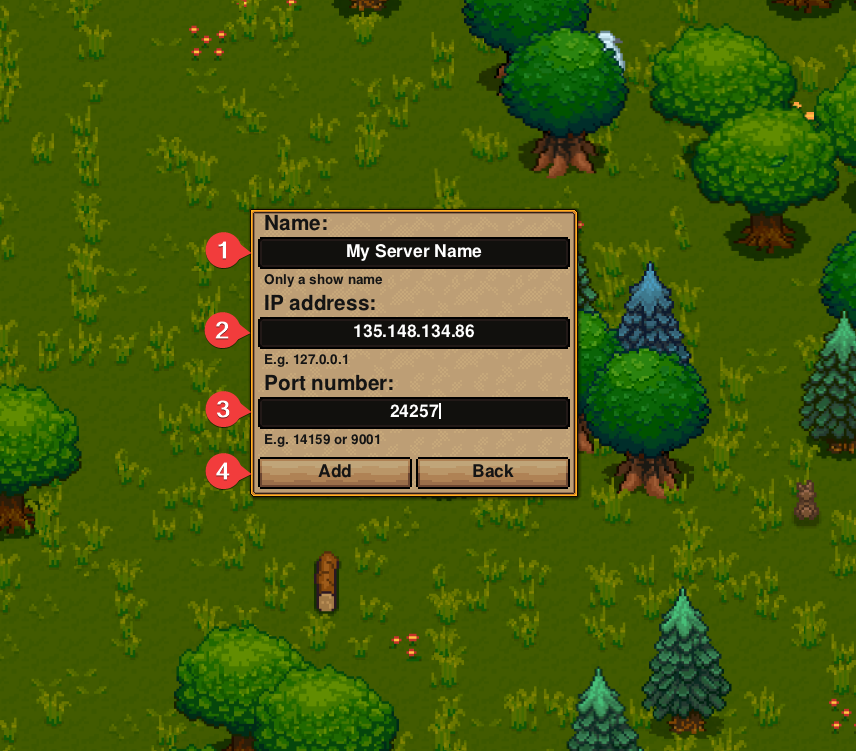
- Enter any name, then enter your server's IP Address and Port separately. When done, click Add.
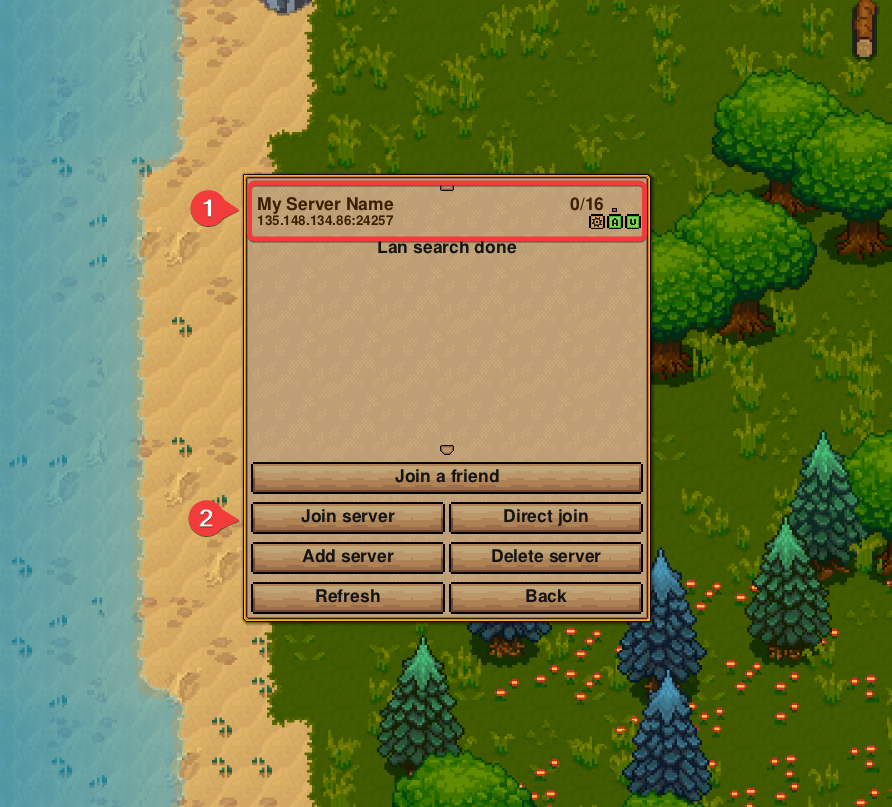
- Select your server in the list, then click Join server.
To learn more about Necesse server hosting, you can browse our library of Knowledgebase articles here.