Still have questions?
Come chat with us and we will get back to you as soon as possible!

Shockbyte
Support Team
How To Upload An Existing Farm To Your Stardew Valley Server
Uploading your existing local farm will allow you to continue your farm's progress on a Shockbyte server with friends. To do this you will need to upload your existing farms save folder to your server.
Important
You will not be able to play as the host farmer on existing farms uploaded to a server.
#Locating your Existing Farm
Before uploading your existing farm you will first need to locate its save folder. This is normally located within Stardew Valley's Appdata folder.
-
On your PC, navigate to
C:\Users\<user>\AppData\Roaming\StardewValley\Saves. -
Locate your farm save folder.
-
Make a copy of this folder and move it to your desktop.
#Uploading a Farm to your Server
Once you've located your farm save folder you will need to upload it to your server.
-
Open your Control Panel.
-
Stop your server and wait for it to go offline.
-
Navigate to the Files tab and Open
/StardewValley/Saves.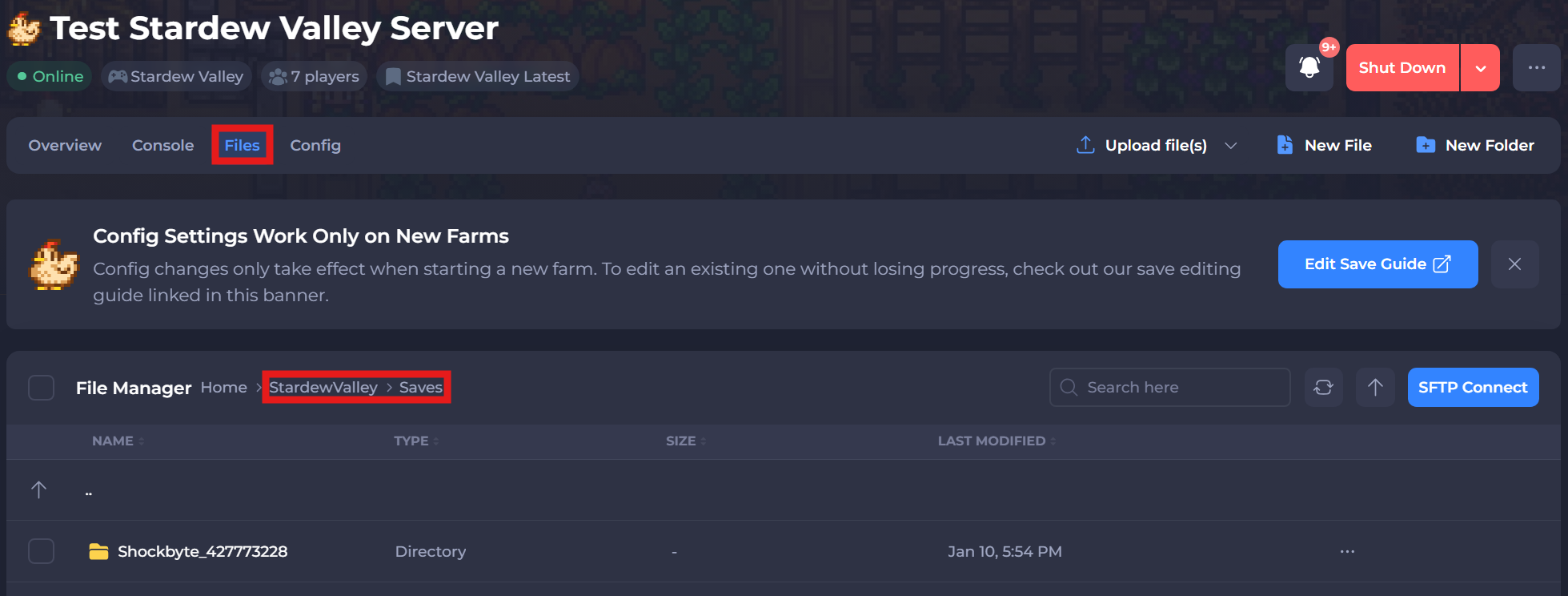
-
Upload the save folder.
#Setting your Server's Active Farm
Once you've uploaded your existing farm you will need to change your server's active farm.
-
Open your Control Panel.
-
Stop your server and wait for it to go offline.
-
Navigate to the Config tab and Open the Stardew Valley Farm Settings.
-
Locate the setting Farm Name and set it to the name of the uploaded Farm.
Use the name that the farm uses in-game. Using a different name will not select the save.
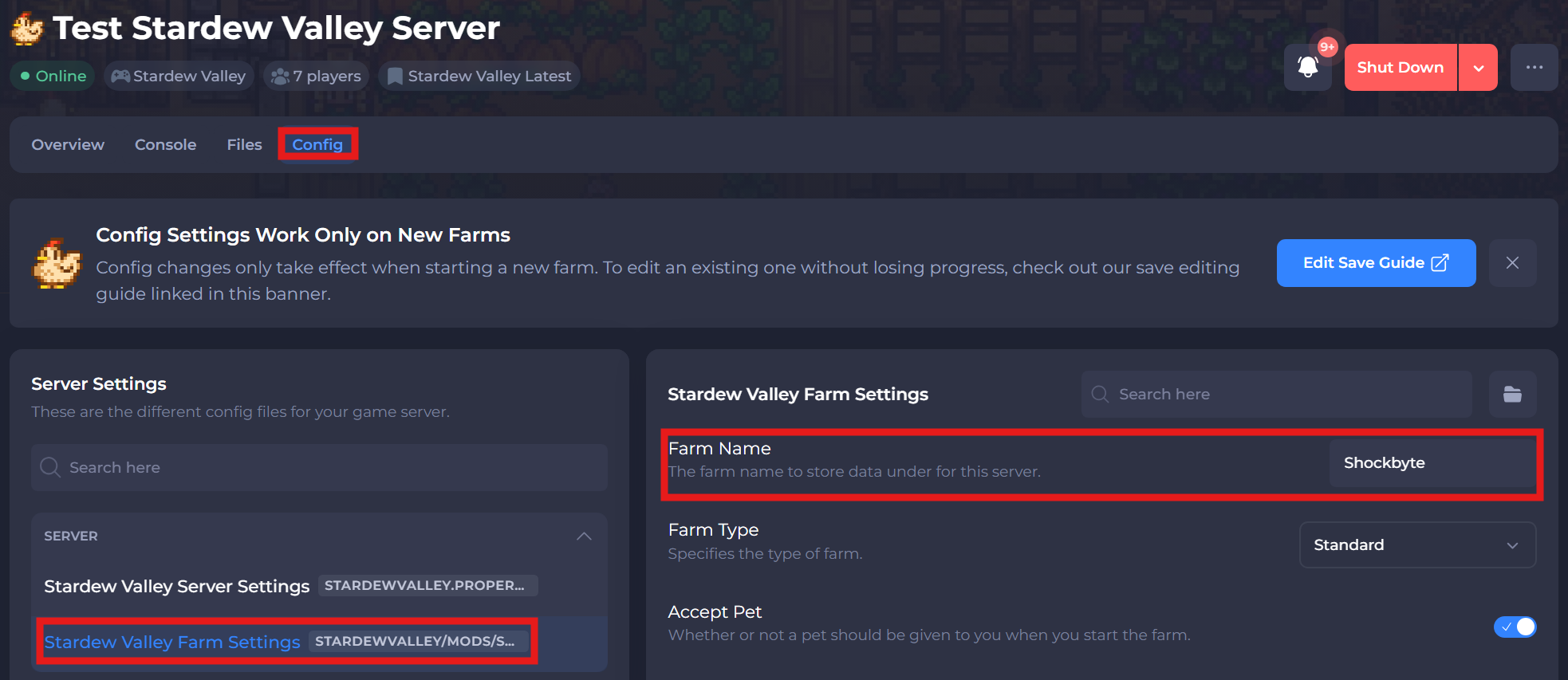
- Save the file and Restart your server.
That’s it! You’ve successfully uploaded your existing farm to your Stardew Valley server. Now, all that’s left is to start your server and enjoy playing with your friends.