Still have questions?
Come chat with us and we will get back to you as soon as possible!

Shockbyte
Support Team
How to Reset Chunks with AmuletMC on Your Minecraft Server
Sometimes you might need to reset individual chunks on your Minecraft server. There are several world editors you can use for this. If your game version is below 1.12, you will need to use MCASelector instead of AmuletMC. We have a guide on how to use it here.
AmuletMC is another popular world editor because it is more versatile. It supports both Bedrock (versions 1.7 and above) and Java Edition (versions 1.12 and above). Also, it allows you to edit your server chunks in both a 2D interface and a 3D interface, unlike MCASelector.
Important
As this process involves modifying your world files, make sure to create a backup of your server before proceeding with the steps in this guide.
#Installing AmuletMC
-
Navigate to the AmuletMC website.
-
Download the version of AmuletMC that matches your computer's operating system.
Currently, the installation steps vary between versions due to an issue with Linux and macOS. Please refer to AmuletMC's documentation or Discord for further guidance on installation.
#Opening your world file on AmuletMC
The steps listed in this guide work for both Java Edition and Bedrock Edition worlds, but in this guide, we will be using a Java Edition world as the example.
-
Download your Minecraft world.
-
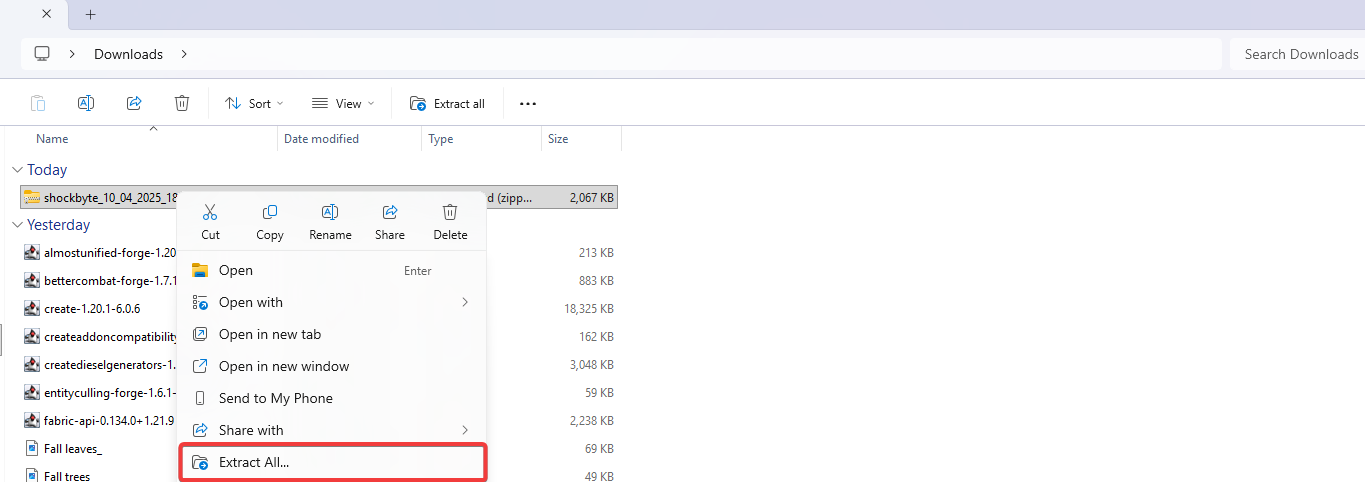
Extract the world
.zipfolder that was downloaded.
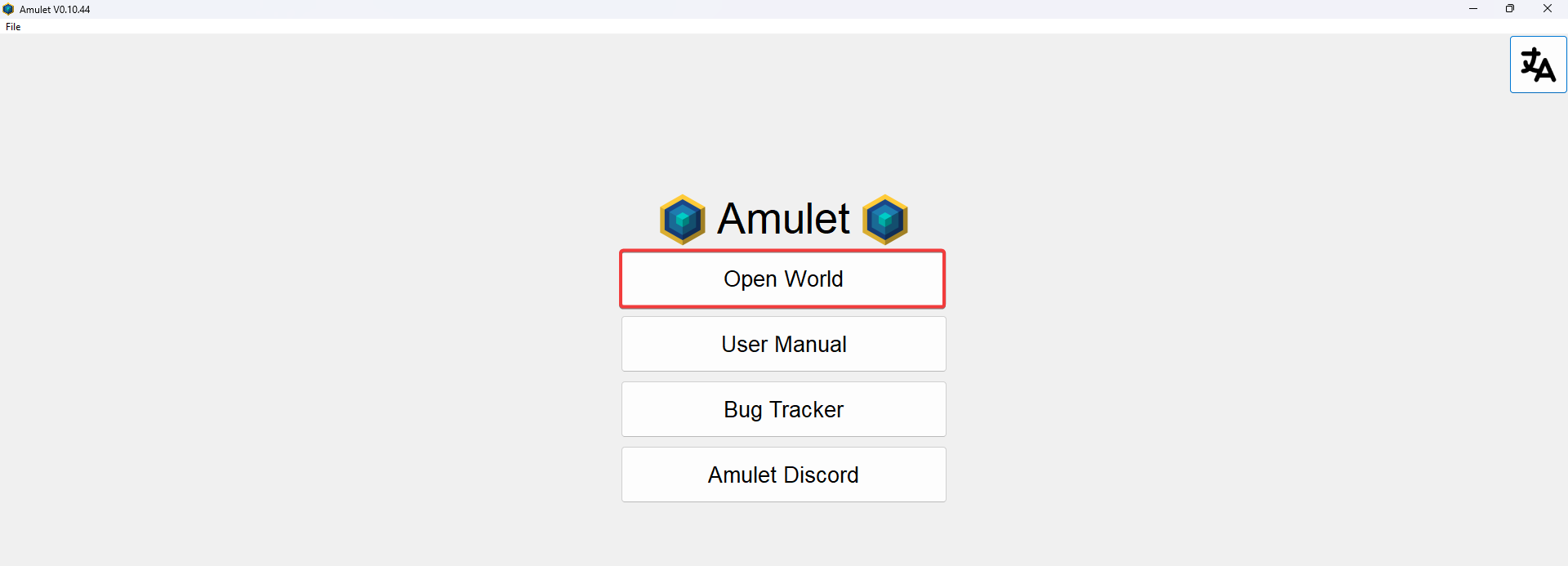
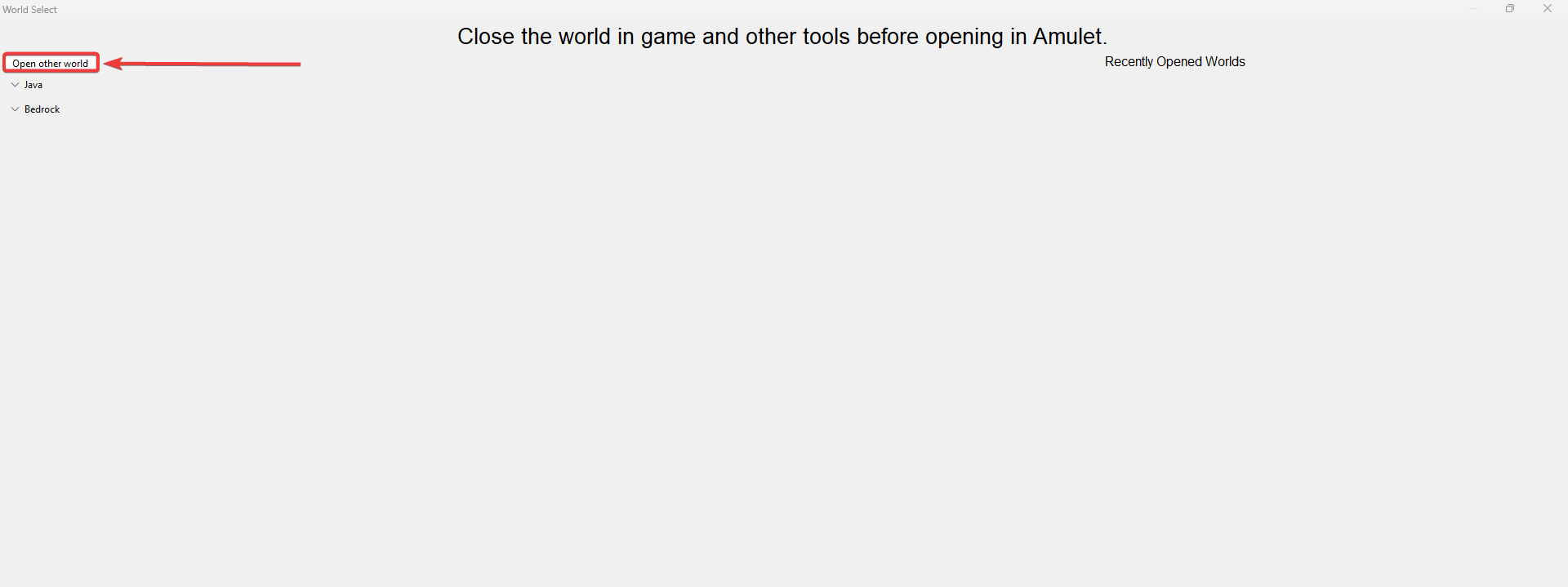
- Open AmuletMC and select "Open World", then "Open Other World".
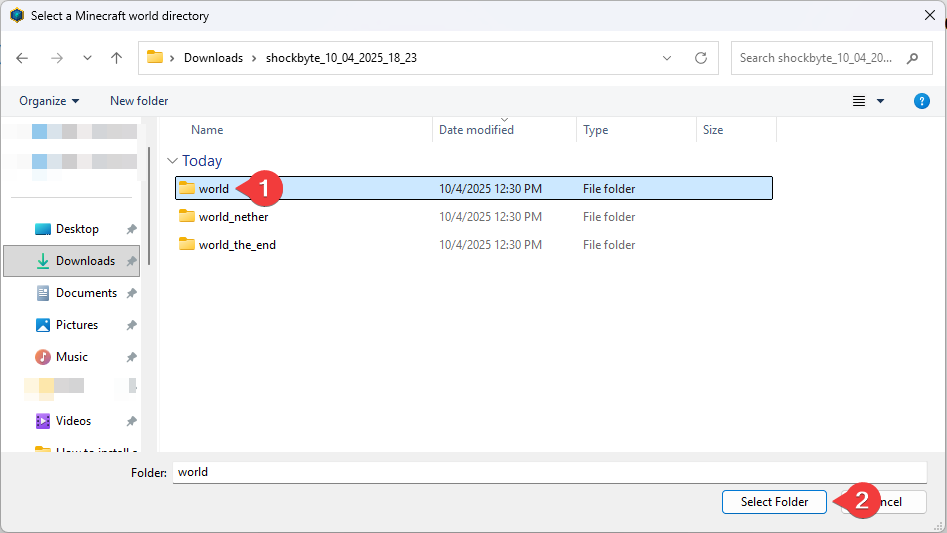
- Select your
worldfolder in the prompt to open it.
Keep in mind that only Spigot-based server types will store the Nether and End dimensions in separate folders named "world_nether" and "world_end". Other server types will store the Nether and End dimensions in the "world" folder with the rest of the world data.
End Dimension
Resetting the wrong chunks in the End dimension may break it completely. If you're attempting to reset chunks in the End dimension, please review our other guide on the topic here.
#Resetting the Chunks on your World
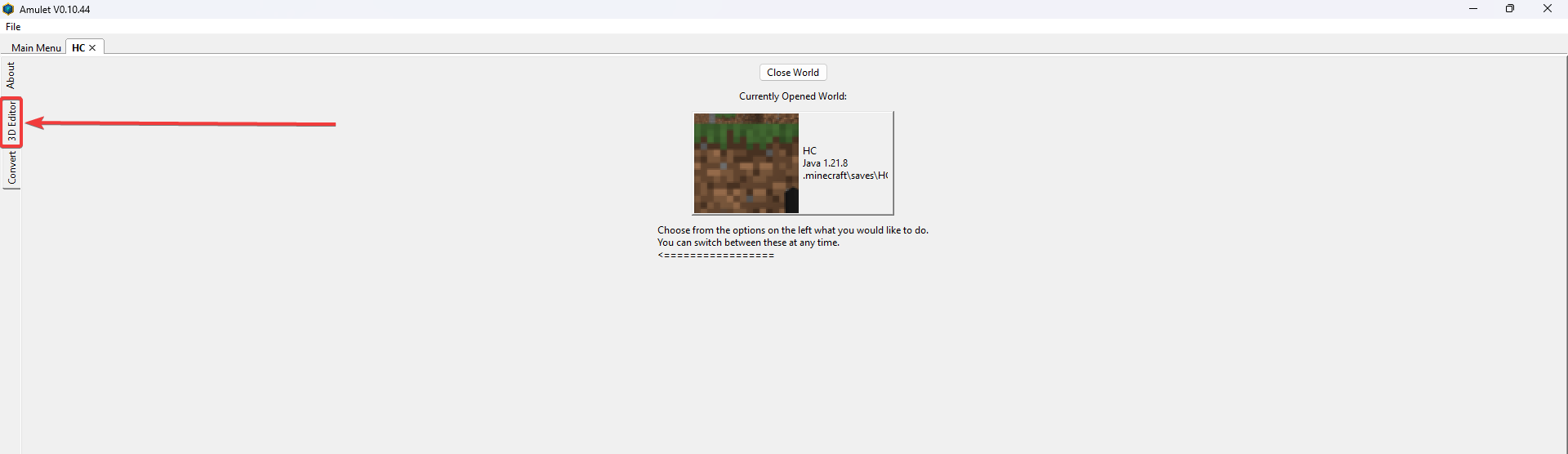
- Once your world has been opened in AmuletMC, select "3D Editor" on the left-hand side.
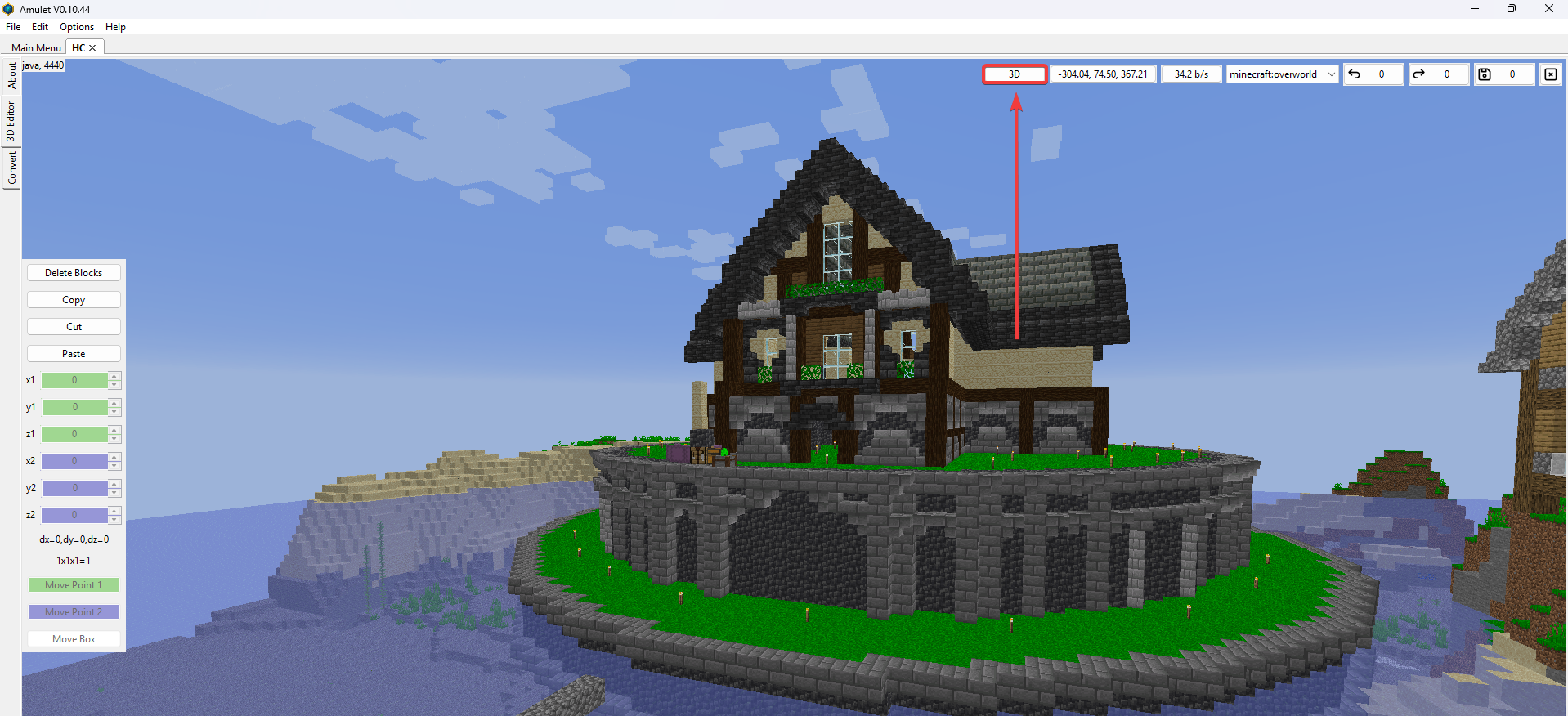
- Once loaded, select the "3D" button at the top to change your world view to 2D.
This is not required but is strongly recommended as it's easier to navigate the 2D editor when resetting chunks.
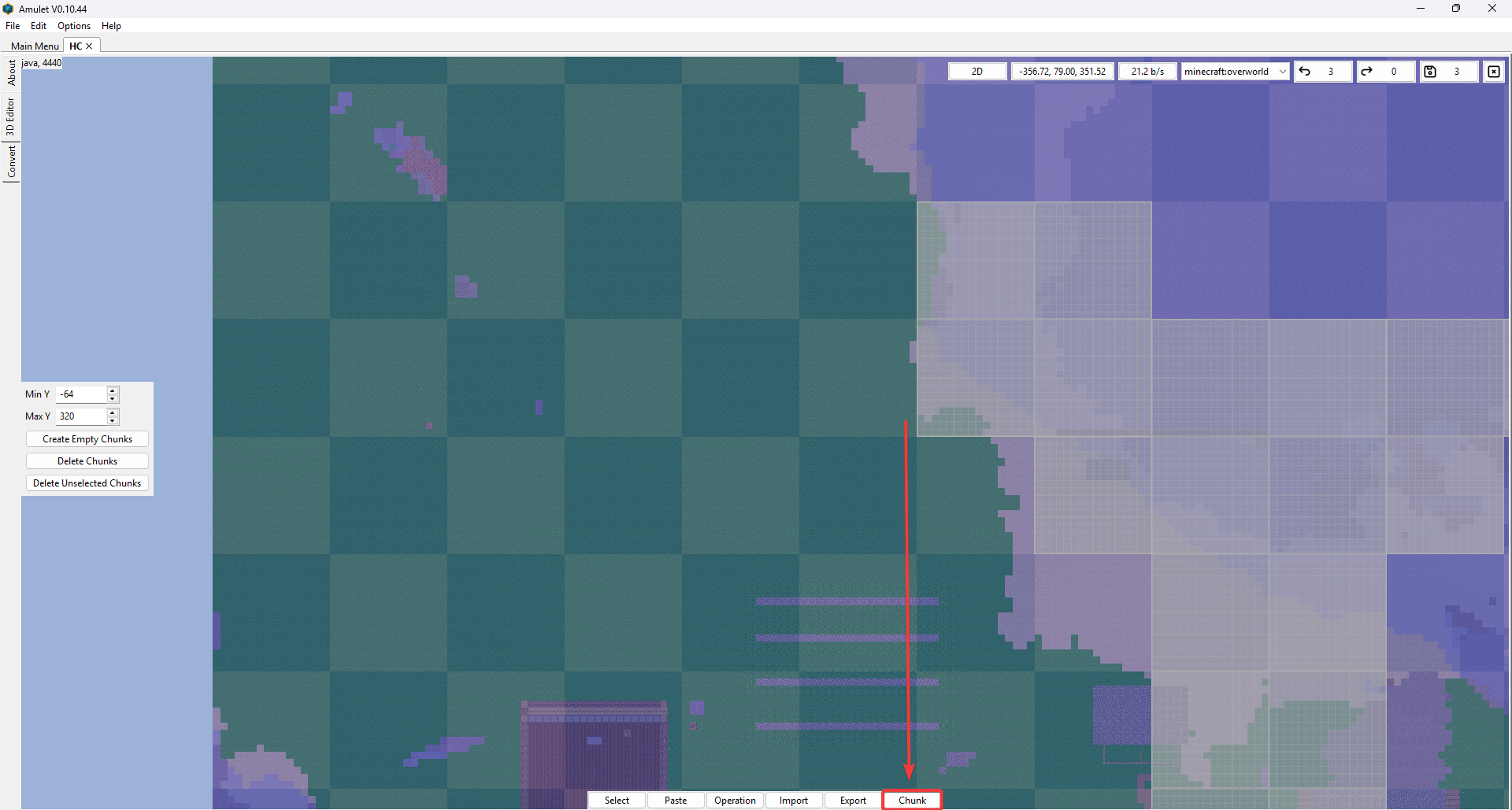
- Select the "Chunks" button at the bottom of AmuletMC to change the selection mode to chunks instead of individual blocks.
- Find the chunks that you want to reset.
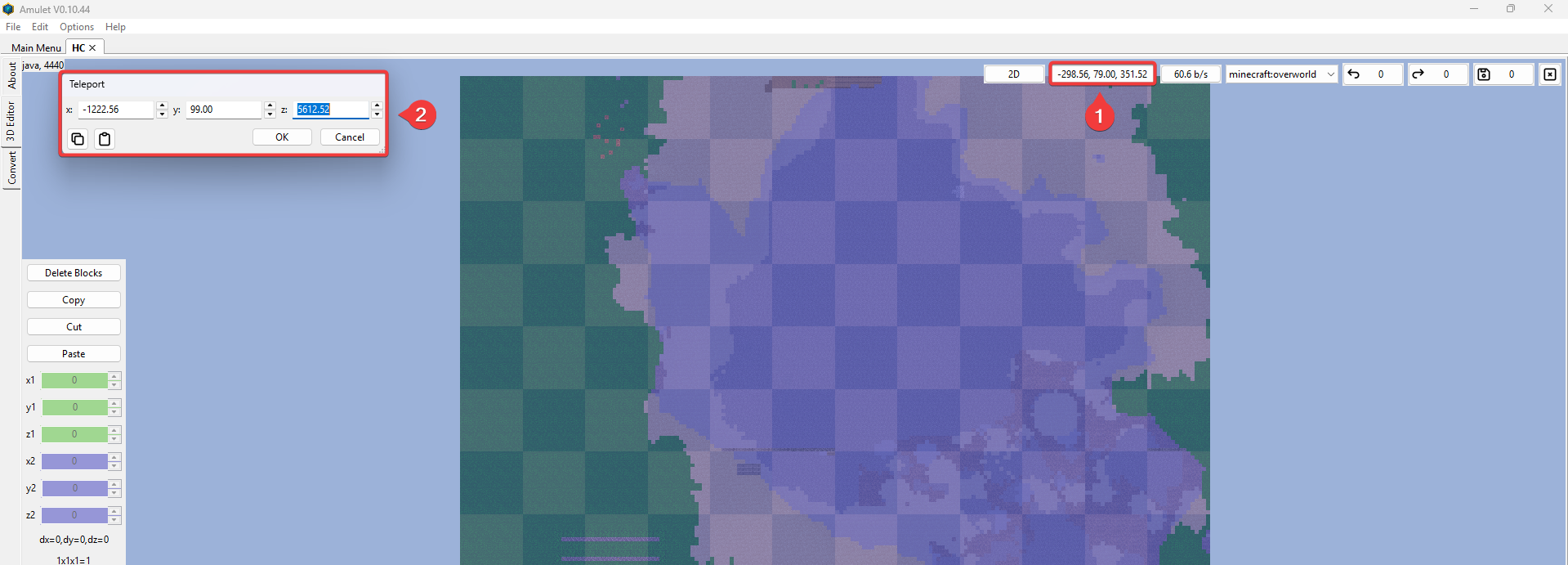
You can navigate the 2D editor by editing the coordinates in the box at the top of AmuletMC, by pressing the WASD keys to move around the world, and by using the scroll wheel on your mouse to zoom in or out.
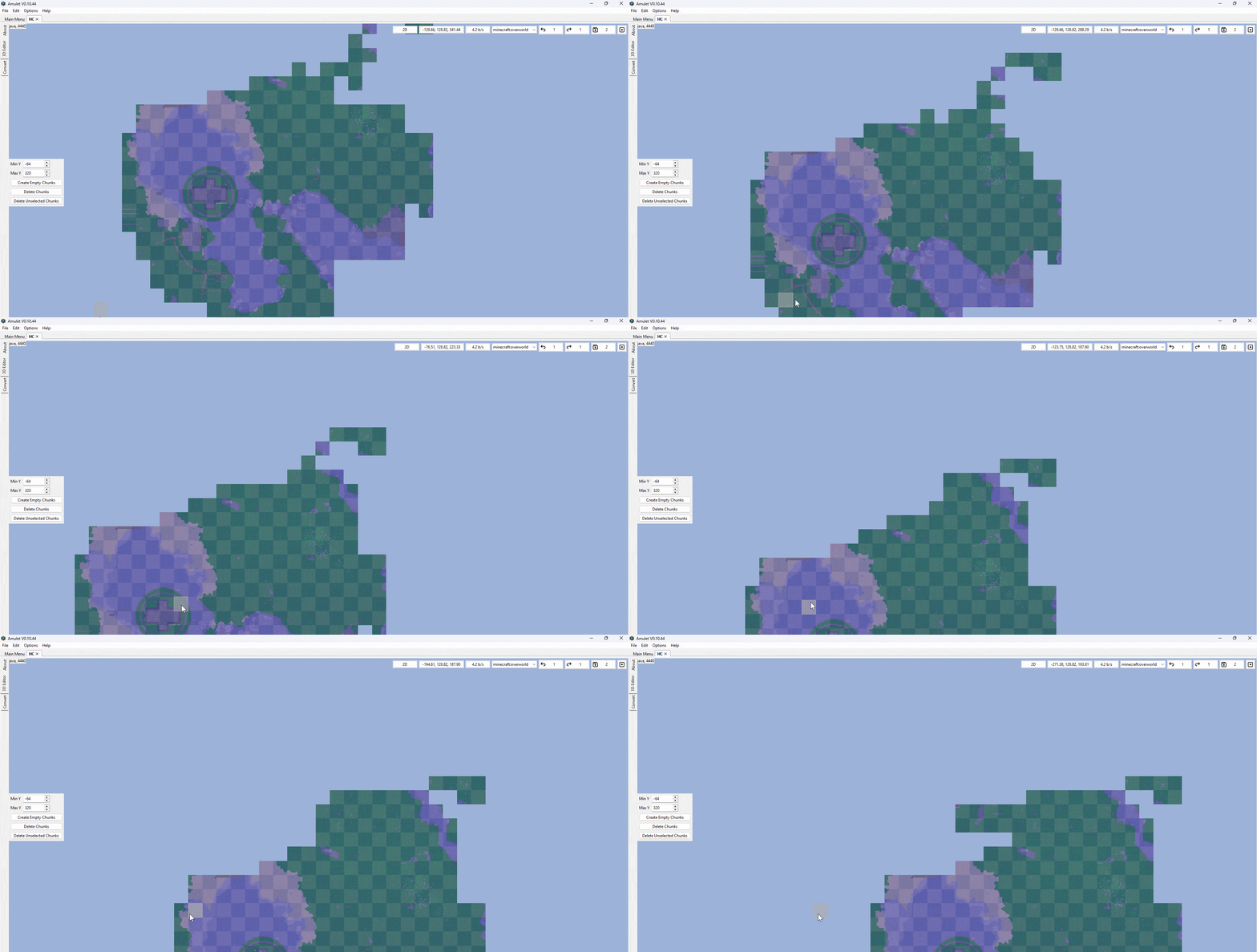
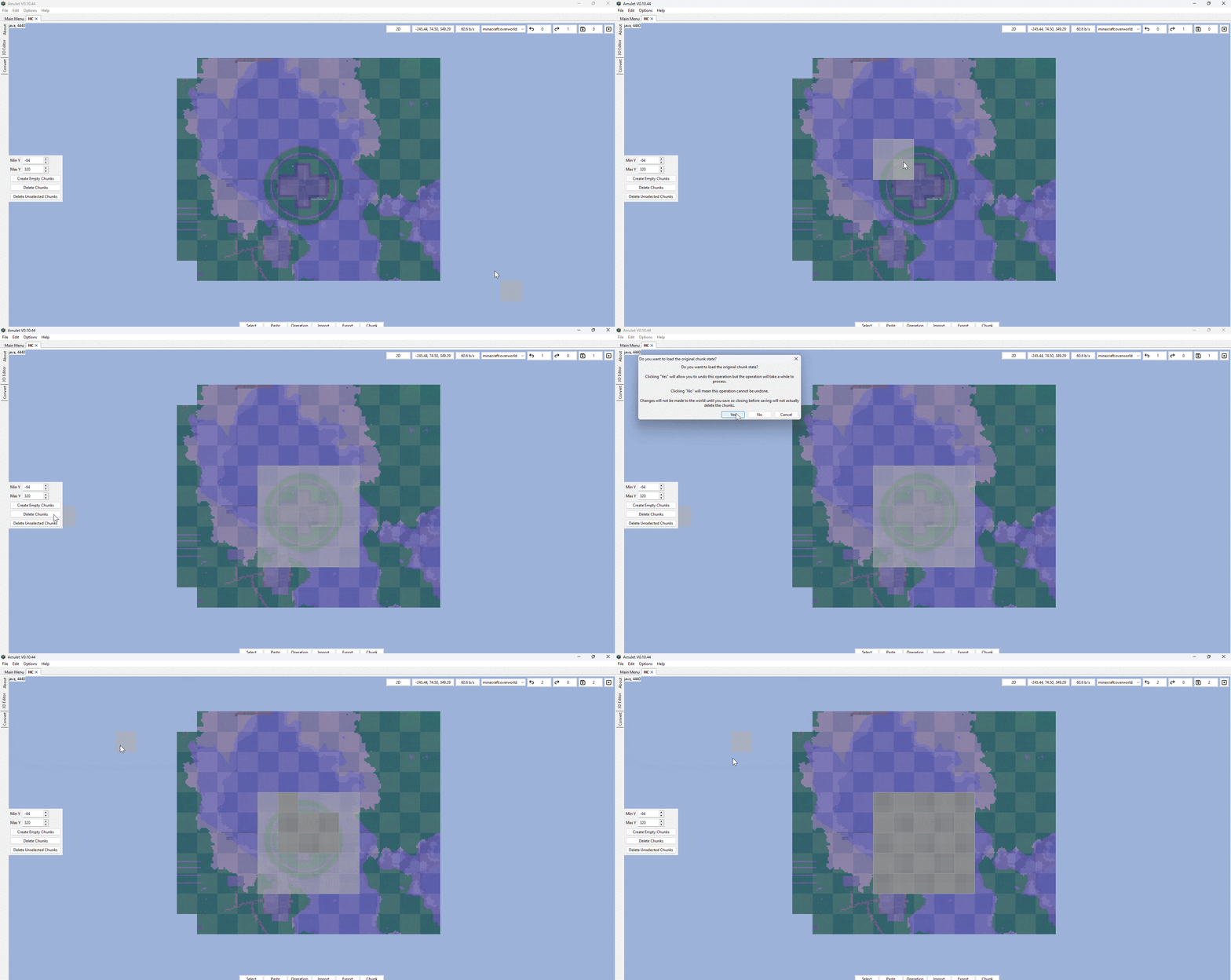
- Select the chunks that you want to reset, then select the "Delete Chunks" button, and select "Yes" to confirm.
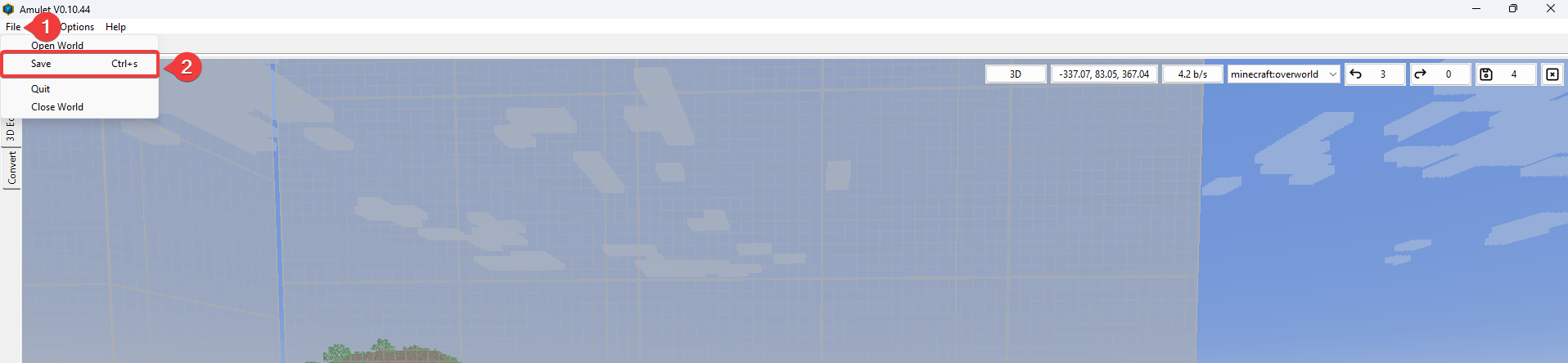
- After the chunks are reset, open the "File" tab at the top-left of AmuletMC and select Save.
#Uploading the world back to your server
-
Reupload the edited world folder back to your server.
-
Start your Server. Once started, it will regenerate the chunks that were reset.
If you run into any issues or have any questions, please contact our support team at: https://shockbyte.com/billing/submitticket.php