Table Of Contents
Enabling Cross-Map ClusteringStill have questions?
Come chat with us and we will get back to you as soon as possible!

Shockbyte
Support Team

How to Enable Cross-Map Clustering on your Soulmask Server
This guide explains how to enable cross-map clustering on your Soulmask server. Clustering allows you to link multiple servers together, enabling players to travel between different maps using the in-game Stargate portal for a seamless multi-map experience.
The steps below will walk you through configuring clustering correctly so players can move between servers without issues. For additional technical details, you can also refer to the official developer guide here: Soulmask Server Cluster Guide.
#Enabling Cross-Map Clustering
To configure this, you will need two active servers, one for each map. The main server (Cloud Mist Forest) should be set with a Server ID of 1, while the secondary server (Shifting Sands) should use Server ID 2 and connect to the main server using its internal cluster address (IP:CLUSTER_PORT). Both servers must have Cross Server Mode enabled and share the same password to allow two-way travel between maps.
Important
You must have 2 servers in order to enable cross-map clustering. Both servers must also share the same password.
Main Server
-
Access your Control Panel and Stop your server.
-
Navigate to the Config tab, search for the
Cross Server Modesetting and enable it. You will need to do this for BOTH servers.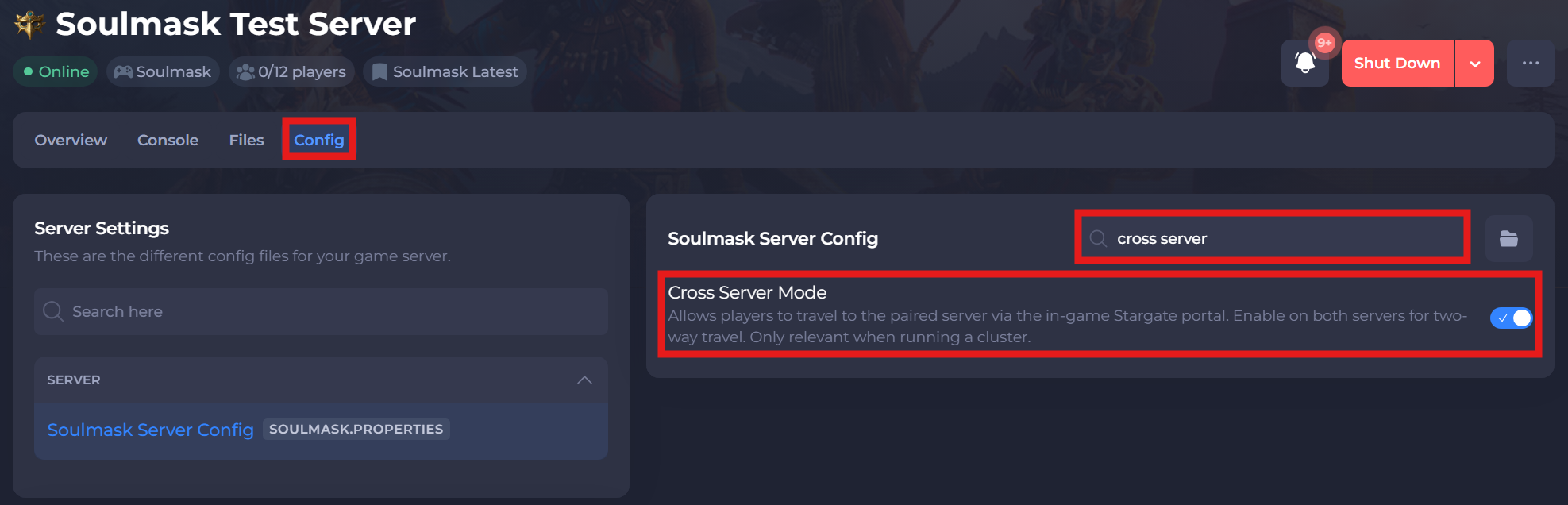
-
Search for the
Server IDsetting in the same Config area, and if this is your "main" server, ensure this value is set to1.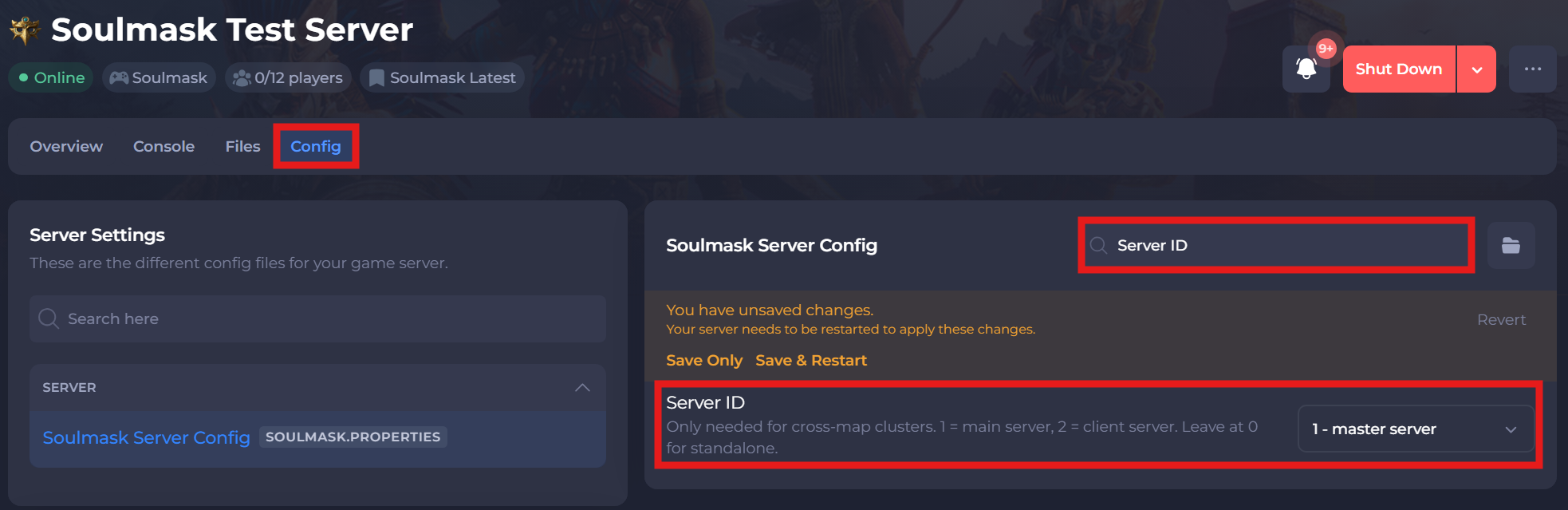
-
Save and restart your server to ensure the new changes apply.
Second Server
-
Access your Control Panel for your second server and Stop the server.
-
Navigate to the Config tab, search for the
Cross Server Modesetting and enable it. You will need to do this for BOTH servers. -
Search for the
Server IDsetting in the same Config area, and since this will be your "second server", ensure this value is set to2.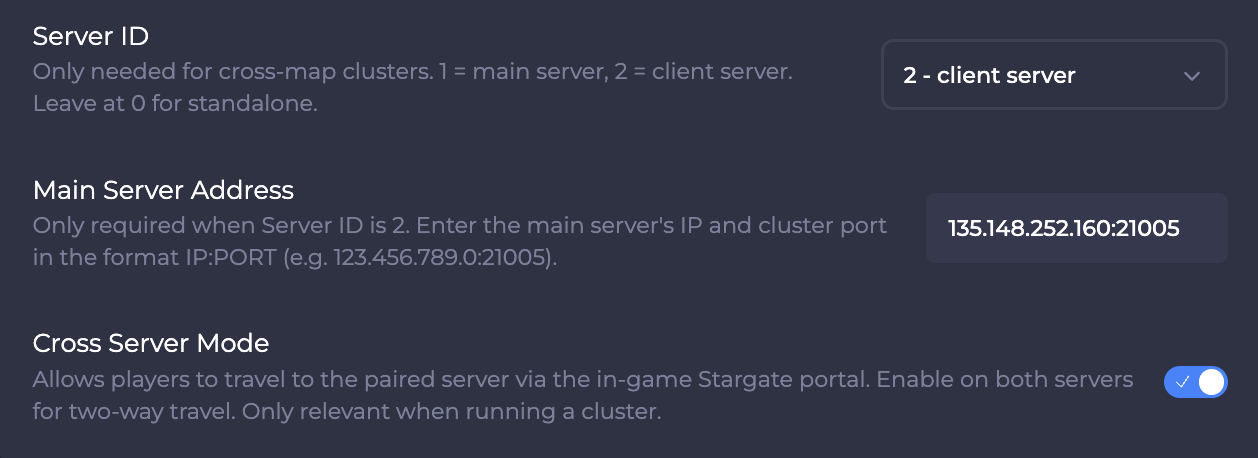
-
Locate the
Main Server Addressand enter the main server's IP and cluster port in the formatIP:PORT(e.g. 123.456.789.0:21005). This cluster port can be found in thePortsarea of your control panel.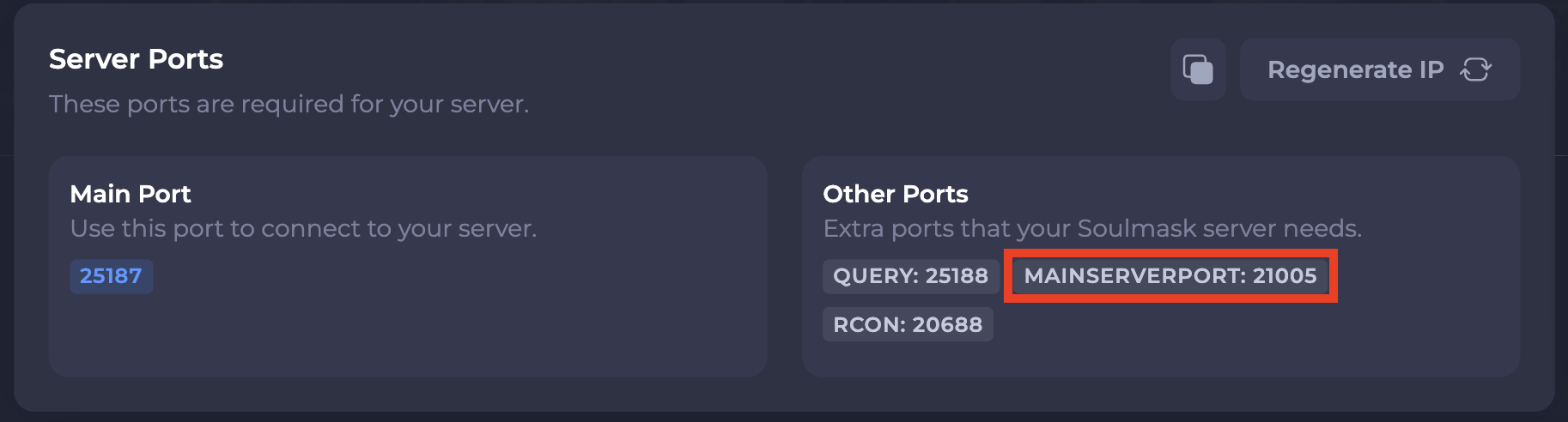
-
Save and restart your server to ensure the new changes apply.
If you require any further assistance, please contact our support at: https://shockbyte.com/billing/submitticket.php